Guide
Add the notaries you work with
Put the notaries your company sends work to on your desk — by the order link they give you, by an invitation from us in your company's name, or by finding one near the signing.
Notaries, on your desk, is your company's list of the notaries you work with — who can take an order now, what each one has done for you, and what they've chosen to share. Everyone on your desk sees the same list and can send any of them an order.
A notary is on your list only with their say-so: they gave you their order link, they said yes to your invitation, or you sent an order to one you found. There are three ways to add one.
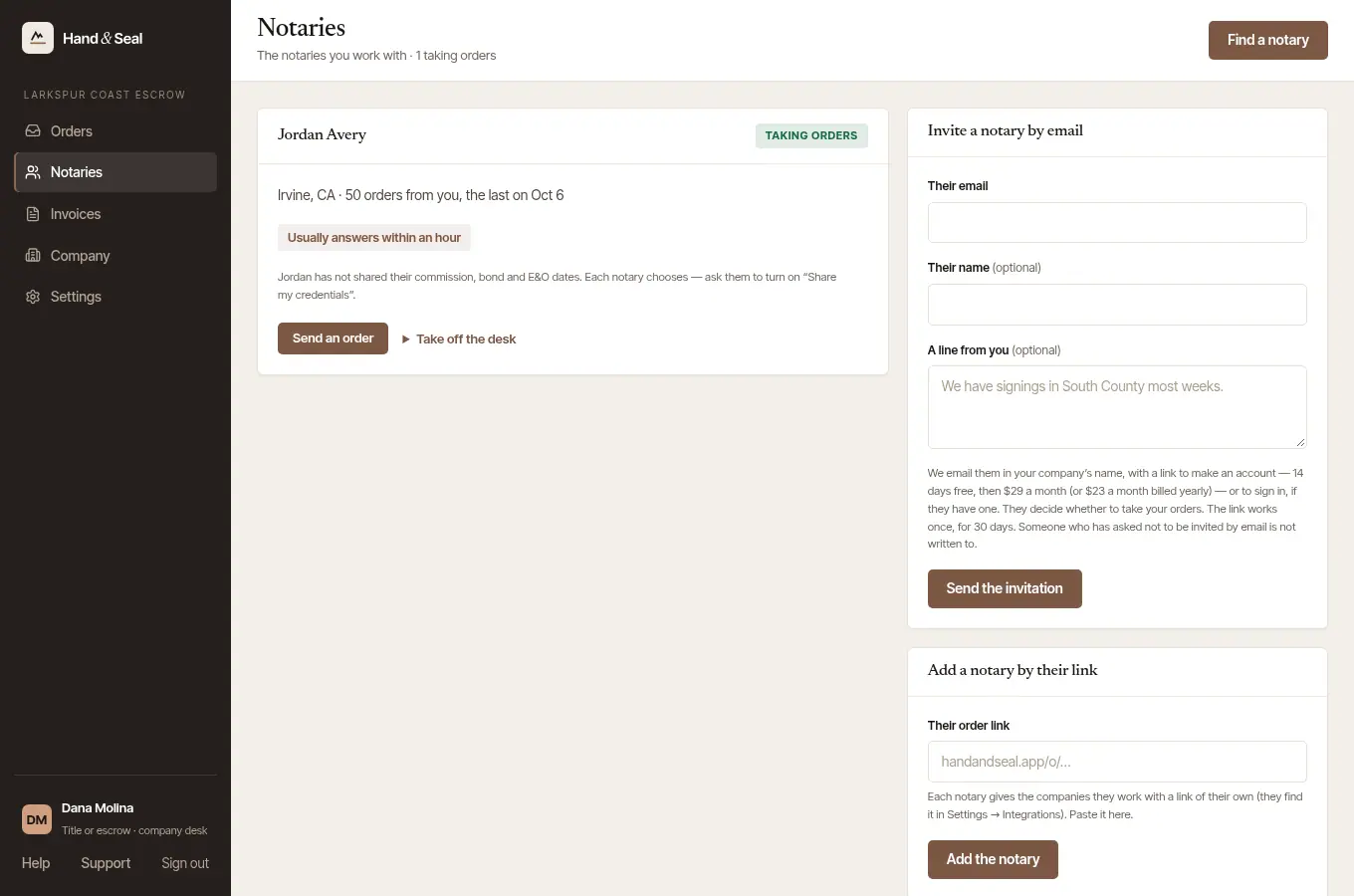
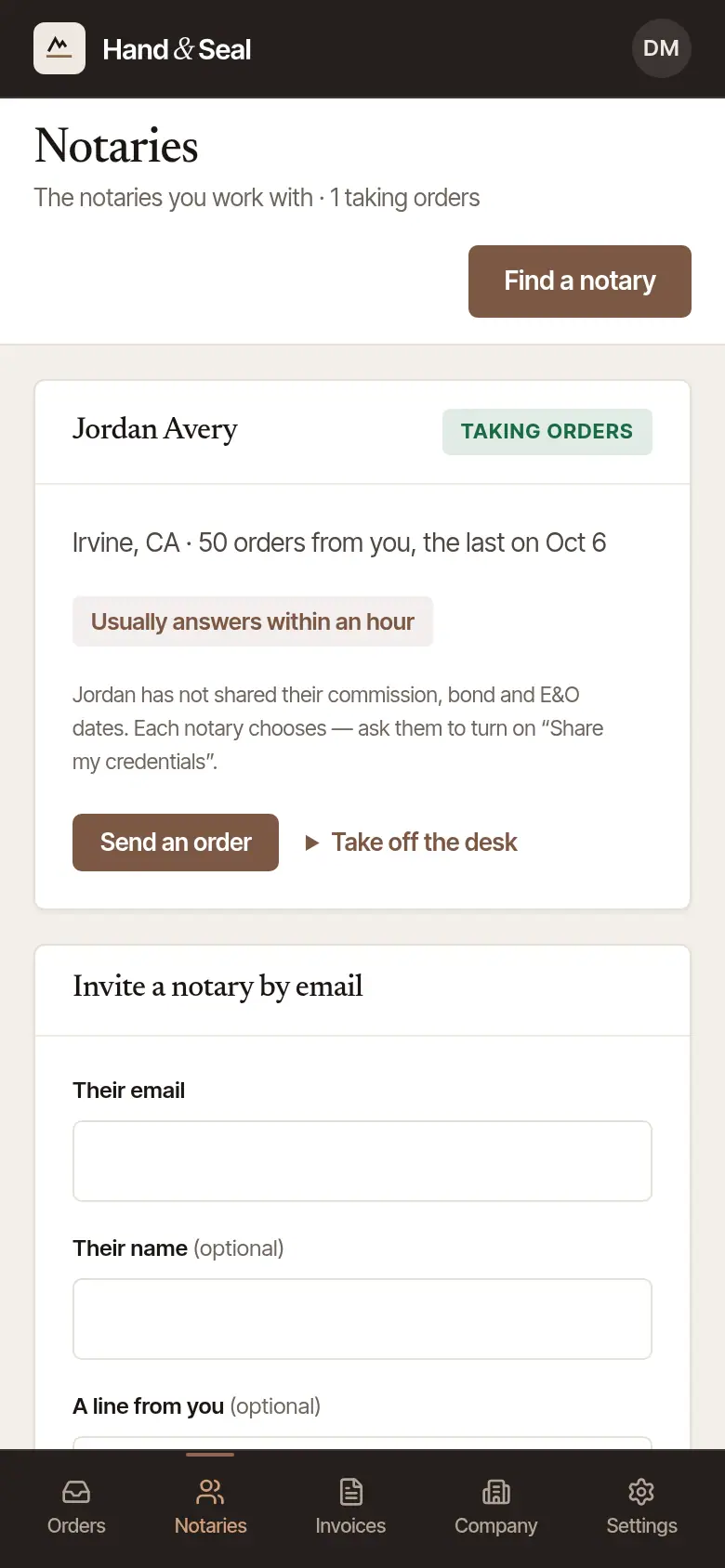
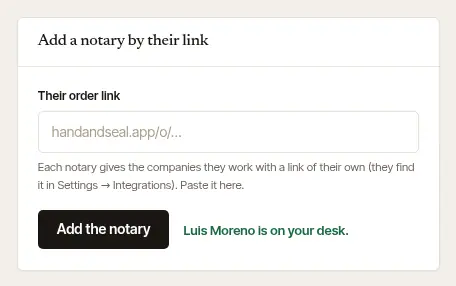
Add a notary by their order link
Every notary on Hand & Seal has an order link of their own — it looks like handandseal.app/o/ and 24 letters and numbers. Many send it to the companies they work with; ask them for it if you don't have it.
Open Notaries. On a phone, tap Notaries at the bottom.
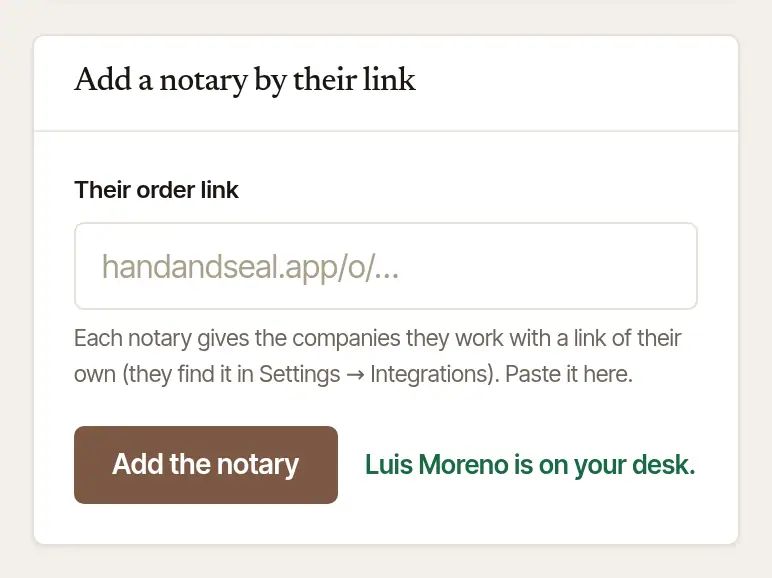
Paste the link. Under Add a notary by their link, paste it into Their order link.
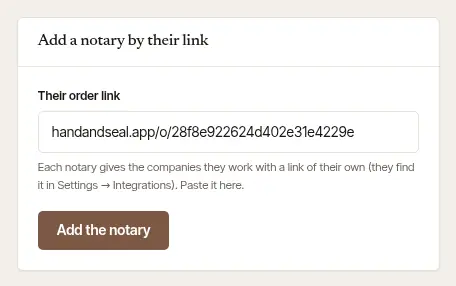
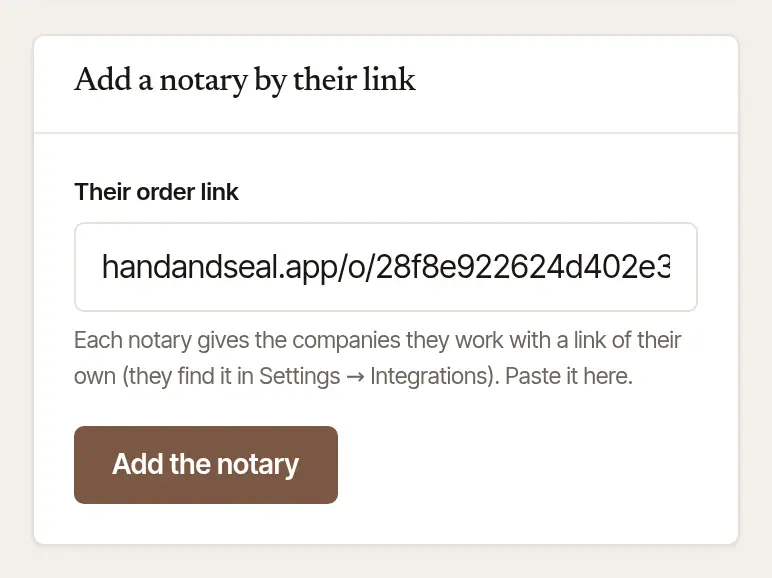
Choose Add the notary. The form says they're on your desk, and their card appears in your list.
A notary's first order can also come through their link itself: an order sent from the link makes your desk and puts that notary on it (see Send your first order).
Invite a notary by email
For a notary who isn't on Hand & Seal yet, or whose link you don't have.
Fill in Invite a notary by email. Their email, and — if you like — Their name and A line from you, which goes in the letter.
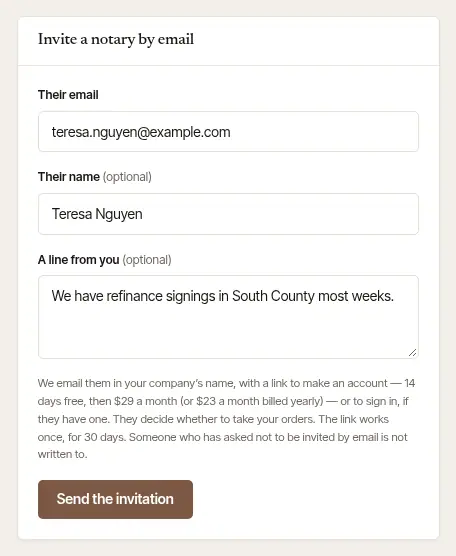
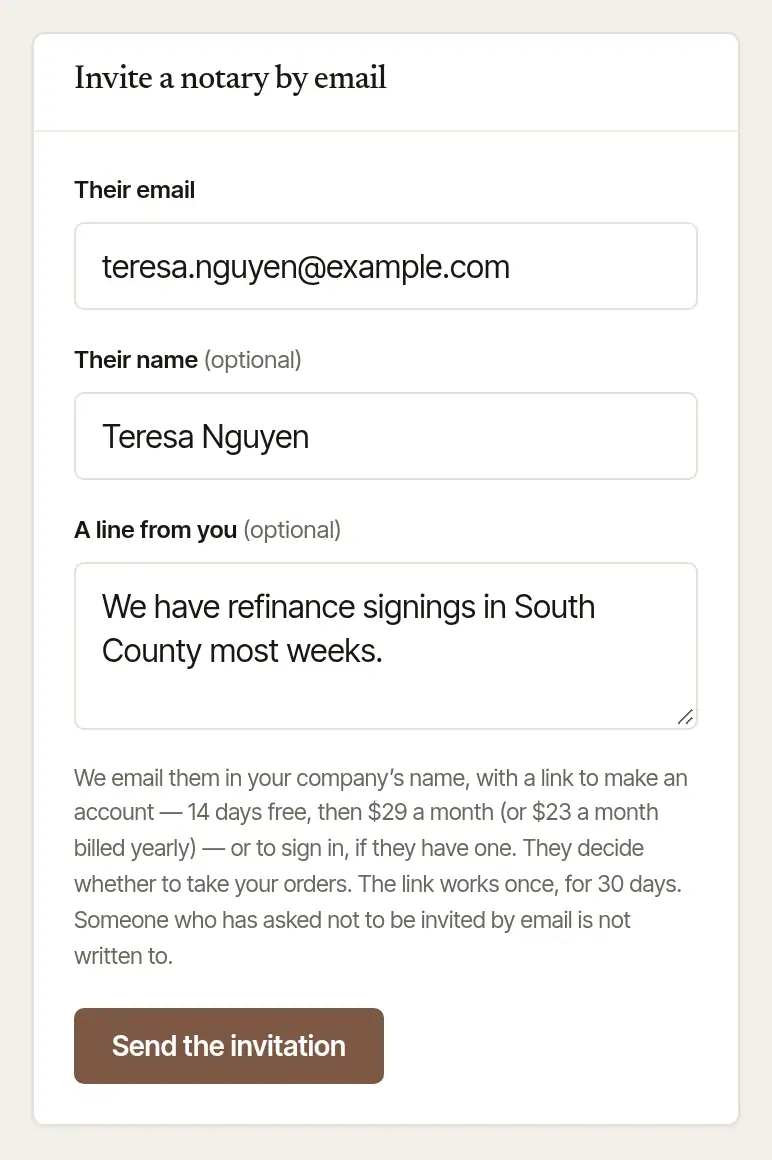
Choose Send the invitation. We write to them in your company's name, with a link to make an account — or to sign in, if they have one. An account is free for its trial and paid for after that; the form says the price, and so does the letter. The link works once, for 30 days, and only for the address you sent it to.
They decide. The link opens a page that says your company invited them to take its orders. Signed in with the address you invited — confirmed, which a new account does from the letter we send it — they choose Add and your company's name — from then on you can send them orders, each one still theirs to accept or decline — or Not now. Nothing is on your desk until they add you; when they do, their card says when they took your invitation.
A new desk's invitations are emailed to five new people in any 24 hours, until a notary we know to be real has said yes to one of your orders herself, or done its signing — for as long as that order stands and you and she each keep the other on your lists — or we lift the limit when you ask on Contact support. An order accepted for her by “Say yes for me” counts once its signing is done; a signing nobody came to isn't one. Past those five an invitation is still made, and isn't emailed: the form says so, and shows its link for you to hand over yourself, which emails nothing. While sign-up is by invitation, that link doesn't make a new account — it's for a notary who has one already; once Email it sends it, the new link makes an account too. Anyone you've written to before, the people on your team and the notaries on your list — at an address they've confirmed — are never held. While our team has paused your desk's invitations, none is made.
The invitation is for that address and nobody else: whoever else has the link can't make an account with it or answer it, so only the notary you wrote to comes onto your list. A notary who uses a different address is told the invitation was sent to another one. Invite the address they use — or ask for their order link, and add them by it.
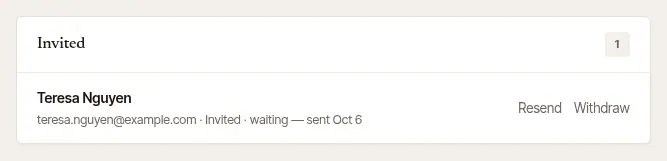
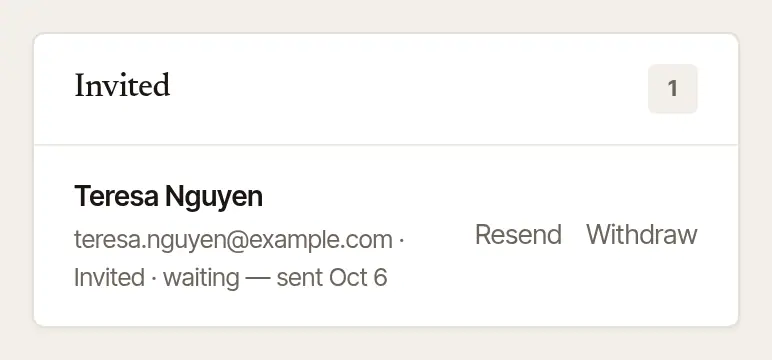
While you wait, Invited lists each invitation and where it stands. Resend sends it again with a new link (the one before stops working); Withdraw takes it back. One that wasn't emailed — held, or turned away by the mail service — says Not emailed, with Email it to send it once a place is free. An invitation the notary answered “not now” says so, with Clear to take it off the list.
Your own email address must be confirmed before an invitation can go, since it goes out in your company's name. Invitations to notaries and to your colleagues share one daily allowance for each desk; the form says when it's used up.
A notary can ask not to be invited by email at all — every invitation says how. If the address you type has asked that, the form says That address has asked not to be invited by email. and nothing is sent. Ask them for their order link instead, and add them by it.
Find a notary near the signing
Don't know a notary there? Find a notary, at the top of Notaries, lists the notaries who travel to the signing and take orders from companies. Send one an order, and they join your list as it goes. See Find a notary for a signing.
What each card tells you
Each notary on your list has a card with:
- Taking orders — you can send them an order now. Not now means something is in the way, and the card says what: their order link has changed (ask them for the new one), they're not taking orders through the platform at the moment, there's no current commission on file, they take orders only from companies they've already worked with, or they're not taking orders from your desk.
- Where they work, how they came onto your desk, and how many orders you've sent them.
- Any badges they've earned for keeping their signings — never a miss (see Check a notary's commission, insurance and W-9).
- Their commission, bond, insurance and certification dates, and their W-9 — when they've chosen to share them with you.
- Send an order, which opens a new order with them chosen.
Take a notary off your desk
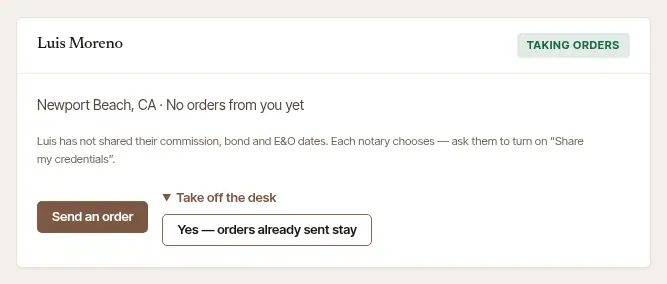
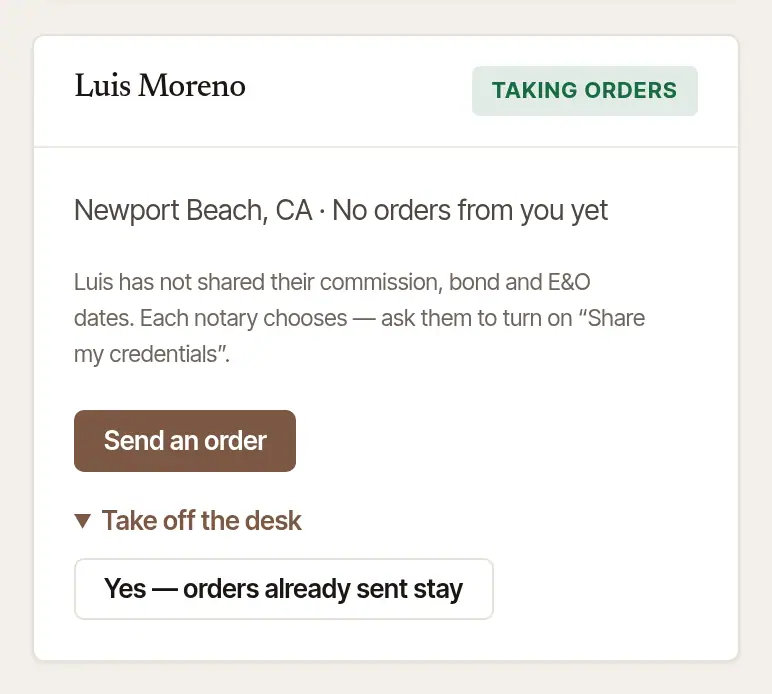
On their card, open Take off the desk and choose Yes — orders already sent stay. They leave your list; the orders you've already sent them stay on your desk, with their history, and a notary who has had orders from you still shows in the list — without Send an order. To work with them again, add them by their link.
Good to know
- A notary who makes a new order link retires the old one. Their card then says Their order link has changed — ask them for the new one; paste the new one under Add a notary by their link, and they're taking orders from you again.
- A notary can take a company off their own list too, from their settings. They're never added to a desk without having handed it their link, said yes to its invitation, or taken one of its orders.
Was this helpful?
Still stuck? Contact support — a person reads every message and answers by email.