Guide
Send your first order
How a title, escrow, lending or law office sends a notary a signing — through the notary's order link or from your desk — and follows it to the signature.
An order sends one signing to one notary, who accepts or declines it. You follow it on a page of its own — accepted, on the way, signed — with your messages to the notary and, afterwards, their invoice.
Orders are sent from your company's desk: your own login, free for companies, with every order you send to any notary in one place. There are two ways to start:
- A notary gave you their order link. Your first order through it makes your desk as it goes.
- You have a desk already. Sign in and choose Send an order.
Before desks open to every company
Until Hand & Seal opens desks to all companies, a desk is made through a notary's order link — which always works — or from an invitation (an early-access invitation, or a colleague's). The desk sign-up page says Coming soon until then, with Get early access for your company.
From a notary's order link
Open the notary's order link. It opens a page that says Send and the notary's name, then a signing order. If your company has a desk already, choose Sign in in the note at the top, and the order is sent from your desk: the form starts from your desk's usual settings, and what your desk says on every order goes with it.
Fill in The signing. The Day and Time (the notary's local time), Where the signers will be, ending with its ZIP code — that is how the address is checked against the notary's commission; without one, its town and state will do where we can tell the state from them (a neighborhood, or a town the form doesn't know, needs its ZIP). A note, or another address such as a c/o, goes in Instructions. Then What it is, how The documents reach the notary, and Who is signing — two signers, and A third or fourth signer for more, up to four, and the first signer's phone if the notary should confirm the time with them. Then the Fee you offer (leave it blank and the notary's own fees price it; on your desk, it starts from your usual fee for that kind of order), Pages to print when the documents are emailed, File no. (your file or escrow number), Scan the signed set back before shipping if you need scan-backs, and any Instructions.
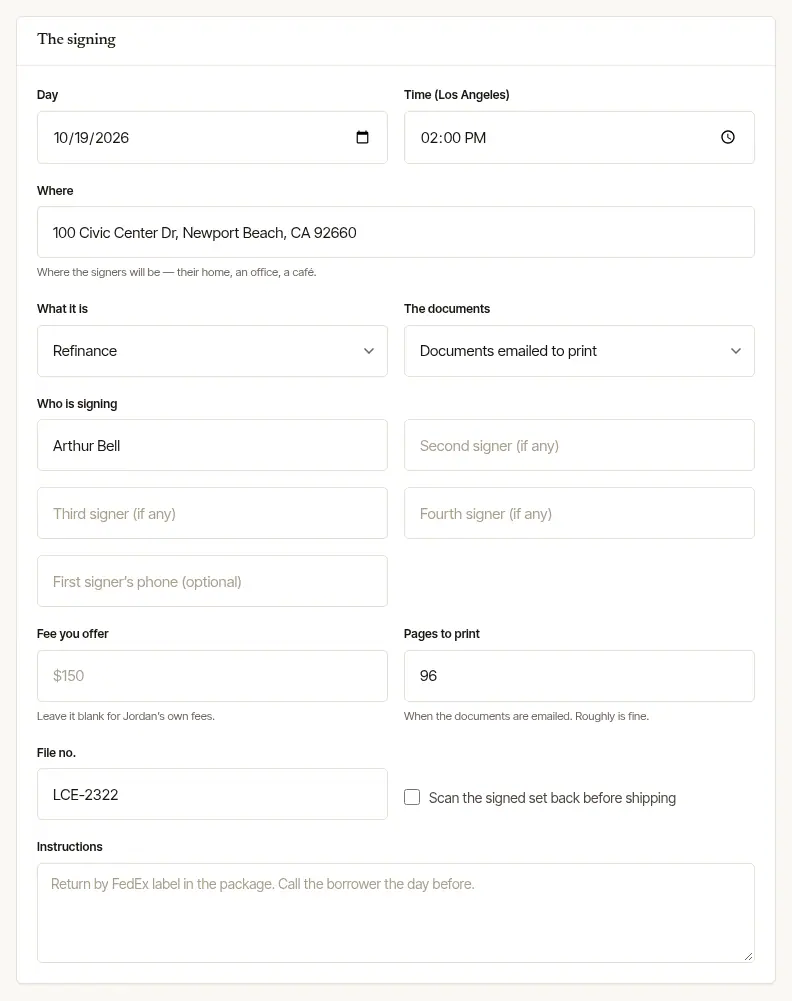
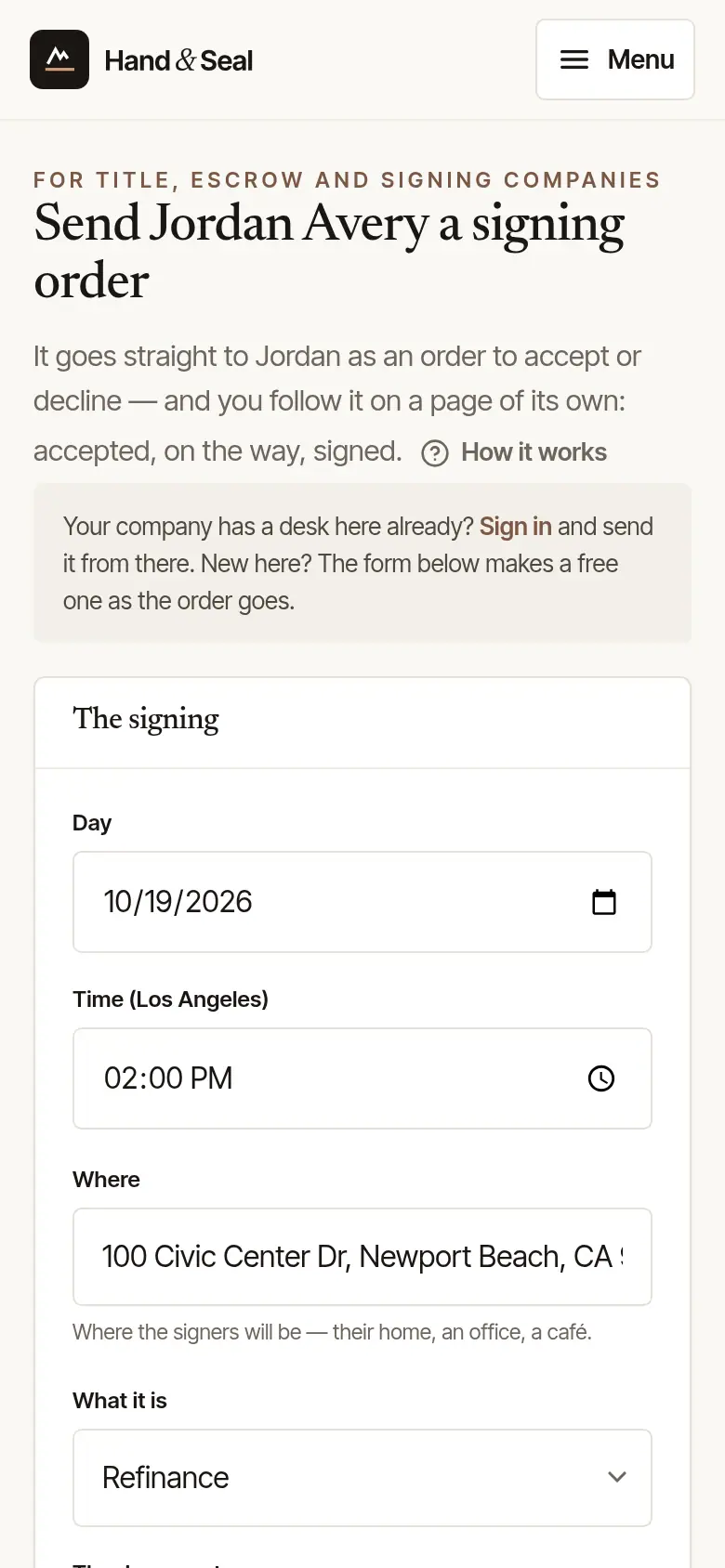
Fill in Your company's desk, and send. Where you work, Your name, your Work email (the notary's answer comes there, with the order's link), a Phone if you like, and a Password of at least 10 characters. Then choose Make the desk and send the order to the notary.
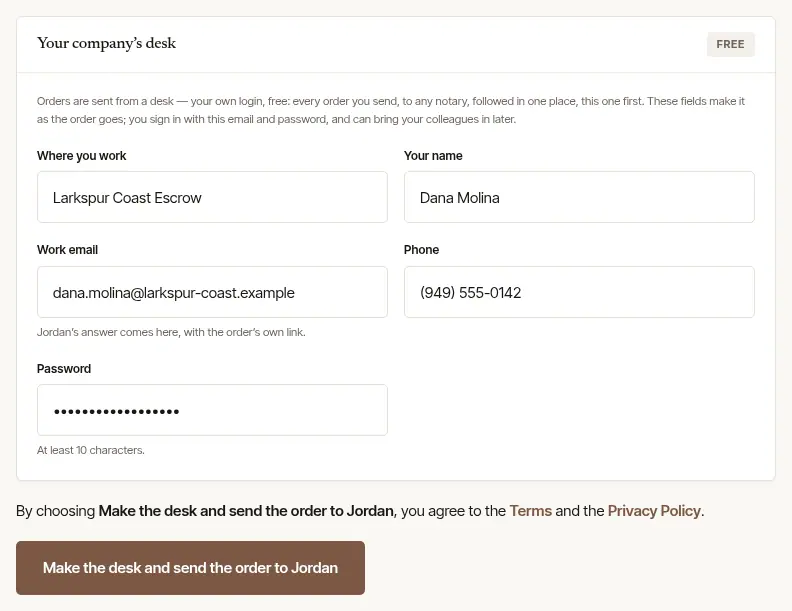
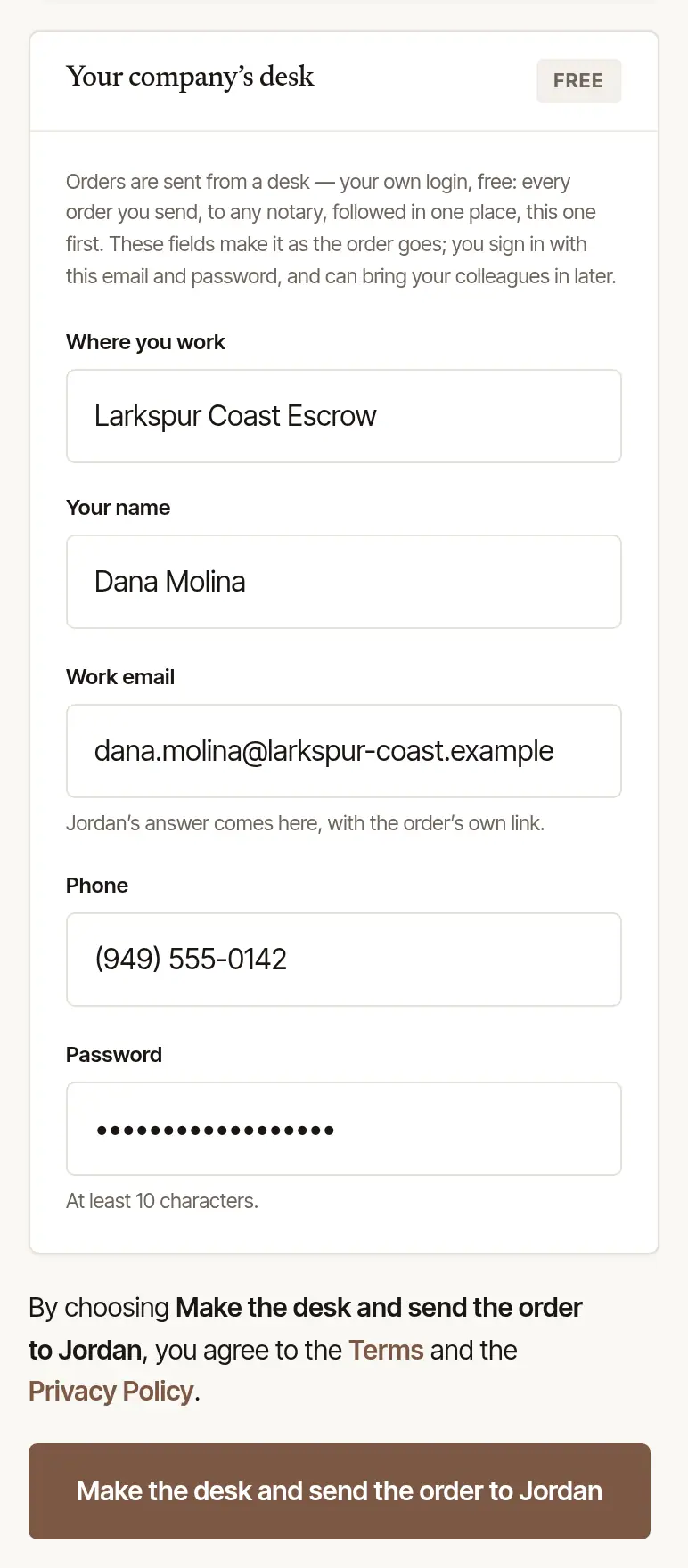
The order goes to the notary, your desk is made, and you land on the order's own page. The notary is added to your desk's notaries, so the next order can come straight from the desk. Confirm your email address from the letter we send: the desk asks until you do.
Good to know
No documents, ID numbers or loan details go in the order form — send those the way you always do, or seal them on the order's page (below). Nothing is paid through the form.
From your desk
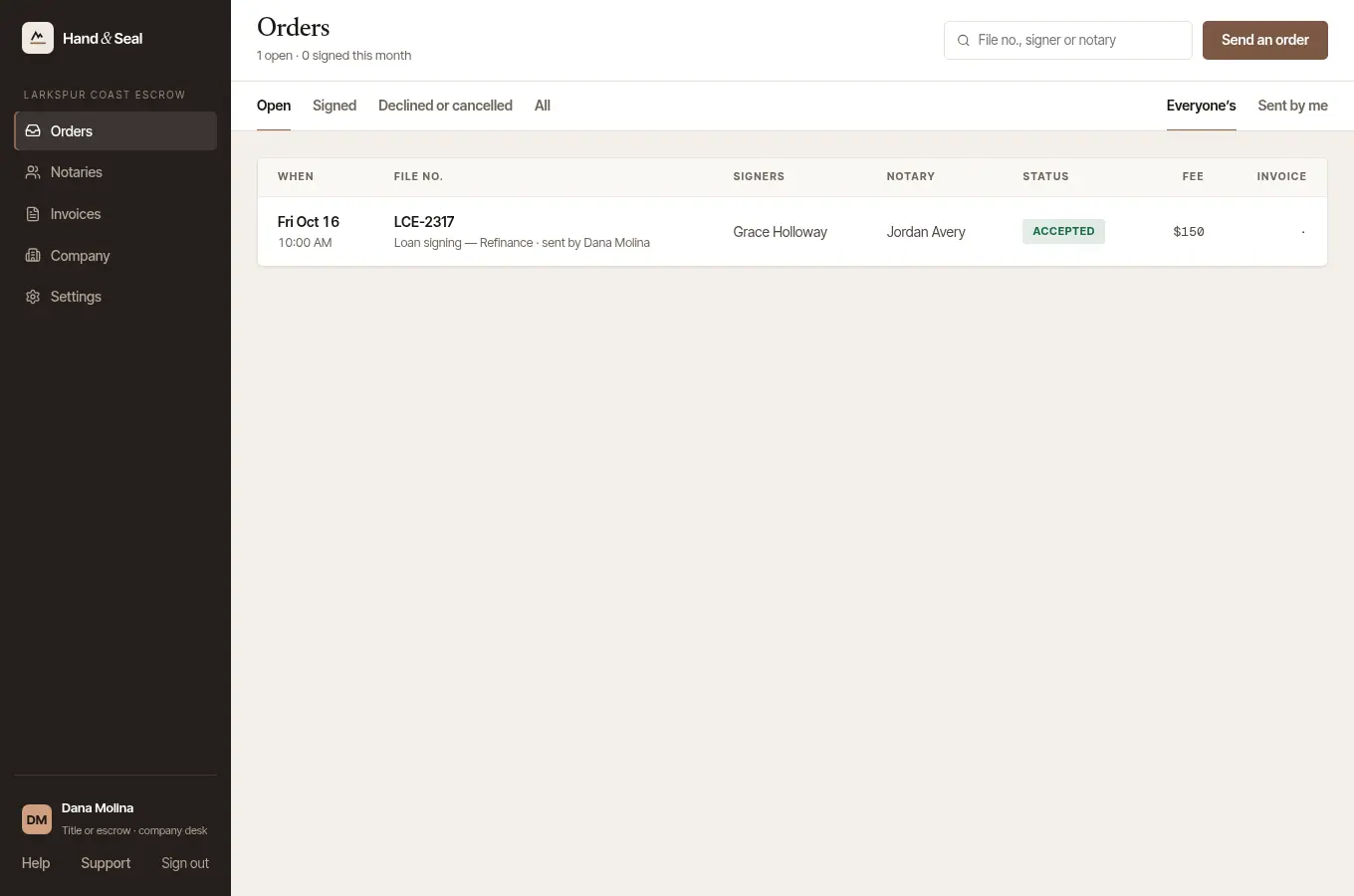
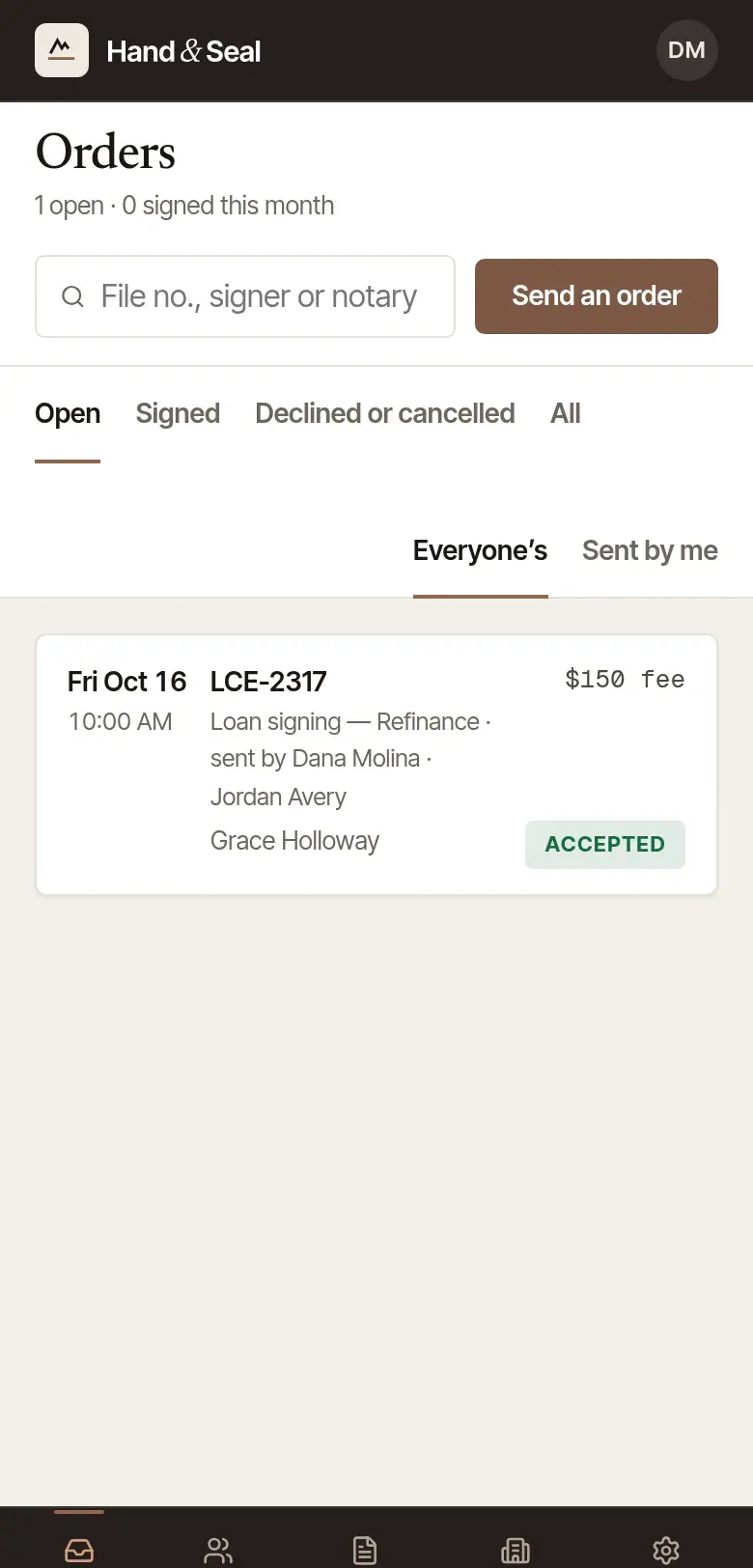
Open Orders and choose Send an order. Orders lists every order your desk has sent, to any notary, with where each one stands. Open, Signed, Declined or cancelled and All sort them; Sent by me shows only yours.
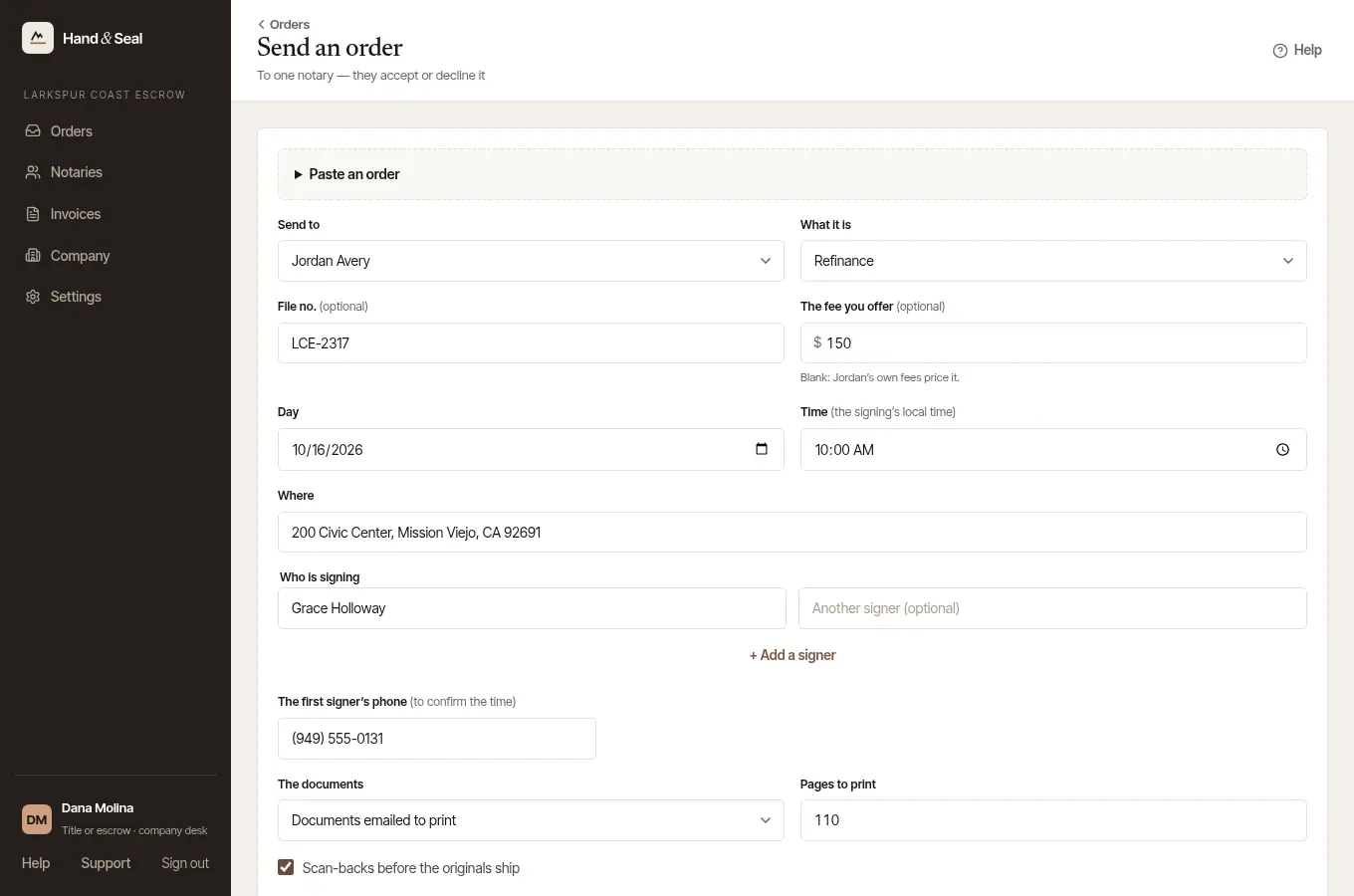
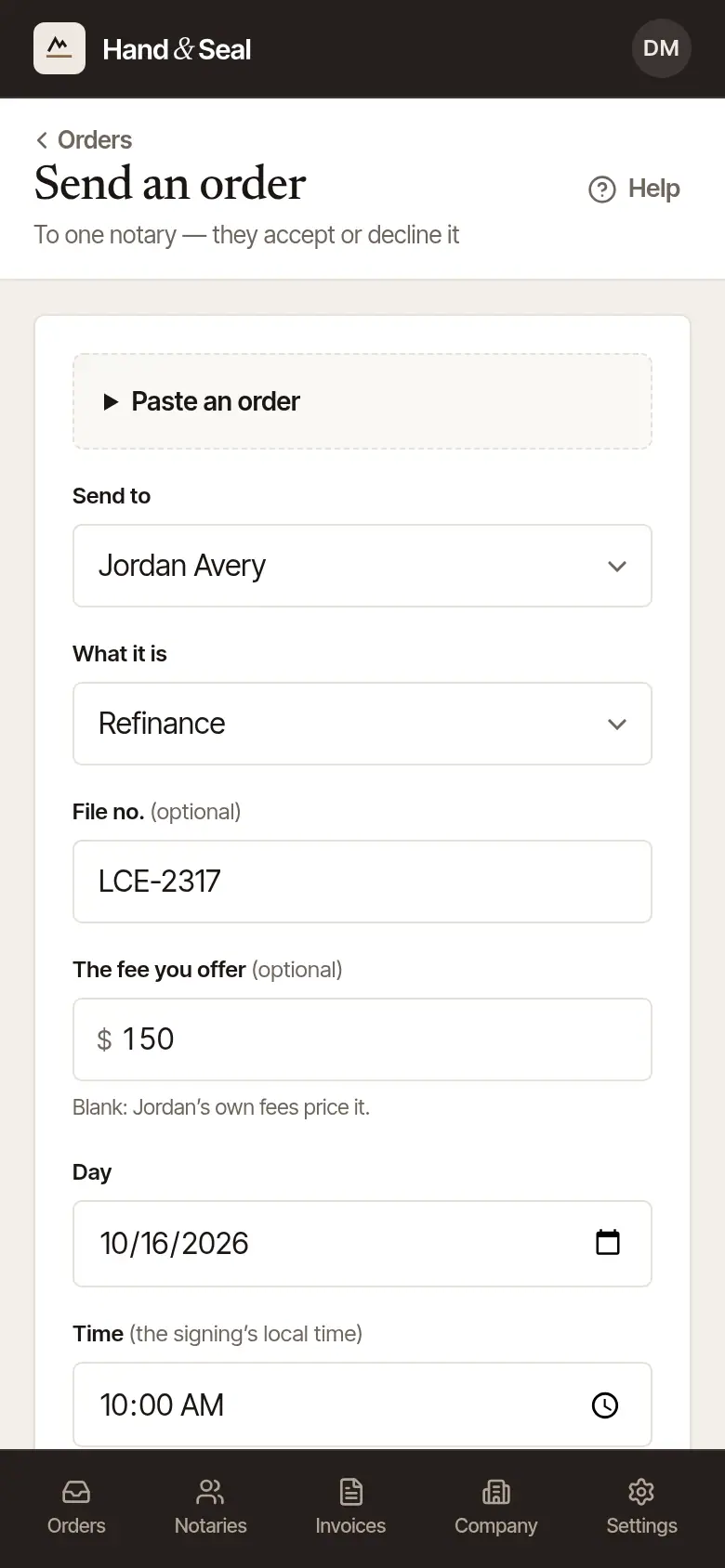
Choose the notary in Send to. The notaries on your desk who are taking orders are listed, each with their town when they have named one. The order goes to that one notary, who accepts or declines it.
Not there yet? On Notaries, choose Invite a notary by email, or paste their order link under Add a notary by their link — or choose Find a notary to find a listed notary who travels to the signing (they join your notaries once the order is sent).
Fill in the order. What it is; your file number (File no. — a lender's desk says Loan no., a law office's Matter no.); The fee you offer (blank: the notary's own fees price it); the Day and Time — on the clock the form names beside Time, the notary's own, which an order to them is read on; Where, ending with its ZIP code — or, without one, its town and state, where we can tell the state from them — as on an order link; Who is signing (+ Add a signer for more) and The first signer's phone; The documents and Pages to print; Scan-backs before the originals ship or Witnesses needed, where your kind of company has them; and Instructions. When the notary shares their credentials with you, the form says under the Day which dates on their card under Notaries run out before it. Once it has read Where and found a state one of the commissions on their card is for, it gives only that commission's, or, if the order goes under another of theirs, that one's, with its own bond and E&O policy, and their signing agent certification and background check. Until then, and for an address anywhere else, it gives every such date on their card, each commission's with its state when they have more than one there, and says nothing of which commission the order goes under. An order goes under the notary's commission in the state the signing is in, where they hold one. They may have renewed and not entered the new date yet, so ask them. Of these dates, only a commission's can keep an order from going: an order for a time after the commission it goes under runs out — at the first midnight after its last day anywhere in its state — can't go to them until a renewed one is on file. Already have the order in an email or your own system? Open Paste an order, paste it in, and choose Fill the form. It's read in your browser — check the fields it filled; the order goes when you choose Send.
Name backups, if you like. With more than one notary on your desk, If … can't take it lets you choose a First backup, a Second and a Third, and how long Each has this long to answer. Backups are asked one at a time, in that order — never several at once.
Choose Send to … — the button carries the notary's name.
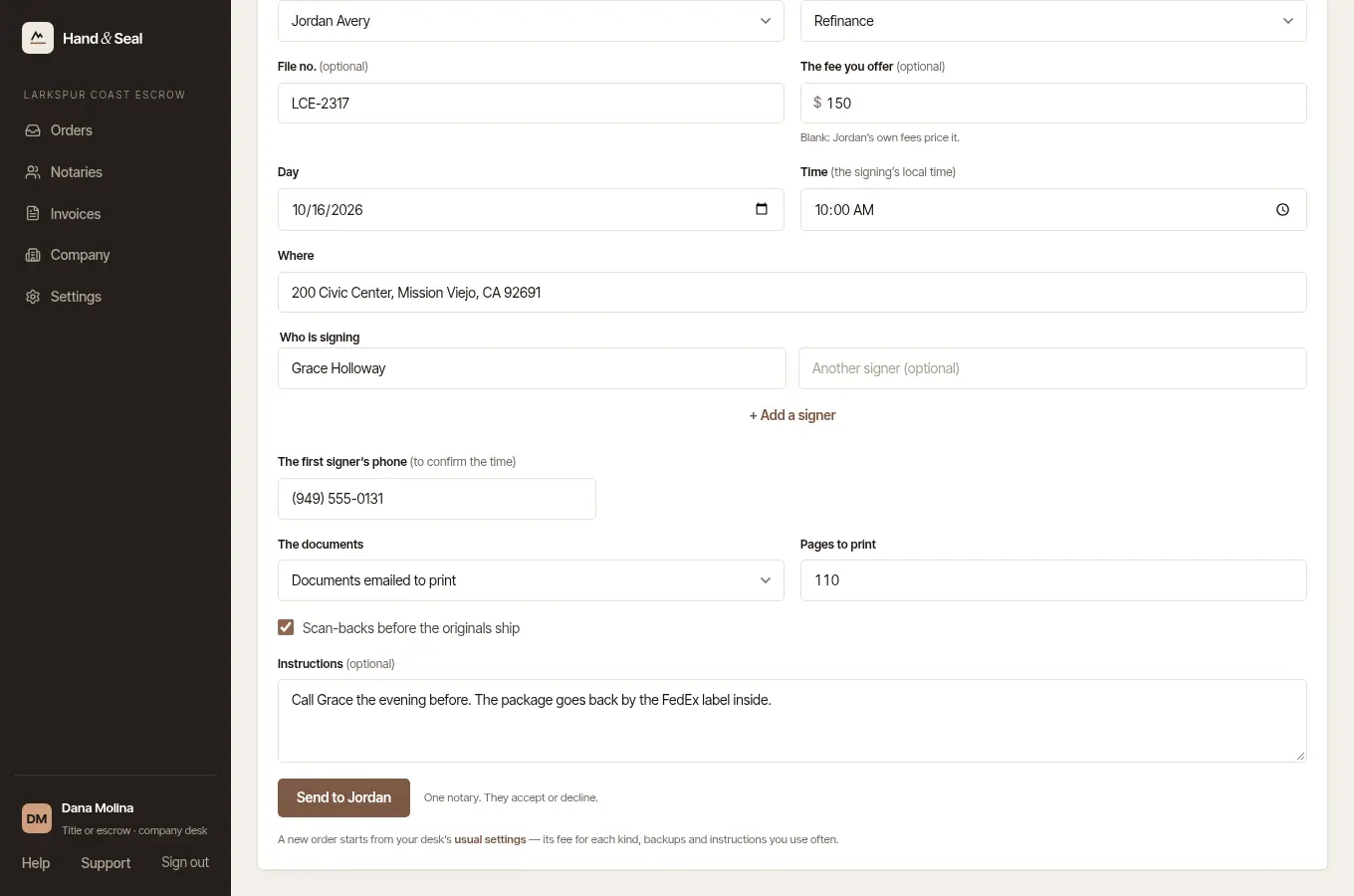
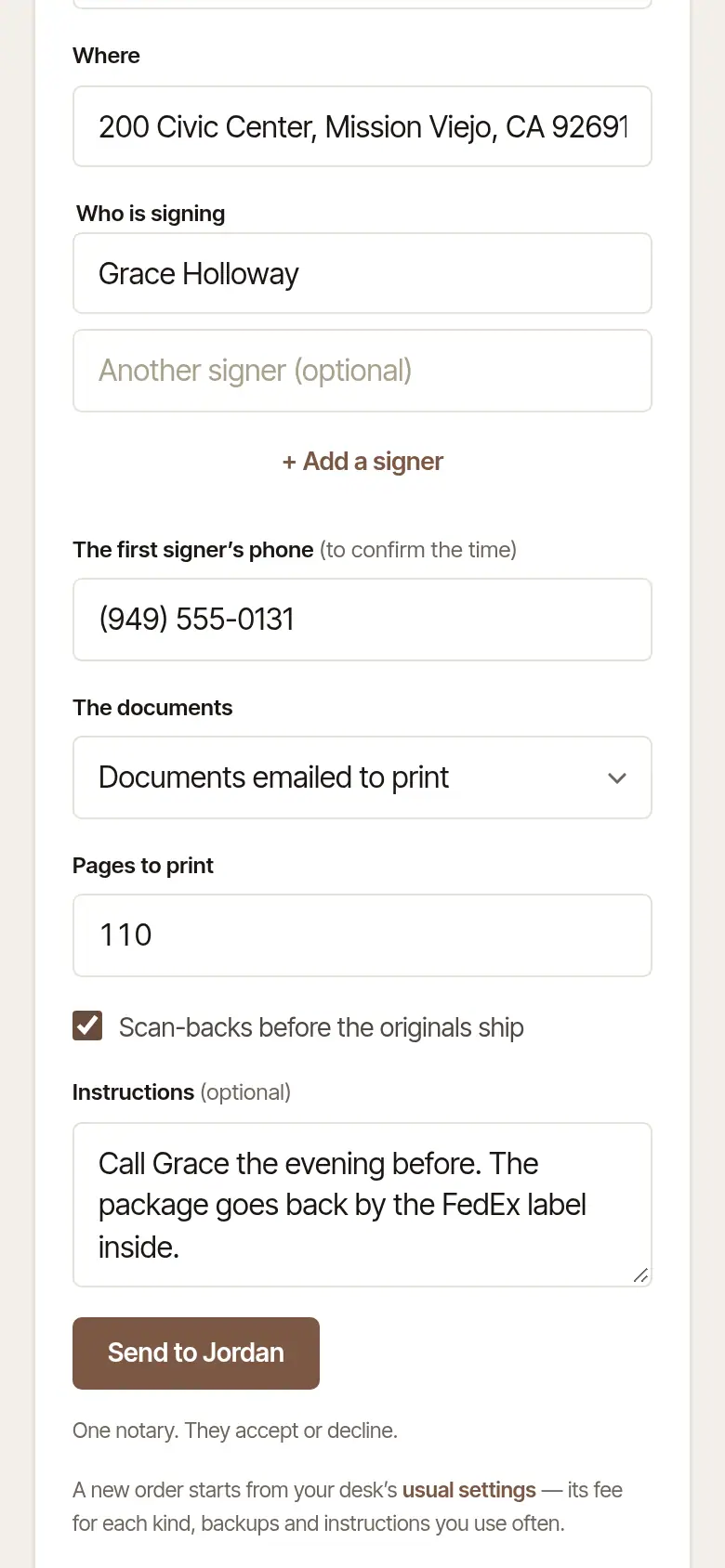
If the same file number is already on an open order — or on one whose backups are still to be asked — the form asks first: Yes, send another, or See the open one. A copy of an order still open, or whose backups are still to be asked, is asked about the same way, with a file number or without one. So is a copy of an order that is over, with its signing still to come — declined, not answered or cancelled — while another order from your desk for the same day, time and address, as written, is open, or its backups are still to be asked: an earlier copy of it, perhaps. A copy is asked about while it still says the copied signing — its file number, one of its signers, or its address with its day and time. Change the file number and the signers, and the place or the time, and it's another signing: nothing is asked. While the notary can still accept it, the form says so — and, for an order sent without backups, until when: send another, and both could be accepted. To send it only to someone else, cancel it with them first.
Good to know
A new order starts from your desk's usual settings — its fee for each kind of order, your backups, and instructions you use often. Set them under Company, in Usual settings. There too, Scan-backs go to — an email address, or your upload link starting https:// — goes with every order that asks for scan-backs: the notary sees it with the order, on the web and on their phone.
Follow it to the signature
Watch the order's page. After your desk's first order, a line at the top says where you are — your company's desk — that the notary is on your Notaries now, and that the next order starts there or at Send an order. It's said on the page your first order lands on. The page shows where the order stands — Asked, Accepted, On the way, Signed — with the time of each step, and looks again by itself while it's open. While it's asked, it says how long the time is held for the notary; if they haven't answered by then, you're emailed, with a way to send it to someone else.
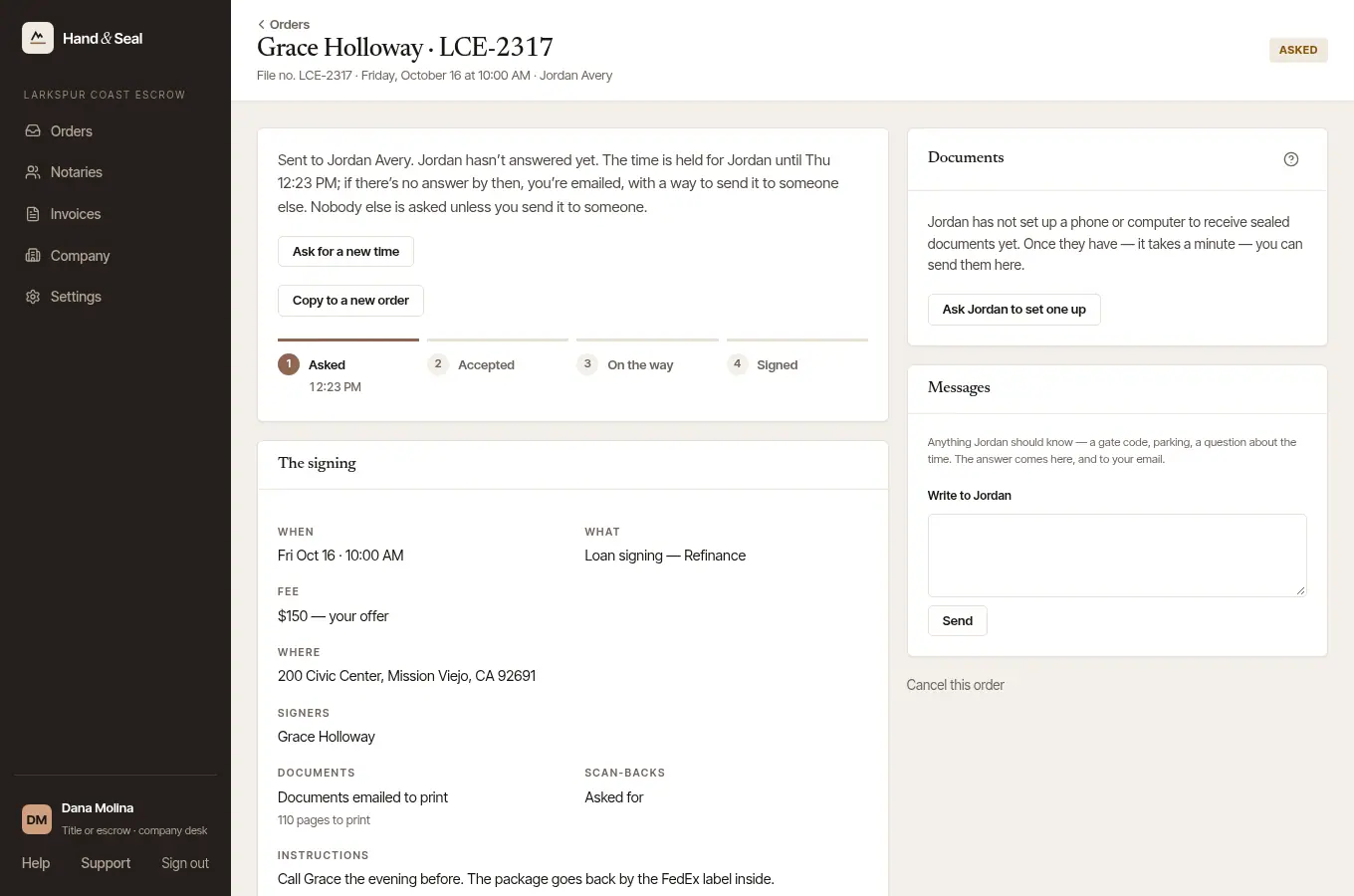
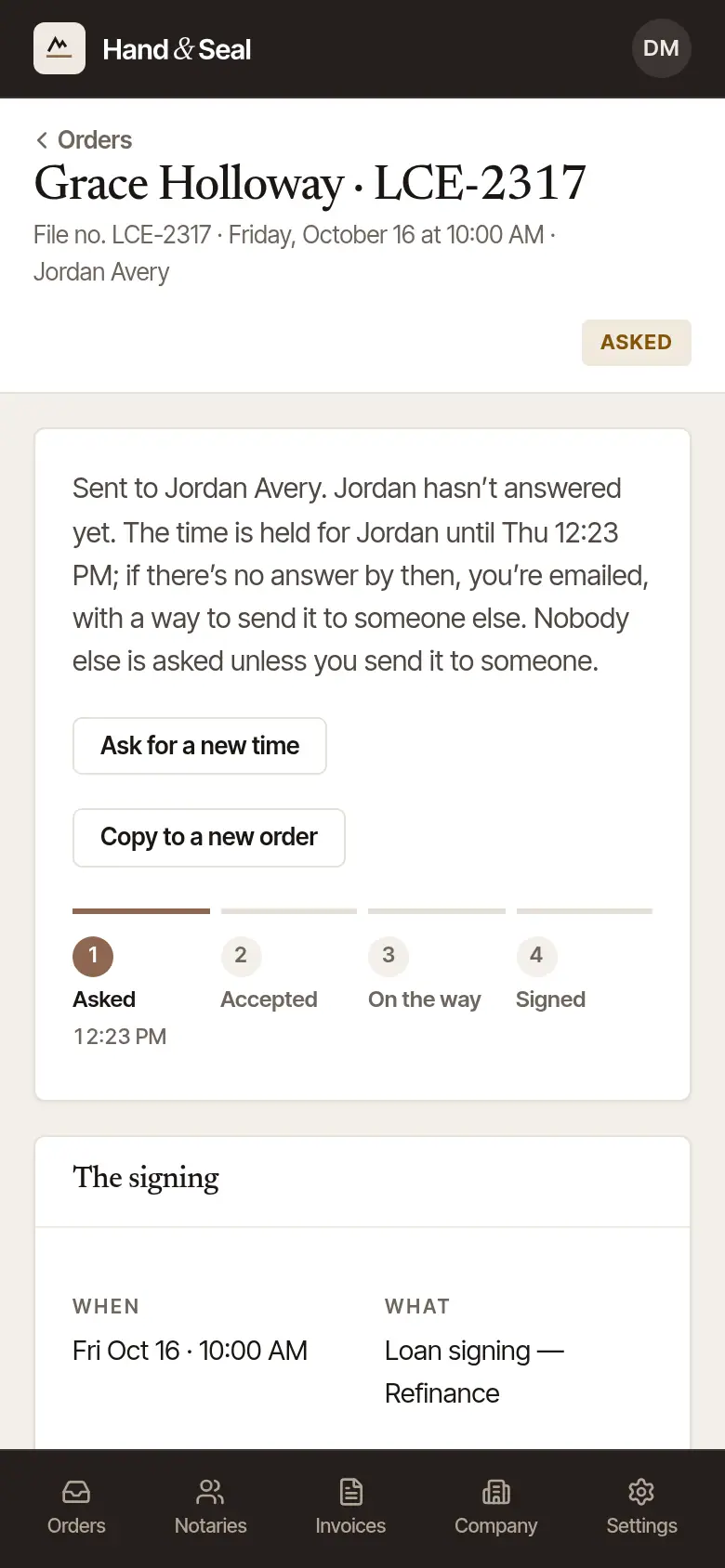
When the notary accepts, you're emailed, and the page says so, with the notary's phone and email at the top. From then on it shows when they set off, arrive and finish. A notary may answer with one fee of their own instead: the page shows it, with Accept … (their fee) or Keep my fee — close it with …, which closes the order with them. With a backup your desk can still send it to, the button reads Keep my fee — send it to … and names them: the order passes to them — or, if it can't be sent to them when their turn comes, to the next on your list who can take it — and you're told if nobody can. The email that tells you of their fee says by when to answer. While their fee waits, they can still accept the order as you sent it.
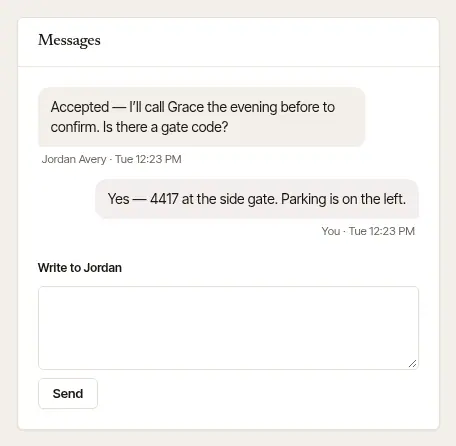
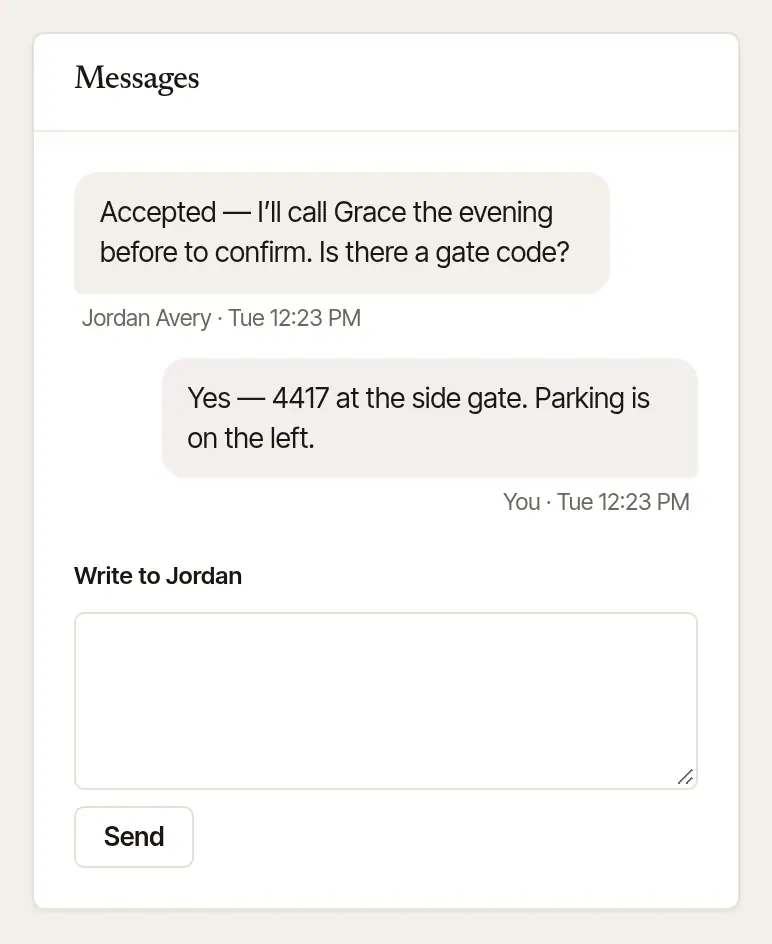
Write to the notary under Messages. Type in Write to … and choose Send — a gate code, parking, a question about the time. Their answer shows here and comes to your email.
Send the documents, if you like. Under Documents, choose the PDFs and Seal and send: they're sealed in your browser for the notary's own phone or computer, which only they can open, and deleted by themselves after the signing. If the notary hasn't set one up yet, the card stays folded to one line that says so; open it to Ask … to set one up, and send them the way you usually do meanwhile.
When it's signed, you're emailed and the page says so. The notary's invoice follows the way they usually send it; one sent through Hand & Seal is on the order's page (Open the invoice — how to pay, or print it) and under Invoices.
Need a different time? Ask for a new time on the order's page: the notary says yes or no, and the fee stays as it is. Copy to a new order starts another order from this one's details — and when a notary declines or doesn't answer, Send it to someone else… does the same — Send the order again… once the signing's time has passed, when the copy needs a new time. The copy keeps its day and time too, while the signing is still to come and no notary holds it accepted. Once a notary has accepted an order, a copy of it is another signing: it starts from the place, what it is, the fee and your instructions, and you type who is signing and its file number. Nothing is owed when a notary declines.
Cancel an order
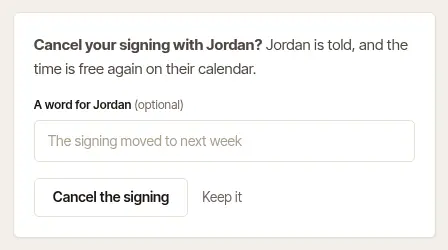
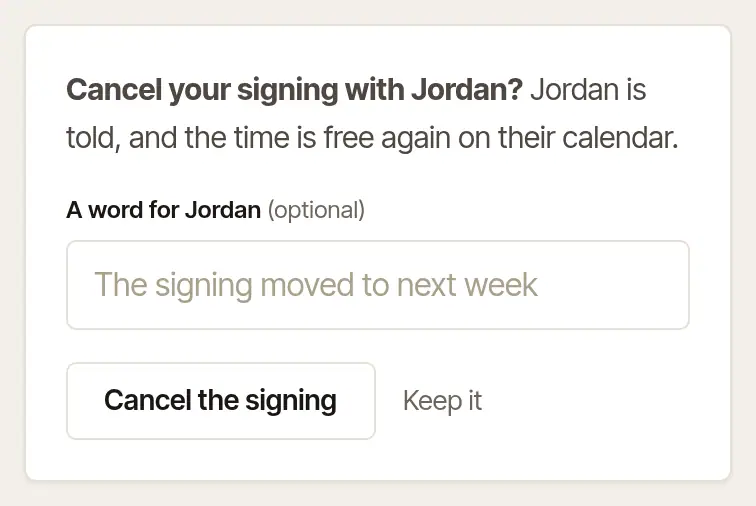
Open the choice at the foot of the order's page. Cancel this order before the notary accepts; Need to cancel? after. Add A word for … if you like — the notary's own cancellation policy shows here, if they have one.
Choose Cancel the order. The notary is told, and the time is free again on their calendar.
Was this helpful?
Still stuck? Contact support — a person reads every message and answers by email.