Guide
Close out a signing and get paid
When the last page is signed — your journal lines, the fees you actually charged, then the invoice, a card, or a payment marked received, and the receipt.
General information, not legal advice
This page explains how Hand & Seal works. Your state’s law, and your commissioning authority, decide what you must do — when in doubt, ask them or a lawyer.
Closing out turns a finished signing into its records in one step: your journal lines are written and locked, the job is marked done, and its invoice is made — paid on the spot, or sent to whoever pays.
Close it out
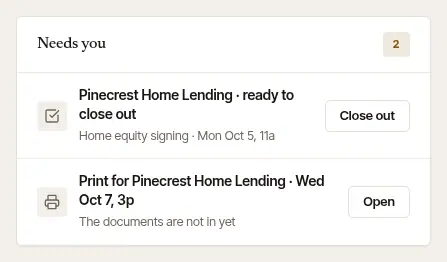
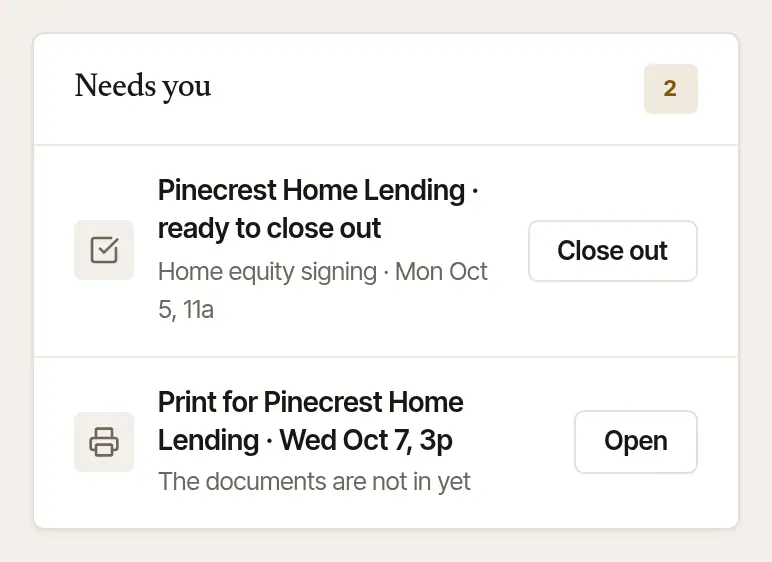
Find the signing. Once its time has passed, it shows on Today under Needs you as “ready to close out”. Choose Close out.
Or open the job (Jobs, then the signing): once its time has passed, Close out and collect leads at the top — Close out and invoice for a client you bill on terms.
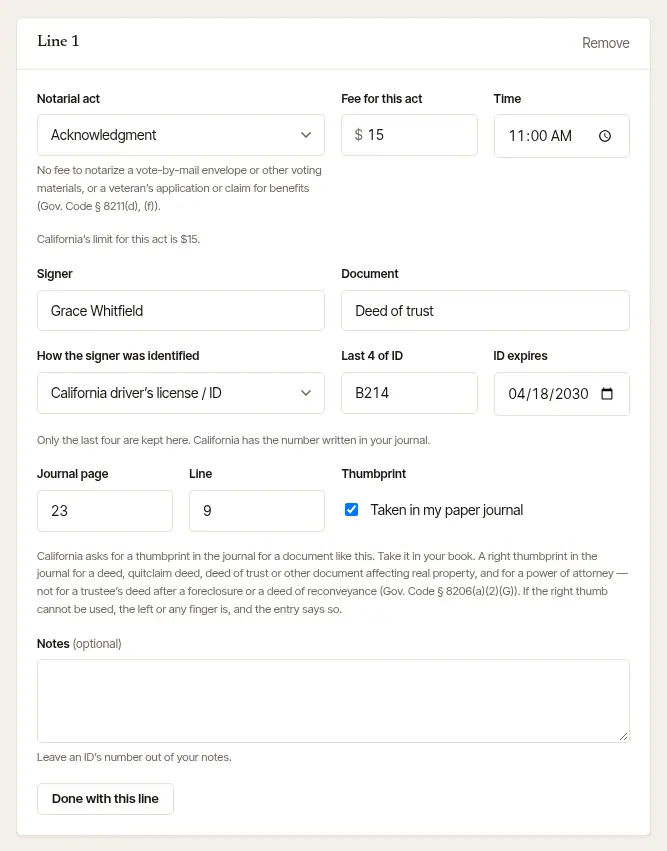
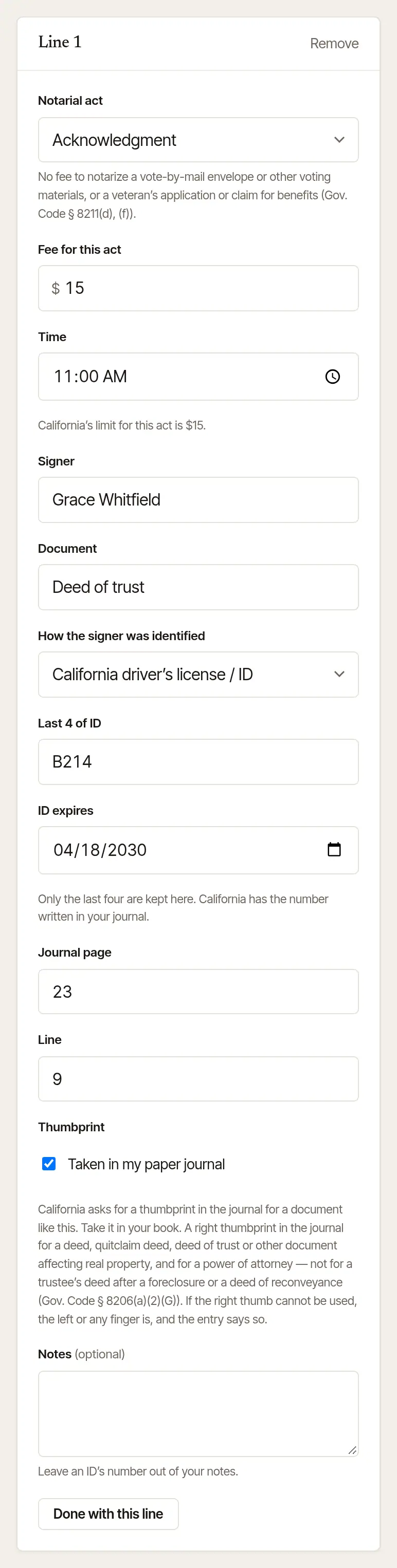
Check each journal line. There's one line for each act on the job, with the signer's name already in. For each, check the Notarial act and its Fee for this act, then fill in the Document, How the signer was identified, the Last 4 of ID and ID expires, and the Journal page and Line in your journal (with Which journal book at the top). Tick Taken in my paper journal when a thumbprint went in the book — the line says when your state asks for one on a document like that. Only the last four of an ID number are kept here. Choose Done with this line when a line is finished: it folds to one line — “Acknowledgment · Rosa Salazar · $15” — with Edit to open it again. If something is still missing, it says what. Add a journal line folds the finished ones above it too, and a line with a problem opens again by itself when you close out. On a phone, the total and the close-out button stay at the foot of the screen as you go.
Add a journal line adds an act that wasn't planned — it starts on Choose the act…, for you to say which it was; Remove takes one off. If nothing was notarized — the signer didn't turn up — remove them all: the job still closes and bills its travel. (On the phone, Signer didn't show does this for you and bills your no-show fee — see below.)
Check what it bills. What this bills adds it up as you go: each act at its fee, travel, printing and any after-hours fee. Choose Waive beside travel, printing or the after-hours fee to let it go (Charge it brings it back); an act's own fee is changed on its journal line. Add Minutes spent waiting if you charge for waiting. On a company's flat-fee order, the flat fee is the price: the waiting is billed on top of it only when you tick The company agreed to pay waiting, which shows under the minutes once you've added some (with a waiting fee set). It starts off, and the total changes as you tick it. Ticked, the invoice has the waiting on a line of its own, saying it's on top of the flat fee. Not ticked, What this bills lists the waiting at $0.00, inside the flat fee; the invoice is the flat fee alone, and the minutes are noted in the job's Activity. Under the total it says which miles travel is priced from — the job's distance, measured by road or typed — and the invoice names their zone, or the miles themselves when you typed them. If your phone recorded the drive there, it says how far that was too: choose Use the … mi you recorded to price travel from it instead (Use the … mi estimate goes back). Use it only if that drive started at your home base — one that started at your last signing would undercharge the trip. The invoice then names the miles from your door, which tells whoever pays it how far away you set off; the job's own distance is measured from a spot near your home base, and says nothing of where your door is.
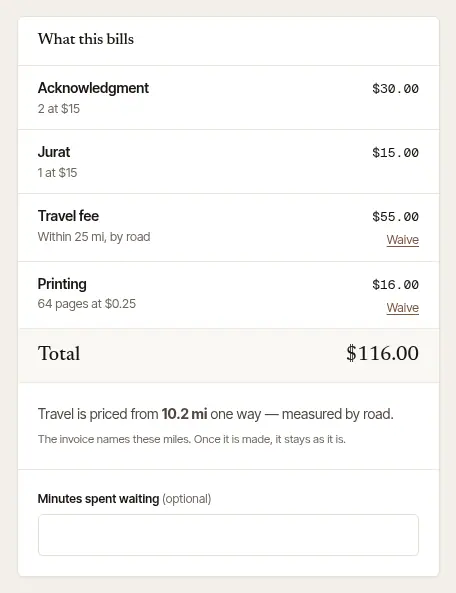
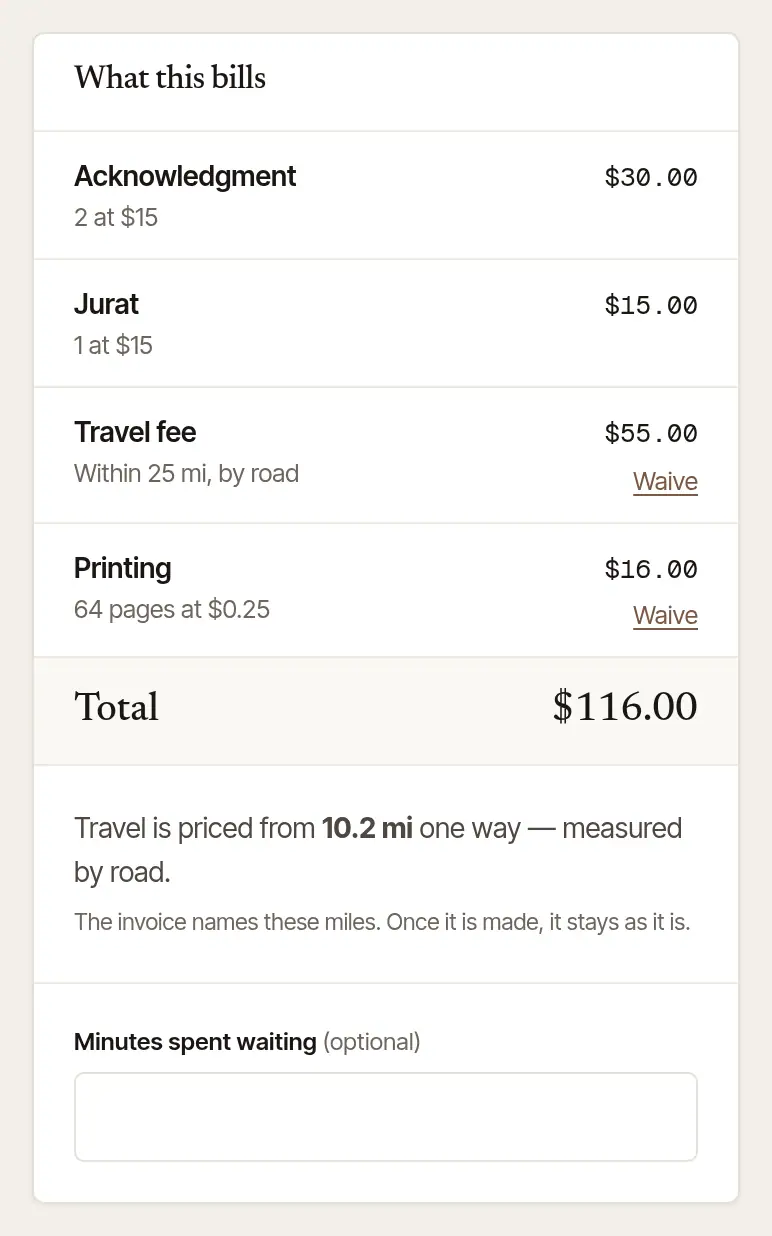
A deposit, and money paid on an invoice billed in advance, come off the total — Deposit and Paid before under it, and Due now for the rest. If you sent them a price and this bills something else, a line under the total says so. Where your state's rules ask for a travel fee to be agreed beforehand — or, in Colorado and Pennsylvania, its charges told before the act, which the price you sent does — a note under the total says when your client isn't on record as agreeing to the travel fee on the bill in time: none on record, a smaller one, or one that came only after the moment your state's rule names. It never stops you closing out (they may have agreed by phone); if they didn't agree — or weren't told — in time, choose Waive beside travel.
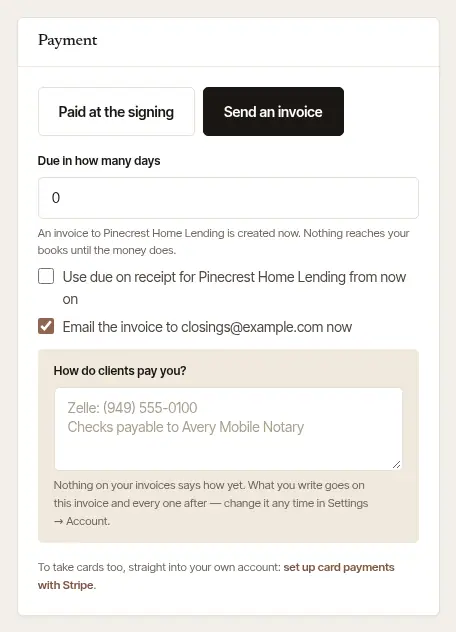
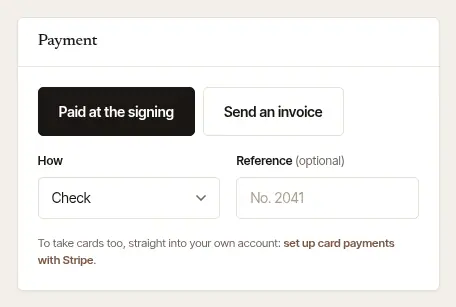
Say how you're paid. Under Payment:
- Paid at the signing — choose How (Cash, Check, Zelle, Venmo, Bank transfer, Card, taken elsewhere or Other) and add a Reference if you like, such as the check number. The invoice is made already paid, and the money goes into your books.
- Until you can take cards, a line under Payment says what's missing — set up card payments with Stripe, say. Once cards can be taken, it's gone.
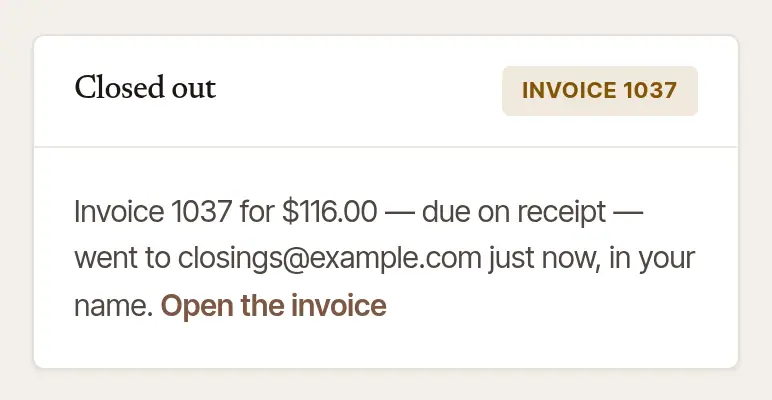
- Send an invoice — say when it's Due in how many days (0 is due on receipt), and tick Email the invoice to … now to send it as you close out. For a company, or a client you bill on terms, this is chosen for you.
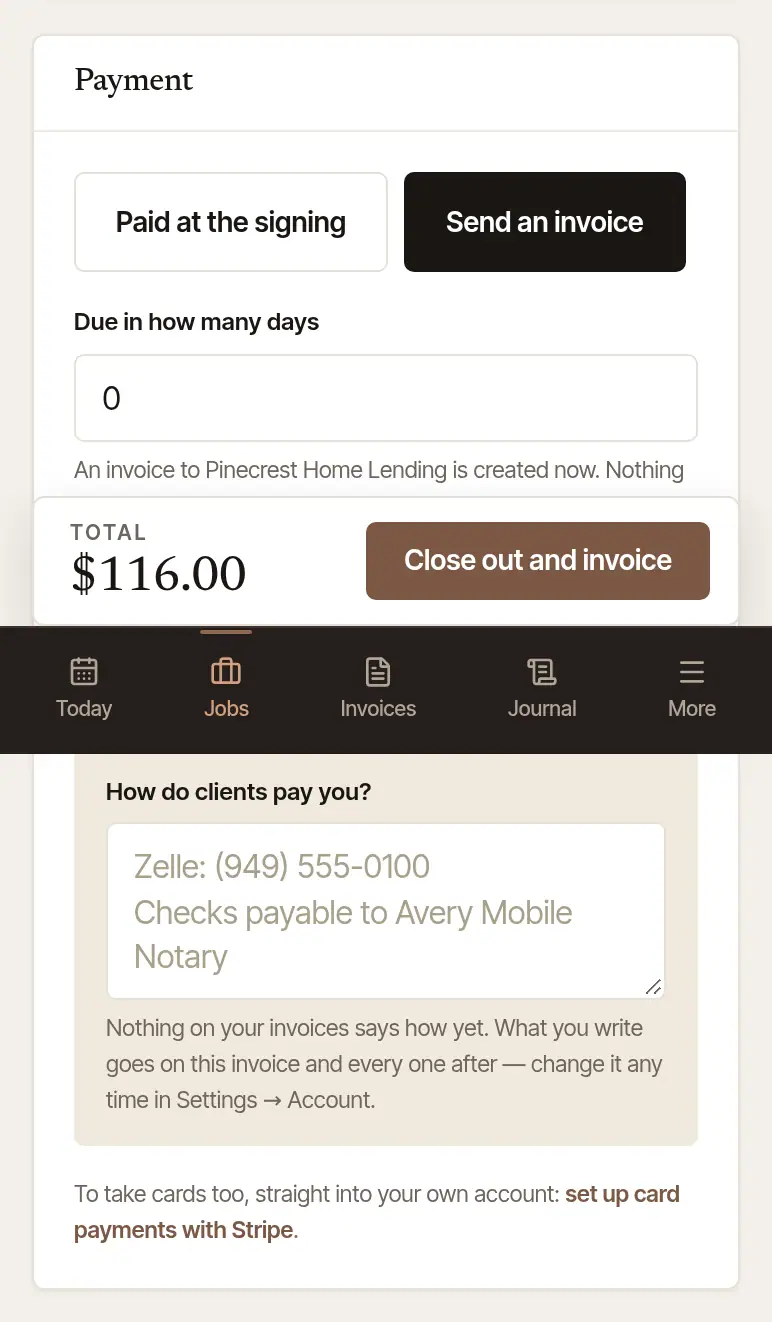
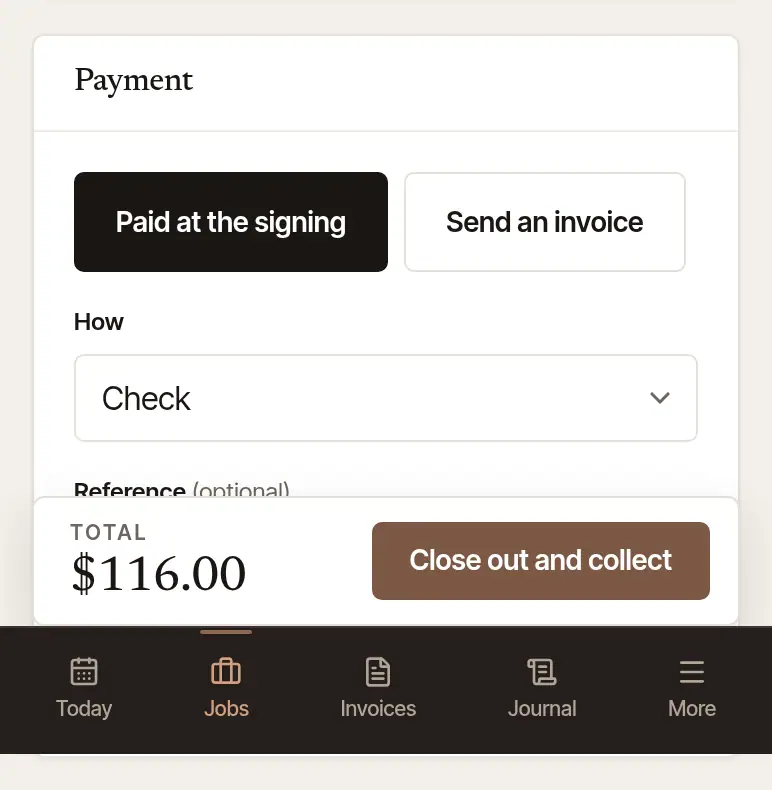
Choose Close out and collect — or Close out and invoice, when you're sending an invoice (just Close out when there's nothing to pay). The job page then says Closed out, with the invoice — sent, or with Send the invoice (or, paid, Send the receipt) to send it now, while the signing is fresh. Opened again later — with Back, or a reload — once the invoice itself has been emailed from Hand & Seal to the address it goes to, and the email hasn't bounced back or been marked as spam, it says where and when it went, with nothing left to press.

Write the journal lines at the table. On the job, tap Journal lines (it says how many are planned) or Add a journal line. Each line asks for the Type of act, Signer name, Type of document, How identity was established, the ID's Last 4 of ID number and Expires (Read the ID's barcode fills them where your phone can, and your state's law lets a license be scanned), the Fee charged for this act ($), and the Journal book, Page and Line. Tap Save & next for the next one, and Save the line for the last. They're kept on the phone until you close out. (The journal screens and Close out hold a signer's details, so the app keeps them out of sight: Android won't screenshot them or show them in the app switcher, and an iPhone covers them in the app switcher and while its screen is recorded or shared. So there are no pictures of them here.)
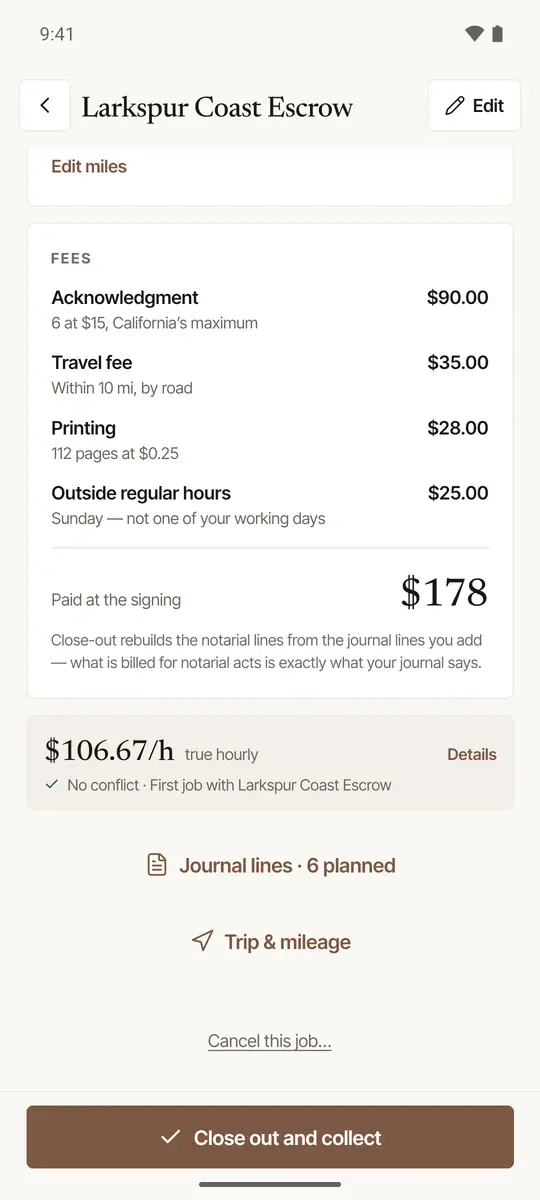
Open the close-out. Once the signing is over, the bar at the foot of the job says Close out and collect — or Close out and invoice for a client you bill on terms. On Today, earlier signings not yet closed out are under To close out, each with Close out.
Check the bill. What this bills is the total worked out for you; tap Waive beside travel, printing or the after-hours fee to let it go (Charge it brings it back). Under it, Miles says which miles travel is priced from; if the phone recorded the drive there, tap Use the … mi you recorded to price travel from that instead — only if it started at home. Check the Journal lines and Minutes spent waiting: they're filled in from your I'm here and Signing started steps — from the appointment time (or from when you got there, if you were late) to the start — and a line under them says so; change them if they're wrong. With no waiting fee set, it says No waiting fee set — minutes bill nothing. Add one: tap it to set one in Fees & rates on the web. On a company's flat-fee order, the phone closes out at the flat fee alone, without the waiting: with a waiting fee set, What this bills lists the minutes at $0.00, inside the flat fee. If the company agreed to pay waiting, close it out on the web and tick The company agreed to pay waiting there.
Say how you were paid. How you were paid starts on the way you're usually paid (the method of most of your recent payments, as on the web — Cash until there are any) — or on Not paid yet when there are no journal lines, as when the signer didn't turn up, so nothing is recorded as received that wasn't; tap another if this one was different: Cash, Check, Zelle, Venmo, Bank transfer, Card, taken elsewhere or Other (and a Reference if you like) — or Not paid yet, and choose when The invoice is due. With card payments set up, Card — tap or reader takes the card right after: on a Bluetooth card reader, or — on an Android phone — on the phone itself with Tap to Pay. Card, on their phone is for a client who'd rather pay on their own phone, a card the reader won't take, or an iPhone with no card reader (see below). A client you bill on terms isn't asked: their invoice is made.
Tap the button at the foot. It says what will happen — Close out · $… received, Close out and invoice $…, Close out, then take the card · $…, or Close out, then show the code · $…. Then send it on its way: Email the receipt (or Email the invoice) to their address, or Text the link instead. A loan signing or a company's order asks Shipping the originals back?: choose the carrier, type or paste the tracking number, and tap Mark shipped. Tap Done.
Good to know
The signer didn't show. After I'm here, the job's At the signing card offers Signer didn't show (or, on the close-out with no journal lines, The signer didn't show). It closes the job out as a no-show: nothing is notarized, so no journal lines are written, and your arrival — the time and how near the address you were — and any proof photos (a picture of the door) are its record. The bill is your no-show fee, under your own name for it, instead of the signing; with none set, it's your travel fee, and the screen says No no-show fee set — your travel fee is billed instead. Add one in Fees. On a company's flat-fee order, the flat fee isn't billed — your travel zone for the distance is. The invoice says “Trip fee — signer not available” (or your own words), never “notarization”, and a company that sent the order is told it wasn't signed because the signer wasn't there. It starts on Not paid yet: the invoice goes to whoever pays. Someone signed after all? Close out as a signing goes back.
Good to know
Card, on their phone: after closing out, a code fills the screen. They scan it with their phone's camera, the invoice opens with Pay by card on it, and they pay on Stripe's page, into your own Stripe account. The phone says Paid by card the moment they have, and the receipt is ready to send. Not paying now? The invoice stays open, with the code a tap away on the invoice (Pay by card on their phone). It shows only when your business takes cards.
Good to know
- Billed in advance? Close-out makes the final invoice and replaces the one sent before: what was paid on it is carried over, and the old one is voided, saying why. The job page says what happened when it opens. A bank transfer you recorded while the invoice said it was on its way — as a Bank transfer, for its amount — isn't called money to give back until Stripe says how it ended: whatever of it the final bill doesn't take (all of it, if close-out bills nothing) is said to wait for Stripe's word. When it arrives, it's matched to the payment you recorded, and you're told what of it, if any, is theirs to give back; if the bank sends it back, you're asked whether it was the one you recorded.
- A deposit — asked by your page, or taken in hand — is credited on the invoice first. If it came to more than the bill, the job asks you to give the rest back (a card's goes back by itself).
- Until you close out, a job's distance and travel fee are estimates. Closing out prices travel from the final miles. The invoice says the zone they fall in (“Travel fee — Within 25 mi, by road”), or the exact miles when they're yours — typed, or recorded by your phone (“8.3 mi one way, as recorded”). A travel fee you typed on the job yourself stays as you typed it — held to your state's limit, where it has one; one of $0 puts no travel line on the bill, and no miles are said under the total. On the web, where close-out adds a travel fee the job didn't have, a note under the total says so, and how to bill none: Waive beside it, or Travel set to 0 in Edit. Once made, an invoice doesn't change: measuring the drive again, editing the job or changing your fees leaves it as it is.
- Closing out locks the journal lines. After that a line can be voided or amended, never rewritten — as in your paper book. Left an act off? On the finished job, Left an act off? adds it, at no charge or billed on an invoice of its own.
- The first time you send an invoice, if nothing yet says how clients pay you, close-out asks How do clients pay you? What you write — Zelle, who checks are payable to — is printed on every invoice not yet paid: that one, and each one after. Change it in Settings → Account.
- No drive recorded for the signing? The job offers to log the round trip from home (Log it on the web; on the phone, right after closing out). How it's filed — as a business drive, or as commuting — is in Add a drive the phone didn't record.
General information, not legal advice
What a journal line must hold, which IDs you may accept, when a thumbprint goes in the book, and the most you may charge for each act are set by your state. Close-out follows the rules built in for the signing's state, but they are general information, not legal advice — your state's notary handbook, or a lawyer, has the last word. Your journal is the record; the lines here index it.
Get paid
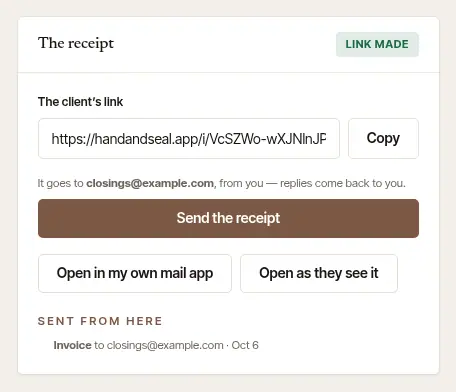
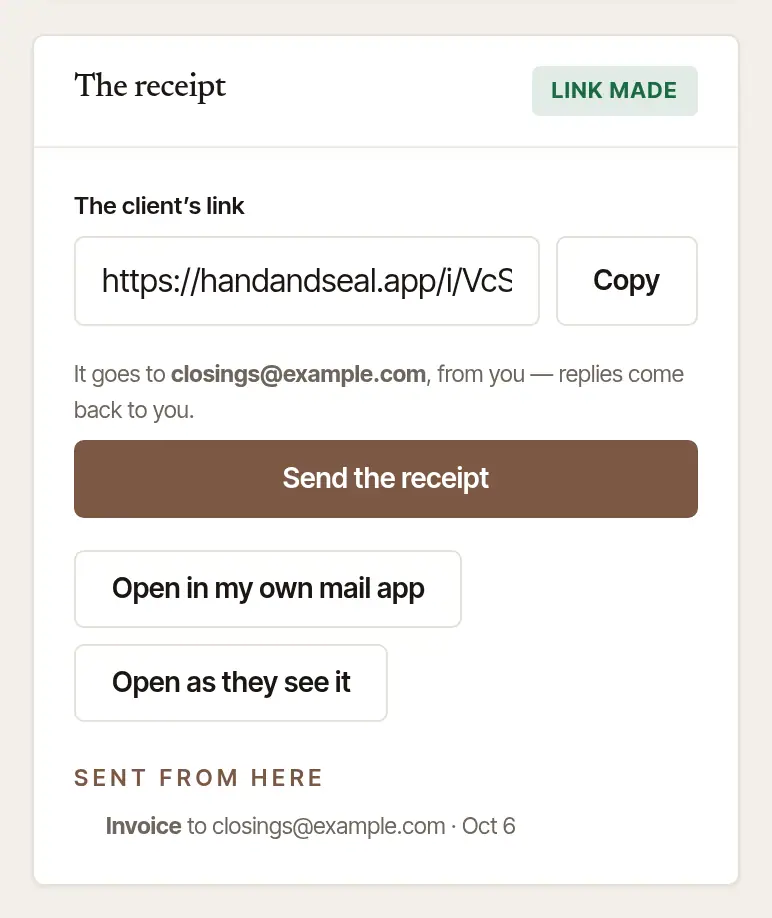
Send the invoice, if it hasn't gone. Open it — Open the invoice on the job, or Invoices — and choose Send it. It goes to the client's email from you, and replies come back to you (with Apple's Hide My Email, once you've given an address your clients can write to); with no address on file, type theirs, and it's kept for next time. Make the client's link gives you a private link to paste anywhere else, and Open as they see it shows their view. An invoice made but never sent shows on Today under Needs you until it goes, and under Not sent in Invoices; its job keeps an Invoice not sent card with Send the invoice until it goes. An invoice made here that hasn't been sent is never counted as late, and no reminder goes for it: on the web, once its due day has passed, it reads Not sent — due and that day, and it's still yours to send. The reminders that go by themselves are only for invoices sent from Hand & Seal.
Let them pay by card, if you take cards. With card payments set up (Settings → Integrations), the invoice's link shows Pay … by card — on Stripe's page, into your own Stripe account. A card payment is recorded by itself, the client's receipt goes to them by email, and you're told. Refunds of card payments are made in your Stripe Dashboard.
Record anything else you're paid. A check in the mail, a transfer, cash later: on the invoice, fill in Record a payment — the Amount received (the balance is filled in), How, Received on, and a Reference if you like — then choose Record payment. Send the receipt to … is ticked: a payment that pays the invoice in full emails the client their receipt in the same step, and unticked it sends nothing. A part-payment leaves the rest owed.
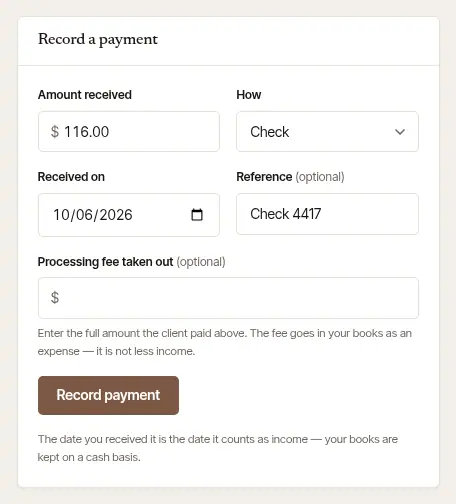
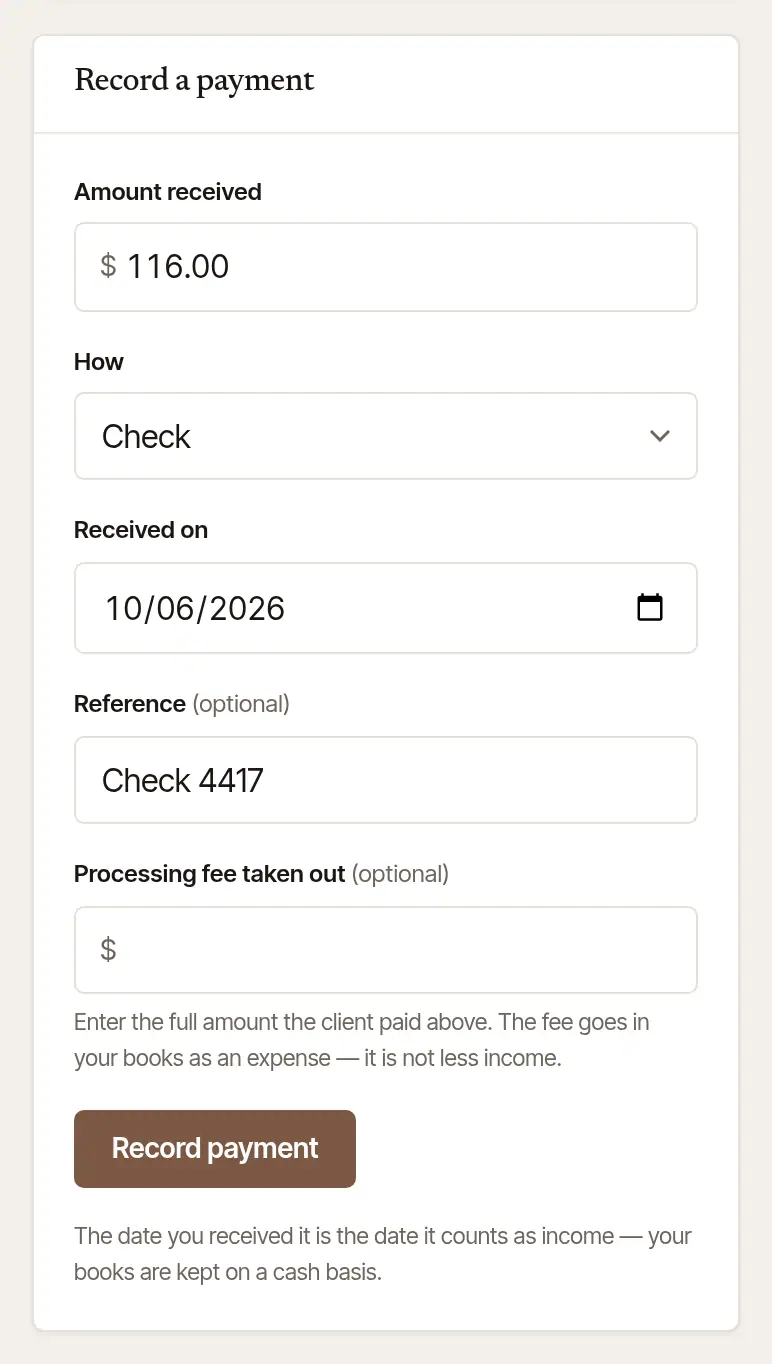
The invoice is paid, and your books take the income on the day you received it.
Send the receipt. Once it's paid in full, choose Send the receipt. Paid at the signing and not sent then? Where there's an address to send it to, the job keeps “Paid in full — the receipt hasn't gone to …” under Produced by this job, with Send the receipt, until a receipt goes — one that bounced, or that the mail service didn't answer for, counts as gone, and the invoice says what became of it. Where some of it was returned, the receipt says so beside what was received; none is offered once everything paid on it has been refunded, taken back by their bank, or never arrived. It isn't on Today: a receipt asks nothing of them.
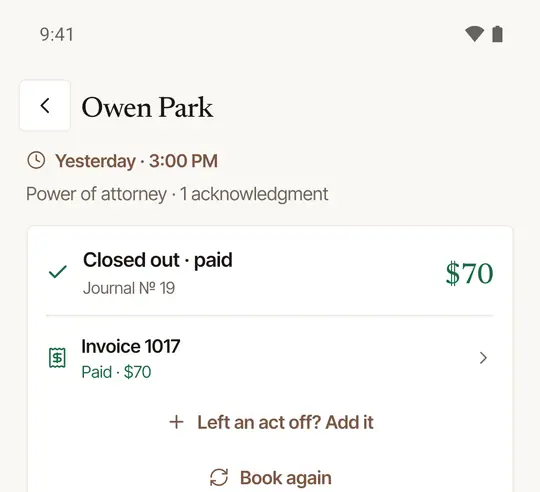
Open the invoice. On the finished job, under Closed out, tap the Invoice row: it gives the invoice's number and whether it's paid or what's still owed, and opens Invoice & payment. Under Recent jobs on Books, a job opens its invoice too, and Owed to you lists every invoice still open. (The job's drives are its Trip & mileage, a screen of their own.)
Send the invoice. Tap Send the invoice — it goes a few seconds later, with Undo until then — or Share the link, or From my own email instead. With card payments set up, Take a card here takes it in person, and Pay by card on their phone shows a code they scan to pay on their own phone.
Record a payment. Under Record a payment, tap Record a payment, choose how it arrived under How did it arrive?, check the Amount ($), add a Check number (optional) and when it was Received on, and tap Record $… · paid in full (or Record $… · part-payment). One check paying several of a company's invoices? One check for several of their invoices records it on each.
Good to know
- Late payers are reminded in your name: a reminder once an invoice you sent is past due, a past-due notice at 15 days and a final notice at 30. Each is ready on the invoice to send — or turn on Remind them for me in Settings → Account and they go by themselves.
- A mistaken invoice can be voided (Void this invoice…) while nothing has been paid on it; it keeps its number, and the job can be invoiced again. A card taken on your reader for it, or a card payment from its link, that went through before Hand & Seal heard of it stops the void until it has — and so does a bank transfer begun from its link while it's on its way: if it takes longer than it should, the invoice says what to do. Voiding lets go of a card started on your reader and not yet tapped, and closes the invoice's payment page, so neither can be paid on it. That's the way to correct one — an invoice never changes by itself.
- The pictures show a business that hasn't set up card payments yet, so no card is taken in them.
Was this helpful?
Still stuck? Contact support — a person reads every message and answers by email.