Guide
Install the app and sign in
Get Hand & Seal on your iPhone or Android phone, sign in with Google, Apple, a passkey or your email and password, and see what the app asks your phone for — and when.
The phone app is what you carry to signings: the day's jobs, a nudge when it's time to leave, your drives recorded for your mileage log, and closing out at the table. It's one app, for iPhone and for Android. Your account is made on the web, and the app signs in to it.
Get the app
Hand & Seal is in Google Play. It needs Android 8 or later.
Open Google Play on your phone, and search for Hand & Seal.
Tap Install.
Open Hand & Seal. It's on your home screen and in your apps.
Hand & Seal is in the App Store. It needs iOS 16.4 or later, and an iPad gets it the same way.
Open the App Store on your iPhone, and search for Hand & Seal.
Tap Get.
Open Hand & Seal. It's on your Home Screen, or in your App Library.
Sign in
Sign in the way you signed up. The sign-in screen has a button for each way, with Email and Password under them.
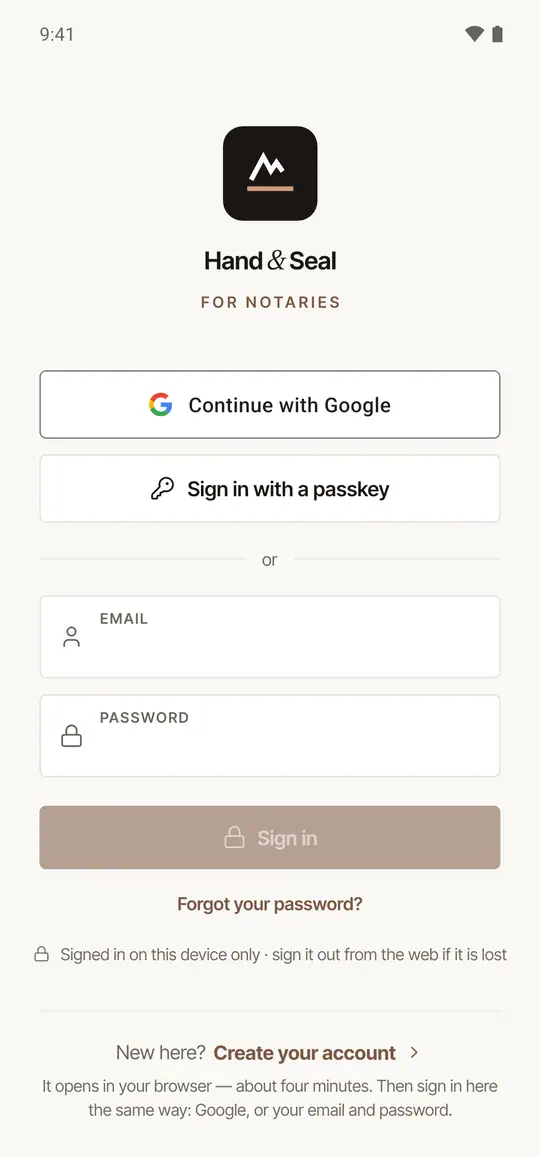
The sign-in screen: Continue with Google, Sign in with a passkey, and Sign in with an email and password - Continue with Google — if your account uses your Google address. Choose your Google account on the page that opens, and you come back to the app signed in.
- Continue with Apple — with your Apple ID. Apple's page opens in the browser.
- Sign in with a passkey — your fingerprint, face or screen lock instead of a password (Android 9 and later).
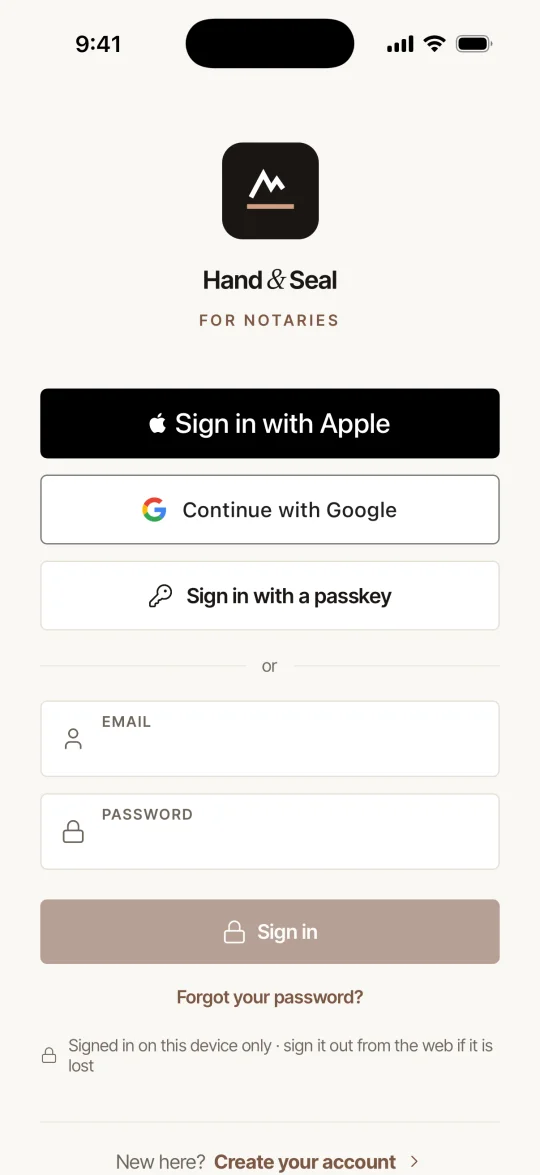
The sign-in screen on an iPhone: Sign in with Apple, Continue with Google, Sign in with a passkey, and Sign in with an email and password - Sign in with Apple — the first button, with your Apple ID. The iPhone's own sheet opens: confirm with Face ID, Touch ID or your passcode.
- Continue with Google — under it, if your account uses your Google address. The iPhone first says Hand & Seal wants to use
handandseal.appto sign in: tap Continue. Choose your Google account on the page that opens, and you come back to the app signed in. - Sign in with a passkey — Face ID, Touch ID or your passcode instead of a password.
On either phone:
- Email and Password, then Sign in. If you've forgotten it, Forgot your password? opens the web to set a new one.
- The first time you sign in with Apple, an account whose address isn't an iCloud one asks for its password once.
- A passkey is added once you're signed in: More → Settings → Passkeys.
Sign in with Google, Apple or a passkey has the details.
Enter your two-step code, if you use one. If two-step sign-in is on for your account, Two-step sign-in asks for the six digits your authenticator app shows for Hand & Seal. Without your authenticator, choose Use a recovery code and type one of the codes you saved. A passkey doesn't need this step.
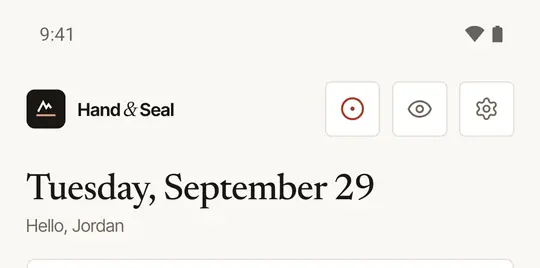
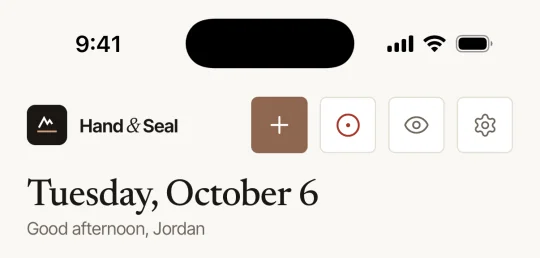
You're in. The app opens on Today: your day's signings, with Record a drive and Settings at the top.
Signed in on this phone only
Each phone and browser signs in on its own. If a phone is lost, sign it out from anywhere else: on the web in Settings → Sign-in & security → Devices, or in the app in Settings → Signed-in devices — Sign it out.
No account yet?
Choose Create your account. It's at the foot of the sign-in screen, under New here?. Sign-up opens in your browser — the app has no sign-up screens of its own — and takes a few minutes.
Come back and sign in the same way you signed up: Google, Apple, or your email and password. Set up your account walks through sign-up step by step.
On an iPhone, tapping Sign in with Apple before you have an account says No account for this Apple ID yet. Tap Create my account, sign up in your browser with Apple, then come back and tap Sign in with Apple again.
What the app asks your phone for
Nothing as it opens. Each permission is asked for the first time something needs it, and the app says why before your phone asks. In the tables, Settings is the app's own, under More.
| What Android asks for | When | What for |
|---|---|---|
| Location — Allow all the time | When you choose During my working hours or All the time under Settings → Mileage & trips → Record drives | Recording your business drives with the app closed |
| Physical activity | The same | Telling a drive from a walk |
| Battery — Unrestricted on Android 16 (App battery usage → Hand & Seal → Allow background usage), Don't optimize in Android's list before it (the app opens it and says what to pick) | The same | So Android doesn't stop the recorder in the middle of a drive |
| Location while you use the app | When you press Record a drive | Recording that drive |
| Notifications | Today's Allow alerts, the first time you tap a signing's next step, like On my way — or Settings → Notifications → On this phone | A signing in progress and a drive being recorded, on the lock screen; alerts for new requests, payments and messages |
| Camera | When you take a photo — a receipt, say | The photo |
| Calendar | When you turn on This phone's calendar in Settings | Your booked jobs in your phone's own calendar |
| What the iPhone asks for | When | What for |
|---|---|---|
| Location — Allow While Using App, then Change to Always Allow when the iPhone offers it | When you choose During my working hours or All the time under Settings → Mileage & trips → Record drives | Recording your business drives with the app closed |
| Motion & Fitness | The same | Telling a drive from a walk |
| Precise Location | Not asked: it's on unless you turned it off. If the location question shows Precise: On, leave it on. If it's off, Setup in the app's Settings lists it, with Open | Measuring the drive: without it every position is kilometers out |
| Background App Refresh | Not asked: it's a switch in the iPhone's own Settings. If it's off, Setup in the app's Settings lists it, with Open | So the iPhone can wake the app when you drive off. Low Power Mode pauses it |
| Location — Allow While Using App | When you press Record a drive | Recording that drive |
| Notifications | Today's Allow alerts, the first time you tap a signing's next step, like On my way — or Settings → Notifications → On this phone | Time to leave, and alerts for new requests, payments and messages |
| Camera | When you take a photo — a receipt, say — read the barcode on an ID, or scan signed pages | The photo, the barcode or the scan. No picture of an ID is taken, and no scan is kept |
| Calendars | When you turn on This phone's calendar in Settings | Your booked jobs in your phone's own calendar |
| Face ID | The first time you turn on a lock in Settings → Privacy, or open a company's sealed documents | Unlocking your books, and those documents, for you alone |
| Bluetooth | When you connect a card reader | Taking a card on the reader |
Record your drives automatically goes through the drive permissions one by one.
Help, from the app
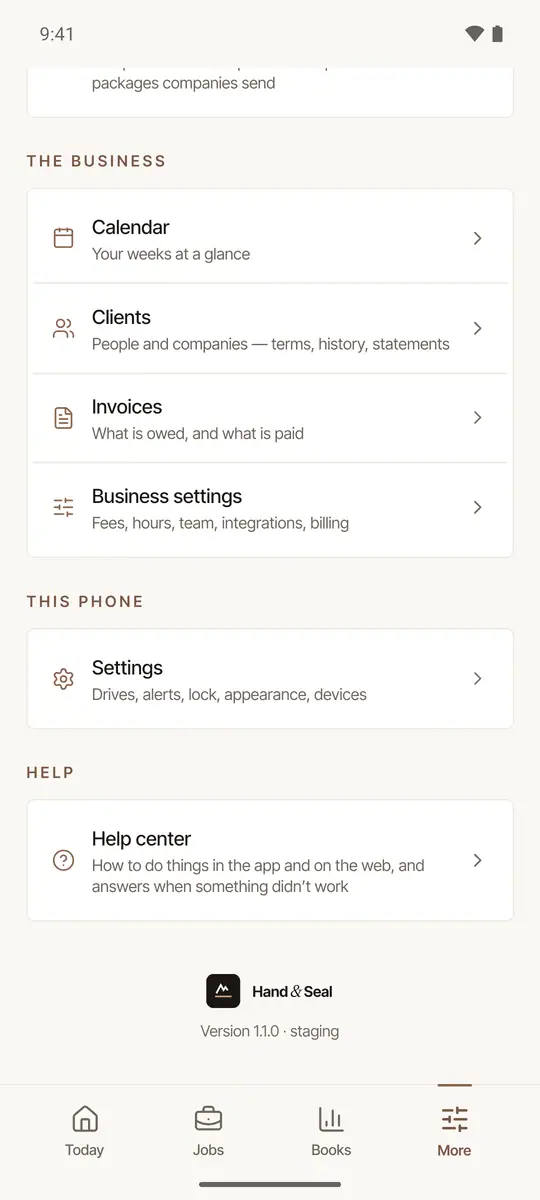
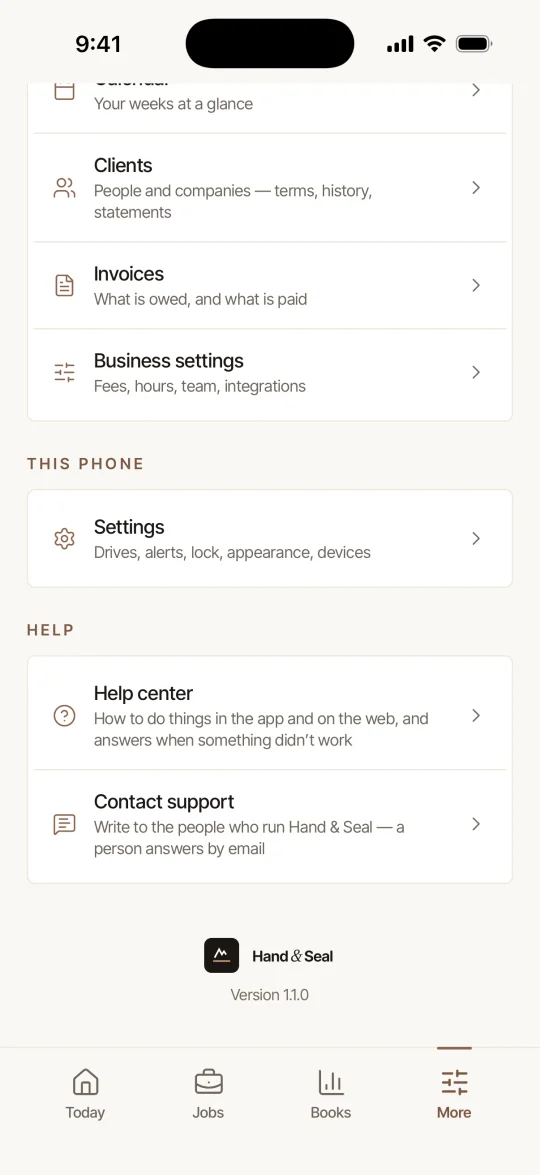
More → Help center opens this help center in your browser. In Settings, the ? beside Setup opens the guide to recording your drives.
Was this helpful?
Still stuck? Contact support — a person reads every message and answers by email.