Guide
Record a drive yourself
Press Record as you set off — from Today, the Record a drive widget or the app's icon — and Stop when you arrive. It records any time, even outside your working hours.
Automatic recording, set to During my working hours, listens in your working hours and on the way to and from your signings. For any other drive — a Saturday errand to the post office, a drive on a day off — or if you'd rather not have drives noticed at all, press Record yourself. It records whatever the time, on Android and on an iPhone alike.
Start and stop a drive
Tap Record a drive as you set off. It's the red circle at the top of Today.
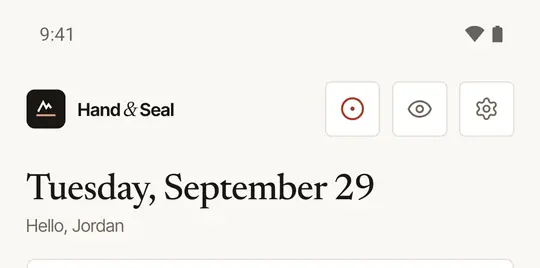
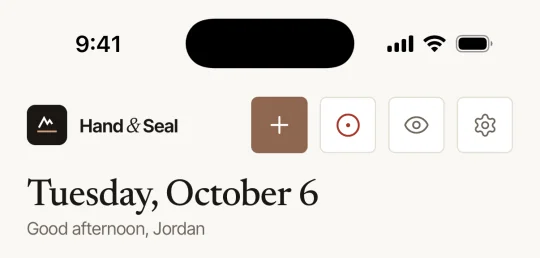
The first time, the phone asks to use your location — allow it, or nothing can be recorded. On an iPhone, Allow While Using App is enough for a drive you start yourself. Tapped it by mistake? Undo at the foot of Today, for a few seconds, stops it — a few seconds of recording make no drive.
Drive. Today shows Recording your drive, with the miles so far.
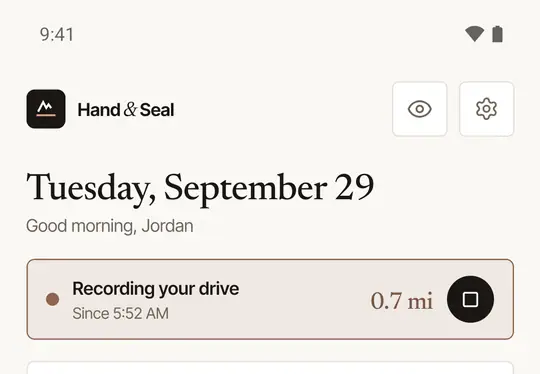
Tap Stop when you arrive. Forget, and it stops by itself a few minutes after you park — a forgotten Stop never leaves the phone recording all day.
The drive is then filed like any other: to the signing it was for, if it clearly matches one, or into More → Mileage → To file to wait for a word from you — see File your drives.
Other ways to start one
- The Record a drive widget — on your home screen and, on an iPhone, on the Lock Screen too.
- Press and hold the app's icon, then choose Record a drive.
- Navigate on a signing records the drive there as it opens Google Maps.
- On my way on a signing records the drive there too, as it tells whoever is waiting that you've set off.
Tap the widget to start, tap it again to stop. While a drive is recorded it says Recording since and the time it started.
The icon's shortcuts open from your home screen or your list of apps:
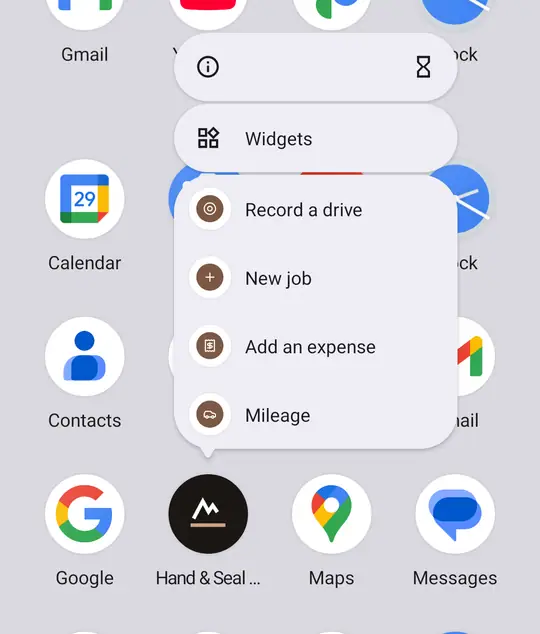
Tap the widget and the app opens with the drive started. The widget then says RECORDING and counts the time. Tap it again and the app opens on Today, where Stop is.
For the icon's menu, touch and hold the Hand & Seal icon on your Home Screen.
Both the widget and the shortcut open the app: a recording starts only from the app itself. See Add the home-screen widgets and shortcuts.
Good to know
- One drive is recorded at a time. Press Record while one is already being recorded — by automatic recording, say — and it simply carries on.
- A drive only counts once the phone has measured driving speed, so a walk to the door never ends up in your log.
- Record drives set to Only when I tap Record? Then the phone records only the drives you start — with Record, or Navigate or On my way on a signing. Settings' Working schedule says Automatic recording is off — you press Record.
- Recording drives is part of your plan. If your trial or plan ends, Record starts nothing and says Drive recording is paused, and that the plan is renewed on the web. Your mileage log is safe, and it records again once your plan is back.
- The drive shows outside the app while it's recorded. On Android it's a notification — Recording your drive, with the miles so far — if you've allowed the app's notifications. On an iPhone it's a Live Activity on the Lock Screen: Recording a drive, with the time so far. Tap it to open the app, where Stop is.
- On an iPhone, don't swipe the app away in the middle of a drive: iOS stops the GPS, and the rest of that drive may be missed. Switching to Google Maps, or locking the phone, is fine.
Was this helpful?
Still stuck? Contact support — a person reads every message and answers by email.