Guide
Hide amounts, and lock Books or the whole app
Keep your earnings private when the phone is out in front of a client — hide every dollar figure with one tap, and lock Books, or the whole app, behind your phone's own lock.
At a signing your phone is often in view: on the table, or in the signer's hands for a card payment. These settings keep what you earn to yourself. They're all in More → Settings → Privacy.
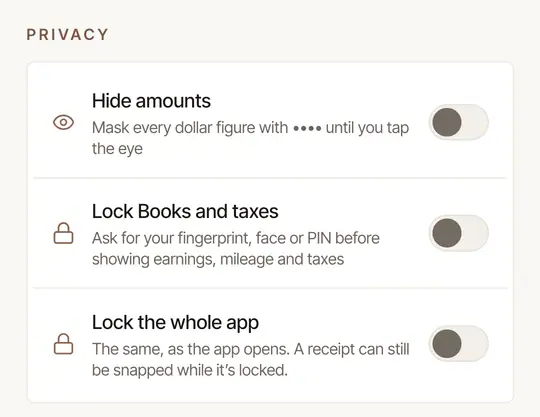
Hide amounts
Every dollar figure in the app shows as •••• until you choose to see it.
- The eye at the top of Today (and of Books) switches it: tap it to hide amounts, tap again to show them.
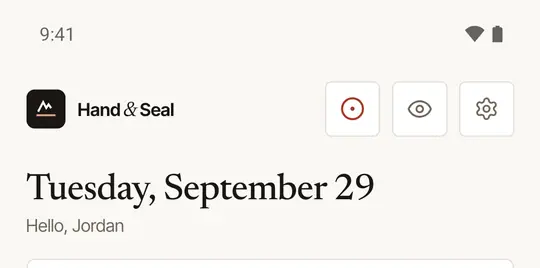
- Settings → Privacy → Hide amounts is the same switch, and it stays as you leave it.
While you're taking a payment, the other amounts are hidden by themselves — the signer sees only what they're paying — and come back as they were afterwards.
Lock Books and taxes
Switch on Lock Books and taxes and the app asks for your fingerprint, face or PIN — on an iPhone, Face ID, Touch ID or your passcode — before it shows your earnings, mileage and taxes. Confirm it's you once to turn it on; an iPhone asks then whether Hand & Seal may use Face ID.
The first time you open Books, the app asks Keep Books private? — Turn on does the same as the switch; Not now leaves it off (the switch is still here if you change your mind).
Lock the whole app
Lock the whole app asks the same way as the app opens, not only for Books. A receipt can still be snapped while it's locked.
How often it asks
With either lock on, Ask again after you've been away sets how long the app stays unlocked: Every time, 5 min, 30 min or 1 hour.
Good to know
- The locks use your phone's own screen lock. If the phone has none, the app says No screen lock on this phone — set one up first: a fingerprint, face or PIN in an Android phone's settings, or Settings → Face ID & Passcode on an iPhone.
- These settings belong to this phone. Your web account has its own sign-in; see Install the app and sign in.
Was this helpful?
Still stuck? Contact support — a person reads every message and answers by email.