Guide
Add the home-screen widgets and shortcuts
Record a drive and Next signing on your home screen — Android adds Automatic recording, an iPhone the Lock Screen — and four shortcuts on the app's icon. What each does, and how to add them.
Widgets put the few things you do on the road on your home screen, one tap away. Both phones have Record a drive and Next signing. Android has a third, Automatic recording; an iPhone can put its two on the Lock Screen as well.
The widgets
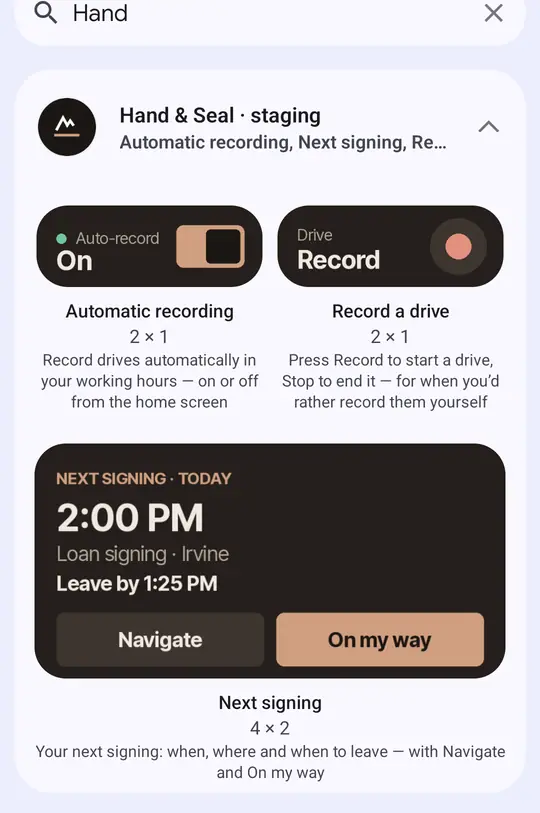
- Record a drive (small). Tap Record to start recording a drive, tap again to stop it. While it records it says Recording since and the time — see Record a drive yourself.
- Automatic recording (small). Auto-record switched On or Off with one tap. Off is Only when I tap Record in Settings → Mileage & trips → Record drives; On is your automatic choice there — During my working hours, or All the time. Paused means it's on, but you're outside your working hours just now, or your plan has ended.
- Next signing (large). Your next confirmed signing: the day and time, what it is and the town, and Leave by (it turns to Leave now once it's time — Android redraws a widget about every half hour, and whenever you open the app). Tap Navigate to set off — the drive is recorded — then the next step: On my way, I'm here, Signing started, Signing done. Undo takes the last step back. Once the signing is done it offers Close out. It never shows the signer's or client's name: a home screen is seen by anyone near your phone.
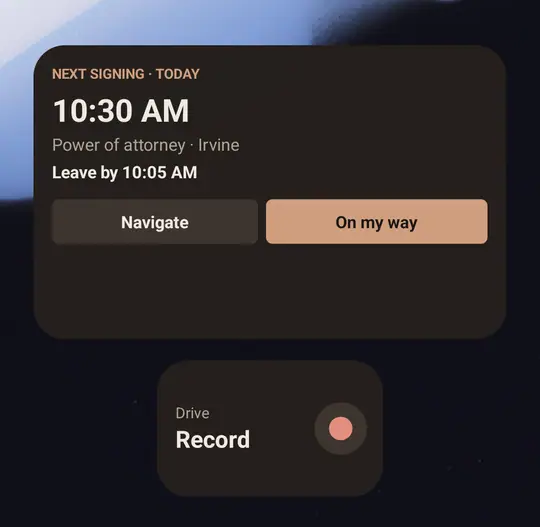
- Record a drive (small, or a circle on the Lock Screen). Tap it and the app opens with a drive started. While the drive is recorded the widget says RECORDING, counts the time, and says Stops itself once you park. Tap it then and the app opens on Today, where Stop is — see Record a drive yourself.
- Next signing (small or medium; on the Lock Screen, a card or a single line). Your next confirmed signing: the day and time, what it is and the town, and Leave by (it turns to Leave now when it's time). It never shows the signer's or client's name: a home screen is seen by anyone near your phone.
- The medium one has two buttons. Navigate opens the app, which records the drive and hands over to your maps app. On my way, there from three hours before the signing, opens the job in the app, which makes the step.
- The small one, and the two on the Lock Screen, open the job when tapped.
- With nothing booked ahead, a tap starts a New job.
- The steps after On my way aren't on the widget. Once you've set off, the signing is on your Lock Screen with the next step as its button — see Tell the signer you're on your way, and mark each step.
- Automatic recording has no widget on an iPhone. That choice is made in the app: Settings → Mileage & trips → Record drives.
Add a widget
Press and hold an empty part of your home screen, then tap Widgets.
Search for Hand & Seal, or scroll to it, and tap it to see its three widgets.
Press and hold the one you want, and drag it onto your home screen. Let go where you want it.
To take one off, press and hold it and drag it to Remove. Your phone's maker may word these steps a little differently.
Touch and hold an empty part of your Home Screen until the apps jiggle.
Tap Edit, then Add Widget. They're at the top of the screen. On iOS 17 or earlier, tap + there instead.
Search for Hand & Seal and tap it, then swipe to the widget and the size you want.
Tap Add Widget, then Done.
For the Lock Screen, touch and hold the Lock Screen, tap Customize, and add Hand & Seal's widgets there.
To take one off, touch and hold it and tap Remove Widget. A widget shows what the app last handed it: if one looks out of date, open the app.
The shortcuts on the app's icon
Press and hold the Hand & Seal icon for four shortcuts, the same four on both phones:
Record a drive — starts recording at once.
New job — books a signing.
Add an expense — opens Expenses, to log a cost and its receipt.
Mileage — the drives waiting to be filed.
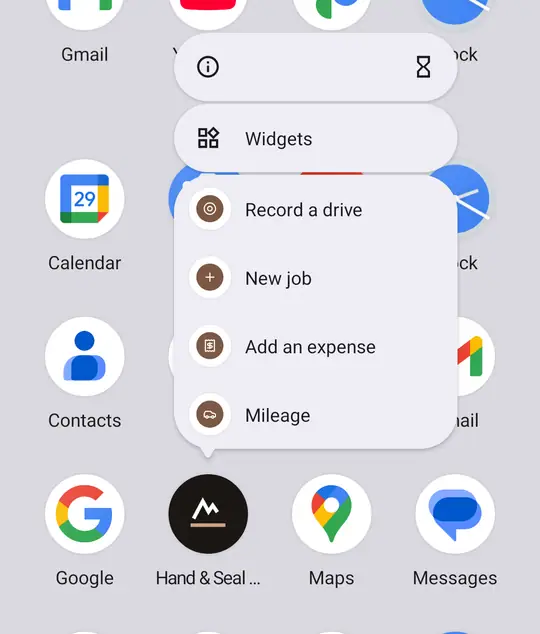
Press and hold the icon on your home screen or in your list of apps. Drag any of the four onto your home screen for an icon of its own.
Touch and hold the icon on your Home Screen. The four are in the menu that opens, with the iPhone's own choices for the app.
Good to know
- Tapping Record on the widget, or the Record a drive shortcut, opens the app: a recording starts only from inside the app. On Android, Stop on the widget works without opening it; on an iPhone the widget opens the app, where Stop is.
- A step you take with no signal is kept on the phone and sent when you're back.
- Signed in as an assistant? The widgets say For the notary: drives and signings belong to the notary.
Was this helpful?
Still stuck? Contact support — a person reads every message and answers by email.