Guide
Choose your notifications
Time to leave, Steps by themselves, quiet at signings, the lock screen and the platform's alerts on an iPhone or an Android phone — what each is for, and how to check they reach you.
The app tells you when to leave for each signing, can mark your steps for you, and passes on what happens while you're out — a new request, a cancellation, a review. All of it is set in one place: More → Settings → Notifications.
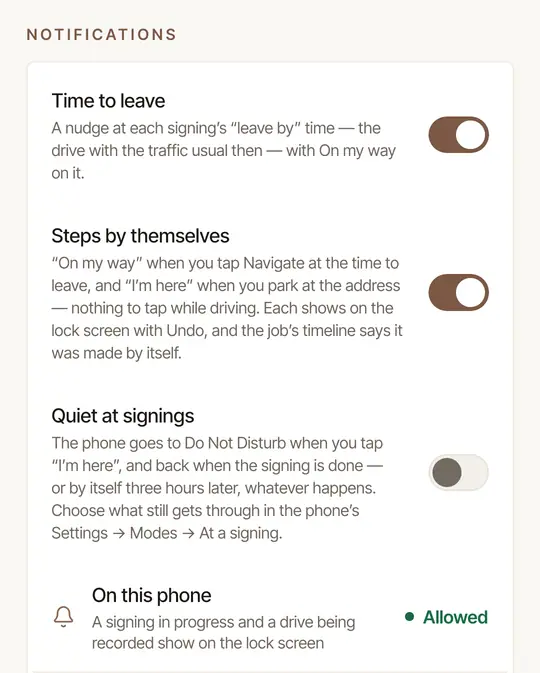
The switches
- Time to leave — a nudge at each signing's Leave by time, worked out from the drive with the traffic usual at that hour. On my way is on the notification: one tap tells the signer you're coming.
- Steps by themselves — On my way is marked when you tap Navigate at the time to leave, and I'm here when you park at the address, so there's nothing to tap while driving. The job's timeline says each was made by itself.
The rest depends on your phone:
- On my way is a button on the Time to leave notification.
- A step made by itself shows on the lock screen, with Undo.
- Quiet at signings is a switch: Do Not Disturb from I'm here until Signing done. See Quiet your phone at signings.
- Press and hold the Time to leave notification for its On my way button.
- A step made by itself shows on the Lock Screen, in the signing's Live Activity. To take it back, tap the Live Activity to open the job: Undo is under At the signing.
- Quiet at signings is a row, not a switch: an iPhone app can't silence the phone itself. Tap it for how to set up a Focus once and turn it on at the door. See Quiet your phone at signings.
Make them arrive, and on time
Allow notifications. After you sign in, Today asks once — Hear about requests and payments? — tap Allow alerts, then Allow when the phone asks. Said Not now? Settings has it: On this phone says Allowed when they are; if it says Allow, tap it and choose Allow. If it says Blocked, tap it, and the phone's own settings open.
Android's page for Hand & Seal opens. Tap Notifications and switch them on.
The iPhone's Settings open on Hand & Seal. Tap Notifications, then switch on Allow Notifications.
Let Time to leave come on time.
With Time to leave on, a row On the minute appears if Android may hold a nudge back — by up to a quarter of an hour. Tap it and allow Alarms & reminders for Hand & Seal, then come back.
There's nothing to allow: a nudge comes at its minute. It's a Time Sensitive notification, so it comes through a Focus that lets time-sensitive notifications through, and is never held for a scheduled summary. To be sure it reaches you at a signing, allow Hand & Seal in your Focus (the iPhone's Settings → Focus → your Focus → Apps) or leave Time Sensitive Notifications on for Hand & Seal.
Check Alerts. Alerts says On when the platform can reach this phone: a new request, a cancellation or a review then reaches you as it happens. Tap Send a test alert to prove the whole path — the platform, this phone and its settings. If Alerts says Allow or Blocked, do as in step 1.
What you're told about
With Alerts on, the platform tells you when:
- a client asks for a signing on your page, or cancels one — or answers a price their page asked them to agree to: a total more than $10 above their estimate, or a travel fee they hadn't agreed to (they agree, or choose Call me);
- a request from your page that you didn't answer in time lapses — in place of the notification that asked you, unless it has been handed on in your business: then whoever has taken it on is told instead — or, while nobody has, the business's owners (you, if you run it);
- a company sends you an order (through your order link or by email), asks for a new time, answers the fee you countered with, or passes an order to another notary because it needed an answer sooner;
- someone who runs your business hands you a job;
- a signing someone else booked, changed or handed you — or one said yes to for you, or by you on the phone — overlaps another signing, or leaves a drive to or from it that can't be made in time, measured on the road, or plain from the map;
- a client writes to you about a signing, or leaves you a review;
- a client pays an invoice online — by card or by bank — a bank transfer starts, doesn't go through or has waited longer than a transfer takes, or a card payment is disputed;
- Stripe's word that a bank transfer arrived comes after Hand & Seal recorded it on the day it was heard, and names a day in another year — your books keep the day it was recorded;
- a payment you recorded by hand turns out to be one Stripe took — it's matched and counted once — or a payment arrives at Stripe that your books didn't take, because the invoice was already paid another way;
- a card you took in person goes through, or isn't approved, after you've left the card screen or closed the app — while that screen is open, it says so itself;
- an order was accepted for you by Say yes for me;
- a company's sealed documents for a signing are in, or a company opens your W-9;
- something needs you on your account, such as your orders address pausing, your commission, bond or insurance coming due, or the result of your commission check.
An order from a company that needs your answer within two hours — before it goes to another notary they chose, or before its signing — is a Time Sensitive notification on an iPhone, as Time to leave is: it comes through a Focus that lets time-sensitive notifications through, and is never held for a scheduled summary. If you haven't answered, it never goes on between 9 PM and 7 AM where you work. It never names the signers — only the company, the signing's day and time, the fee and when to answer by, where the order gives them — since it can light up your phone at another signing.
What still needs you — a request or an order to answer, a message, a payment with nowhere to go, a bank transfer that is late or that you're asked about — stays on Today; anything else is on the signing or the invoice the notification opens. The same things reach an iPhone and an Android phone, and a tap opens the same screen.
By email, too. Most of these are also emailed to you, unless you turn off Email alerts in Settings → Account on the web — and choosing Unsubscribe beside one of them in your mail app turns it off as well. Emails about your account — such as your commission, bond or insurance coming due, your commission check, a disputed card payment, or a refund that didn't go through — come even with email alerts off. In a business with employees, a disputed card payment or a refund that didn't go through on an employee's signing is told to the business's owners: the money is the business's.
On the lock screen
A signing in progress and a drive being recorded stay on your lock screen while they last.
They're notifications — the time you arrived, the drive's miles — and they show as long as On this phone says Allowed.
They're Live Activities, not notifications, so they show whether or not notifications are allowed — on the Lock Screen, and in the Dynamic Island on an iPhone that has one.
- The signing's has its next step as a button — I'm here, Signing started, Signing done — and a tap on the rest of it opens the job.
- The drive's counts the time. Tap it and the app opens on Today, where Recording your drive has Stop. On the way to a signing it stands aside: the signing's covers that drive.
- An iPhone starts a Live Activity only while the app is on screen. A drive noticed by itself with the app closed is recorded all the same; its Live Activity shows once you open the app.
- They have a switch of their own, Live Activities, on Hand & Seal's page in the iPhone's Settings.
In your phone's own settings
Android lists the app's notifications by kind, each with a switch of its own: Settings → Apps → Hand & Seal → Notifications. A kind is listed once the app has shown one.
- Time to leave — the nudge at each signing's leave-by time.
- Drives that need a word — a drive, or a job with no drive, that waits for you in Mileage.
- Signing in progress — the signing on your lock screen.
- Mileage recording — the drive being recorded.
- Miscellaneous — the platform's alerts: a request, a payment, a message.
The iPhone has one switch for all of them: Settings → Notifications → Hand & Seal → Allow Notifications, with where they show and their sound under it. There's no list by kind: Time to leave has its switch in the app, and the platform's alerts come together.
Two are Time Sensitive: Time to leave, and an order from a company that needs your answer within two hours. To have both come like any other notification, switch off Time Sensitive Notifications on the same page.
Good to know
- Notifications go to the phones and browsers you're signed in on. Signing a device out stops its notifications.
- The app is also told, silently, when your jobs change, so it can record around them with the app closed. An iPhone decides for itself when to wake an app for that — less often when the battery is low or Low Power Mode is on — so on an iPhone, open the app now and then, and it catches up at once.
Was this helpful?
Still stuck? Contact support — a person reads every message and answers by email.