Guide
Record your drives automatically
Let your Android phone or iPhone record your business drives for your mileage log — setting it up, when it records, your working hours, recording a drive yourself, and filing what it couldn't match.
With automatic recording on, your phone records the drives to and from your signings and files each one to the job it was for, so your mileage log keeps itself. You only answer for the few it can't place. It works the same way on Android and on an iPhone; what each phone asks you to allow is different, and both are below.
How it works
- When it records — your choice. In Settings → Mileage & trips → Record drives, pick one:
- During my working hours (recommended): during your Hours on the web — the same hours clients can book you — and on the way to and from every confirmed signing outside them. That runs from well before you'd leave for the signing, so the drive to an early one far away is caught, until well after it ends, for the drive home. Other driving isn't recorded: your personal driving stays yours.
- All the time: at any hour of any day. It uses more battery. Driving you file as Personal keeps no route.
- Only when I tap Record: nothing by itself. Record, Navigate or On my way on a signing records that drive.
- A walk is never a drive. A recording counts only once the phone has measured driving speed. Walking from the car to the door, or through a hospital's corridors, never lands in your log.
- Filed to the job. Each drive is matched to the signing it was for, by place and time — the drive there and the drive home. Anything it isn't sure about waits in Mileage → To file.
- Light on the battery. Stopped for about a minute and a half, the phone turns the GPS off and watches with Wi-Fi and cell signals until you drive on.
- It needs your plan. If your trial or plan ends, the phone stops recording drives, by itself and when you tap Record. Mileage says Drive recording is paused — your plan has ended. Your mileage log is safe. Your log stays there to read, file and export, and drives recorded before your plan ended still go up. Subscribe on the web (Settings → Billing) and it records again.
Set up drive recording, step by step
The first time you sign in on a phone, Today offers Set up drive recording — a minute, once on each phone, so your miles are logged by themselves. Tap Set up and the app walks you through it one step at a time, saying why each thing is needed. Not now puts it away until you next sign in on that phone — and if the phone is still on Only when I tap Record, Today says so once: Drives are recorded only when you tap Record — set up anytime in Settings. You can start it again any time: Settings → Setup → Walk me through it.
Choose how drives are recorded — During my working hours, All the time or Only when I tap Record. It starts on During my working hours, the one recommended, and shows your hours from the web (Your hours: Monday to Friday, 9 AM – 6 PM, say); tap another to change it, then Next. With Only when I tap Record there's nothing for the phone to set up: the guide asks its last question (below), then ends by saying how to record a drive yourself.
Then comes what your phone needs, one step each:
Location all the time. Recording your drives says first what is collected and why; choose Continue, allow location while using the app, then choose Allow all the time on the page Android opens.
Google Location Accuracy (good to have).
Physical activity.
Battery use: Unrestricted — or, before Android 16, Battery optimization off. It lets the app use the battery in the background: on Android 16, App battery usage → Hand & Seal → Allow background usage → Unrestricted; on earlier versions, leave it out of battery optimization (Don't optimize).
Trip notifications (good to have).
Home location (good to have).
Location: Always. Recording your drives says first what is collected and why; choose Continue. Your iPhone then asks about location: tap Allow While Using App and, when it asks again, Change to Always Allow.
Precise Location. Usually on already: the step shows a tick, and Next. If it's off, tap Open Settings, tap Location, and turn on Precise Location.
Motion & Fitness. Tap Allow, and allow it when your iPhone asks.
Background App Refresh. Usually on already. If it's off, tap Open Settings and turn on Background App Refresh. Low Power Mode pauses it.
Home location (good to have).
Last, on either phone, a question for you: Is your home your main place of business? Choose Yes — drives between home and a signing count as business miles. or No — they are commuting and do not count. Then tap Next. Neither is chosen for you, and the guide doesn't end without an answer: if you chose to have drives recorded by themselves, that begins once you've answered. It's a tax position — if you're not sure, ask your tax preparer. You can change it later in Settings.
Each step has one button — Allow, Open Settings or Set, and on Android also Turn on and Open battery usage (Open the list before Android 16) — and shows a tick once it's done, checked again as you come back from your phone's settings. A step already done is passed with Next, and one that's only good to have has Skip. If you say no to one — Physical activity or Motion & Fitness, say — the step says what's missing without it and where to allow it later, and Skip goes on to the next step; Setup keeps it on its list. At the end the guide says Ready to record drives automatically, or lists what's still missing, each with its button; Done goes back to Today. Today stops offering it once everything is in place, or once you choose Only when I tap Record.
Turn it on
You can also do it all yourself, in Settings:
Open Settings. On Today, tap the gear at the top — or More → Settings.
Choose During my working hours — or All the time. It's under Mileage & trips → Record drives.
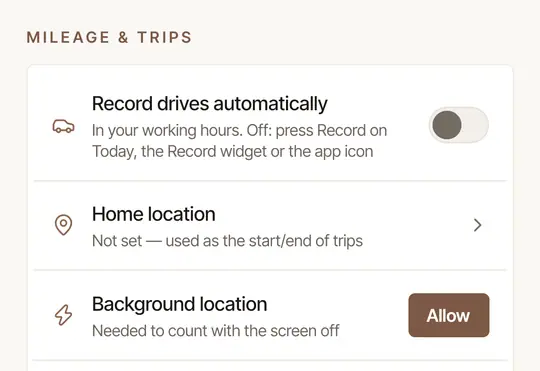
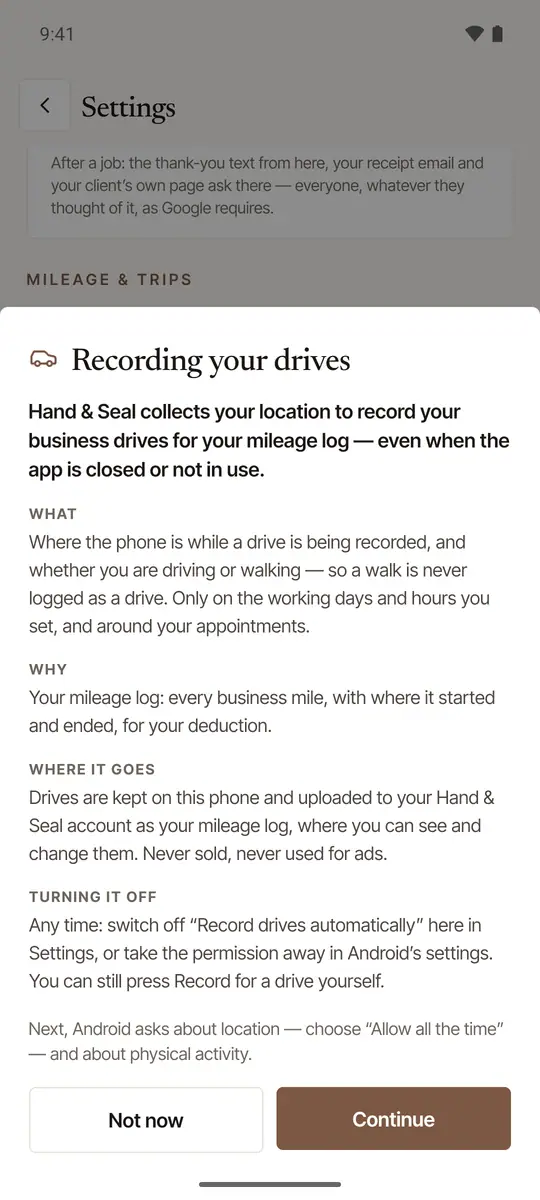
Read what it collects, then choose Continue. Recording your drives says what is recorded, when — with the app closed too — why, where it goes, and how to turn it off. Not now asks for nothing.
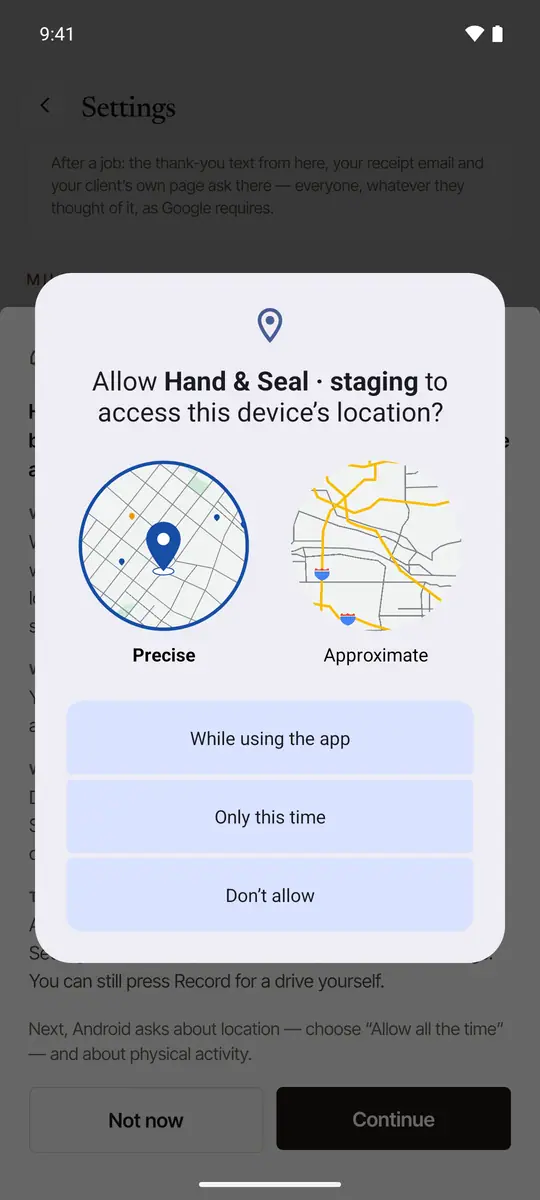
Allow location while you use the app. Keep Precise chosen and tap While using the app.
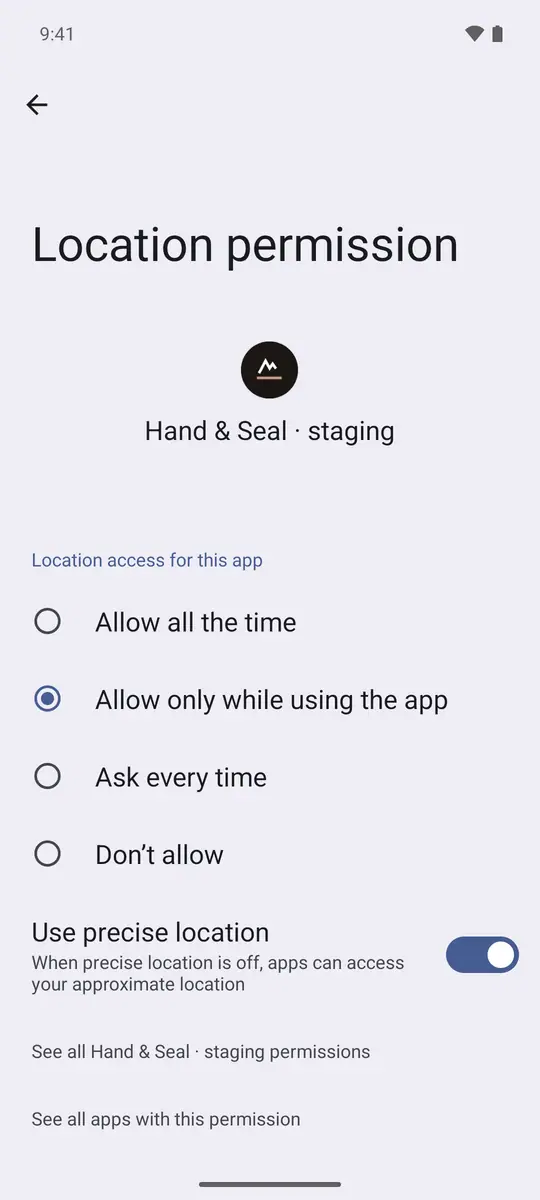
Choose Allow all the time. Android opens the app's Location permission page next. Tap Allow all the time, then go back to the app. Without it the app can't start recording on its own — it asks you to open it when it notices a drive.
Allow physical activity. It's how the phone tells a drive from a walk. Tap Allow.
Let it use the battery in the background. It's so Android doesn't stop the recorder in the middle of a drive. The app says what to pick, then opens Android's own page:
- Android 16: Open battery usage opens App battery usage. Tap Hand & Seal, tap Allow background usage, choose Unrestricted, and come back.
- Earlier versions: Open the list opens the battery optimization list. Switch it to All apps, tap Hand & Seal, choose Don't optimize (on some phones Allow), and come back. On some phones it's the app's own Battery page instead: choose Unrestricted.
Read what it collects, then choose Continue. Recording your drives says what is recorded, when — with the app closed too — why, where it goes, and how to turn it off. Not now asks for nothing.
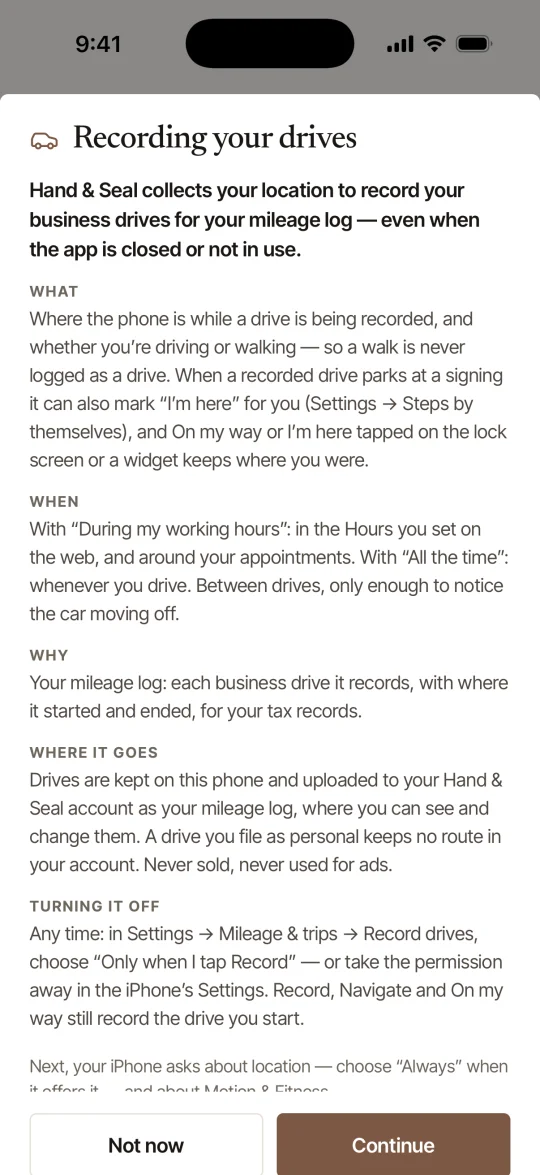
Tap Allow While Using App. Your iPhone asks about location first. If the question shows Precise: On, leave it on.
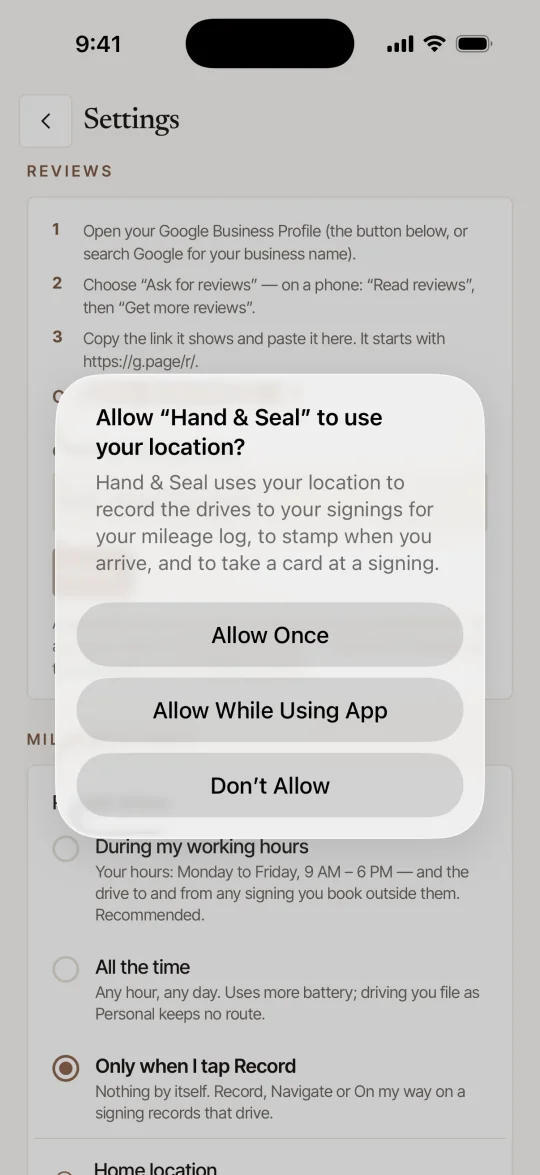
Tap Change to Always Allow. The iPhone asks a second time, straight after. With Always, a drive is recorded with the app closed; without it, only the drives you start yourself are recorded.
Allow Motion & Fitness when your iPhone asks. It's how the phone tells a drive from a walk.
An iPhone has no battery step. What it needs instead is Background App Refresh, which lets iOS wake the app when you drive off. It's on unless you turned it off, and Setup lists it if it's off.
After Allow Once, the iPhone doesn't ask the second time. Then, or if you chose Keep Only While Using, the app says Background access recommended: tap Open settings, tap Location, and choose Always.
Check Setup
Setup, at the top of Settings, keeps an eye on all of this. When everything is in place it says Ready to record drives automatically. If something is missing — a permission taken away later, say — it says Finish setup to record drives automatically and lists each thing with a button to put it right. (With Only when I tap Record there's nothing to set up: it says You record your drives.)
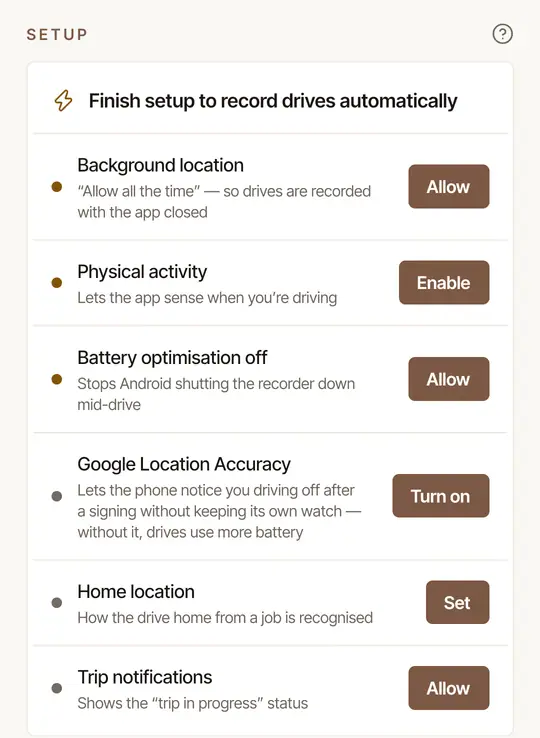
- Background location — Allow: “Allow all the time”.
- Precise location — Allow: listed only if location was given as Approximate, which is too rough to measure a drive.
- Physical activity — Enable.
- Battery optimization off (on Android 16, Battery use: Unrestricted) — Open: Android's battery page, where you choose Unrestricted (Android 16) or Don't optimize for Hand & Seal (step 7 above).
- Google Location Accuracy — Turn on: Google's own switch, in one tap (or Android's Location settings, where that can't show). Good to have, not required: without it, drives use more battery.
- Home location — Set: where home is, so the drive home from a job is recognized. Good to have, not required.
- Trip notifications — Allow: shows a drive in progress. Good to have, not required.
Keep Google Location Accuracy on
In Android's Settings → Location → Location services, keep Google Location Accuracy on. After a signing the phone uses it to notice when you drive off, without checking its location over and over; with it off, recording still works, but uses more battery.
- Background location — Allow: “Always”, so drives are recorded with the app closed. If the iPhone won't ask again, the button opens Hand & Seal's page in the iPhone's Settings: tap Location and choose Always.
- Precise Location — Open: opens that page. Tap Location and turn on Precise Location. Without it every position is kilometers out, and no drive can be measured.
- Motion & Fitness — Enable: it tells a drive from a walk. If you said no to it before, the button opens that page: turn on Motion & Fitness.
- Background App Refresh — Open: opens that page. Turn on Background App Refresh: it lets iOS wake the app when you drive off.
- Home location — Set: where home is, so the drive home from a job is recognized. Good to have, not required.
On an iPhone
- Low Power Mode pauses Background App Refresh, and iOS then stops waking the app when you drive off. Until it's back on, record those drives yourself: Record, Navigate and On my way still work.
- There is no trip notification to allow. While a drive is recorded with the app out of sight, the iPhone shows its own blue location marker at the top of the screen.
- A locked iPhone still records. A drive recorded while the phone stayed locked may wait to be matched to its job and added to your log until you unlock the phone and open the app.
- Don't swipe the app away in the middle of a drive. iOS stops the GPS, and the rest of that drive may be missed. Switching to another app, or locking the phone, is fine.
Walk me through it, at the foot of Setup, opens the same step-by-step guide Today offers. The ? beside Setup opens this article.
Your working hours
Your working hours are set once, on the web, in Settings → Hours: the same hours your page offers clients. See Set the hours clients can book. The phone shows them in Settings → Working schedule. Its first line says where things stand: Recording drives automatically now, Paused — outside your hours, Recording drives automatically, at any hour, Automatic recording is off — you press Record, or Paused — your plan has ended.
To change your hours, tap Change your hours. Business settings → Hours opens inside the app. Save there, and the phone follows as you come back.
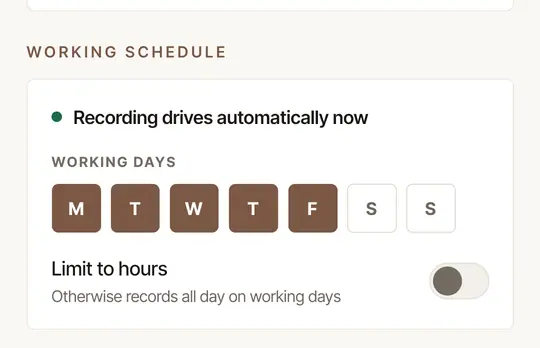
Hours are in your business's time zone. A signing booked outside them still gets its drives: the drive there and the drive home are recorded anyway. If you keep your own practice and work in a business too, drives are recorded during the hours of either, each listed under its name.
One set of hours
The phone used to have a working schedule of its own. If yours recorded at times your Hours on the web don't cover — Saturdays, say — the phone says so once: Recording now follows your Hours on the web. A phone you first signed in on after that never had one, so it has nothing to say. To record then too, add the time to your Hours on the web, choose All the time, or press Record for those drives.
Record a drive yourself
For a drive outside your hours — or if you'd rather press a button than have drives noticed:
Tap Record a drive — the red dot at the top of Today. The Record a drive widget does the same, and so does pressing and holding the app's icon, then Record a drive. Tapping Navigate or On my way on a signing records the drive there too.
Drive. Recording your drive on Today shows the miles so far.
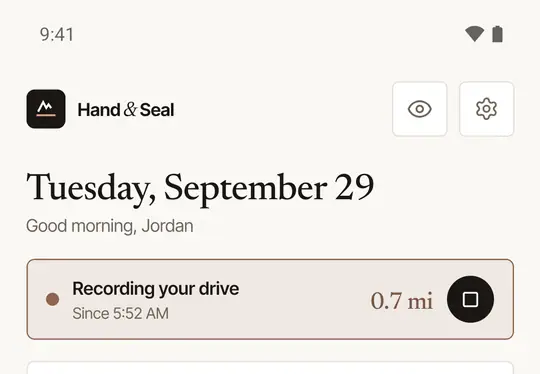
Tap Stop when you arrive — or just park: the recording ends by itself about five minutes after you stop.
A drive you record yourself is filed like any other. More in Record a drive yourself.
File the drives it couldn't match
Open More → Mileage. To file lists what needs a word from you: a drive the phone couldn't place, and a signing no drive was filed to (asked about three hours after it ends).
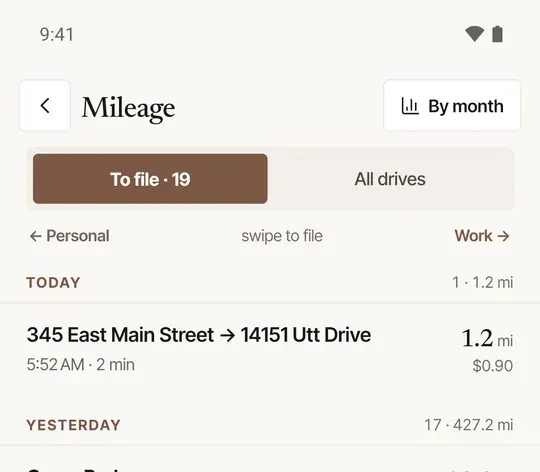
Swipe right for work. If the drive looks like one of your signings, the row says Looks like and the job's name, and a swipe files it there. Otherwise choose what it was for: a job, an errand — Supplies, Drop-off, Bank, Clerk / post office, Course / exam, Marketing or Something else — or, under Not deductible, Personal or Commute.
Swipe left for Personal.
For a signing with no drive: swipe right to add its round trip on the route quoted for the job (marked estimated), or left for No drive.
Every answer can be undone for a few seconds. Tap a drive to see its route, where it started and ended, and all the choices — Remove this drive is at the foot, for a GPS glitch or a drive logged twice. All drives shows the whole log.
When something is waiting, one notification says so — a drive can be marked Personal right on it. On an iPhone, touch and hold the notification to see that button.
Places it learns
File a drive to an errand — your supply shop, say — and the next drive that ends there is filed the same way, with a line saying why. It does this only while you've always filed that place the same way, and never over a signing.
Home office and commuting
Settings → Mileage & trips → Home office is my principal place of business decides whether drives between home and a signing count as business miles or as commuting. The set-up guide asks you as its last step; on a phone set up before it did, Mileage asks in a card at the top — Is your home your main place of business? — until you answer and tap Save. Log it on the web files by your answers on Mileage, and the phone app files the drives it records by its own setting. It's a tax position: this is tax information, not tax advice. Ask your tax preparer which is right for you.
Something missing from your log? See A drive wasn't recorded.
Was this helpful?
Still stuck? Contact support — a person reads every message and answers by email.