Guide
Sign in with Google, Apple or a passkey
Add Google, Apple or a passkey as a way into your account, and change the email or password you sign in with — on the web and on the phone.
Your account can have more than one way in: your email and password, your Google account, your Apple ID, and passkeys — your fingerprint, face or screen lock, with no password to type. Add them once, then use whichever is quickest.
On the web they're all in Settings → Sign-in & security, in the Sign in and Passkeys cards. In a phone's browser, Settings is under More.
Sign in with Google
Open Settings → Sign-in & security and find Sign in. It shows Your name, the Email you sign in with, and Google — Not connected until you add it.
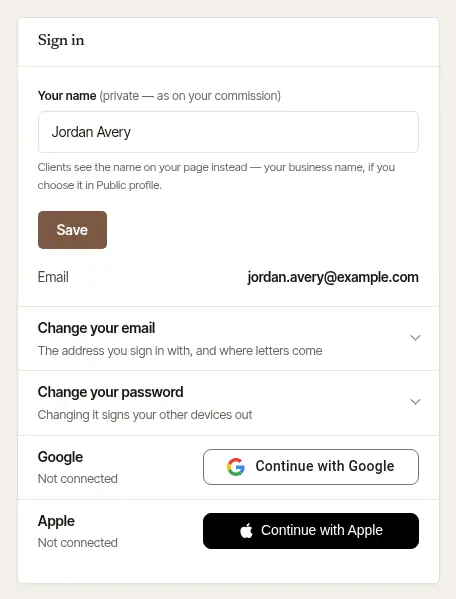
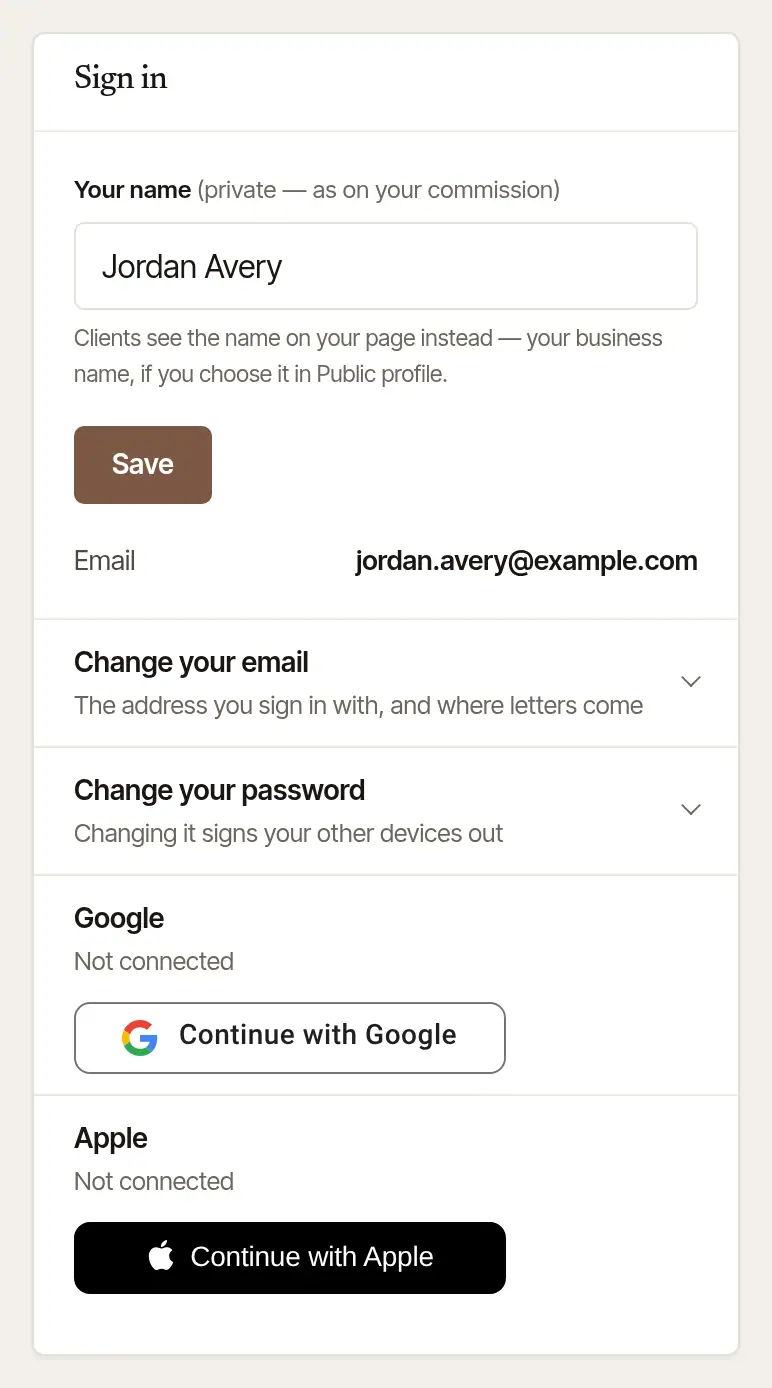
Choose Continue with Google, and enter Your password to show it's you. (With two-step sign-in on, it asks for a code from your authenticator app instead. If you have no password — you sign in only with Apple — it asks nothing when you signed in within the last 15 minutes, and otherwise asks you to sign in again first.) Then pick your Google account on Google's page. You come back to Settings with “Google is connected”, and Google is listed with its address.
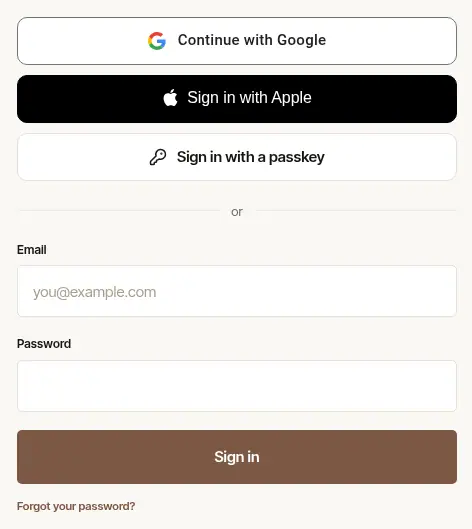
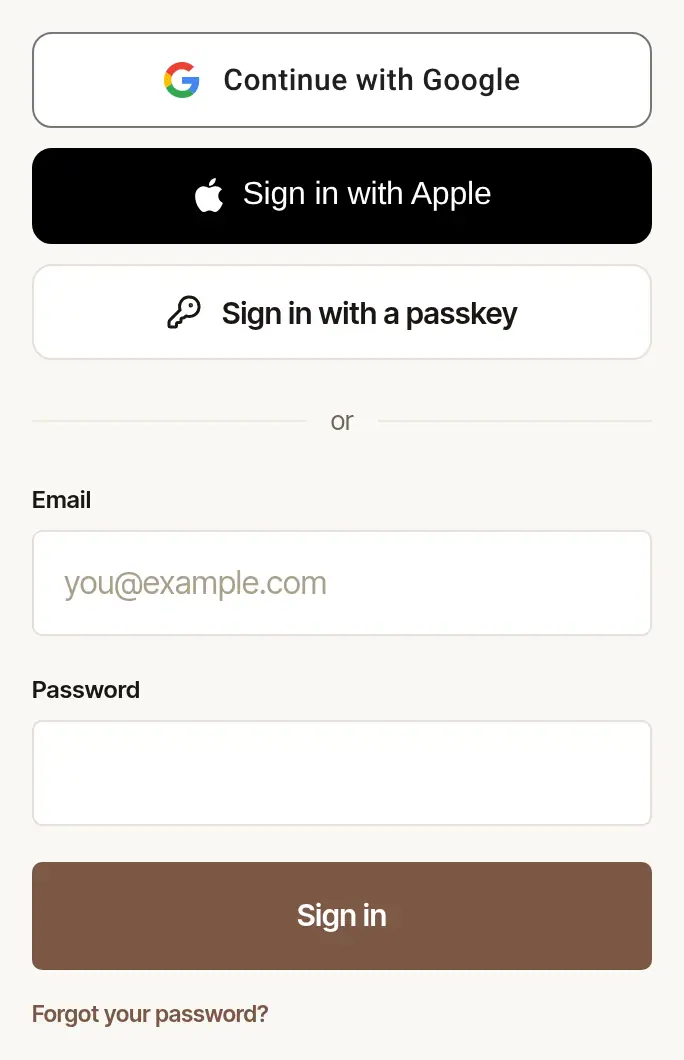
Sign in with it next time. On the sign-in page, choose Continue with Google.
A Google account can sign in to only one account here: if it already signs in to a different one, it isn't connected, and Settings says so.
Tap Continue with Google on the app's sign-in screen, and choose your Google account on the page that opens.
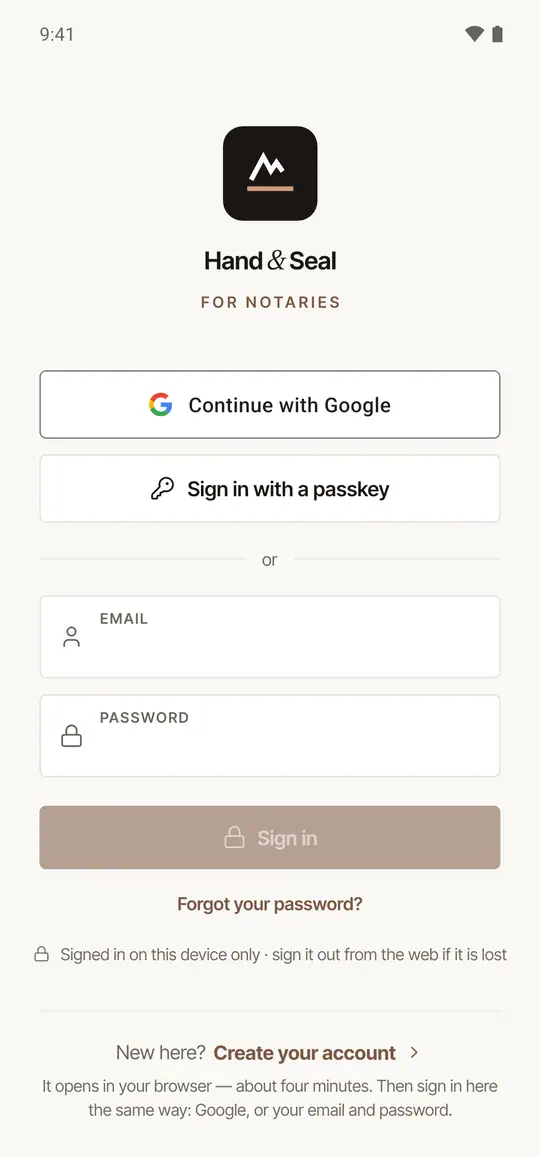
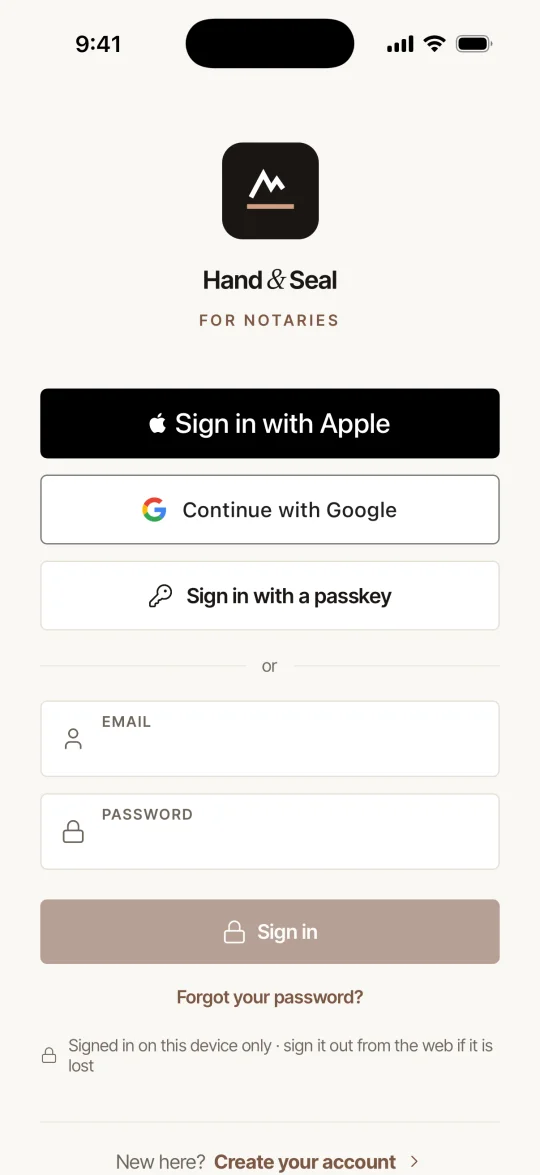
The first time, you may be asked for your password. If the email on your account is a Gmail or Google Workspace address, Google is joined to your account by itself. For any other address, enter your Hand & Seal password once; from then on, Continue with Google signs you in.
Continue with Google is on the Android app and the iPhone app. On the iPhone it sits under Sign in with Apple.
Good to know
- Signed up with Google, so you have no password? The Sign in card offers Email me a link to set a password. The link works for an hour, and your devices stay signed in.
- To take Google off, choose Disconnect beside it. You need a password first, so there's still a way in.
- Two-step sign-in, if it's on, asks for its code after Google too.
Sign in with Apple
Open Settings → Sign-in & security and find Sign in. Under Google it shows Apple — Not connected until you add it.
Choose Continue with Apple, and enter Your password to show it's you — or, with two-step sign-in on, a code from your authenticator app. (If you have no password — you sign in only with Google — it asks nothing when you signed in within the last 15 minutes, and otherwise asks you to sign in again first.) Then sign in with your Apple ID on Apple's page. You come back to Settings with “Apple is connected”.
Sign in with it next time. On the sign-in page, choose Sign in with Apple.
Tap Sign in with Apple on the app's sign-in screen. On an iPhone, the iPhone's own sheet opens: confirm with Face ID, Touch ID or your passcode. On Android, Apple's page opens in the browser.
The first time, you may be asked for your password. If the email on your account is an iCloud address (icloud.com, me.com or mac.com) that you've confirmed, Apple is joined to your account by itself. For any other address, enter your Hand & Seal password once; from then on, Sign in with Apple signs you in.
No account yet? The app says so and opens the sign-up in your browser: choose Sign up with Apple there, finish the few steps, then come back and sign in with Apple.
Hide My Email
When you sign up with Apple you can choose Hide My Email. Apple then gives us an address of its own — it ends in privaterelay.appleid.com — and forwards our letters to your real email. Your account uses that address, and our letters — password links, receipts, alerts — reach you through Apple. Your clients can't write to it, though: Apple passes on only what Hand & Seal sends. So we ask you for an address they can write to: Today on the web asks, and so does one email from us. Type it on the web under Settings → Sign-in & security → Where your clients write to you and choose Send the link: we write to that address, and once you open the link there and choose Use this address on the page it opens, it is the address to reply to on the letters sent in your name or your business's, it is printed on your invoices, and it is shown on the desk of a company that sends you an order, once the order is accepted. Until then your letters tell your clients that answers to them aren't read, and how to reach you instead — the page the letter opens, and your phone number when you have given one. Change it any time in the same place. If you already have a Hand & Seal account, don't make a second one this way: sign in to it, then connect Apple under Settings → Sign-in & security.
Good to know
- To take Apple off, choose Disconnect beside it. You need a password (or Google) first, so there's still a way in. Apple is told to forget Hand & Seal for you, and your Apple ID no longer lists it.
- An Apple ID can sign in to only one account here.
- Two-step sign-in, if it's on, asks for its code after Apple too.
- Closing your account tells Apple too: Hand & Seal no longer signs in with your Apple ID.
Add a passkey
A passkey is kept on your computer or phone — or in your Apple, Google or Microsoft account — and signs you in with the fingerprint, face or PIN you already unlock it with. No look-alike site can trick it out of you, and it needs no two-step code.
Open Settings → Sign-in & security and find Passkeys. It says None yet until you add one.
Choose Add a passkey. Give it a name you'll recognize under Name it — “Work laptop”, say — and enter Your password to show it's you. (With two-step sign-in on, it asks for a code from your authenticator app instead. If you sign in only with Google or Apple, it asks you to sign in with it again first.)
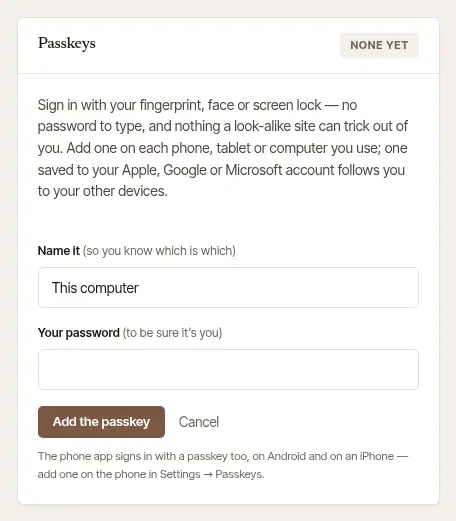
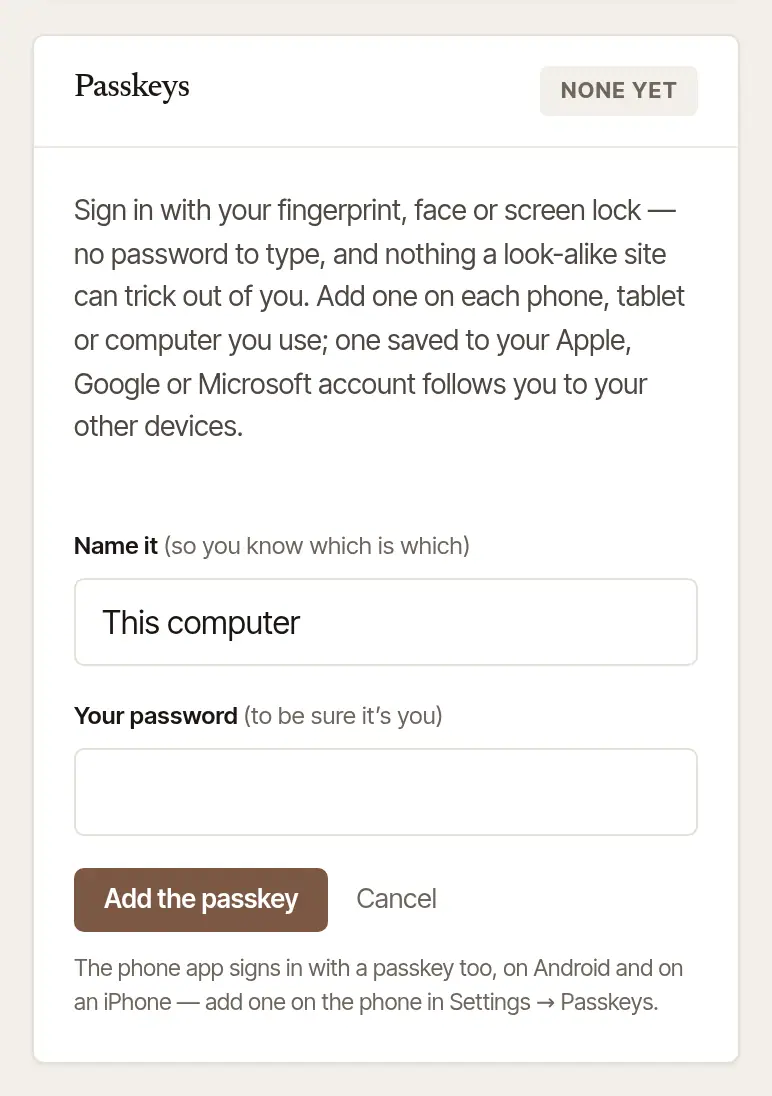
Choose Add the passkey, then answer your browser: touch the fingerprint reader, look at the camera, or type the computer's PIN. The passkey is listed by its name, with the day you added it.
Sign in with it next time. On the sign-in page, choose Sign in with a passkey. Your browser may also offer it as soon as you click into Email.
Add one on each phone, tablet or computer you use; one saved to your Apple, Google or Microsoft account follows you to your other devices. Passkeys are made in Chrome, Safari, Edge or Firefox — another browser says it can't. The phone app signs in with a passkey too, on Android and on an iPhone: add one on the phone in its Settings → Passkeys.
Open More → Settings, then Passkeys under Signing in. It lists the passkeys you already have, including the ones you added on the web.
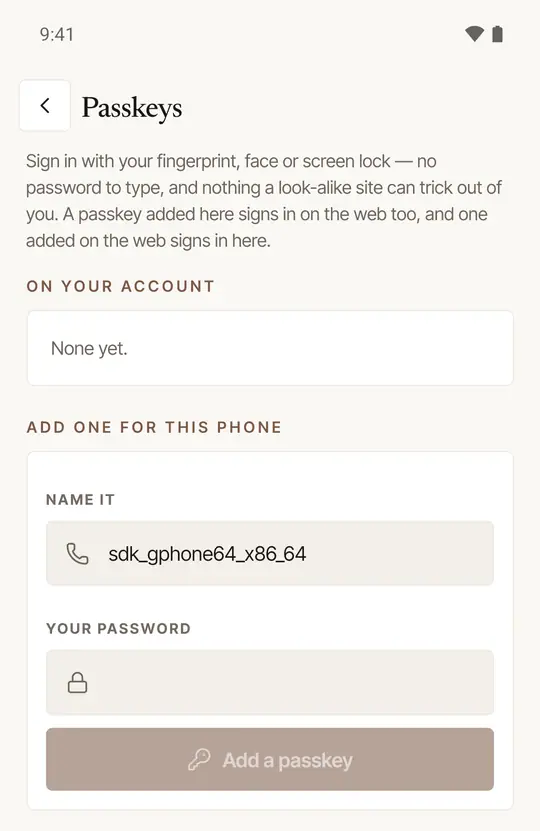
Under Add one for this phone, fill in Name it and Your password, tap Add a passkey, and answer the phone with your fingerprint, face or screen lock — on an iPhone, with Face ID, Touch ID or your passcode.
Sign in with it next time: Sign in with a passkey on the app's sign-in screen.
A passkey added on the phone signs in on the web too, and one added on the web signs in on the phone. On Android, passkeys need Android 9 or later, a screen lock, and somewhere to keep them, such as Google Password Manager. Any iPhone that runs the app can use them: they need a passcode, and somewhere to keep them — iCloud Keychain, or another password manager you've chosen.
Good to know
To take a passkey off, choose Remove beside it, then Remove it. It no longer signs you in; your password still does.
Change your email or your password
Change your email. In the Sign in card, open Change your email, type the New email address and Your password, and choose Send the link. (If you have no password — you sign in only with Google or Apple — it asks nothing more when you signed in within the last 15 minutes, and otherwise asks you to sign in with it again first.) A link goes to the new address. Nothing changes until you open it and press its button — the page names the account it changes, so you can see it's yours; then you sign in with the new address, and your old address is told. The link works for a day — and changing or resetting your password before you open it cancels it: ask for the link again afterwards.
Change your password. In the Sign in card, open Change your password, fill in Current password and New password (at least 10 characters), then choose Change password. Every other device you're signed in on is signed out; this one stays in. A new password doesn't change what else signs in — Google, Apple, a passkey, your authenticator app — so the page, and the email we send, list them: take off any that isn't yours.
Good to know
Forgotten your password? Choose Forgot your password? on the sign-in page, and we email you a link to set a new one.
Was this helpful?
Still stuck? Contact support — a person reads every message and answers by email.