Guide
Turn on two-step sign-in
Ask for a code from an authenticator app as well as your password, keep your ten recovery codes, move it to a new phone, or turn it off.
With two-step sign-in on, a password alone isn't enough to get into your account: signing in also asks for the six-digit code an app on your phone shows. It's optional, and you turn it on from the web.
A passkey already counts as both steps — the device and your fingerprint, face or PIN — so signing in with one never asks for a code.
Turn it on
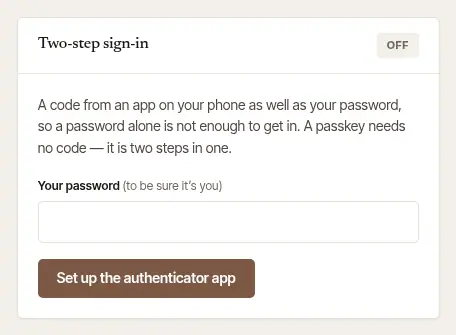
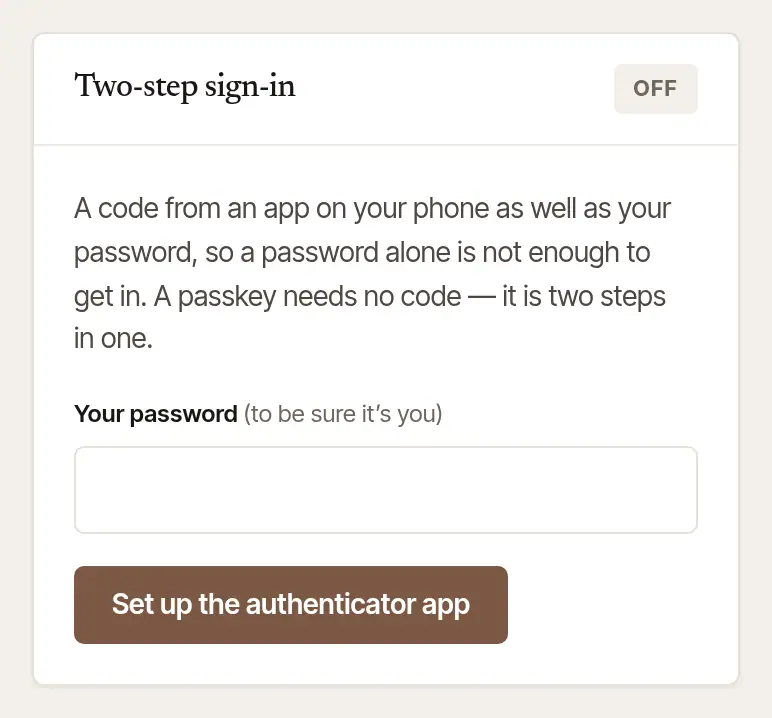
Open Settings → Sign-in & security and find Two-step sign-in. It says Off. (In a phone's browser, Settings is under More.)
Enter Your password and choose Set up the authenticator app. If you sign in only with Google or Apple, it asks you to sign in with it again first, then set it up within 15 minutes.
Add Hand & Seal to an authenticator app on your phone. Open Google Authenticator, Microsoft Authenticator, 1Password or your phone's own passwords, add an account, and scan the QR code on the screen. Can't scan it? Choose Copy the key and type the key into the app instead. Setting up on the phone you're reading this on? Choose On this phone? Open it in your authenticator app.
Type the six-digit code the app shows, and choose Turn it on. The card says “Two-step sign-in is on.”
Keep your recovery codes. Ten codes are shown once, now. If your phone is ever lost, each one signs you in once in place of a code. Choose Copy them or Download, and keep them somewhere apart from your phone — a password manager, or on paper.
Sign your other devices out, if you like. Devices already signed in stay signed in. Choose Sign out everywhere else and each asks for the second step the next time. Then choose Done.
We don't picture the QR code: it's the key to your account's codes. Never share it, or your recovery codes, with anyone.
Signing in with it
Sign in as usual, with your email and password, Google or Apple.
Enter the code. Two-step sign-in asks for the Code from your authenticator app. Type the six digits and choose Sign in. The page waits five minutes; after that, sign in again.
No phone to hand? Choose Lost your phone? Use a recovery code and type one of your saved codes. Or, if you have a passkey on this computer, choose Use your passkey.
Sign in as usual on the app's sign-in screen.
Enter the code. Two-step sign-in asks for the Code your authenticator app shows for Hand & Seal; it goes as soon as you've typed the sixth digit.
No code? Tap Use a recovery code and type one of your saved codes. A passkey — Sign in with a passkey on the sign-in screen — doesn't need this step.
Look after it
Once it's on, the card lists Authenticator app and Recovery codes, each with its own buttons. Each change asks for a current code from the app (or a recovery code).
- A new phone: choose New phone beside Authenticator app. Enter a code from the old phone, choose Move to the new phone, scan the new QR code with the new phone, and choose Move it. The old phone's codes stop working.
- Running out of recovery codes: the card says how many of the 10 are left. Make new ones gives you ten fresh codes; the old ones stop working.
- Turning it off: choose Turn off, then Turn off two-step sign-in. Your recovery codes go with it; your passkeys stay.
Good to know
- Lost your phone and your recovery codes? Write to us from the address you sign in with. Once we're sure it's you — a call to the phone number on your account, or a reply from that address — we turn two-step sign-in off: your authenticator app, recovery codes and passkeys are taken off, every device is signed out, and you're emailed. It shows in your Security activity.
- Twenty wrong codes in a day turn codes off for your account until you reset your password (Forgot your password? on the sign-in page), and sign out every device signed in to it — yours too. We email you when it happens. A passkey still signs you in.
- Changing your password, adding a passkey or closing your account asks for a current code too, while two-step sign-in is on.
Was this helpful?
Still stuck? Contact support — a person reads every message and answers by email.