Guide
Set up your account
From signing up to your page going live — your details, confirming your email, the four set-up steps, and publishing the page clients find you by.
Set-up tells Hand & Seal where you're commissioned and what you charge, so every signing you book after it is priced, recorded and invoiced for you. It takes a few minutes, on the web.
The phone app has no sign-up of its own: its Create your account opens these same pages in your browser, and when you're done you sign in on the phone — see Install the app and sign in.
Before you start
- Your commission certificate — the state, the commission number and the date it expires (a Louisiana notary is commissioned for life, and has none). Your bond and E&O policy too, if you'd like them on file.
- What you charge — for each notarial act, for travel, and for printing. Each act starts at your state's limit, where it sets one. Your travel fees start empty: they're yours to type.
Create your account
Open sign-up. Go to
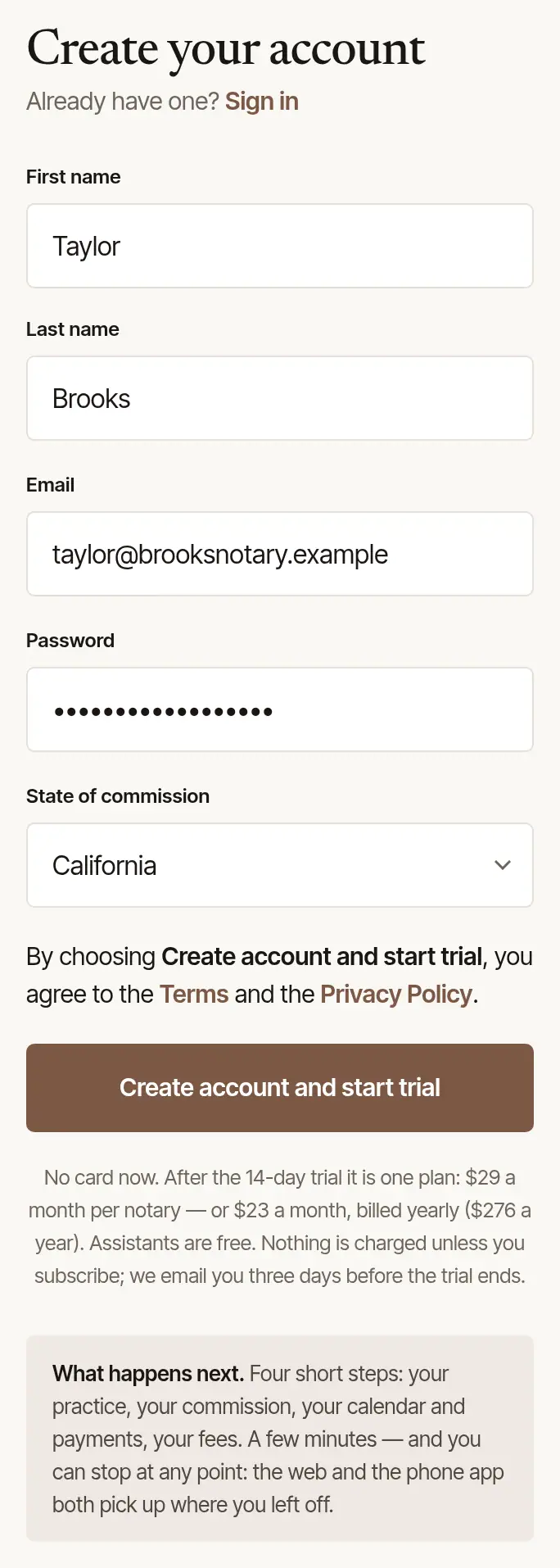
handandseal.app/signup.Fill in your details. Your First name and Last name as they are on your commission, your Email, a Password of at least 10 characters, and your State of commission — left out, the form asks for it before the account is made. Then choose Create account and start trial. The line above that button says that choosing it is agreeing to the Terms and the Privacy Policy, with a link to each. No card is asked for: nothing is charged unless you subscribe, and we email you three days before the trial ends.
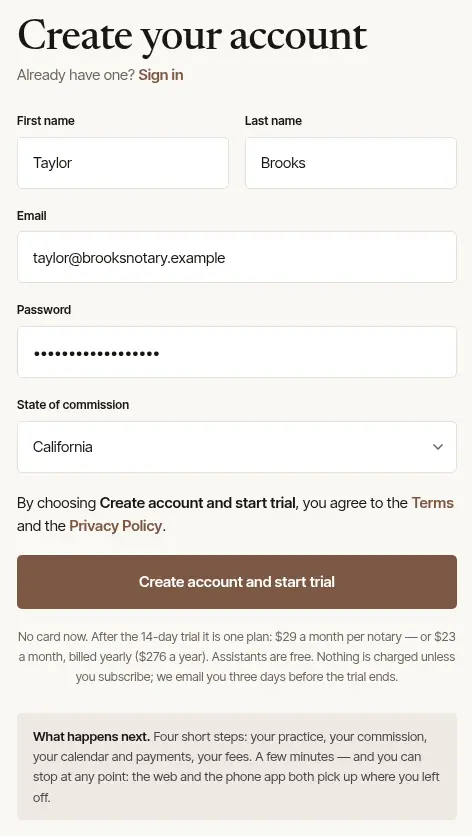
Sign up with Google makes the account with your Google address instead: choose it to sign in with Google from then on. (Through an invitation link, it's an email and a password.) Already have an account with that email — made on the phone app, say? The form says so, with Sign in, and reset your password if you've forgotten it.
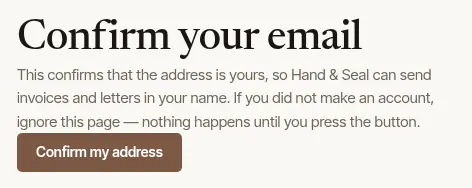
Confirm your email. We send a letter called “Confirm your email for Hand & Seal”. Choose Confirm my email in it, then Confirm my address on the page that opens. The page confirms it while you're signed in to your account; if you aren't signed in there, it asks you to sign in first.
Until you do, a Confirm your email banner sits at the top of each page, and only a few letters go out in your name. Mistyped the address? Wrong address? on the banner opens Change your email. The link works once, for a week — Send again on the banner sends a fresh one, and says what happened in its place: Sent — look in your inbox., or, after three in an hour, to use the newest one or try again later.
The four set-up steps
Set-up opens by itself once your account is made. Finish later stops at any point: Today then shows Finish setting up, and Continue set-up brings you back to the step you left. Back and Finish later keep what you've changed on the step, in that browser tab, for when you come back to it. Signing out in that tab clears it, and so does opening a sign-in page there, or a link that confirms an address — the one in your confirmation letter, say. It's kept for your sign-in alone: someone else who signs in on that tab isn't shown it.
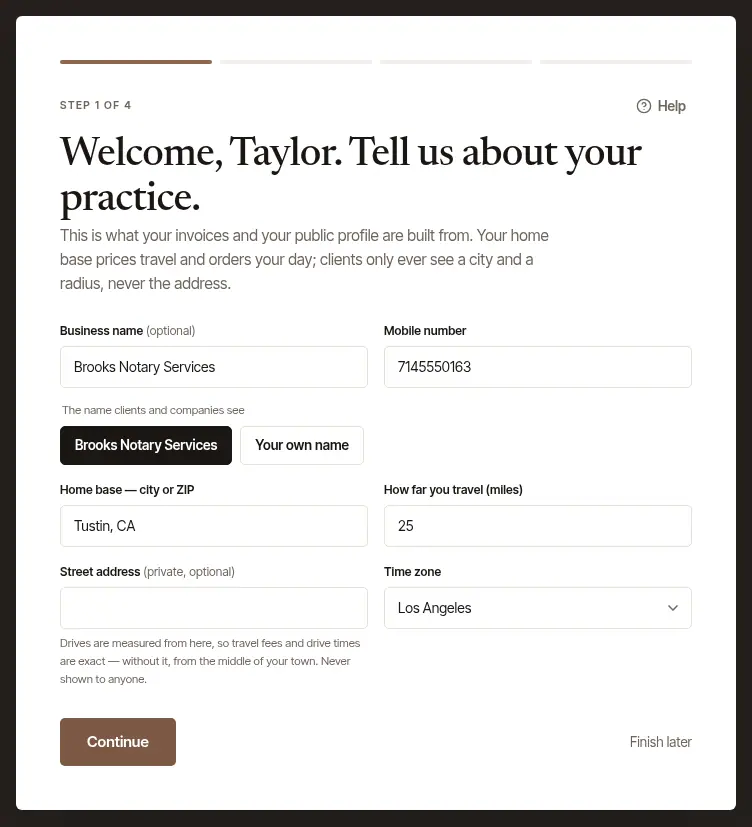
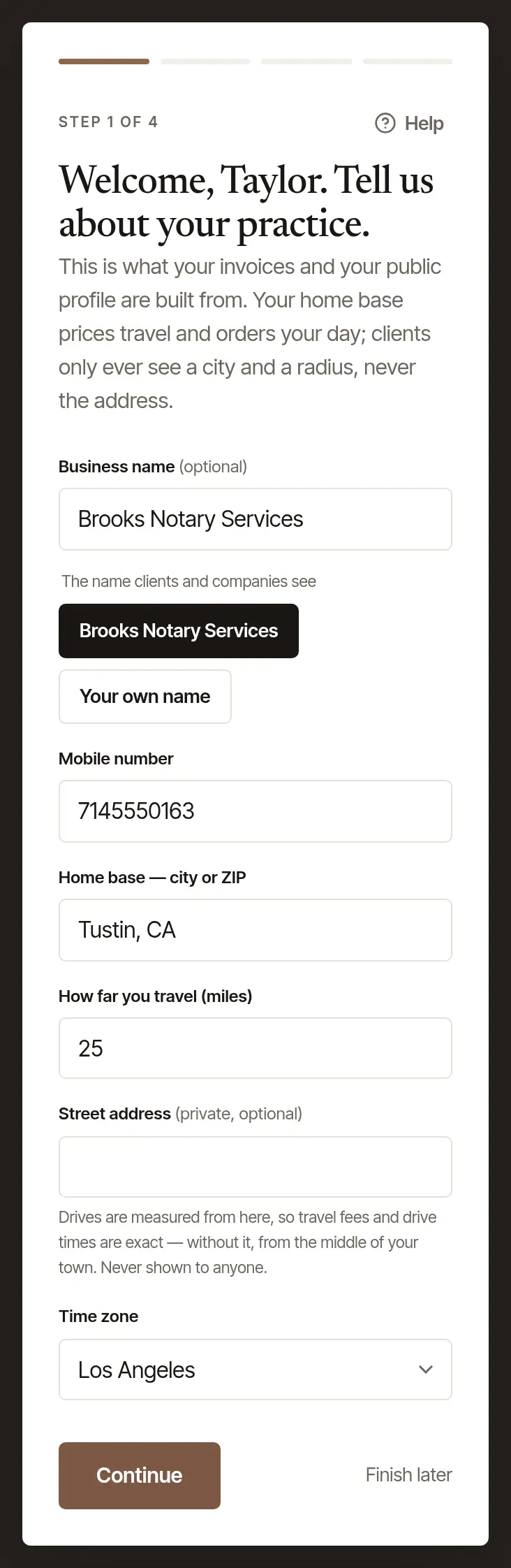
Tell us about your practice. Step 1 asks for:
- Business name (optional) — if you trade under one, set-up on the web asks which name clients and companies see: your business's, or Your own name. It's the name on your page, and set-up waits for your answer. Where it couldn't ask — set-up finished with scripts turned off in your browser — your page shows your own name until you choose. You can change it any time in Settings → Account or on Profile.
- Mobile number (optional). It's printed on your invoices and quotes and in the letters to your clients about their signings, and shown to the client or company once a signing is confirmed. After a person's signing, they can save it as a contact from their request's page or receipt — in a business of several notaries, an owner's number is saved instead, and is the one their page and invoice give from then on. It's not on your public page.
- Home base — city or ZIP and How far you travel (miles). Clients only ever see the city and the distance. When you leave the box, the line under it shows the town clients will see: Clients see “Riverside, CA” — never your street address. A place that isn't on the map is refused, with what to type instead. On this form, a ZIP code the map doesn't have is asked about before it's saved, and so is a town outside every state you hold a commission in — or, until a commission is on file, outside the state you signed up in: if your home base is there — across a state line, say — tick the box under the question and go on; if not, correct it. The phone app's home base saves without asking.
- Street address (private, optional). Drives and travel fees are measured from here; without it, from the middle of your town. It's never shown to anyone.
- Time zone.
- Your working hours — your week as it is now: a standard week, until you set your own. Tick a day you take signings on and choose from when to when, or untick one you don't. When your page takes requests, it offers clients times inside these hours. Your after-hours fee applies outside them. You can change them later in Settings → Hours too — see Set the hours clients can book.
Then choose Continue: each day you changed is saved with the rest of the step.
Say where you're commissioned. Choose the State, and type the Commission number and the date the Commission expires — as they are on your certificate. A Louisiana notary is commissioned for life, so there's no expiry to enter. Your bond and E&O policy go under Bond and E&O insurance (optional). Choose Continue.
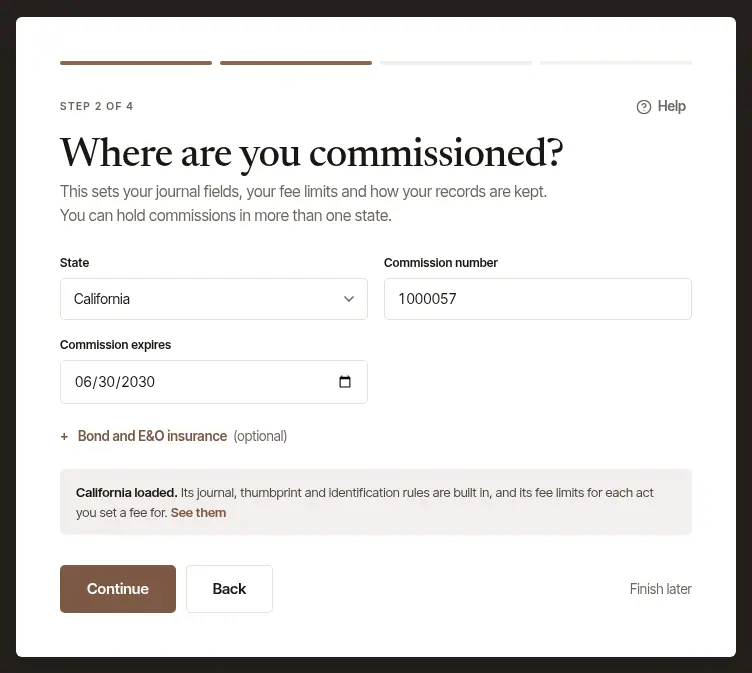
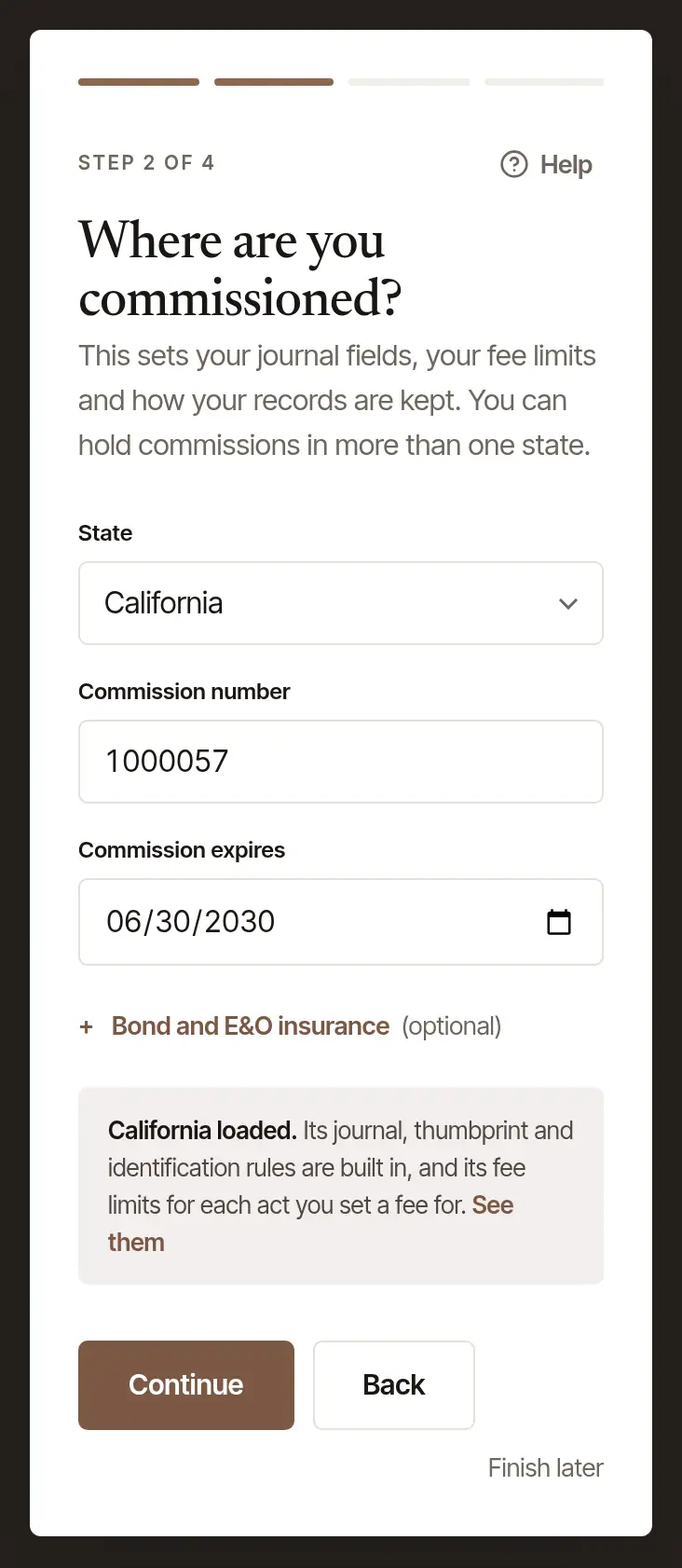
Choosing the state loads its rules: the line under the form says so, and See them lists them. They decide what your journal lines ask for, which IDs are listed, and the most you can charge for each act your state limits. The line names any act whose limit we have not established.
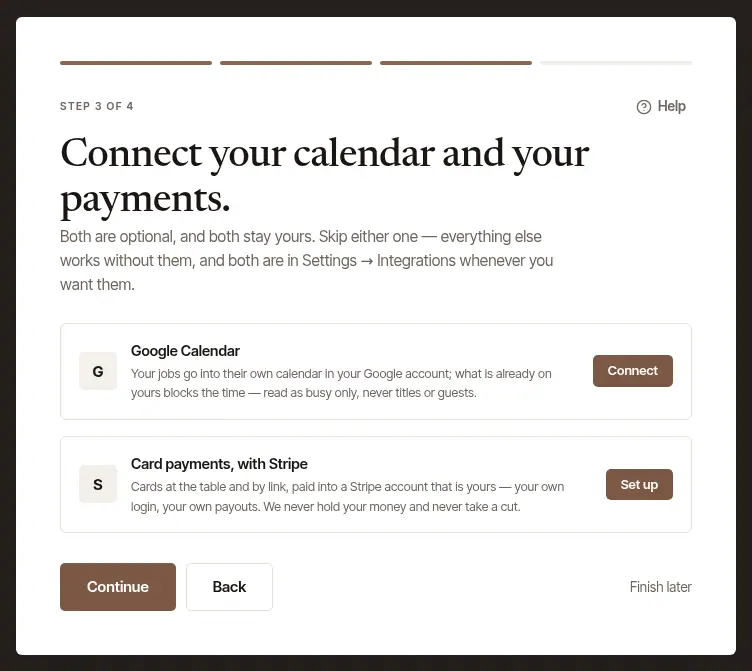
Connect your calendar and card payments — or skip them. Google Calendar (Connect) and Card payments, with Stripe (Set up) are both optional. Continue goes on without them; both are in Settings → Integrations whenever you want them.
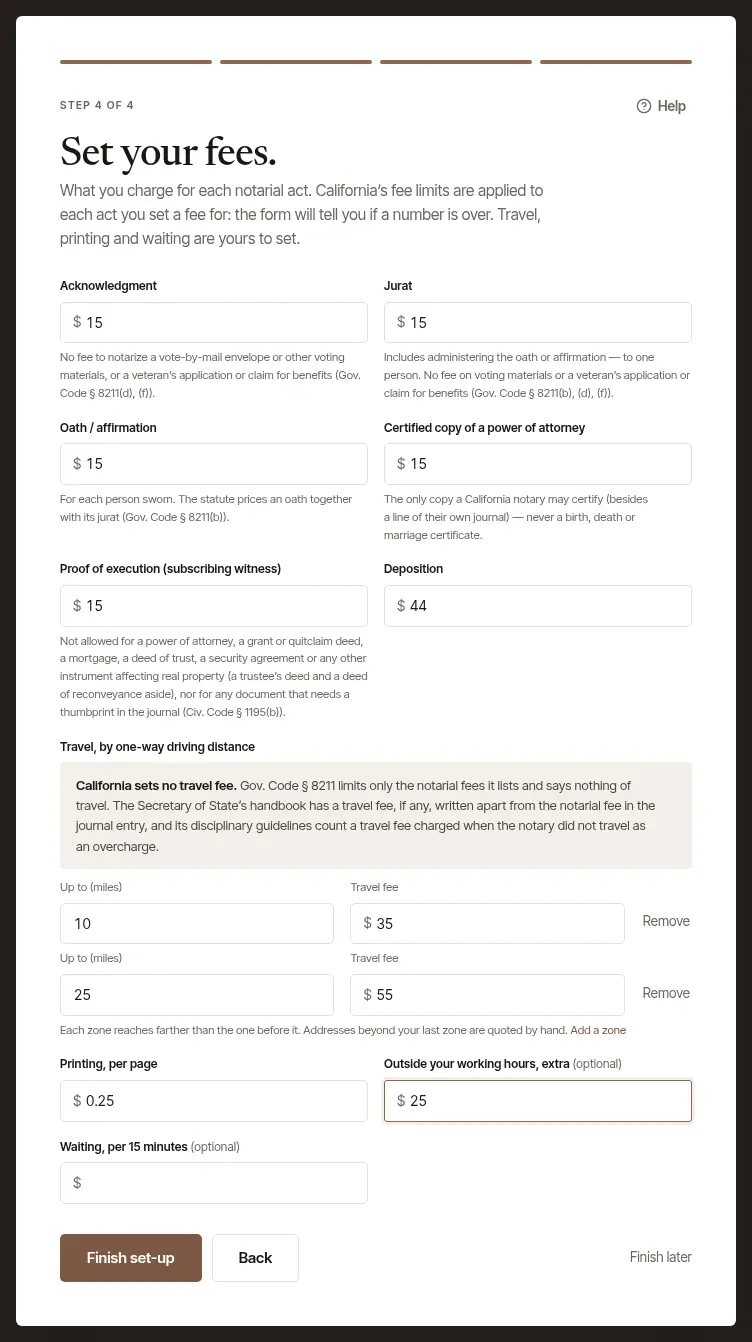
Set your fees. Each notarial act your state has starts at your state's limit, where it sets one and we have established it, and the form tells you if a number is over that limit. Under a fee, small print gives what your state says about that act; where we have not established an act's limit, it says so there. Below them:
- Travel, by one-way driving distance — the first zone's Up to (miles) starts at how far you travel, from Step 1, and its Travel fee starts empty. Type a Travel fee for each distance Up to (miles): at least one, with a fee of $0 if you charge nothing for travel. A zone left without its fee, or its miles, says so under it. A note above the zones gives what your state says about travel fees. Add a zone adds another, farther out; Remove takes one out. Addresses beyond your last one are quoted by hand. If your last zone stops short of how far you travel, a note under the zones says so as you type: a signing in between is beyond your last zone, so no travel fee is worked out for it, your page shows no estimate for it, and its travel is yours to quote by hand. Add a zone that reaches as far as you travel, or go Back to Step 1 and travel less far. Left as it is, Today's Needs you keeps saying it, with Add a zone, until your zones reach.
- Printing, per page, Outside your working hours, extra (optional), and Waiting, per 15 minutes (optional). Under the after-hours fee are your working hours as they're saved now — they're changed in Settings → Hours, which also decides the times your page offers. In a business with other notaries, the line under that fee says first that each notary sets their own working hours.
Choose Finish set-up.

General information, not legal advice
The rules loaded for your state, and the fee limits the form checks, are general information drawn from each state's own rules — not legal advice. Your state's notary handbook, or a lawyer, has the last word.
Get your first orders
Look down Today's list. When set-up is done, Today says You are set up. and shows Get your first orders — what brings work in, in the order of your first week: forwarding the orders you already get, giving companies your order link, bringing your records over, connecting your calendar, publishing your page, your commission (where your state's list can be checked), taking cards, your Google review link, the phone app, and saying how clients pay you. A step your account can't use is left off. See Work through “Get your first orders”.
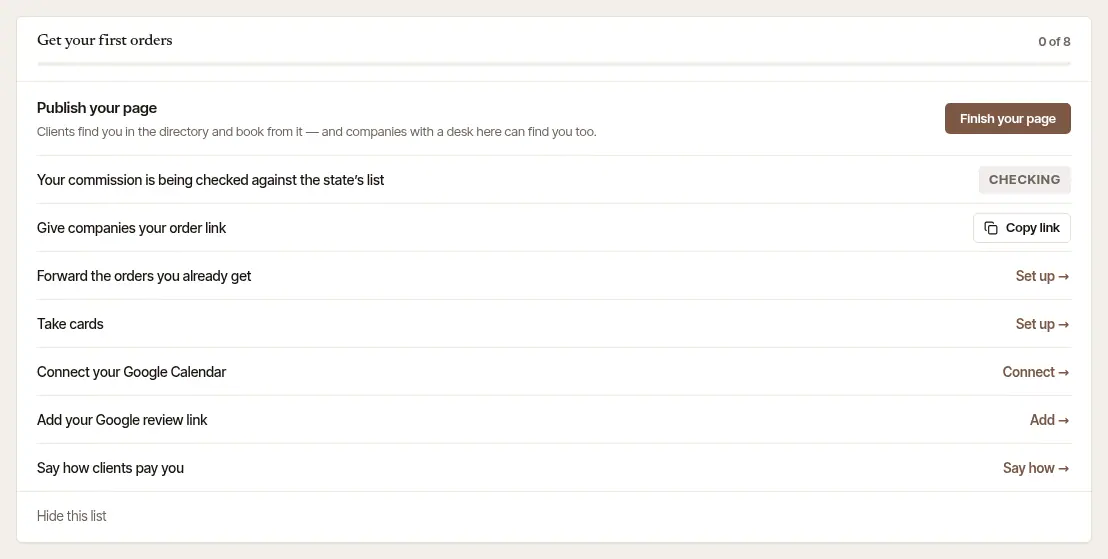
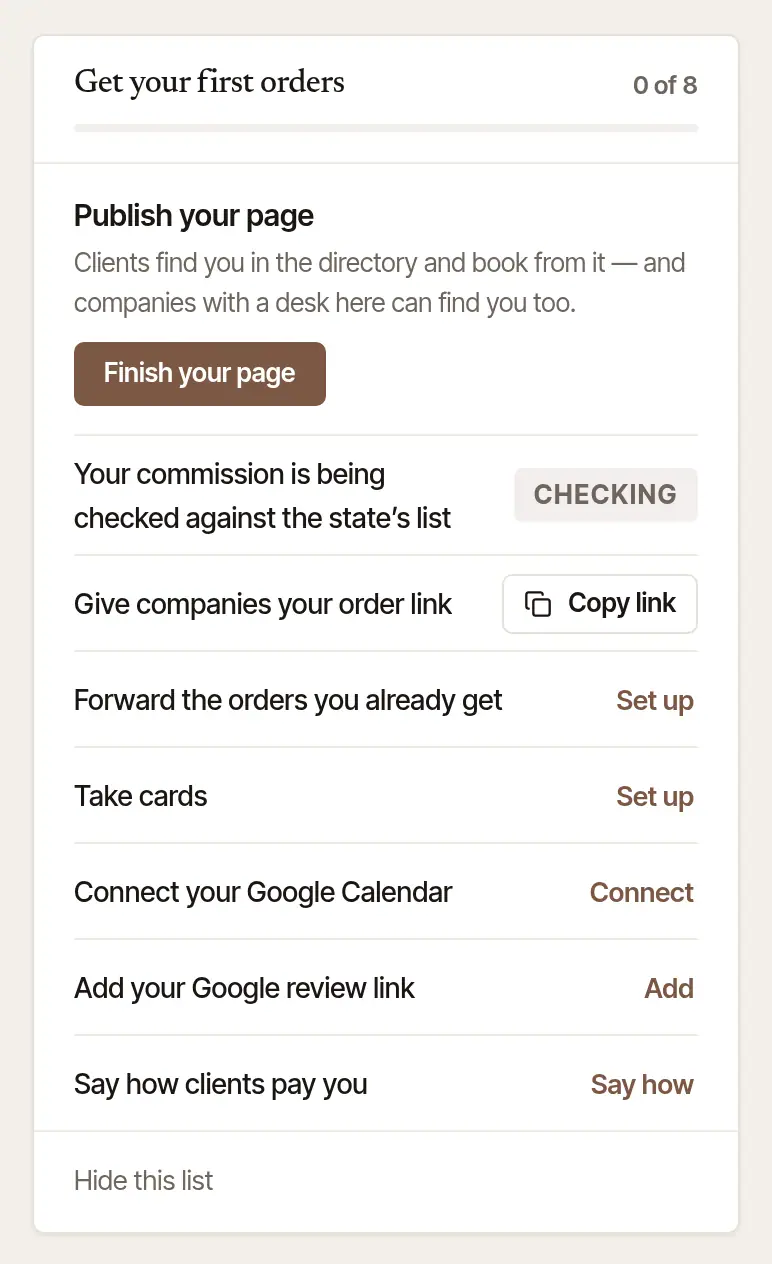
Each line ticks itself off when you've actually done it, and the list goes once they all are — or choose Hide this list.
Your commission, checked
Where Hand & Seal can check your state's list of notaries, your commission is looked up on it. While that happens its line reads Your commission is being checked against the state's list — or Your commission isn't on the state's list yet, for one too new to be there — with a Checking badge: nothing for you to do. Once it's found, the line is ticked off. If the name, number or expiry don't match the list, the line says so, and Fix it opens your commission to correct against your certificate. Checked notaries show “Commission checked” on their page.
Publish your page
Open your page. On Today's list, choose Finish beside Publish your page (Finish your page, when it's the step to do next) — or Public profile in the menu (on a phone-sized screen, More, then Public profile). Until you publish, it's a draft nobody else can see.
Write what clients read. Check the Name clients see, add Your photo if you like (Choose a photo), a Headline and About — how long you've done this, the work you do most, when you're available. About can't hold links, phone numbers or email: clients reach you by sending a request. Then tick your Languages and Specialties, and any Credentials you state.
Further down, under Your page: its Web address, a Cancellation policy (optional), Show my fees, and Take requests from this page — under it, the hours your page offers times inside, with a link to Settings → Hours to change them. On a wide screen, What a client sees shows the page as you type.
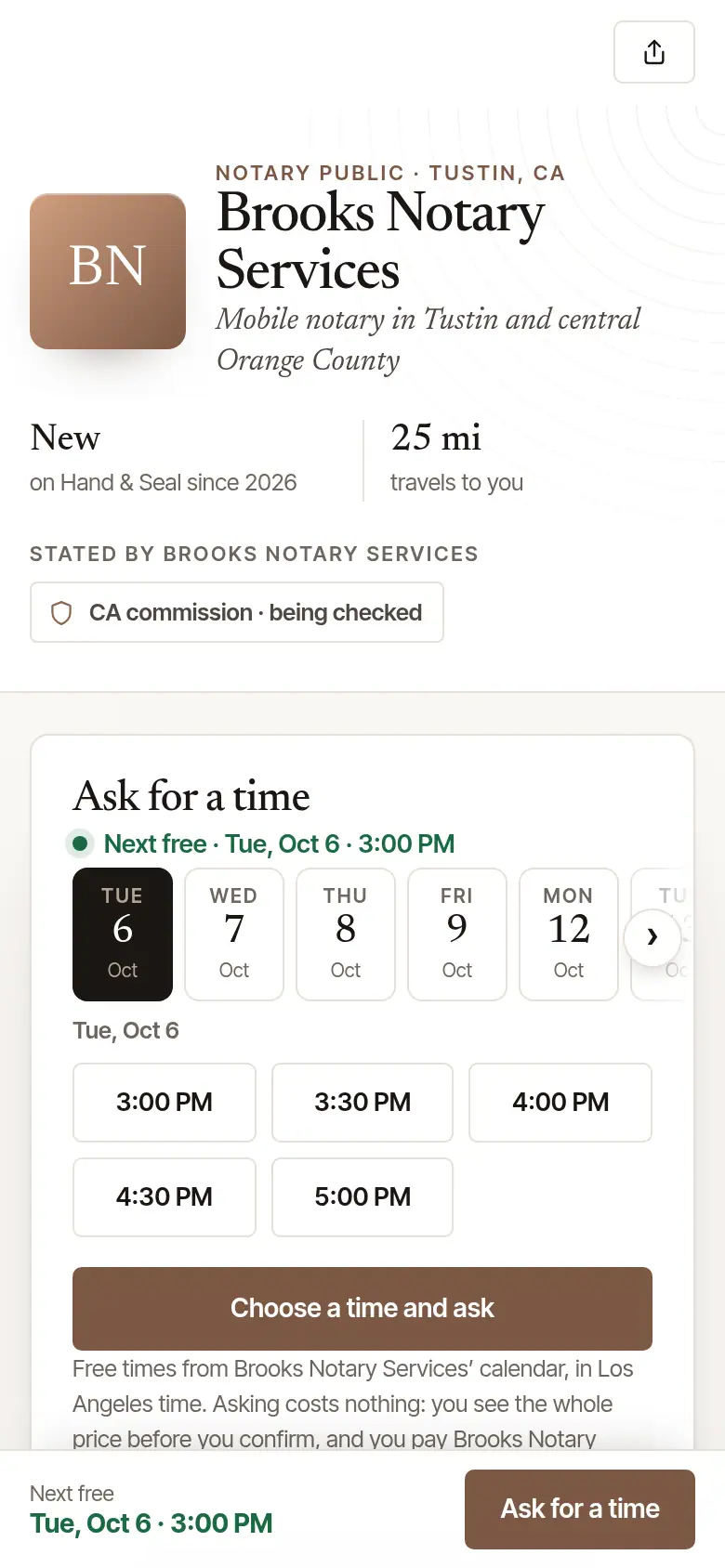
Choose Publish. Use Publish now at the top, or Publish at the foot of the page. It says Published, and Open your public page shows it as anyone sees it.
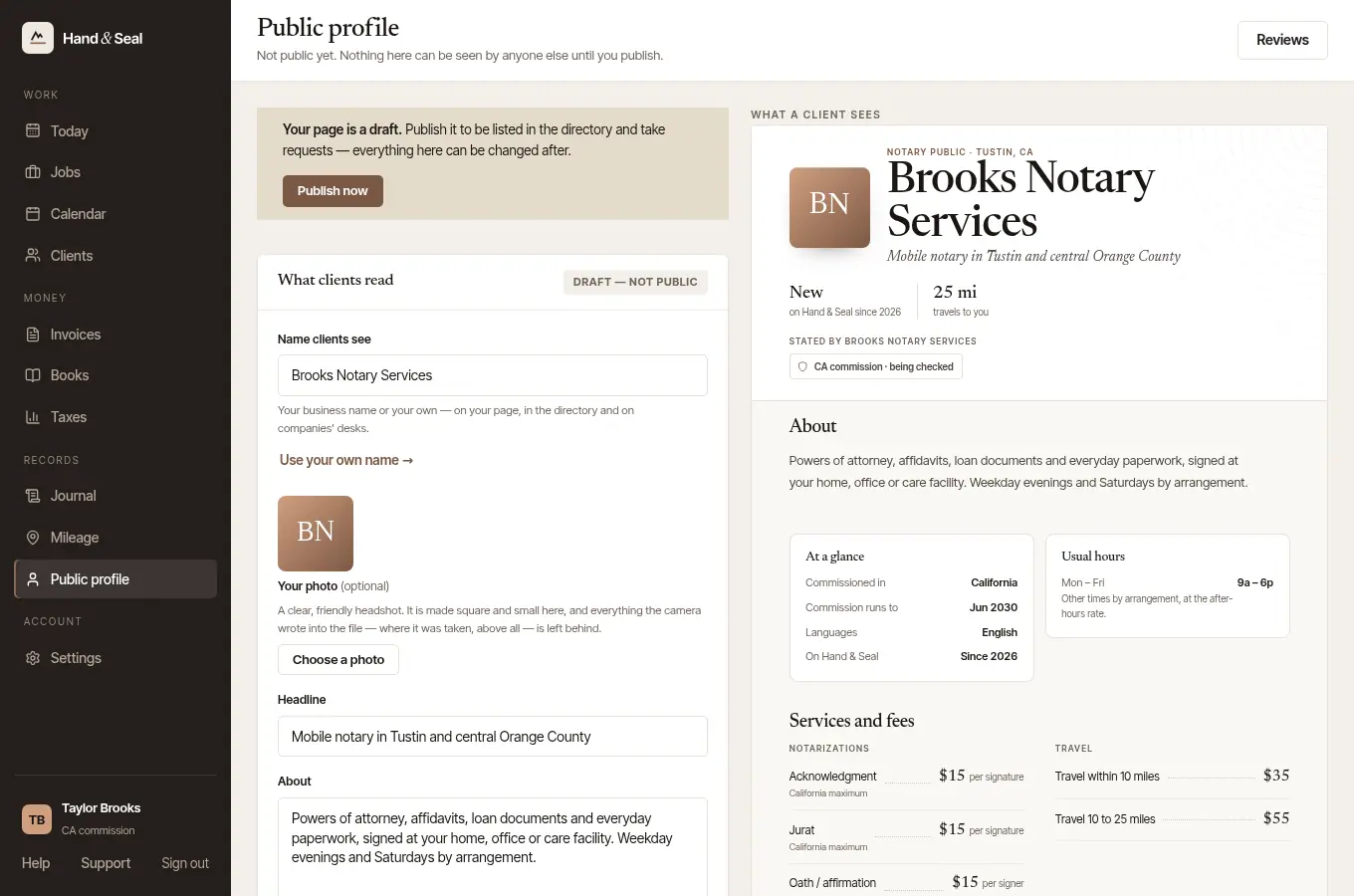
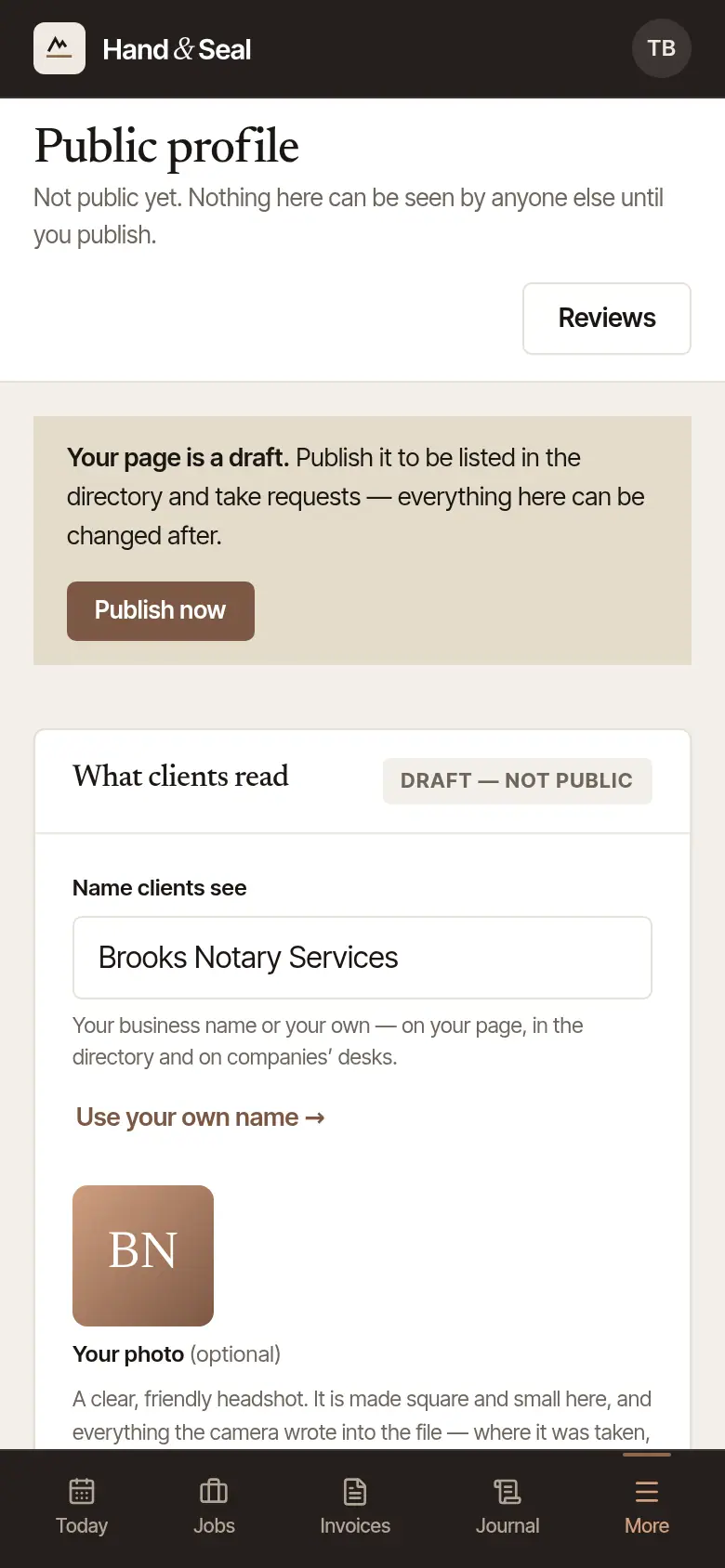
Your page is listed in the directory, and clients can ask you for a time from it.

Good to know
- Everything on your page can be changed after it's published: change it, then Save changes. Take it down takes it off the directory, and its address stops working until you publish again.
- Change your web address any time: the old one stays yours and forwards to the new one, so cards and links you've handed out keep working.
- The fees, the commission and the hours on your page come from Settings, and are changed there.
- Joining a business someone else runs? Use the button in their invitation instead — see Add a partner, an employee or an assistant.
Was this helpful?
Still stuck? Contact support — a person reads every message and answers by email.