Guide
Work through “Get your first orders”
The short list on Today after set-up — forward your orders, share your order link, bring your records over, connect your calendar, publish your page. Each step ticks itself off once it's done.
Once set-up is done, Today shows Get your first orders: the few things that bring work in and money back, in the order of your first week — the work you already have coming in first, so it keeps coming in, into one place; then being found. Nothing on it is ticked by hand. A step ticks itself off when it's really done, and the list goes away once every step is.
Work through the list
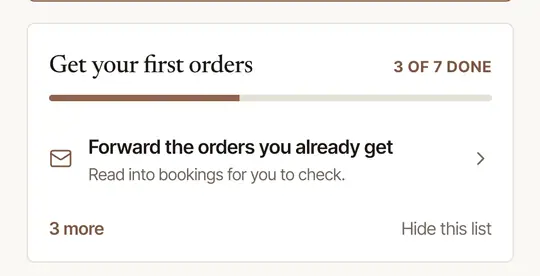
Open Today. The list is on Today, with how many steps are done (3 of 9, say) and a bar that fills as you go. The step to do next says why it matters and has its own button. On a day with signings or requests to answer, the list sits below your day and keeps to that one step. The rest are under … more.
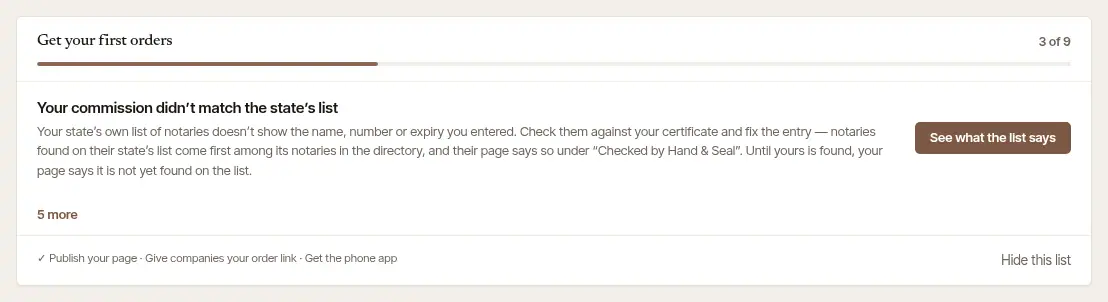
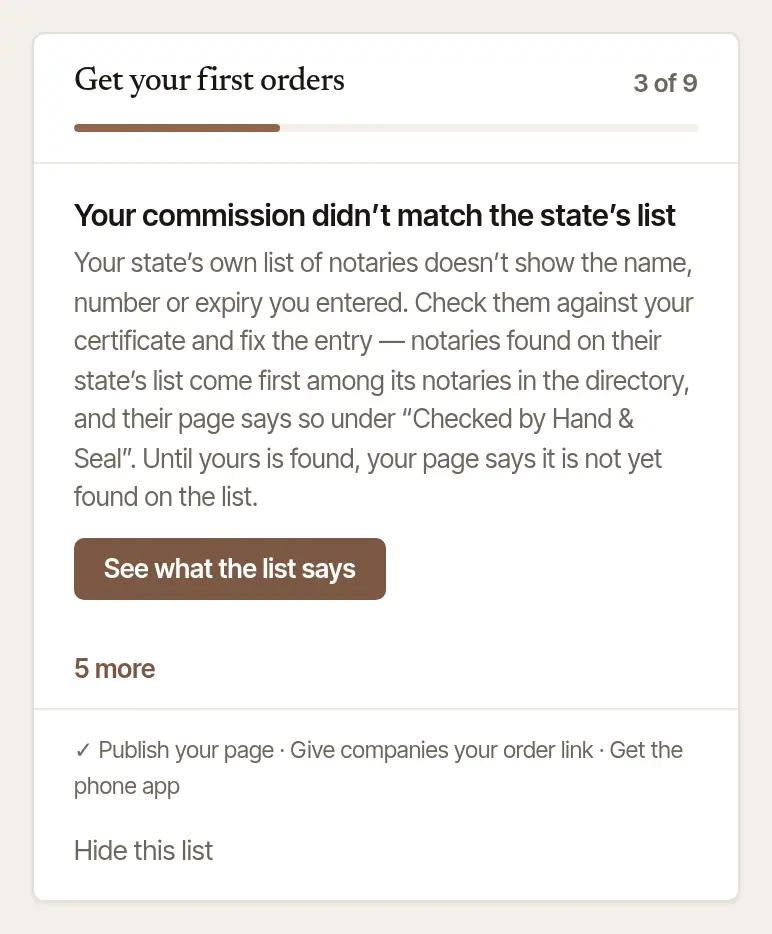
Choose the step's button. Each one opens the page where that step is done:
- Forward the orders you already get: Set it up gives you an address to forward orders from other services to. Each forwarded order is read into a booking for you to check. Your mailbox is never opened. See Forward the orders you already get by email.
- Give companies your order link: Copy your link, then send it to the title, escrow and signing companies you work for. On a phone or tablet, Share opens your share sheet. This one ticks off when the first order comes in through the link. See Give companies your order link.
- Bring your records over: Bring them over opens Settings → Import, for your clients, your past jobs and what they paid, your expenses and your mileage log — from another app or a spreadsheet. It ticks off once something is brought over; take it back, and the step is on the list again. See Bring your records over from another app or a spreadsheet.
- Connect your calendar: Connect it opens Settings → Integrations. Connect Google Calendar, and your jobs appear on it as you book them while your busy times stay off your booking page; or make your calendar link, for Outlook, Apple Calendar or another calendar app, which shows your booked jobs there. On the phone app the step opens Settings → Calendar, where your phone's own calendar can show your jobs, and Busy times from this phone keeps the hours you're busy there off your page. Any one of them ticks it off — busy times, once you've chosen a calendar.
- Publish your page: Finish your page opens your public profile. Publish it, and clients can find you in the directory and ask you for a time. See Set up your account.
- Take cards: Set up card payments connects your own Stripe account, so invoices can be paid by card and you can take a card at the table.
- Add your Google review link: Add it. After each signing, clients are asked to review you on Google.
- Get the phone app: ticks off once you've signed in on the phone app. See Install the app and sign in.
- Say how clients pay you: Say how opens On your invoices. What you write there (Zelle, who checks are payable to, cash at the table) is printed on every invoice. Taking cards counts too.
See the whole list. Choose … more to open the rest. Each step left has its own link (Set up, Connect, Add). The ones you've done are listed at the foot with a ✓.
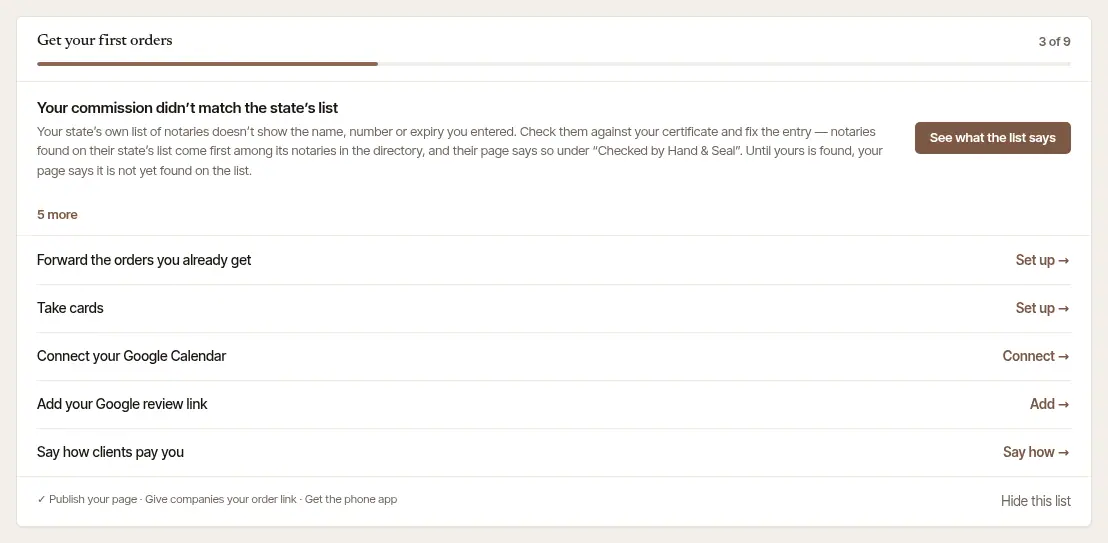
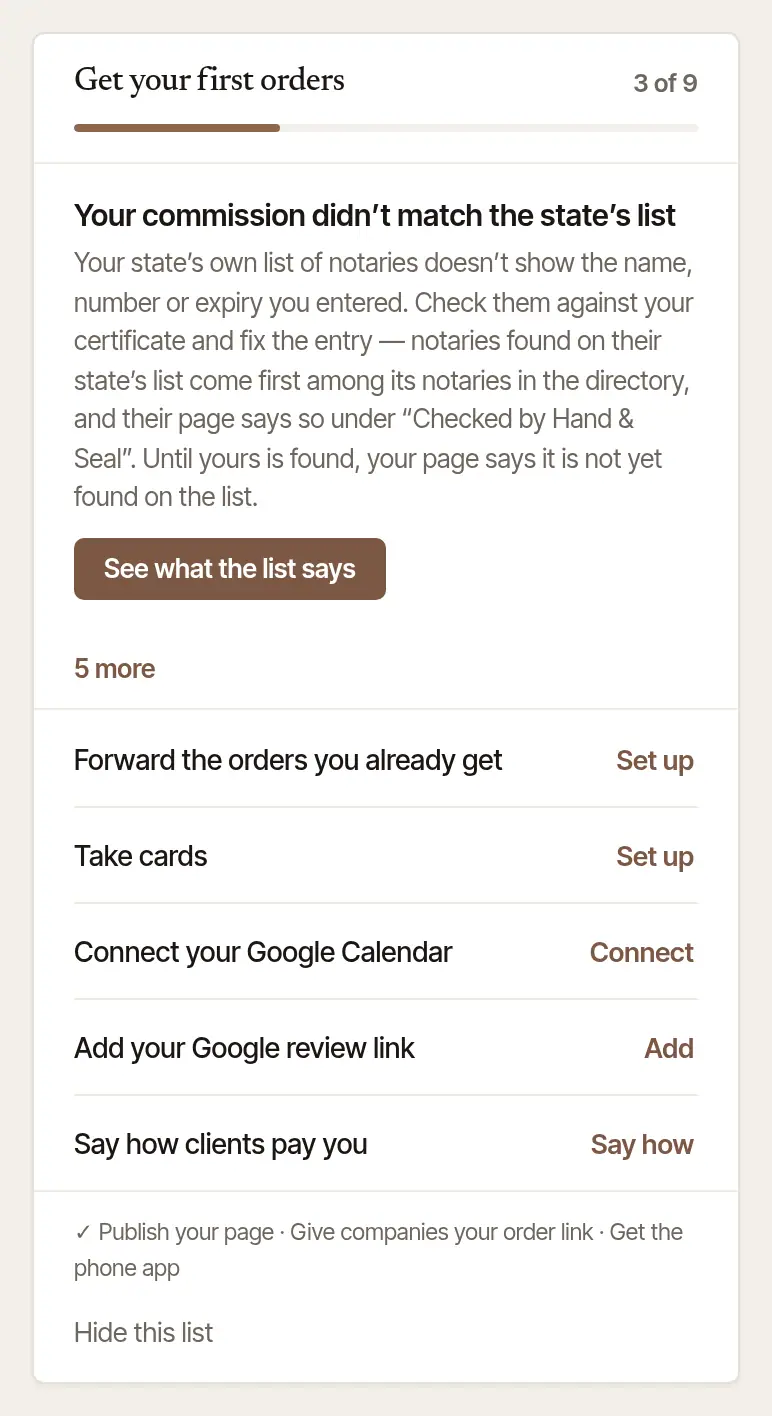
Hide it, if you'd rather. Hide this list takes it off Today. Everything on it stays in Settings, and you can still do each step there. To bring it back, choose Show it again on Today straight after, or, while steps are left, Show it on Today in Settings → Account.
Open Today. The same list is on Today in the phone app, with the same count as the web (3 OF 9 DONE, say) and the next step to do.
Tap the step. It opens the right page:
- Forward the orders you already get, Bring your records over, Publish your page, Take cards, your commission's line and Say how clients pay you open that page of the web app in your browser, already signed in. Come back to the app when you're done.
- Connect your calendar opens the app's Settings at your phone's own calendar — Apple Calendar on an iPhone, This phone's calendar on Android — whose switch puts your booked signings there; Google Calendar is the row under it. Turned on, it ticks the step off on that phone. See Put your jobs in your phone's calendar.
- Give companies your order link opens your phone's share sheet with your link, ready to text or email to a company.
- Add your Google review link opens the app's Settings, where the link is kept.
- Get the phone app is ticked already: you're in it.
See the rest. Tap … more for every step left, and Show only the next to fold them away again.
Hide it, if you'd rather. Hide this list hides it on the phone and on the web. To bring it back, use Show it on Today in Settings → Account on the web.
Good to know
- Your commission is on the list where Hand & Seal can check your state's list of notaries: your commission is looked up on it. While that's under way, its line reads Your commission is being checked against the state's list — or, for a commission too new to be on the list, Your commission isn't on the state's list yet — with a Checking badge: nothing for you to do. That can take a few days for a new commission, and you hear by email. Once it's checked, the line is ticked off. If the name, number or expiry don't match the state's list, the line says so, and See what the list says opens your commission to correct against your certificate. See Add your commission, bond and insurance.
- A step your account can't use is left off the list.
- Joined a business someone else runs? The list is for the business's owners. Your work comes to you through the business.
Was this helpful?
Still stuck? Contact support — a person reads every message and answers by email.