Guide
Bring your records over from another app or a spreadsheet
Settings → Import brings over your clients, past jobs and what they paid, expenses and your mileage log — from a CSV file or pasted cells, checked first, undone in one step.
Coming from another notary app, or from a spreadsheet of your own? Settings → Import brings your records over, one kind at a time — your clients, your past jobs and what they paid, your expenses, and your mileage log — so your books and your tax estimate cover the whole year. It's on the web, for the owners of the business.
First, get your records out
- From another app: look for Export or Download — often under Reports — and choose CSV. Clients, jobs, expenses and mileage are usually separate exports: bring each over on its own.
- From a spreadsheet: in Excel or Numbers, save or export it as CSV; in Google Sheets, File → Download → Comma-separated values. Or select the cells, headings included, and copy them — you can paste them in instead of a file.
Bring them over
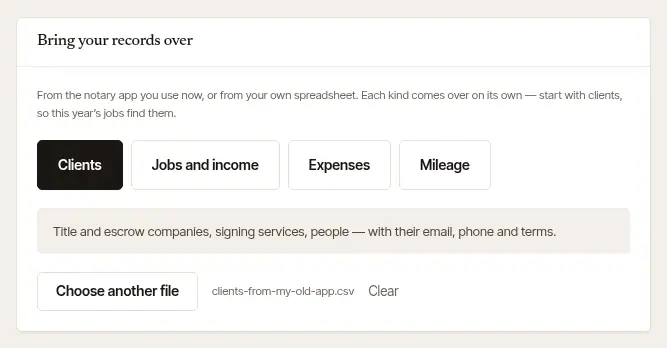
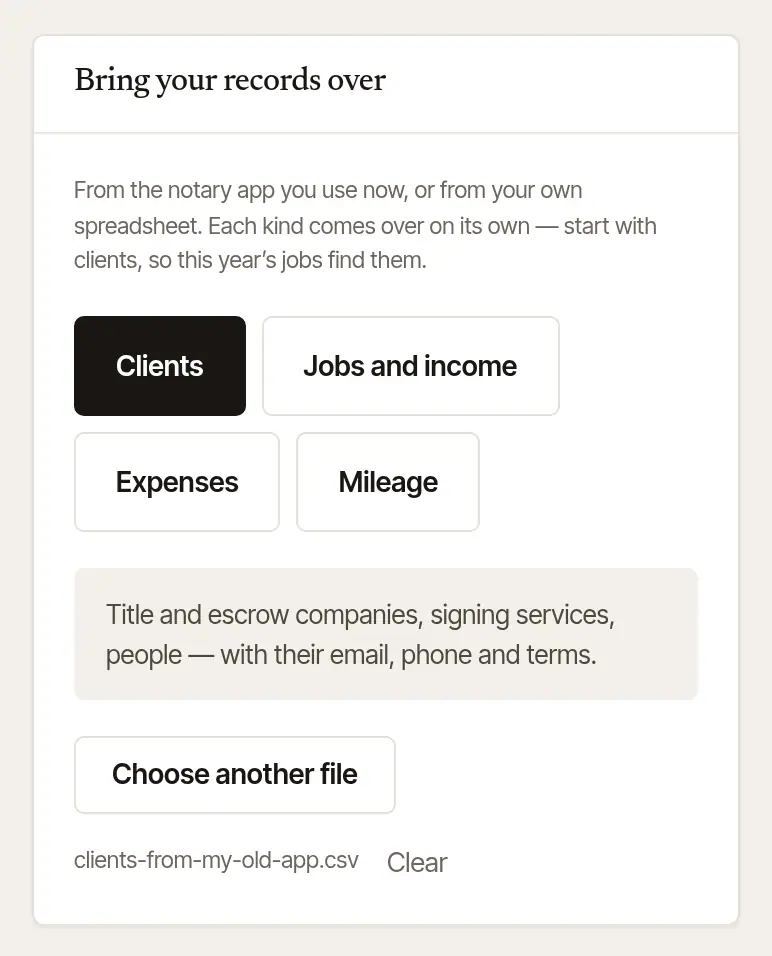
Open Settings → Import, and choose what you're bringing over: Clients, Jobs and income, Expenses or Mileage. Start with clients, so the jobs that come after find them.
Choose a CSV file — or paste the cells into the box below the button. The file's name shows beside the button, which now says Choose another file; Clear starts again. A file too large to bring over at once is refused: split it by month or by quarter.
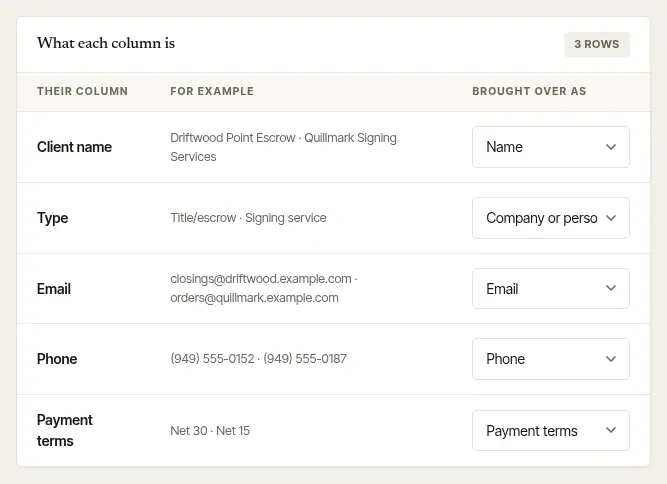
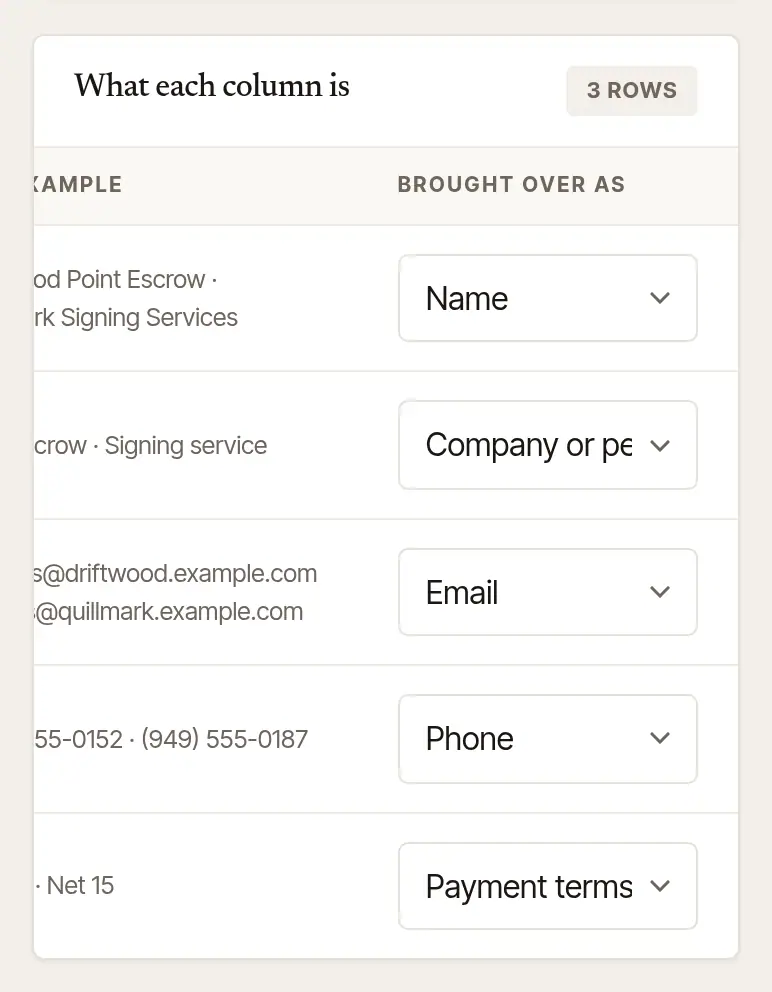
Check What each column is. Each of the file's columns is shown with an example from it, and what it's brought over as — Name, Email, Payment terms and so on — recognized from its heading. Change any that's wrong, or choose Not brought over to leave a column out. If something needed is missing, it says which column to choose: for jobs, the date of the signing, who it was for, and the fee. Your choices are remembered for the next file with the same headings.
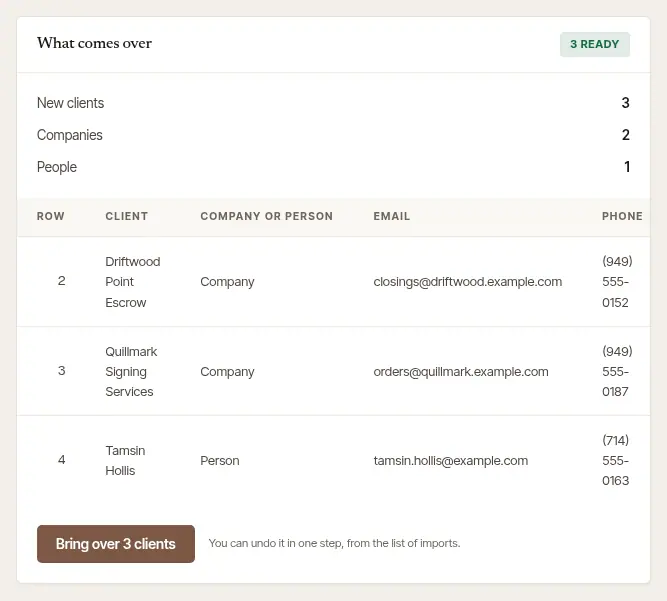
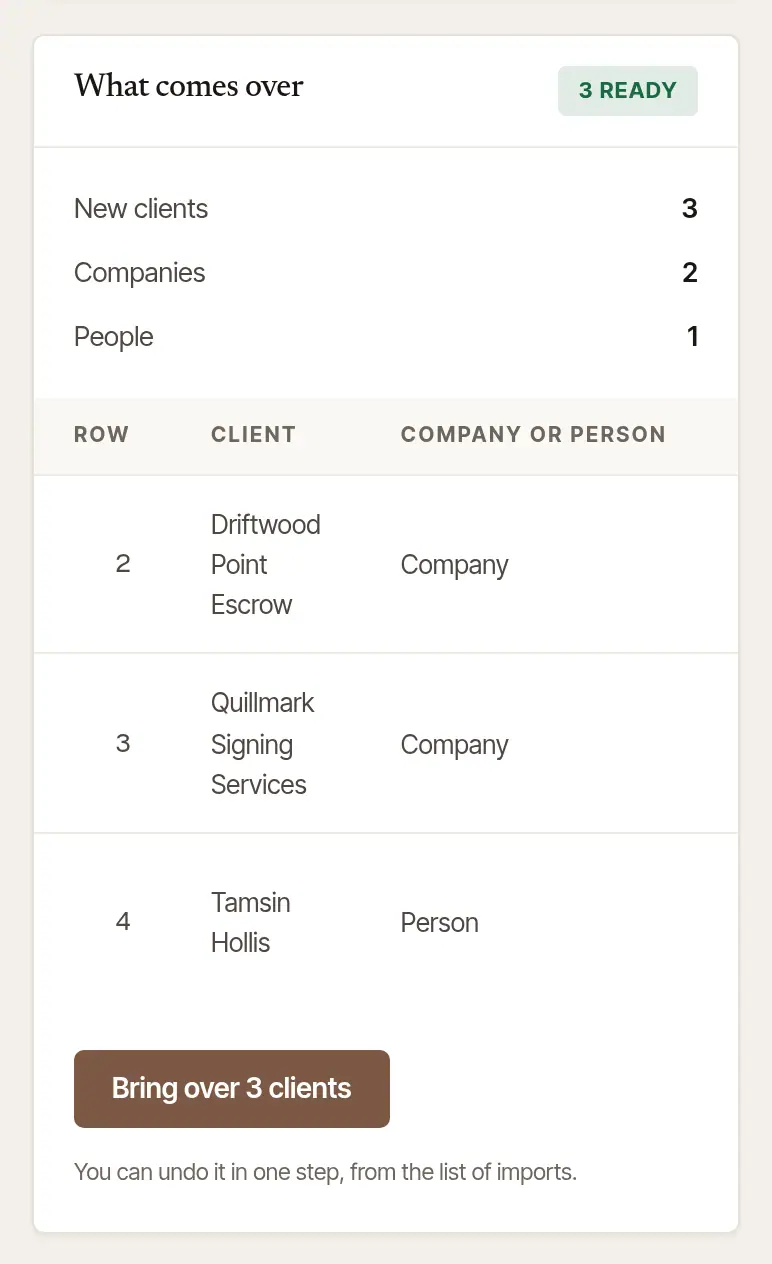
Read What comes over. Every row is checked against your records before anything is written. You see how many are ready, the totals, the first rows as they'll come in, and anything worth knowing — for jobs, whether the file says which were paid, and which part of each fee was the notary fee. … rows are left out — see why lists the rows set aside (already in your records, or with no name or date), and Adjusted in … rows what was changed (an email that doesn't look right, terms that weren't understood).
For expenses, Their categories, and where each is filed lets you choose where each of your file's categories goes. If you use the standard mileage rate — as Hand & Seal's mileage log does — gas, repairs and car insurance aren't brought over as expenses: the mileage rate pays for them, so your deduction comes from your miles. If you deduct actual car expenses instead, keep those records and tell your preparer: Hand & Seal's books have no line for them.
Choose Bring over. The button says what — Bring over 3 clients. It's all written in one go, and Brought over says what came in, with a link to see it.
What each kind becomes
- Clients — companies and people, with their email, phone, address and payment terms. A person added when they asked through your page — one you haven't booked or changed — isn't left out. When your row has their name and the email on their record, they've said that email is theirs — pressing Yes, this is my request on the page the email saying their request arrived opens — and no signing of theirs is waiting or booked, your row fills them in: your file's name, email and phone take the place of what they gave (one your file leaves empty is left empty), and they're yours from then on, never removed with their request. Otherwise — and always for a company added when its order came through your order link — your row is added as a client of its own, beside that one: a name alone never makes two records one.
- Jobs and income — each past signing becomes a finished job with its invoice. Paid ones are recorded as paid, on the day they were paid (or the day of the signing, when the file doesn't say); unpaid ones become open invoices. A client not yet in your records is added — and so is one whose name is there only as someone who asked through your page, or a company whose order came through your order link, whatever you've booked or billed for them since: past work never goes under that record by its name alone. The notary fees come in as your file has them — no state's limit is applied to past work — so the job's line says Notary fees (imported — not checked against your state's limits); the invoice a client sees says Notary fees. An unpaid invoice that came in with notary fees waits for you: open it, check the figure, tick I have checked it, and choose Confirm the figure. Until you do, it isn't sent or reminded from Hand & Seal, and it can't be paid by card — Invoices lists the ones waiting, and so does Today. A payment that reached you another way can be recorded on it at any time. Imported jobs are past work: they never go into your Google Calendar, and no reminder goes out by itself about an imported invoice. Signings still to come are left out — book those as new bookings.
- Expenses — each line filed under its Schedule C category.
- Mileage — each drive's date, miles and purpose. Days that already have drives in your log are pointed out, so the same trip isn't counted twice.
Rows already in your records are left out, so a fuller export can be brought over again later and only what's new comes in — a name that's in your records only from a request through your page or a company's order through your order link is the exception, as above. The same file twice is refused, until the first import is undone. Nothing is written until you choose Bring over, and the file itself isn't kept — only what it becomes.
Undo an import
Find it under Imports, on the same page: each import, what it brought over, and when. Choose Undo.
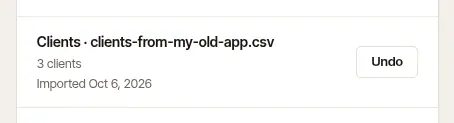
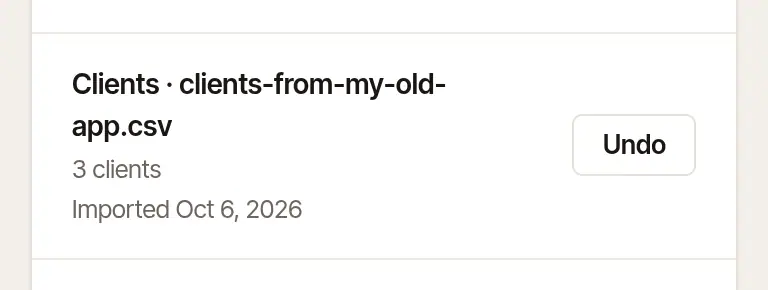
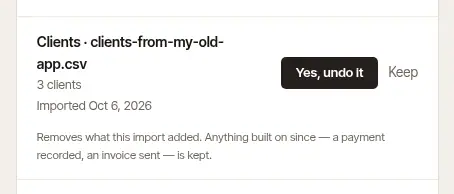
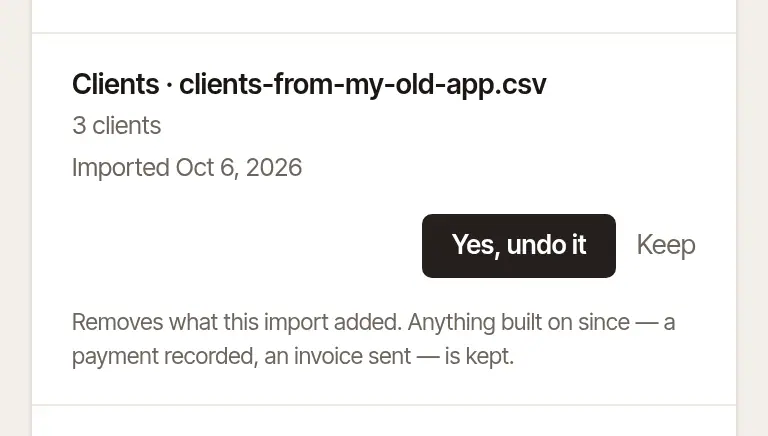
Choose Yes, undo it — or Keep. What the import added is removed. Anything built on since — a payment recorded, an invoice sent — is kept, and listed; Undo the rest takes it later if you still want it gone. A client the import filled in was there before it, and stays as it is.
Good to know
- Only an owner of the business sees Import. Jobs, expenses and mileage come in as the books of the notary who is signed in; an owner who isn't a notary can bring over clients only.
- A column with the notary fees — the notarial part of each fee — is worth choosing when your file has one: your books keep notarial fees apart from other income, and the tax estimate uses that. Tax information, not tax advice.
Was this helpful?
Still stuck? Contact support — a person reads every message and answers by email.