Guide
Put your jobs in your phone's calendar
Your booked signings in your phone's own calendar app, kept up to date — Apple Calendar on an iPhone — and, with Busy times from this phone, the hours you're busy there kept off your page.
The phone app can keep your booked signings in your phone's own calendar app — whichever calendar app the phone uses — with no account to connect. It's handy if you don't use Google Calendar, or like to see your signings beside everything else in your day.
Turn it on
Open More → Settings. Under Calendar, find Apple Calendar on an iPhone or iPad, or This phone's calendar on Android. Get your first orders on Today opens it too, from Connect your calendar.
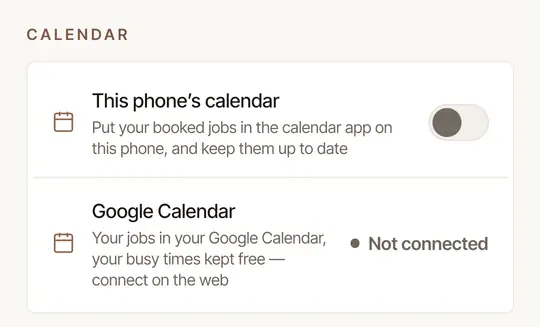
Turn on its switch.
Android asks whether Hand & Seal may use your calendar: allow it.
The iPhone asks for full access to your calendar: tap Allow Full Access. Full access is what lets a signing that's moved be moved in the calendar, and one that's cancelled be taken out — Add Events Only isn't enough.
The row says Adding your jobs… for a moment, then where your booked jobs are: in a “Hand & Seal jobs” calendar on this phone — or, on an iPhone whose calendars are in iCloud, in your iCloud calendar account. Hand & Seal writes only to that calendar of its own. It sends nothing of your other events unless you turn on Busy times from this phone (below), and then only when they start and end.
Open your calendar app. Your signings are there, in a calendar named Hand & Seal jobs. If you don't see them, look for that calendar in the app's list of calendars and make sure it's shown.
Said no when the phone asked — or, on an iPhone, chose Add Events Only? The app says Calendar not allowed. Choose Open settings:
Allow Hand & Seal to use the calendar there, then go back to the app and turn the switch on again.
Hand & Seal's page in the iPhone's Settings opens. Tap Calendars, choose Full Access, then go back to the app and turn the switch on again.
What's in it
- One event for each booked signing — each confirmed one, and each one done — from a week ago to three months ahead. A request you haven't accepted isn't there; a cancelled signing is taken off.
- What and for whom, where and when. Each event reads like “Refinance signing · Larkspur Coast Escrow”, with the address, the time, the job's number and a link to it. Never the signers' names or the fee: a phone's calendar is often shared with family or an assistant.
- Kept up to date. The calendar is brought up to date whenever the app opens or comes back to the front, and as jobs change while it's open — a signing moved or cancelled moves or leaves the calendar too.
- Change a signing in Hand & Seal, not in the calendar app. An edit made there is replaced the next time the job changes.
Where the calendar is kept depends on the phone:
On the phone itself, not in your Google account — so it doesn't appear on your other devices or on the web.
On the iPhone itself, when your calendars aren't in iCloud. When they are, the Hand & Seal jobs calendar is kept in iCloud: Apple keeps it, and it appears on your other Apple devices and to anyone you share that calendar with. If iCloud won't take a new calendar, it goes in your default calendar's account instead. The row always says which — on this iPhone, or the account's name — so you know before you rely on it.
To see your signings in Google Calendar wherever you sign in to it, connect your Google Calendar.
Keep the hours you're busy off your page
Keep your week in Apple Calendar, Outlook or another calendar on your phone? Turn on Busy times from this phone, and the hours you're busy there stay off your booking page, the directory and the forms that ask you for a time — in every business you work in.
Open More → Settings. Under Calendar, turn on Busy times from this phone (Busy times from this iPad on an iPad, this tablet on an Android tablet).
Allow the calendar when the phone asks — on an iPhone, Allow Full Access.
Choose the calendars. The list opens as you turn it on — or tap the row: under Calendars read, turn on each calendar whose events are yours. No event is read until you choose one. Leave off any that isn't yours to keep — a family calendar, say. Hand & Seal's own calendars aren't offered: your signings already count.
What's sent, and when:
- When, never what. The start and end of each event over the next 14 days — the days your page offers times for. Never its title, place, notes or who's invited. All-day events, and events marked free, are left out, so a birthday or a holiday doesn't block your day.
- Each time you open the app or come back to it. An event added to your calendar counts from the next time you open Hand & Seal on that phone. Each time, what's sent replaces the last.
- Yours alone. Nobody else sees them — not the owner of a business you work in, nor anyone on its team. On a screen wide enough for the week, your Calendar on the web shows them to you as dashed grey blocks, with when your phone last sent them; My data (Settings → Your data) has them too.
- Deleted as they pass — and all of them when you turn it off, or sign out of the app on that phone.
Once you've chosen a calendar, it ticks off Connect your calendar in Get your first orders, as Apple Calendar (This phone's calendar on Android) does.
Turn it off
Turn off the switch beside Apple Calendar (This phone's calendar on Android).
Choose Take them out. The Hand & Seal jobs calendar is removed from this phone — and from the account it was kept in, on an iPhone that keeps it in one; your jobs stay in the app. Keep them leaves it as it is.
Signing out of the app takes the calendar off the phone too. Sign back in, and it comes back with your jobs.
On an iPhone
The calendar is kept up to date only while Hand & Seal has Full Access to your calendar. If your signings stop appearing in it, open the iPhone's Settings → Privacy & Security → Calendars and choose Full Access for Hand & Seal.
Was this helpful?
Still stuck? Contact support — a person reads every message and answers by email.