Guide
Forward the orders you already get by email
Signing services and title companies email you orders. Forward them to your own orders address, and each one waits in Orders by email, read and filled in, ready to book.
You have an orders address of your own. Forward an order email to it, by hand or with a rule in your mail, and it's read into a booking for you to check. Nothing goes on your calendar until you book it. Hand & Seal never connects to your mailbox: it only sees what you forward.
Find your orders address
Open Settings, then Integrations. Your address is on the Orders by email card, with Copy. Your address is ready means it's working.
Choose Forward them automatically. It opens the step-by-step guide below. Your address is at the top, with how many orders it has read in the last 30 days.
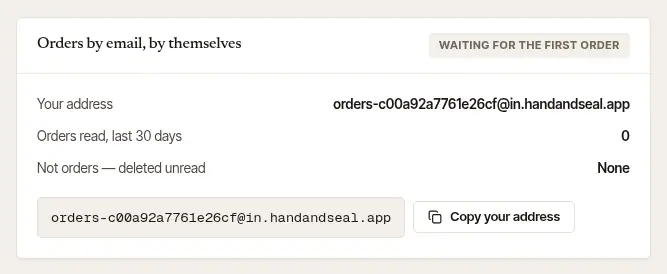
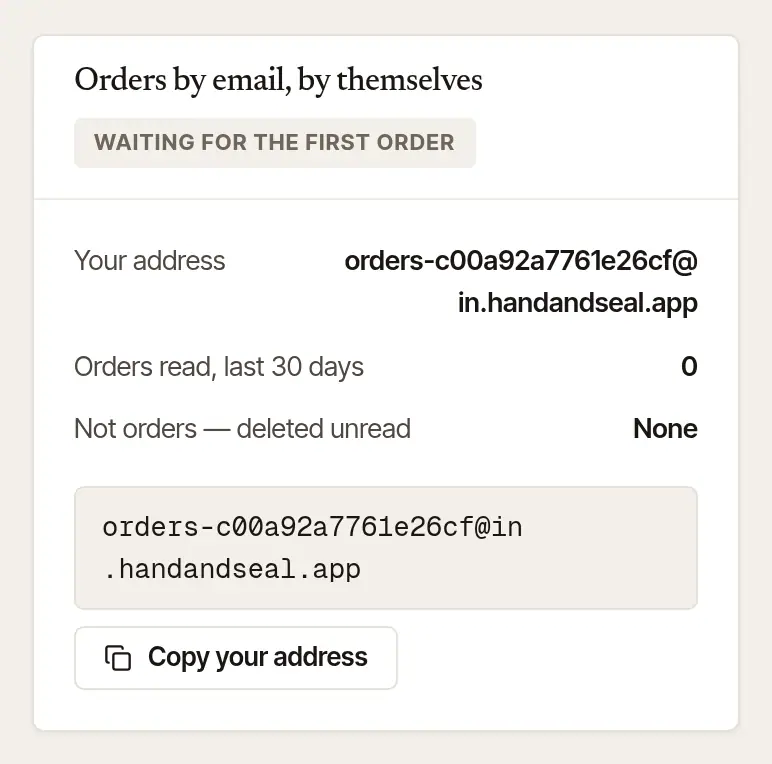
To try it, forward one order to that address from your mail, by hand. It then shows in Orders by email, and the guide counts it.
Set up a rule that forwards only orders
A rule in your own mail can send orders on by themselves. It should forward mail only from the companies that send you orders, never everything.
Choose your mail at the top of Set up the rule in your mail: Gmail, Outlook & Microsoft 365, iCloud, Yahoo & AOL or Something else. The steps are written for that one, with links to its own settings pages.
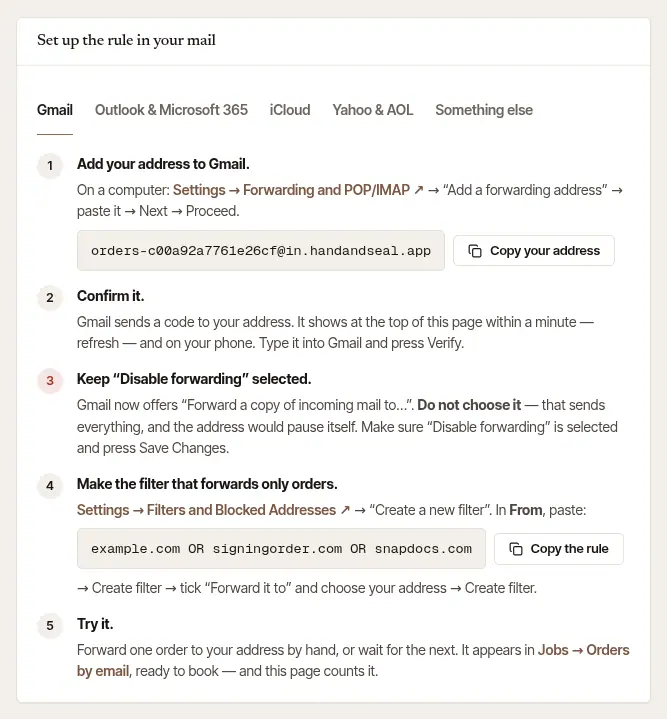
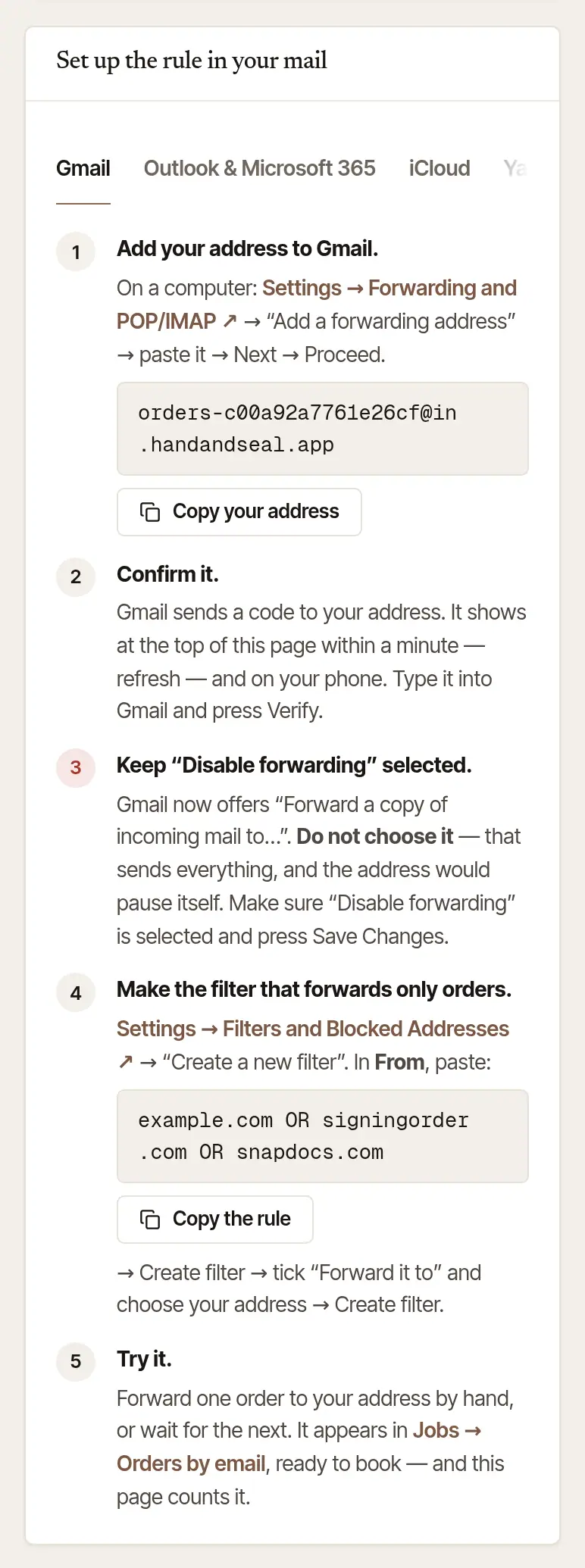
Follow the steps. For Gmail:
- Add your orders address as a forwarding address in Gmail's settings.
- Confirm it. Gmail sends a code to your orders address. When it arrives, it shows at the top of this page — refresh the page if it is not there. Choose Copy the code and type it into Gmail.
- Keep “Disable forwarding” selected. Gmail offers to forward everything; don't choose that.
- Make a filter: choose Copy the rule, paste it into Gmail's From box, and have the filter forward to your address.
Outlook and Microsoft 365 use a rule with “Sender address includes” each company; iCloud, one rule for each company. A work Microsoft 365 account may block forwarding outside the company: if nothing arrives, ask whoever runs your email.
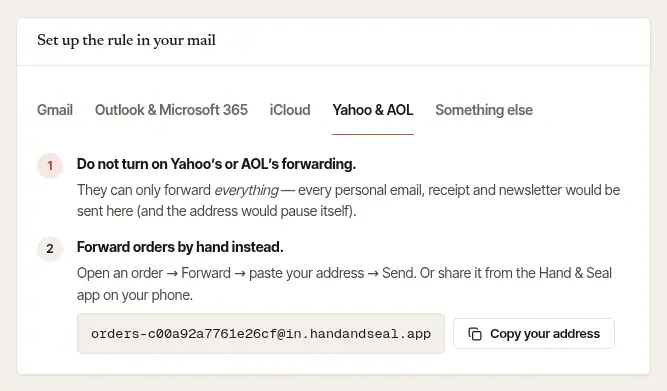
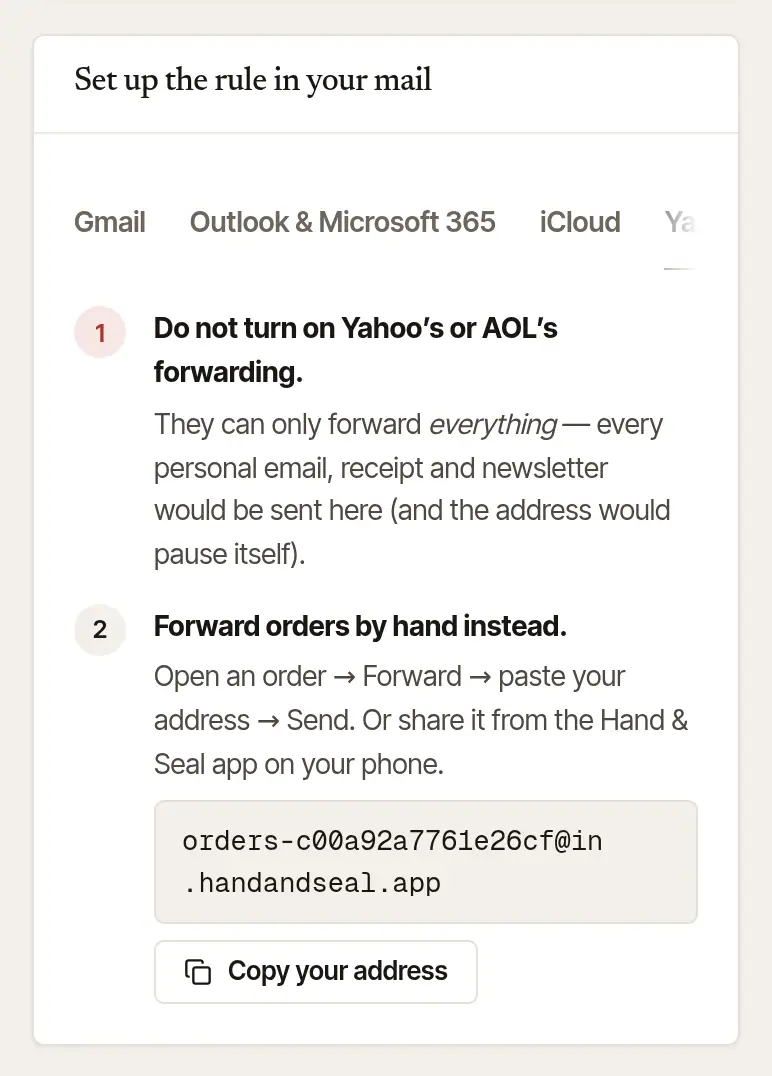
Yahoo and AOL: forward by hand. They can only forward all of your mail, so don't turn their forwarding on. Forward each order yourself, or share it from the app on your phone.
Tell it who sends you orders
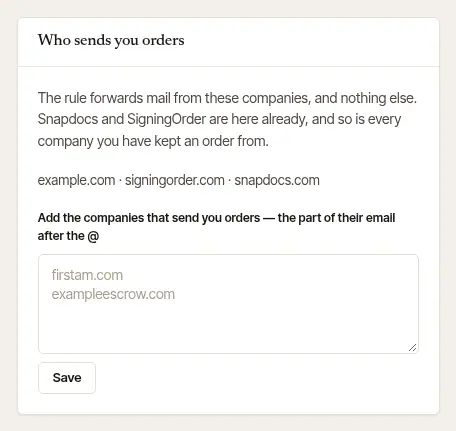
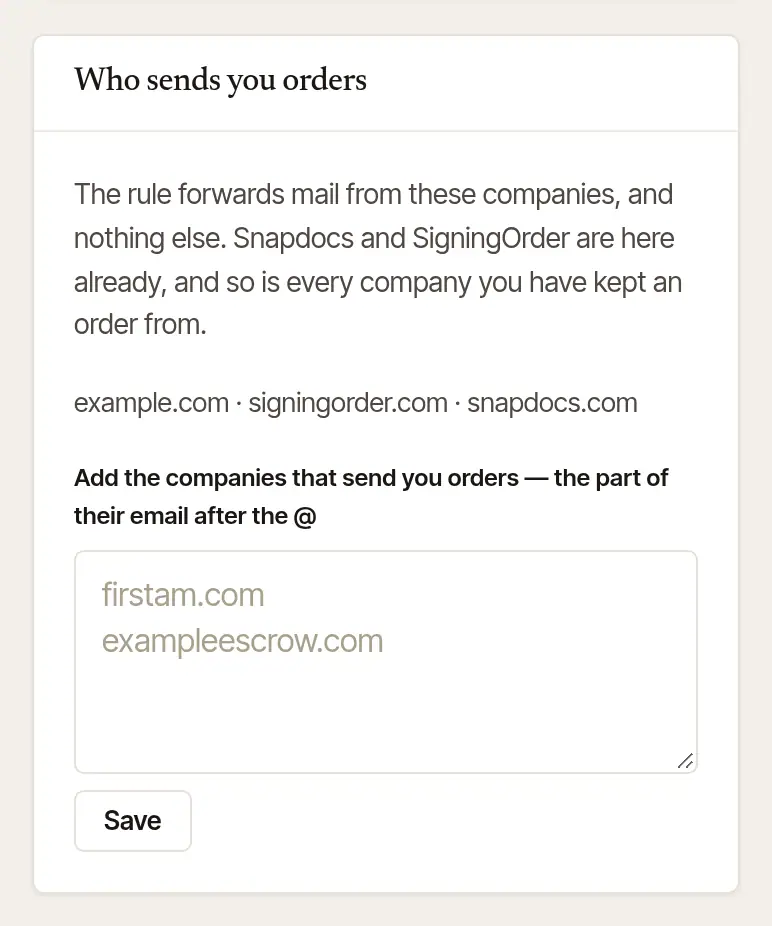
Who sends you orders lists the companies the rule forwards. Snapdocs and SigningOrder are there already, and every company you've booked an order from is added by itself.
Type the part of a company's email after the @ (their domain), one to a line, in the box.
Choose Save. The rule on the left includes them now. Copy it again into your mail's rule, so the two match.
A personal address (Gmail, Yahoo, iCloud and the like) can't be one: it would forward someone's personal mail. If one in the box can't be, Save says which, and the box keeps everything you typed — take that one out and save again.
Book the orders that arrive
Open Orders by email. Today says how many came in (“2 orders came in by email”, say) under Needs you, with See them. It's also linked from Settings → Integrations.
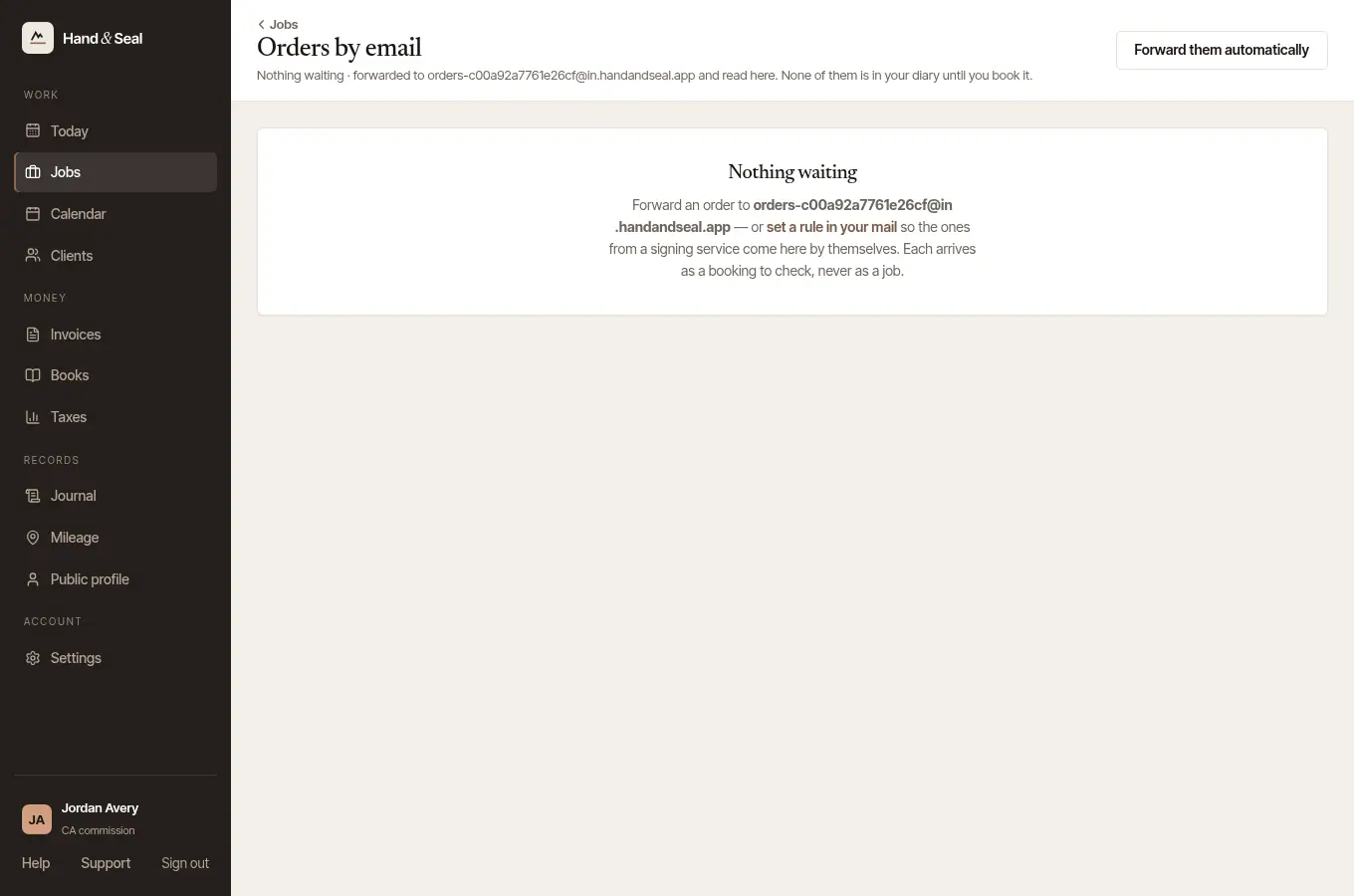
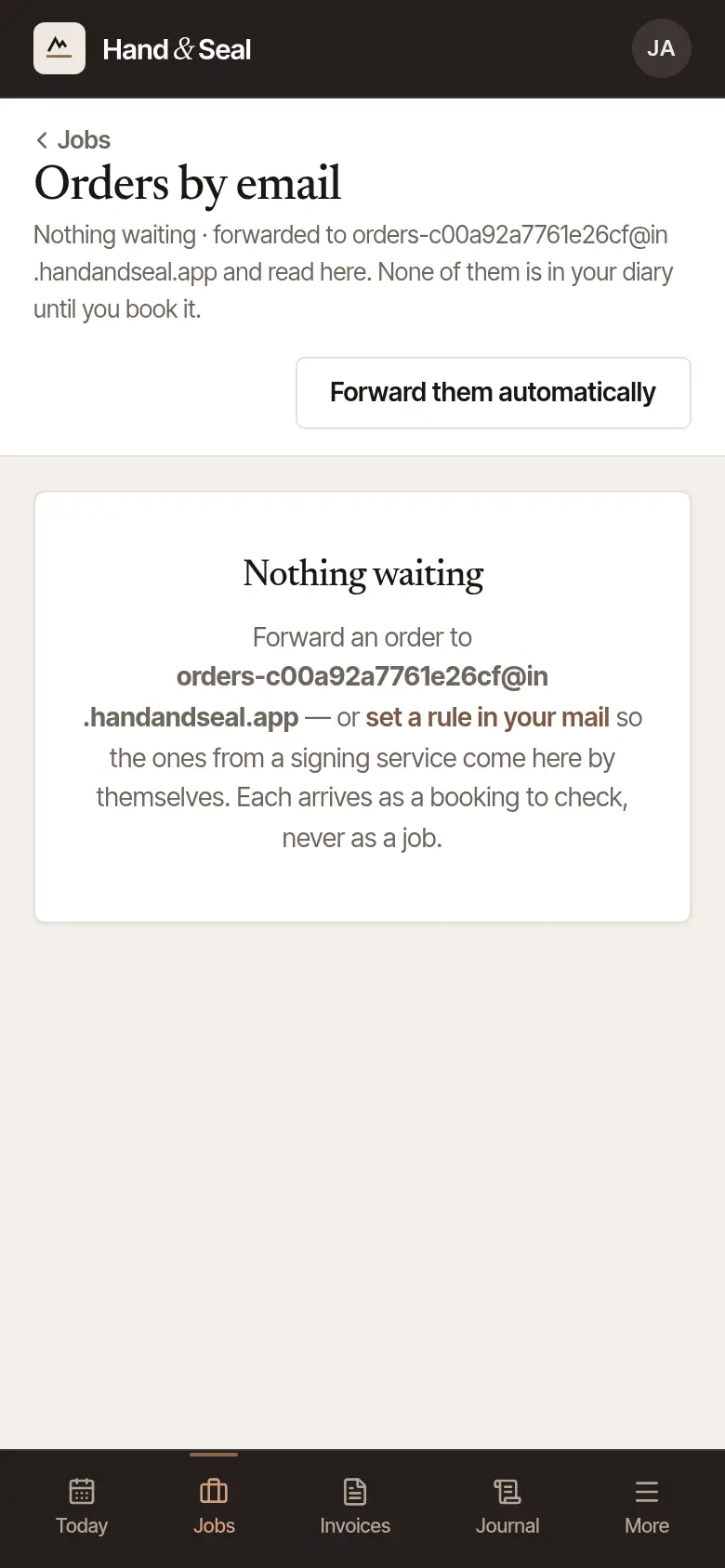
Check each one. It shows who sent it, the subject, when it came in and the file number, then what was read: the day and time, the place, the fee and the pages. If you've worked for that company before, it says whether they owe you and how fast they usually pay.
Choose Book it. A new booking opens, filled in from the order. Check every field, then save it as you would any booking. Put it aside clears an order you won't book.
An email about a job you already have (the company moved it, or called it off) says About job …. It offers Move job … to … or Cancel job … in one step, and Open job … to look first.
On Today, look under Orders by email. Each order shows the company, the file number, the day and time, the town and the fee.
Tap Book it. The new job opens, filled in from the order. Check it and save. Put aside clears one you won't book.
An email about a job you already have offers Move job … or Cancel job …, and Open job ….
If your address pauses itself
Mail that isn't an order is deleted unread. Several of those close together look like a rule forwarding everything, so the address pauses itself, deletes whatever arrives, and emails you. The guide, Orders by email and the phone's Today say so.
Fix the rule in your mail so it forwards only orders.
On the guide, choose My rule forwards only orders now — start again.
If your address has been shared, or spam has found it, open Get a new address at the foot of the guide and choose Give me a new address. The old one stops at once; put the new one in your rule.
Good to know
- Attachments are never opened or kept, whatever they are. Documents stay in your email.
- A message that isn't an order is deleted unread. Only that it came, and the sender's domain, is kept.
- An email too large to read — usually an order forwarded with its documents attached — isn't kept either. You're told on your devices and by email, and the guide counts it. Forward it again without the attachment.
Was this helpful?
Still stuck? Contact support — a person reads every message and answers by email.