Guide
Keep the company posted: documents, shipping and scan-backs
Tick off an order's steps as you go (signers confirmed, documents in, printed, scan-backs, shipped with a tracking number) and send the company where it stands.
A company that sends you a loan signing wants to know where it stands: the signers confirmed, the documents in, the package printed, the signed set scanned back, the originals shipped. Every accepted loan signing, and any job with the company's file number, has a list of those steps, The order. Tick each one as you go. The shipping step carries the tracking number the company will ask for.
Tick off the steps
Open the job. Once you've accepted it, The order shows the steps in the order they happen.
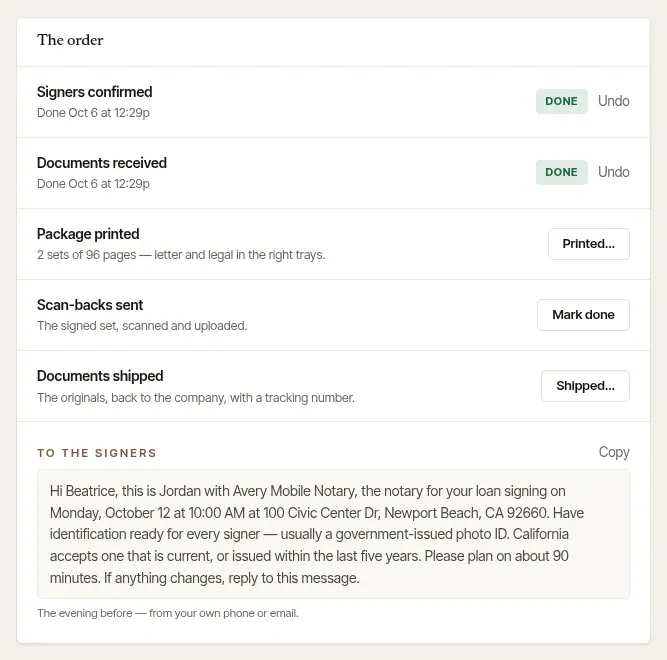
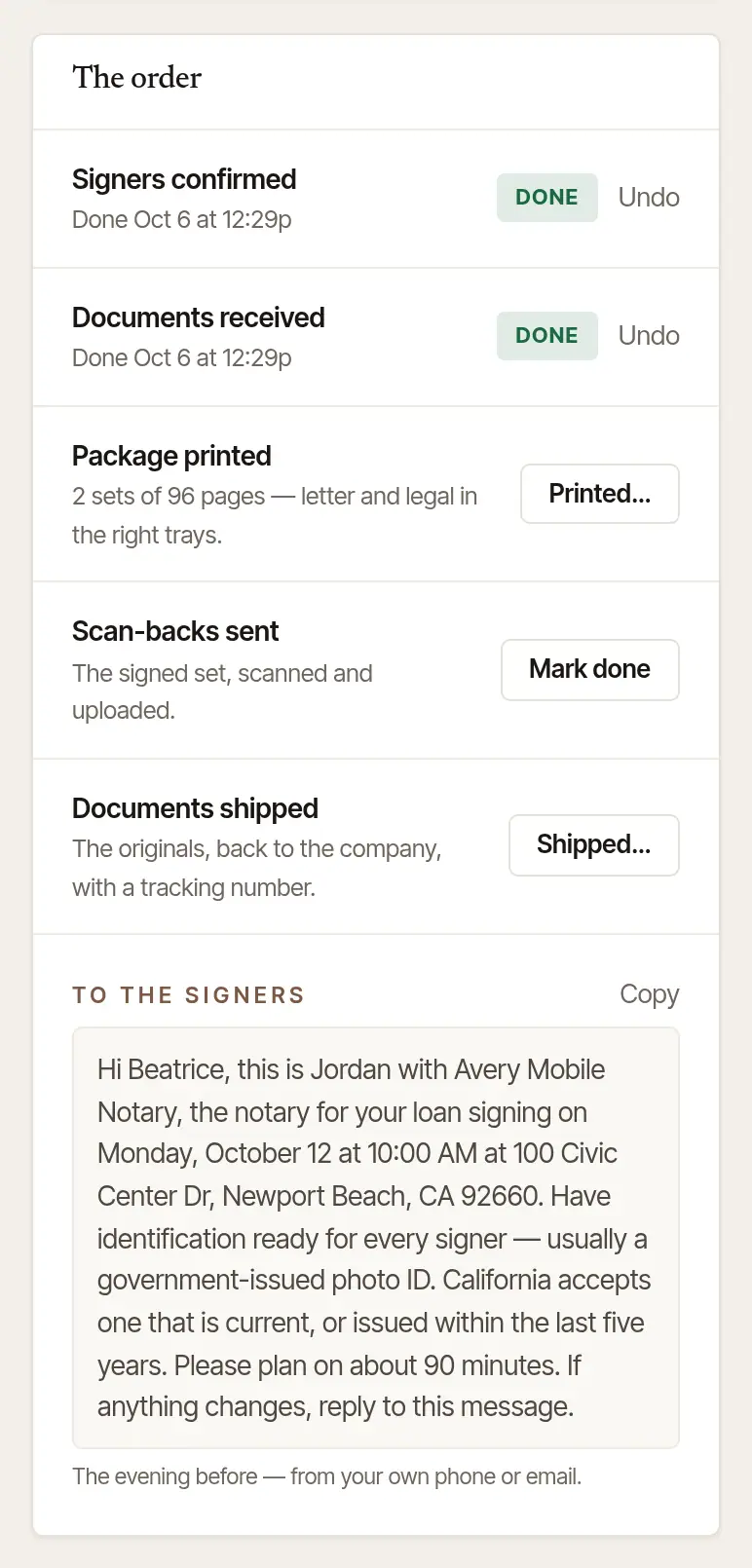
Choose Mark done as each step happens:
- Signers confirmed: the time, the place, and identification for each signer.
- Documents received: the package is in.
- Package printed: choose Printed…, check the pages, sets and legal-size pages, and Save.
- Scan-backs sent: only when the company asked for scan-backs.
When you ship the originals, choose Shipped…. Pick the Carrier (FedEx, UPS, USPS, DHL or another courier), type the Tracking no., and choose Save. The number then links to the carrier's own tracking page.
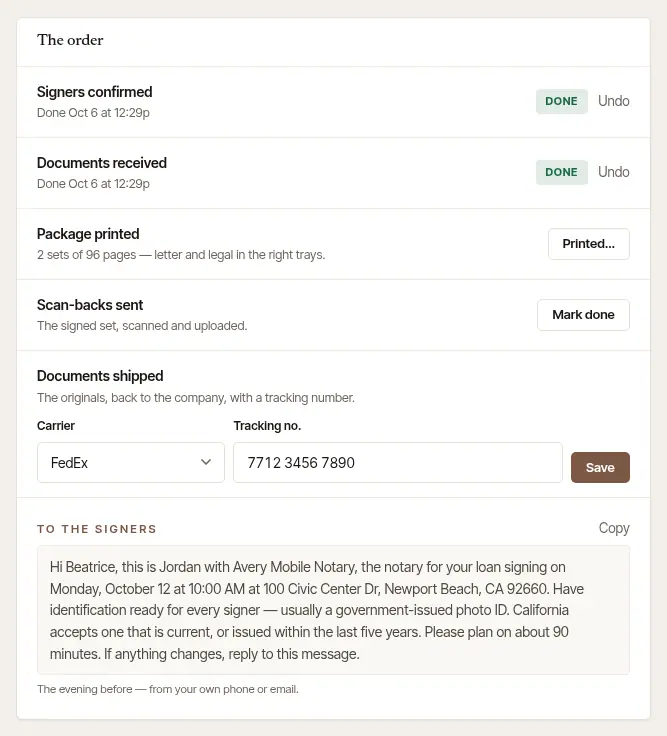
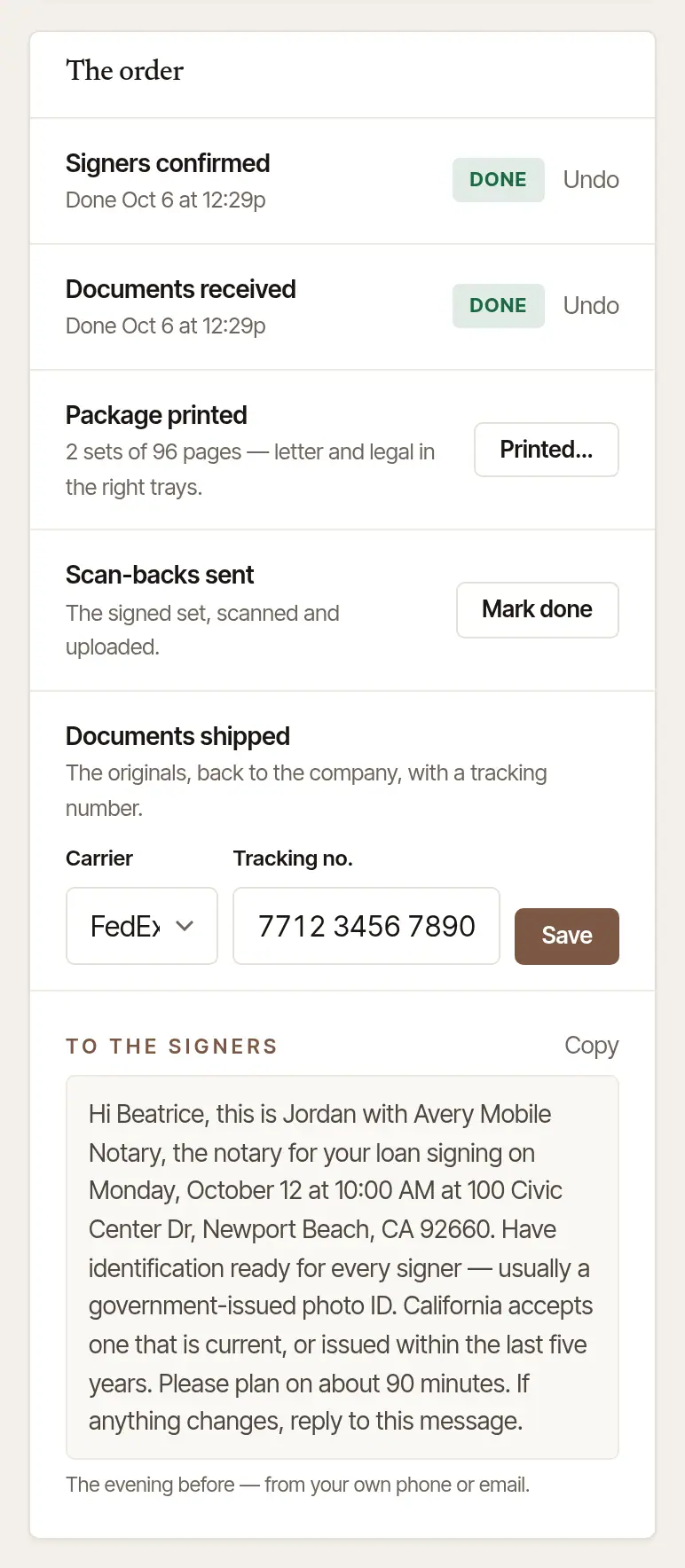
Each step shows Done and when, with Undo beside it, and goes on the job's history. Once the signing is closed out, only the steps still to do after it are left: the scan-backs and the shipping.
Open the job. The order is a card with the company's file number, and a box to tick for each step: Signers confirmed, Documents received, Package printed, Scan-backs sent when the company asked for them, and Documents shipped. Tick again to take one back.
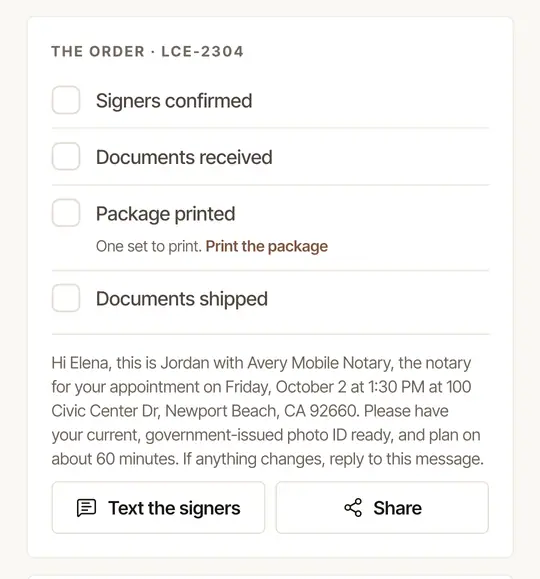
Print from the card. Under Package printed, Print the package opens the print queue for this signing.
Scan the signed set back. Tap Scan and send the signed set. The phone's own scanner opens; scan the pages, then send the file from the share menu to your email or the company's portal. Hand & Seal never keeps a copy. Back in the app, it asks Were the scan-backs sent?: tap Mark as sent.
On Android the scanner comes with Google Play services, and doesn't open on every phone; an iPhone uses its own document camera. When the scanner can't open, the phone says so — The scanner couldn't open — and when it closes with no pages (Google's own “Something went wrong” on Android, or you backed out), the phone asks No pages scanned — with the other two ways, which are also under the button (Scanner not working?):
- Take photos (Photos of the pages): photograph each page in turn; after each one, Next page or Send them. They're made into one PDF on the phone and go to the share menu the same way.
- Pick a PDF (A PDF): a PDF you already have — from an email, your files, or another scanning app.
Either way the file is deleted from the phone once it's handed over, and Hand & Seal never sees it.
Ship it. Tick Documents shipped, pick the carrier, type or paste the Tracking no. (a number of a known shape picks its own carrier), and tap Save. Track opens the carrier's page.
The shipping also comes to you: right after you close the signing out, Shipping the originals back? takes the carrier and tracking number with Mark shipped; and until it's marked, Needs you on Today has a To ship line for it (for two weeks after the signing). The number is typed or pasted — the phone doesn't scan shipping labels.
Confirming the signers the evening before comes to Today too: Confirm tomorrow's signers, a call or a text each, and Mark confirmed — see Plan your day on Today.
Tell the signers and the company
Under the steps are two messages, written for you from the order:
- To the signers: the confirmation to send the evening before, with the day, the time, the address, and a reminder to have identification ready — with what your state accepts, where the rules built in say. On the web, Copy it, or use Text beside a signer's number. On the phone, Text the signers opens your messages with it filled in; Share sends it any other way.
- To the company: where it stands, such as “Order LCE-2346 — Beatrice Lindqvist: signed Oct 5 at 11:10 AM; documents shipped Oct 5 at 4:30 PM by FedEx, tracking 7712 3456 7890.” It appears once there's news to give. Copy it into the company's portal or an email; on the phone, tap Share the status with the company.
When the order came through Hand & Seal
If the company sent it through your order link or from its desk, it follows the order there by itself: when you accept, set off, arrive and finish (the phone's On my way, I'm here and Signing done), and when the documents ship, with the carrier and Track. When you close the signing out, and when you mark the documents shipped, the company is also emailed in your name with where it stands, and the tracking link. The message is still there to copy for anyone else.
Was this helpful?
Still stuck? Contact support — a person reads every message and answers by email.