Guide
Plan your day on Today
The day's signings in order with when to leave for each, what needs you in one place, tomorrow's signers to confirm, and warnings when a drive won't work. The calendar shows the weeks ahead.
General information, not legal advice
This page explains how Hand & Seal works. Your state’s law, and your commissioning authority, decide what you must do — when in doubt, ask them or a lawyer.
Today is the first page you see: the day's signings in the order you'll drive them, when to leave for each, and everything that's waiting on you. It's worth a look first thing, and again the evening before.
Today on the web
Read Today's route. Each signing today, by time, with the client, the town and the fee. In a business with more than one notary, an owner's or an assistant's route lists every signing of the business that day: one someone else does names who does it — or says Needs a notary — as the calendar does. The count at the top of Today and of the route, its fees and the next signing it names are your own signings alone — and where the route lists others' too, its count says whose: 1 signing of yours · $… · 2 on the route. Someone in the business who isn't one of its notaries — an assistant, say — sees every one counted. Under each signing still ahead at an address — your own, or one nobody has yet — is Leave by: when to set off from home (for the first) or from the signing before, with time to park and get to the door. It's shown only to a notary. A ~ before the time means the drive is estimated, not measured by road. Directions, beside the town of a signing still ahead, opens Google Maps with the way to its address. Close out beside a signing means its time has passed and it's ready to close out.
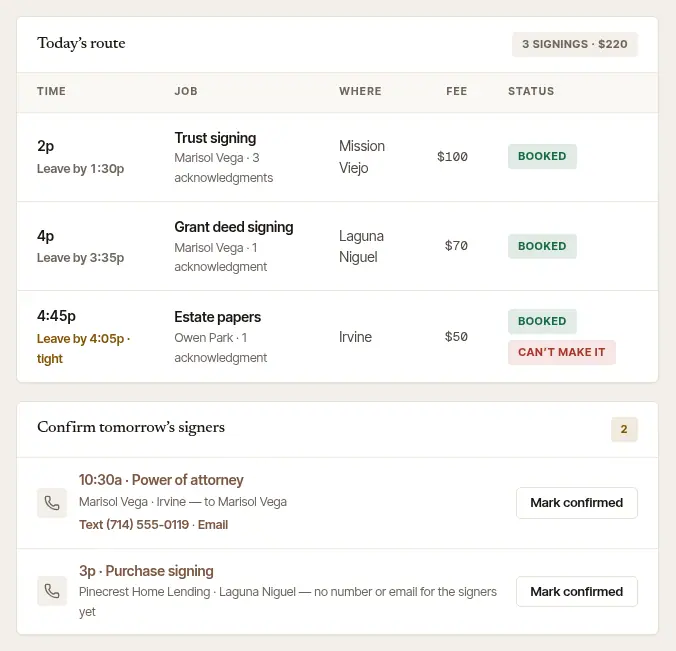
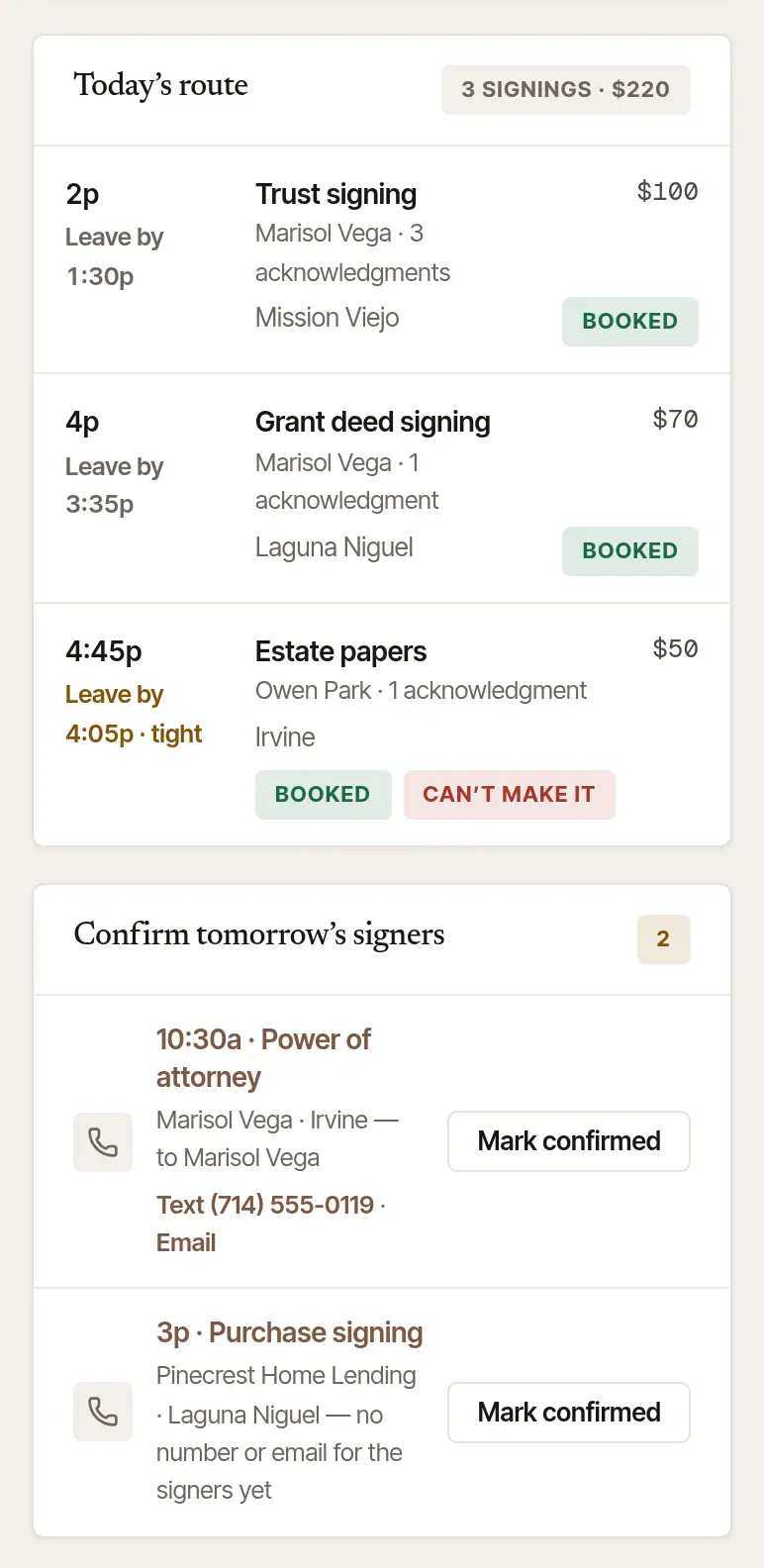
Look at Needs you. Beside the route: requests and messages waiting for your answer come first, then signings you can't get to in time, then everything else — a signing ready to close out, an invoice to send or chase, a renewal due, a package to print. Each has one button (Open, Close out, Read…) to deal with it. When your state's fees are about to change, the last line says so, with a button to set your prices for that day (see below). A request says when your answer is due — Answer by … — where it has a time it expires, or goes to another notary the company chose; the one due soonest is first. One that overlaps a signing of yours here says so, in rose — “…: overlaps another signing”, and which one (“Overlaps the 6 PM signing.”) — and Answer still opens it: accepting is yours to choose. Its page offers a time that would work, where one does. A time you're holding for a client says Held for … until …: it's waiting on them, and isn't booked until you confirm it. An order you've named your own fee on isn't listed while the company decides. The number beside Jobs is how many requests and orders are waiting for your answer.
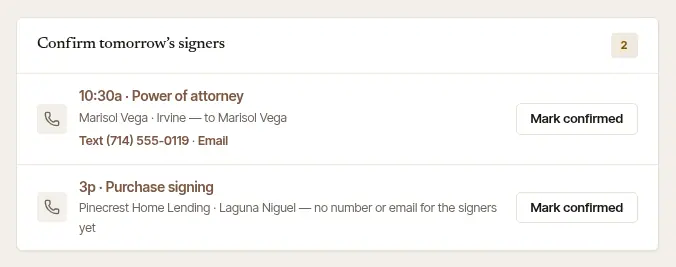
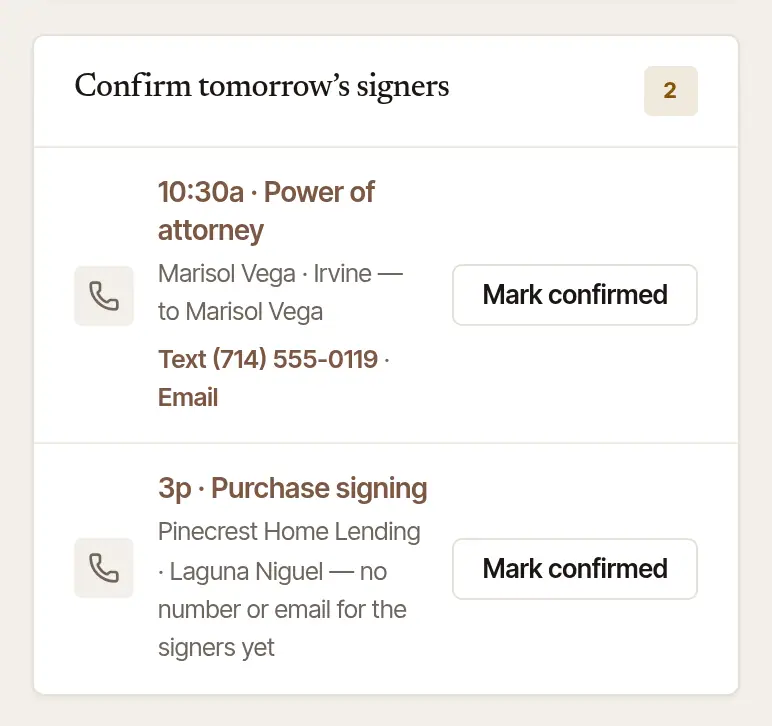
Confirm tomorrow's signers. Confirm tomorrow's signers lists each of tomorrow's signings not confirmed yet, with the signers' number or email: Text or Email opens your own texts or mail with the confirmation already written. Once they've said yes, choose Mark confirmed: the row goes, and the job's Signers confirmed step is ticked.
When there's nothing today, the route says so and names your next signing.
Warnings about the drive
Hand & Seal checks the week ahead by road, signing to signing. When one doesn't work, it says so on Today — under Needs you, and beside the signing on the route:
- A tight drive (amber, Tight) — you can get there, but only just.
- You can't get there in time (rose, Can't make it) — the drive from the signing before takes longer than the gap. It says by how much, and a time that would work.
- Overlaps another signing (rose) — two signings at the same time.
On Today, a time that would work is inside your working hours (Settings → Hours) when one fits. When none does, it's the nearest time outside them, and says so: “7:15 PM would work — outside your hours.”
Choose Open to see the signing, then move it or change it. The same check runs as you book or move a signing, before you save.
When someone else changes your day
When someone in your business books, changes or hands you a signing — or Say yes for me says yes for you, or a company accepts your fee — you're told by an alert when two signings then overlap, or when the drive between them can't be made in time, measured on the road, or plain from the map. The alert names both signings and their times, and, for a late one, the drive. You're told once for each pair of signings, until one of them is moved, made longer or shorter, re-addressed, turned to or from video, or handed on. A yes you give on the phone is told the same way. A close call that hasn't been measured shows on Today in the week before it, not as an alert.
On the web, it stays in Needs you until it's mended or you change one of the two yourself, up to a year ahead. A tight drive isn't alerted: it's on Today.
The calendar
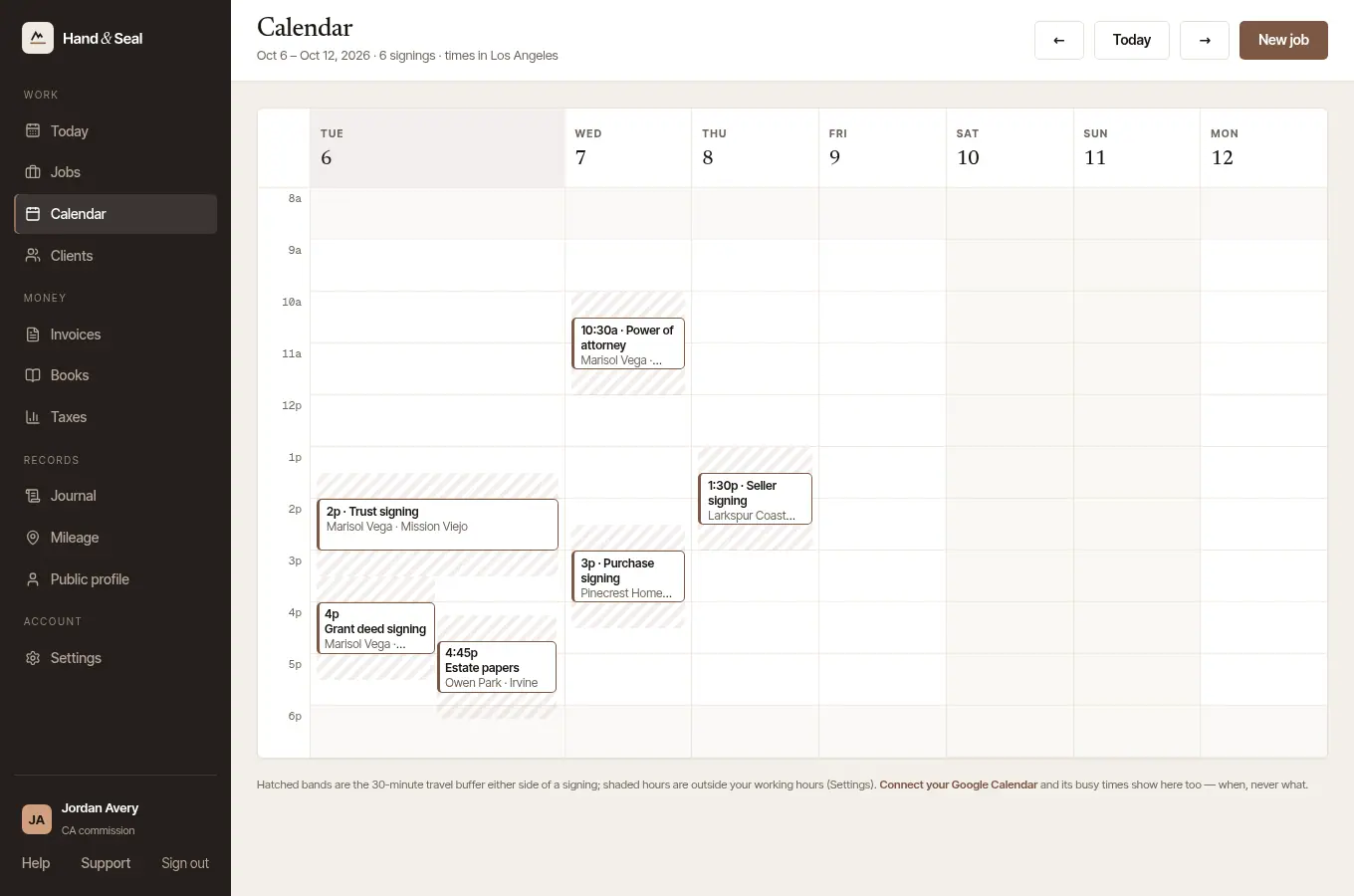
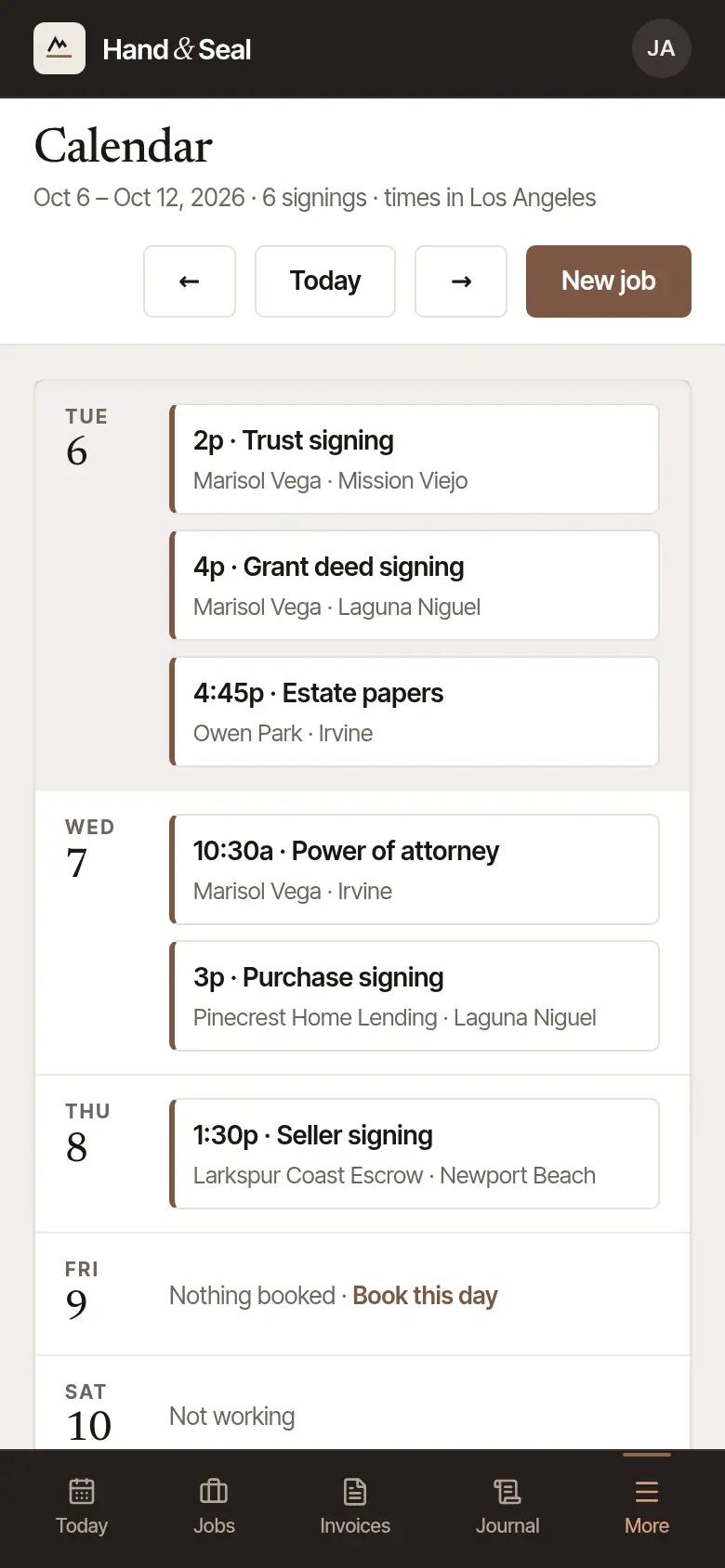
Calendar shows a week at a time: each signing in its hours, with a hatched band either side for the travel time you allow, and shaded hours outside your working hours. ← and → change the week; Today comes back. Book, under the date of today or a day ahead, starts a booking on that day. With your Google Calendar connected, its busy times show as dashed grey blocks — when you're busy, never what — and so do the busy times your phone sends, with Busy times from this phone turned on. On a phone-sized screen the week is a list of days, and today and each day ahead has Book this day, under any signings it has.
Today on the phone
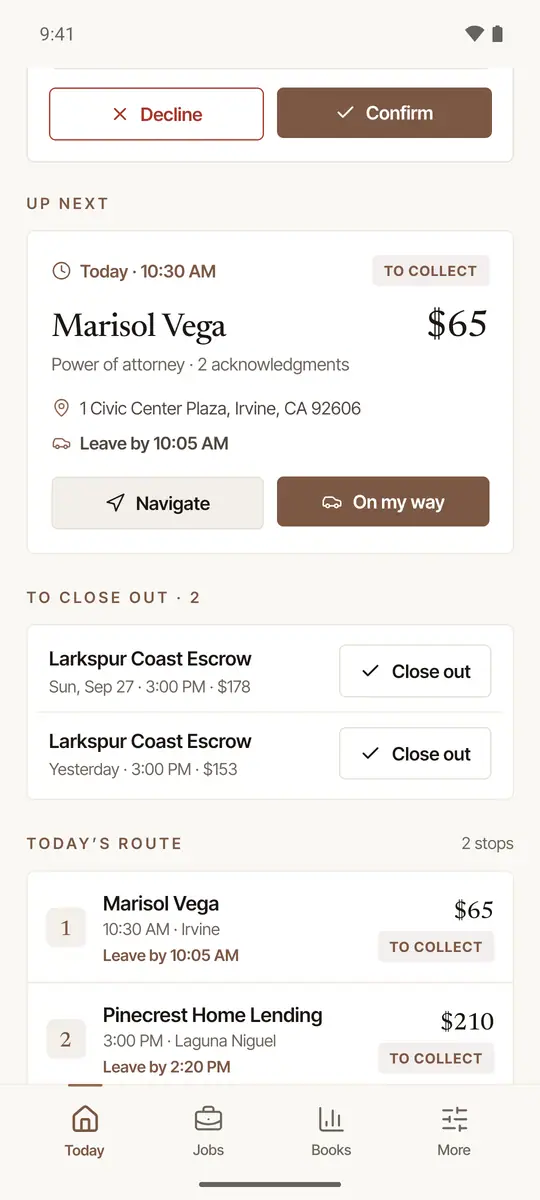
- Needs you, near the top, is one card for everything waiting on you — the most urgent line first, the rest behind N more. A signing you can't get to in time (or one that overlaps) comes before a cancellation, tomorrow's signers, packages to print, originals to ship, drives to file, a renewal, and last the things that can wait. Tap a line to deal with it; some have a button of their own (Continue, Allow alerts, Switch).
- Confirm tomorrow's signers is a line in Needs you: it opens a short list of tomorrow's signings not confirmed yet, each with Call and Text (the confirmation already written) from your own phone. Once they've said yes, tap Mark confirmed — you have a few seconds to Undo — and the job's Signers confirmed step is ticked.
- To ship is a line too, for signings you closed out whose documents aren't marked shipped yet: each takes the carrier and the tracking number, typed or pasted, and Mark shipped.
- Up next is the next signing, in a card of its own: when, who, what it pays, the address and Leave by (a ~ means the drive is estimated). Navigate opens your maps app — Apple Maps on an iPhone, Google Maps on Android, or the one you chose under More → Settings → Directions in, with the way there; the button beside it is the next step — On my way, I'm here, Signing started, Signing done, then Close out. Once the signing has begun the card says Now, and once it's over, To close out.
- Requests, under the day's figures, wait for Confirm or Decline.
- To close out lists earlier signings not closed out yet, each with Close out.
- Today's route lists every stop, with its Leave by; a stop you can't reach in time says so — and on the job, Change the time fixes it.
- The calendar is under More → Calendar.
When your state's fees change
When your state's rules change what you may charge, Today says so from 60 days before, on the web and on the phone: a line that begins From, with the day and your state's name, and gives the new limit, with a button to use that limit from that day. It appears when you charge an act at your state's limit today.
One tap saves your prices for that day: your fees as they are, with those acts at the new limit. Your prices today stay until then — nothing changes before the day, and nothing changes at all unless you tap it (on the phone you have a few seconds to Undo). The renewals email says it too, once. To set different prices for that day, use Settings → Fees and choose the day under Starting.
Good to know
- Leave by also comes as a notification on the phone, when it's time to go — with On my way on it.
- Your working hours shade the calendar and decide the times clients can book. They're set in Settings → Hours.
Was this helpful?
Still stuck? Contact support — a person reads every message and answers by email.