Guide
Keep your clients in one place
Clients holds everyone you work for, people and companies: their payment terms, standing instructions, the people at a company, their record with you, and a monthly statement.
Clients keeps everyone you work for in one list: the people who book once, and the title, escrow and signing companies that send you work every week. You don't have to add anyone first. A client is made the first time you book for them, and a company that sends you an order is added by itself: a new company is billed net 30 and a new person pays at the signing, until you change their terms on their page. Add a company ahead when you'd like its terms and instructions in place before the first job.
Find a client
Open Clients. On a phone-sized screen, it's under More. Each row shows their Jobs, what they've been worth (Lifetime), their Terms, how fast they pay (Pays in), what they Owe, and their Last job.
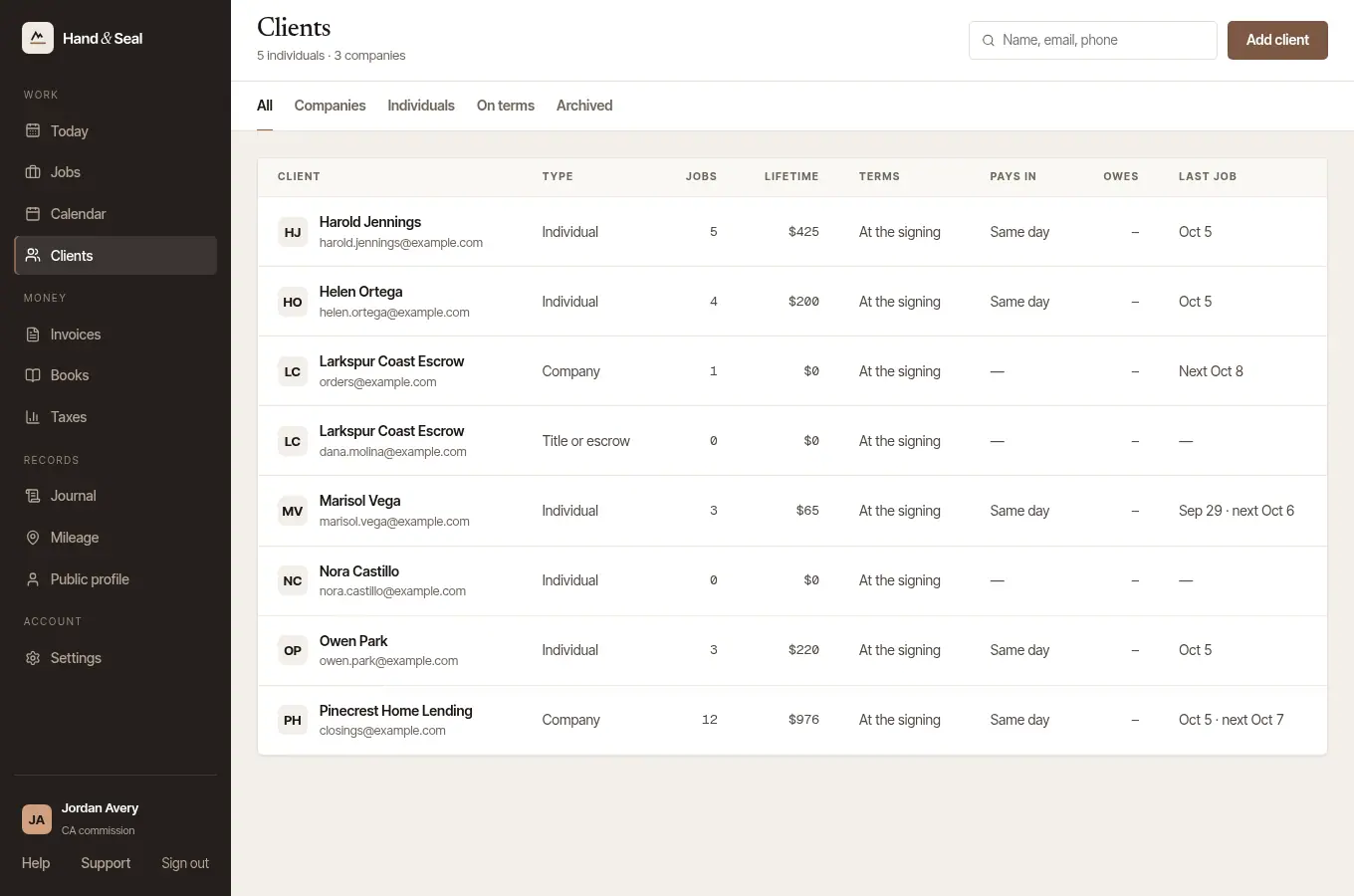
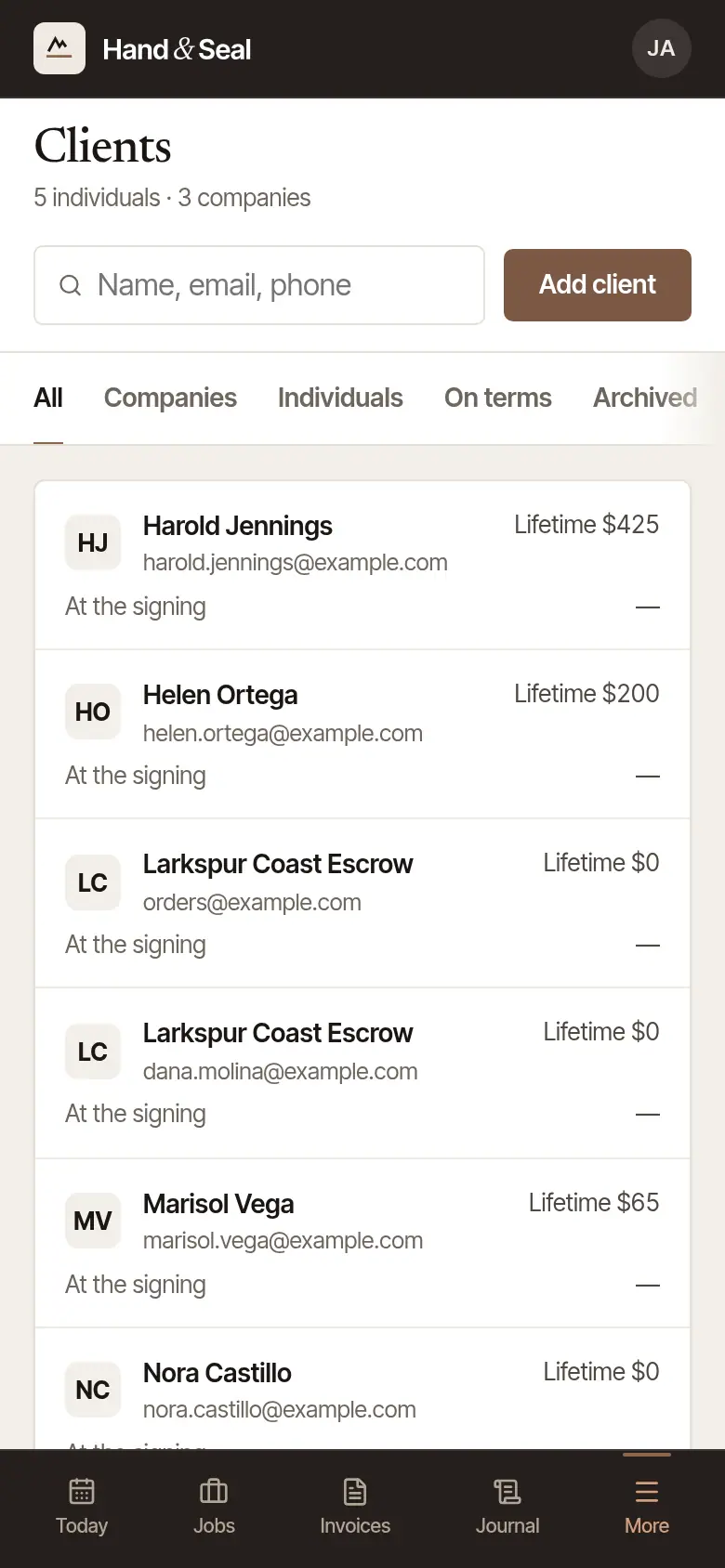
Narrow the list. Companies, Individuals, On terms (those you bill, rather than being paid at the signing) and Archived. Or search by a name, an email or a phone number. A number can be typed with or without its dashes, spaces, brackets or a +1, and a company is found by the numbers of its people too.
Add a client
Choose Add client at the top of Clients.
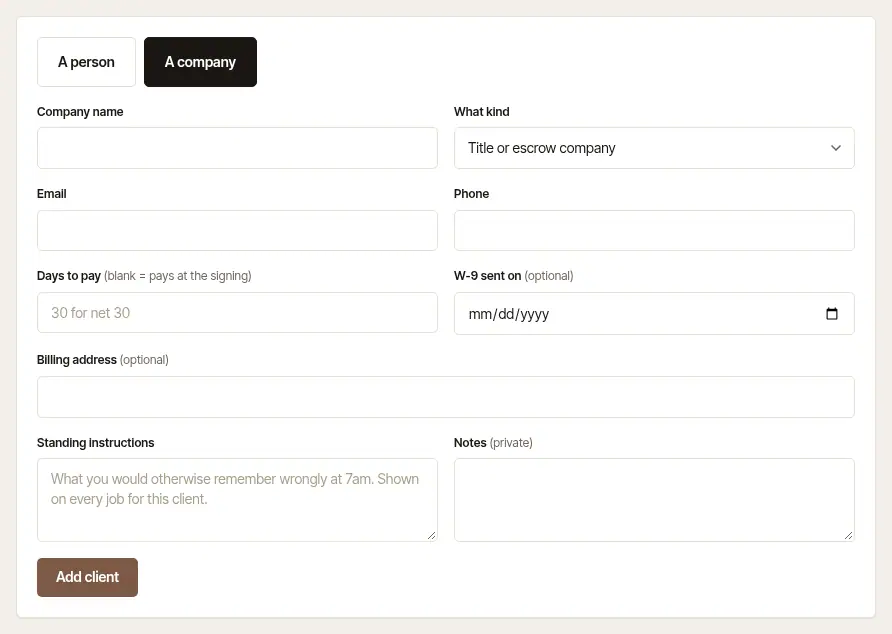
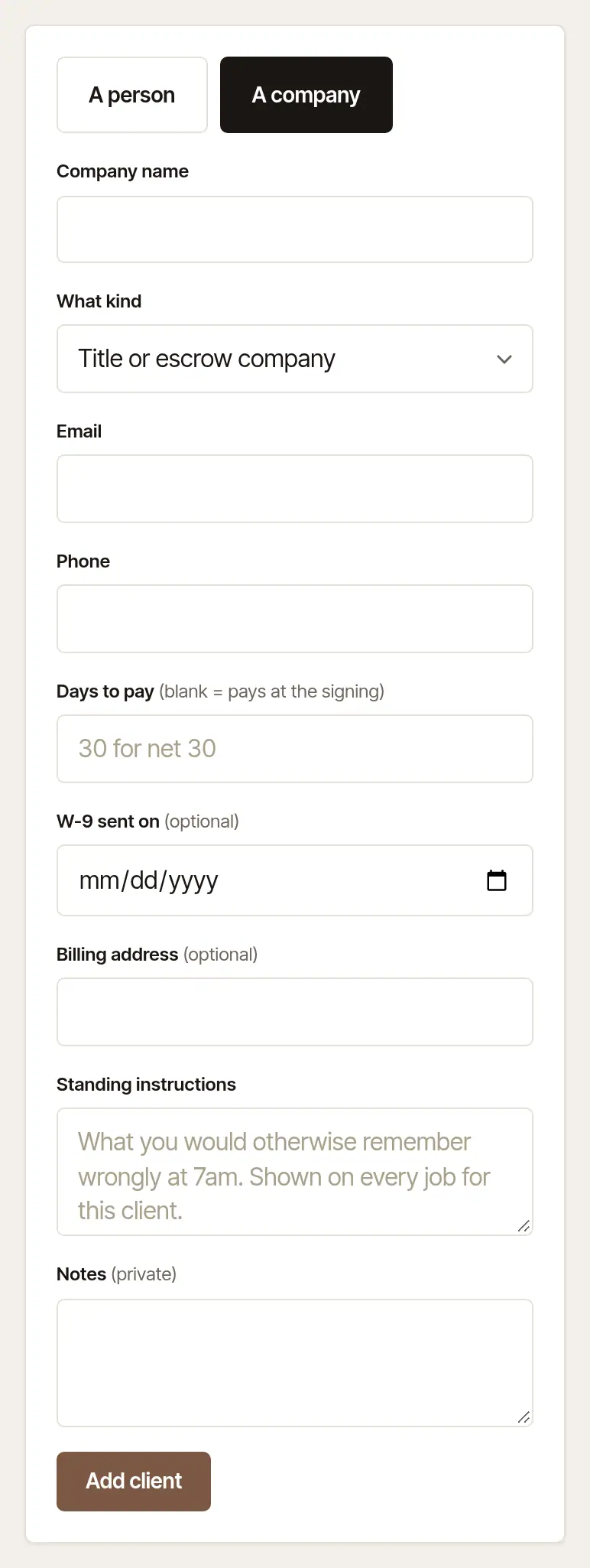
Say who they are. Choose A person or A company. For a company, give its Company name and What kind it is: a title or escrow company, a signing service, a law firm, a lender, or another business. Then its Email and Phone.
Set their terms. Days to pay is how long their invoices give them: 30 for net 30, 0 for due on receipt. Leave it blank for a client who pays at the signing. W-9 sent on and a Billing address are optional.
Write their standing instructions. Whatever you'd otherwise have to remember on the morning of the signing: which courier, who to call, how they like scan-backs. They're shown on every job for this client. Notes are private to you.
Choose Add client.
A client's page
Choose a client in the list to open their page.
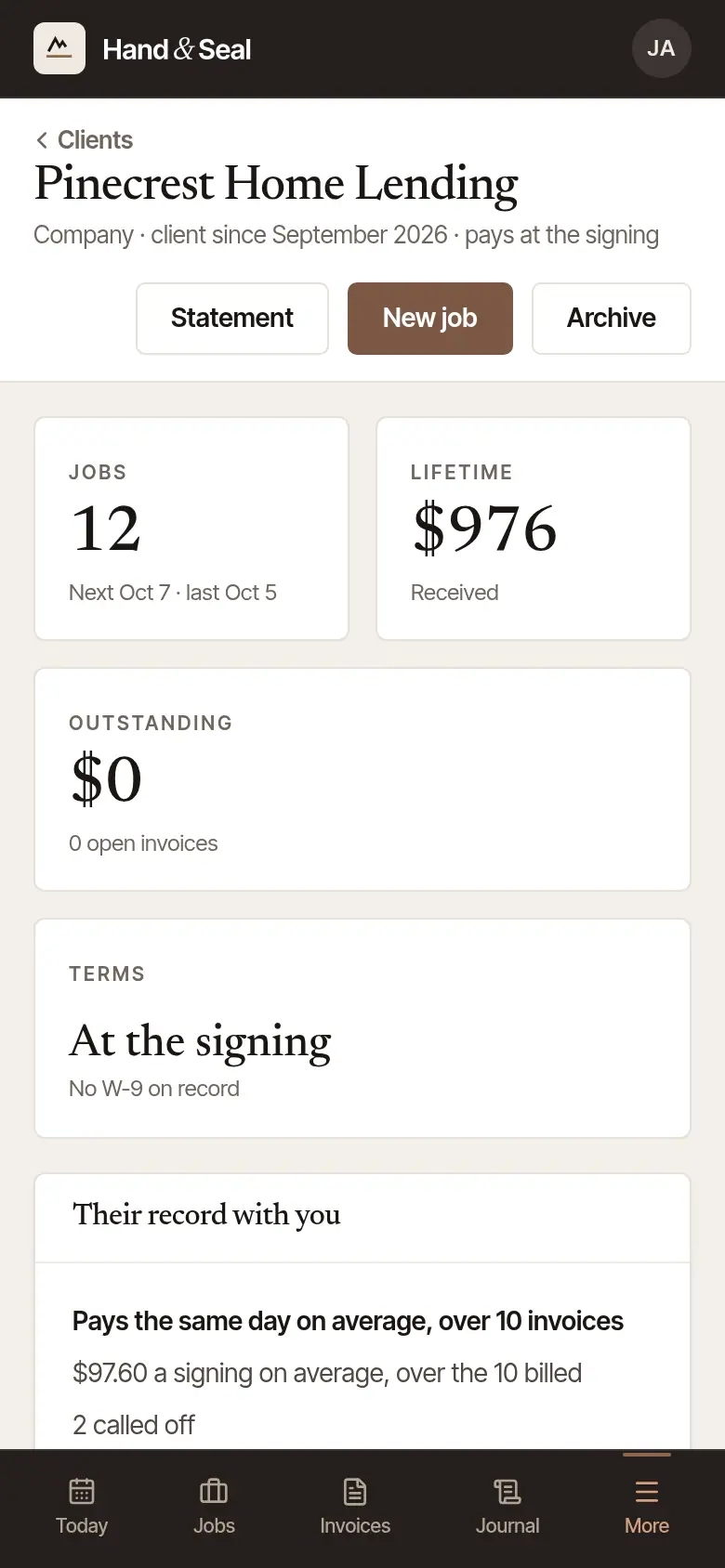
- At the top: what kind of client they are, since when, and their terms; Call, Text and Email, for the number and address on file, open your own phone or mail; and Statement, Archive and New job (a booking for them, with their details filled in).
- Jobs, Lifetime, Outstanding and Terms: how many signings, what they've paid you, what's owed on their open invoices, and whether a W-9 is on record.
- Their record with you: how they've actually behaved, worked out from your own records: how fast they pay on average, what a signing with them is worth, how many were booked less than a day ahead, how many were called off, and anything they owe late.
- Slow to pay: once an invoice of theirs on payment terms has needed its final notice — 30 days or more past its due date — their record says Slow to pay, and how many of their invoices needed one. An invoice due on receipt never marks them. It stays after they've paid, and on an invoice you void and issue again to the same client with the same lines: it's what happened. It shows under their name in the list too, and only in your own records: the client never sees it, and no other business does.
- Recent jobs (with All … jobs to see them in Jobs), Open invoices, and Details: the same form as above, with Save.
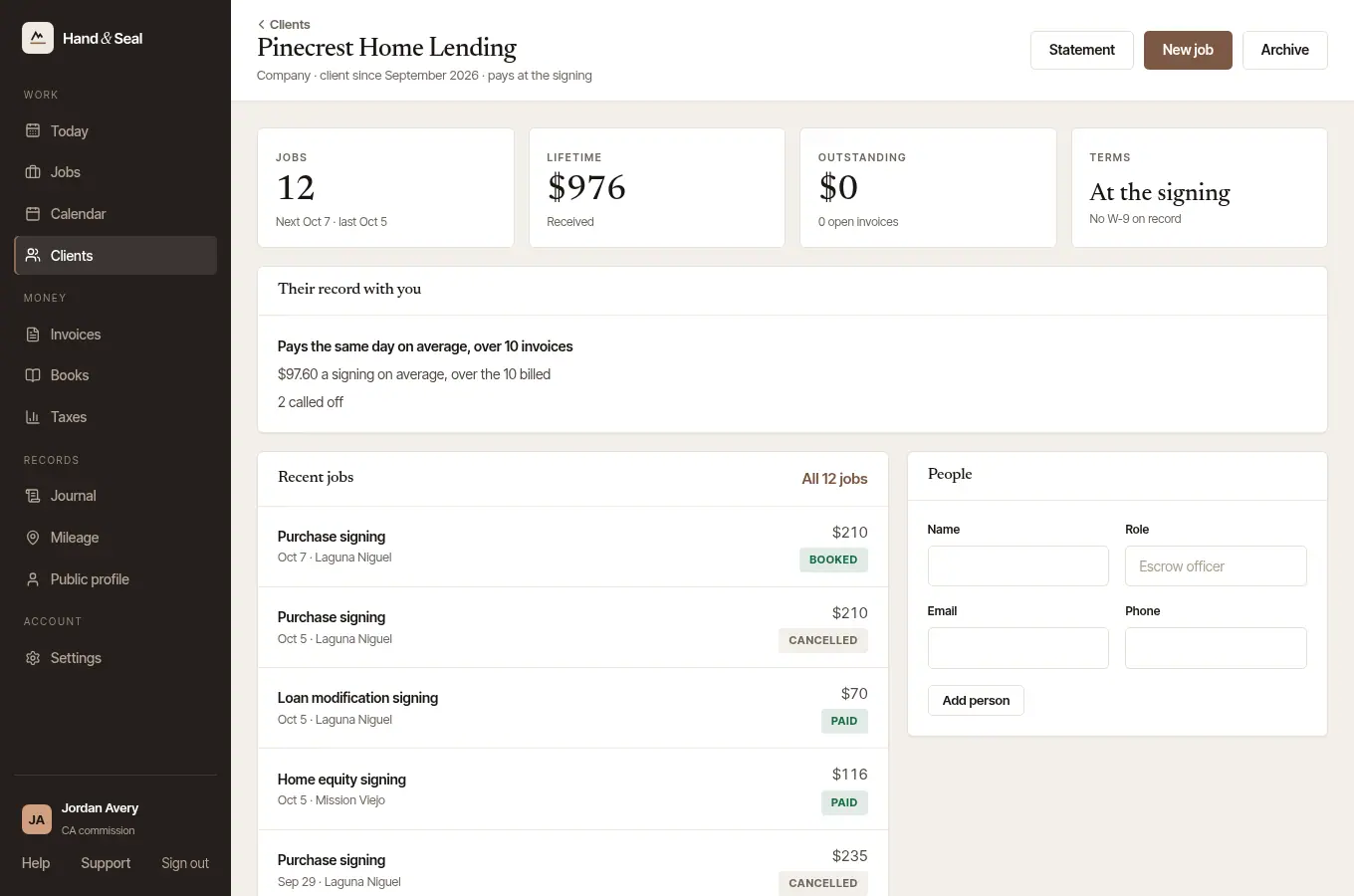
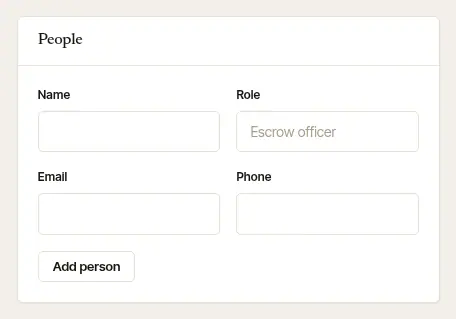
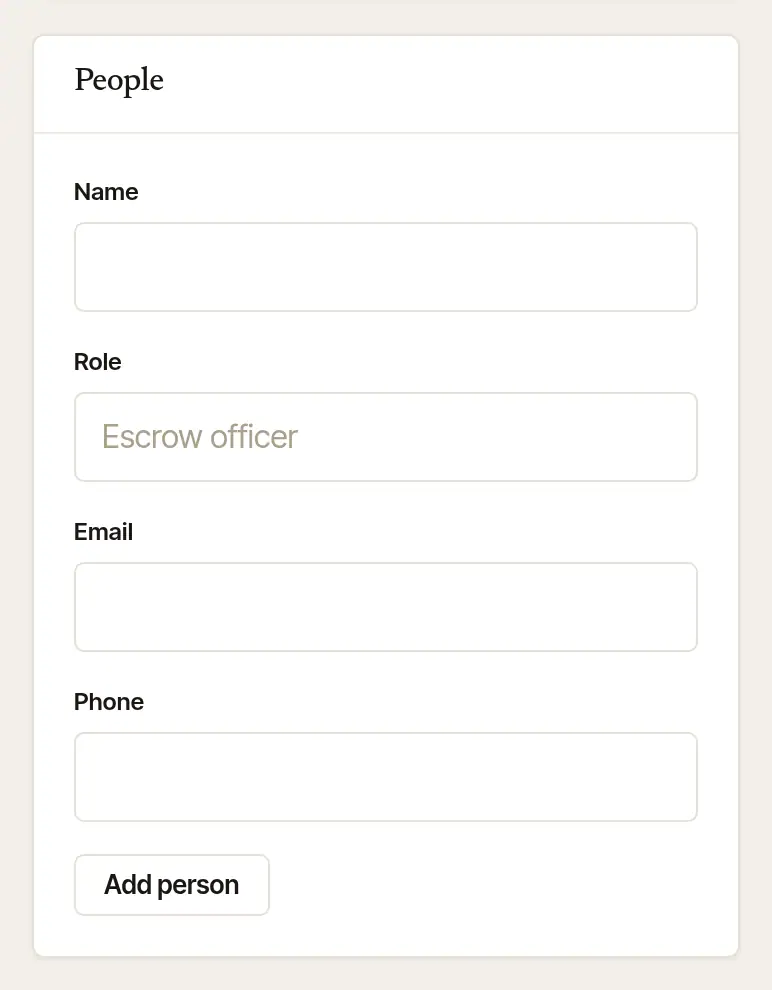
The people at a company. Under People, add the escrow officers and assistants you deal with: their Name, Role, Email and Phone, then Add person. Each one's number calls them, Text begins a text, and their address begins an email. Remove takes one off.
Send a statement
A company that pays once a month may want a statement. Statement on the client's page shows their month on one sheet: the balance brought forward, each invoice — with its signing's day and file no. — each payment, the balance now, and their open invoices, each with its file no. ← goes back a month.
Choose Statement on the client's page.
Choose Send it. This month's statement is emailed to them, from you, with each invoice they owe that has gone to them, and its link — replies come back to you. An invoice that hasn't gone to them stays off it, and the page says which. Only this month's is emailed; an earlier month is yours to print. Or choose Print or save as PDF to send it your own way.
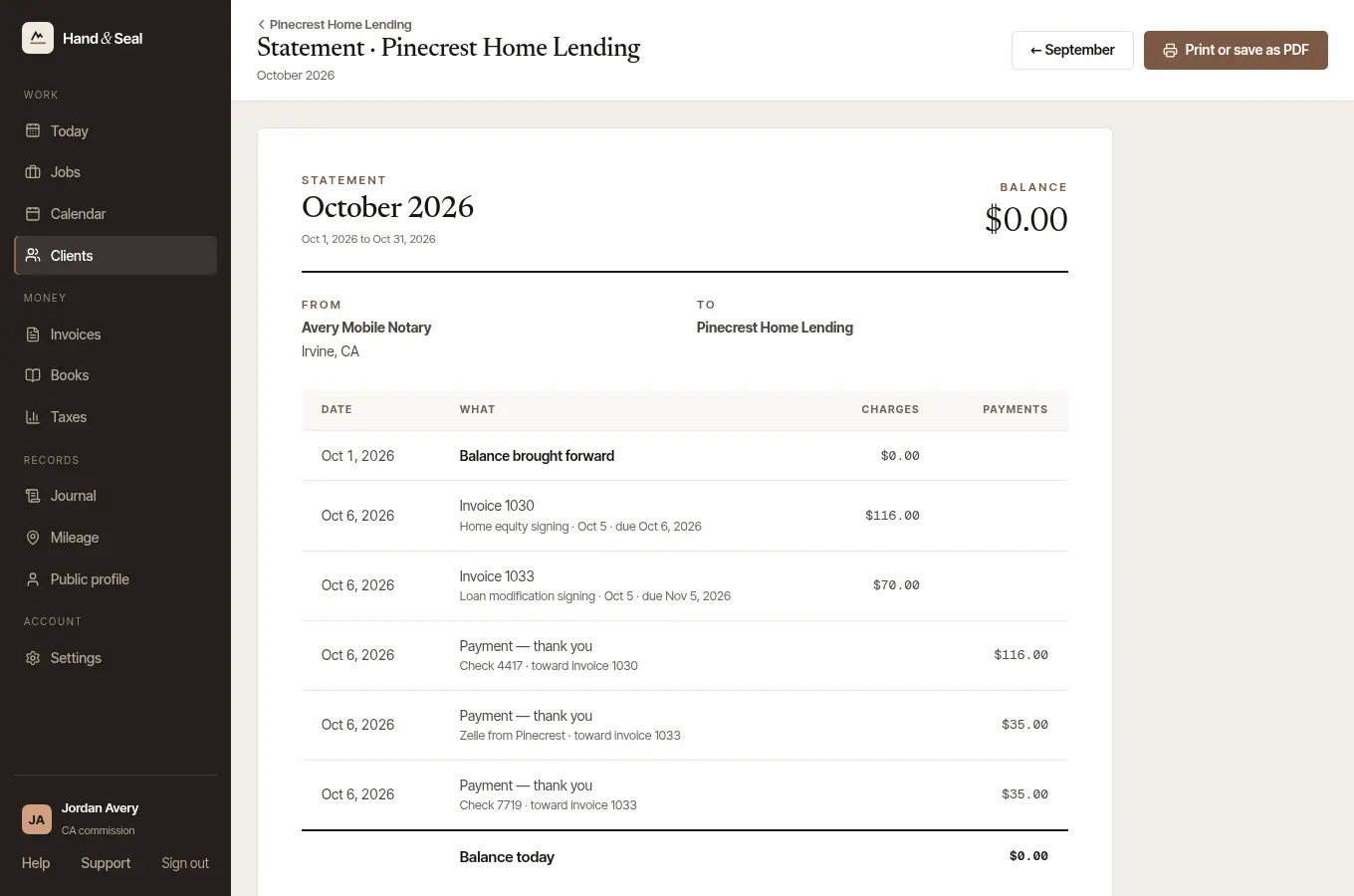
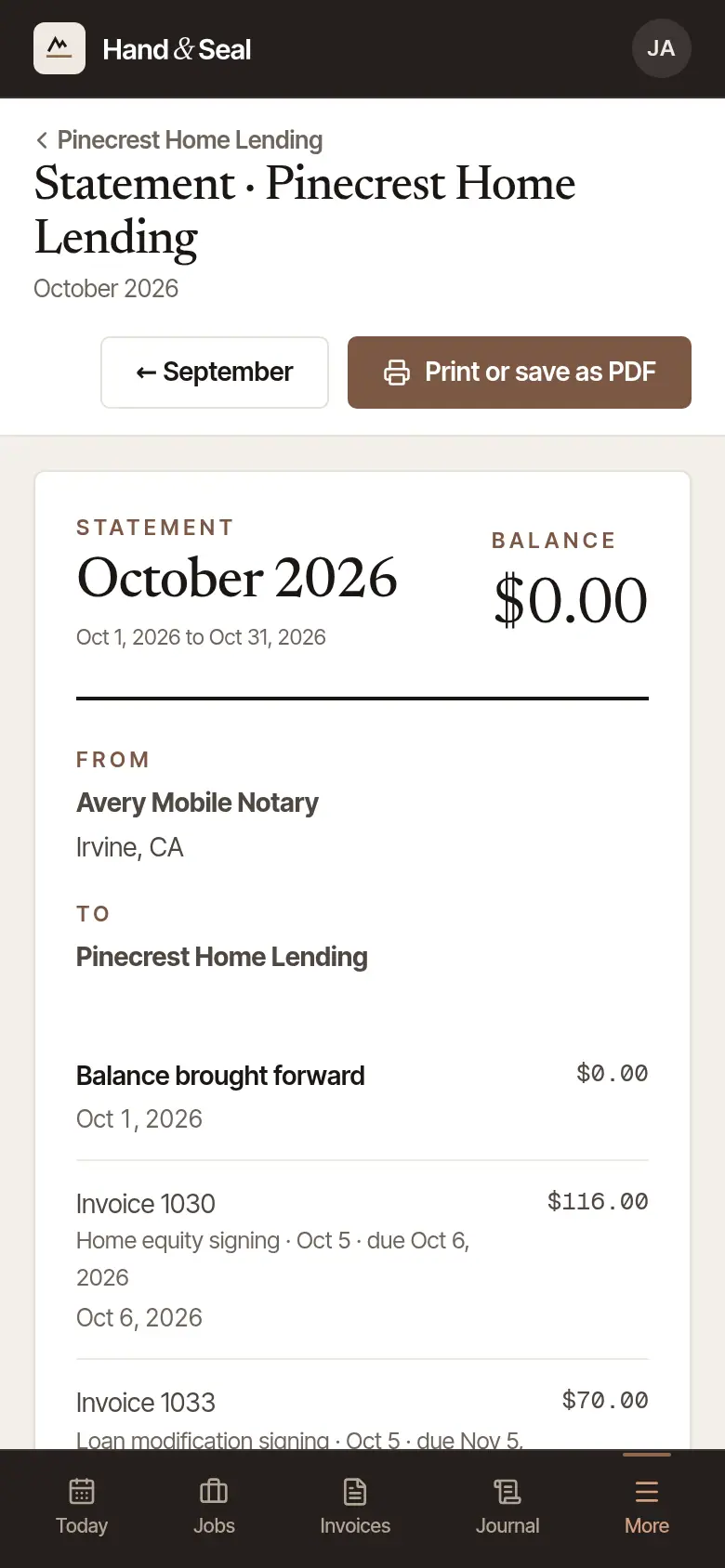
Above the sheet, Email it to them shows the last statement emailed to them. It's there for the business's owners and coordinators, who see every invoice of the client; a notary on the business's roster sees the sheet alone. Once an invoice of theirs has had its final notice, it also says when the next goes by itself, under Remind them for me, or why none does.
Good to know
- Archive takes a client you no longer work with off the list: they're kept under Archived, with their jobs and invoices, and Restore brings them back.
- Bringing a list over from another app or a spreadsheet? Settings → Import brings in clients, income, expenses and mileage from a CSV file or pasted cells, on the web.
- On the phone, More → Clients opens this same page inside the app (it needs a connection). When you book on the phone, the client is chosen from this list, or added from your phone's contacts.
Was this helpful?
Still stuck? Contact support — a person reads every message and answers by email.