Guide
Book a signing from an order you were sent
Paste a signing company's order, or choose its PDF or a screenshot, and the booking fills itself in — the date, the address, the signers, the fee and the file number — for you to check.
A signing service or title company sent you an order by email or on its website. Instead of typing it all in, hand the order to the booking: it reads the date, the address, the signers, the fee and the file number, and fills them in. You check every field before anything is saved.
Fill in a booking from an order
Open New job, then From an order. Choose New job on Today or Jobs, and open From an order at the top.
Paste the order, or choose its PDF. Copy the order from the email or the company's website and paste it into the box. Or choose Choose the order's PDF — or drop the PDF on the box — and its words appear there to check. The PDF is read in your browser; only its words are sent, and nothing is kept.
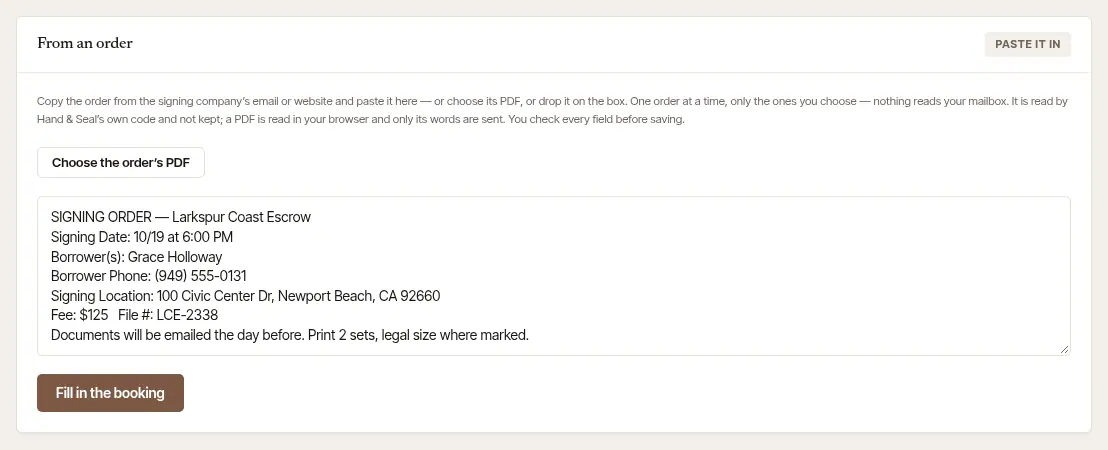
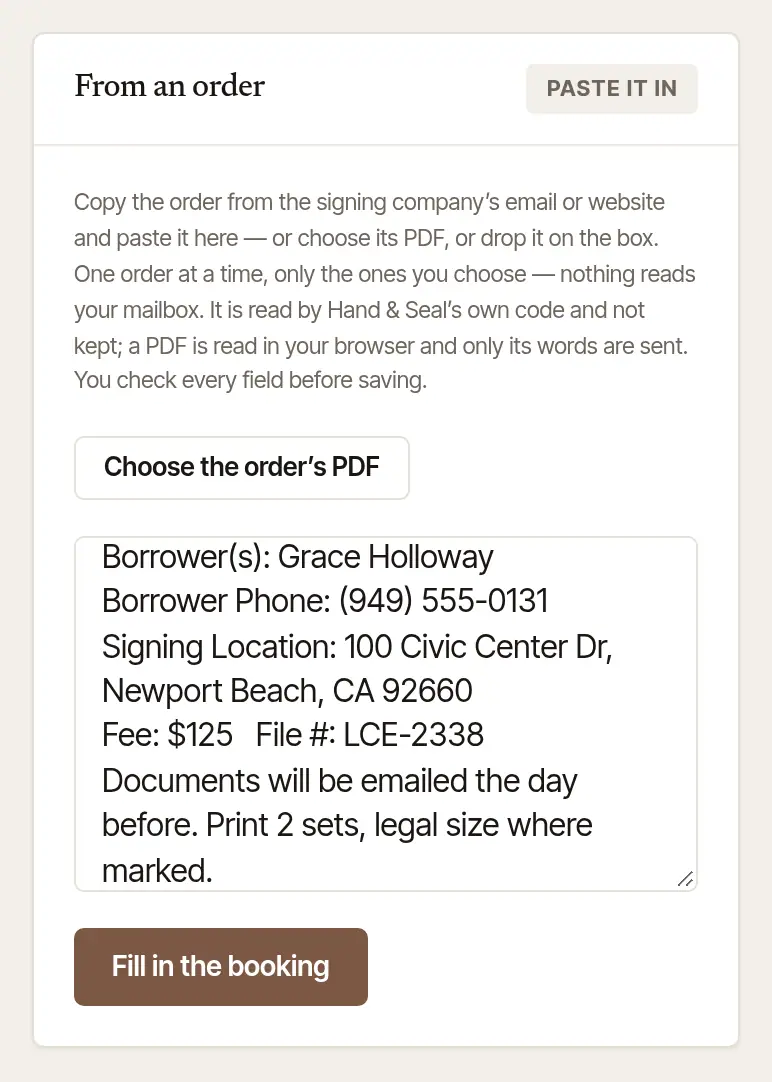
Choose Fill in the booking. A note says what it read — Read from the order: the date, time, address, signers, fee, file number and the rest — and the booking below is filled in with it. A company's one-amount fee comes in under What they pay, all in; the kind of loan, the loan number and the lender (never taken for the file number), the pages and sets to print and any witnesses it names come in too; the company heading the order is the client, and the person it names — the escrow officer — goes under Who to call about the file. What it couldn't read is left for you to fill in. If you had already typed in the booking, it asks first — Fill it in replaces what you typed with the order, Keep what I typed leaves it.
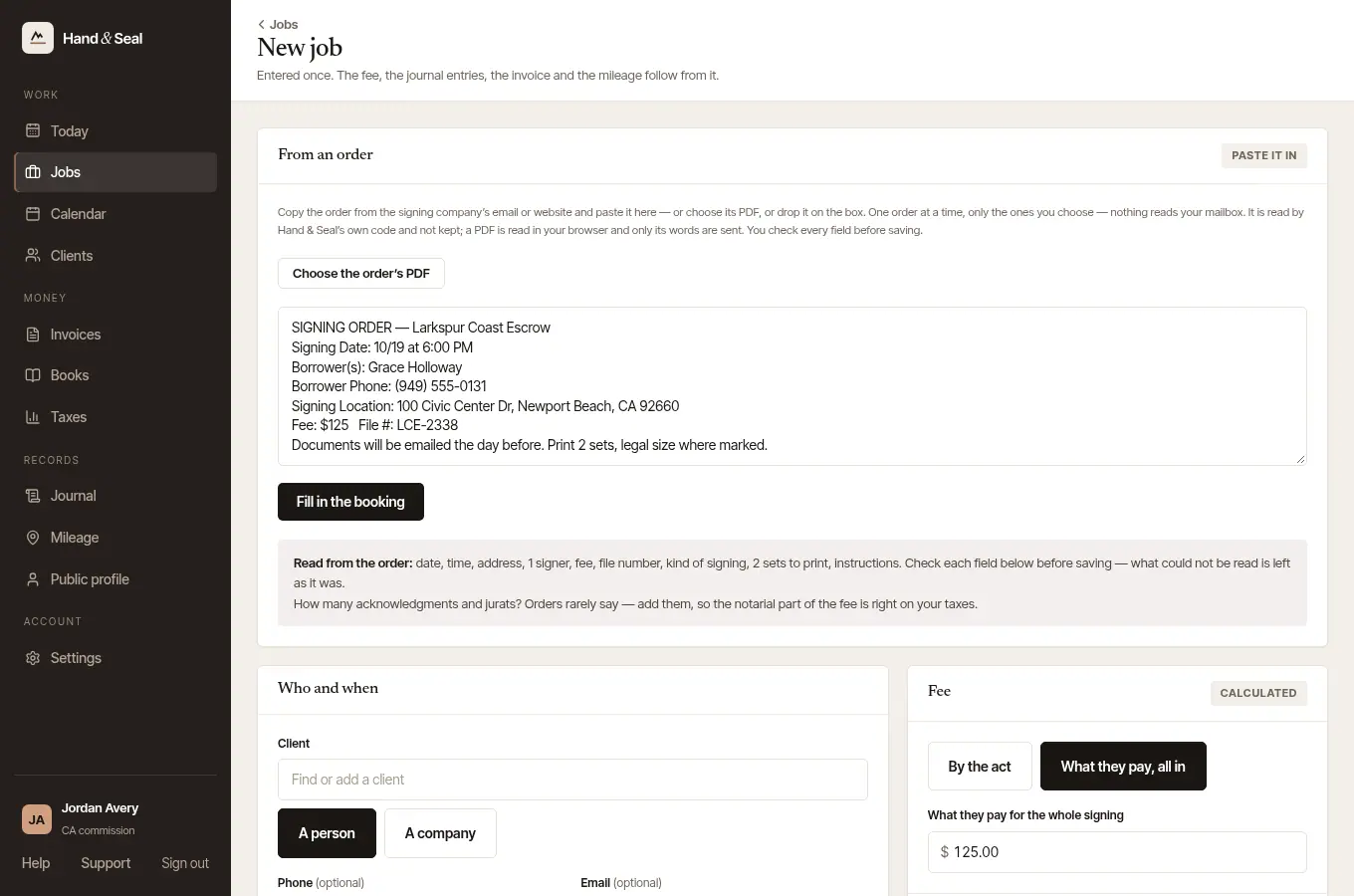
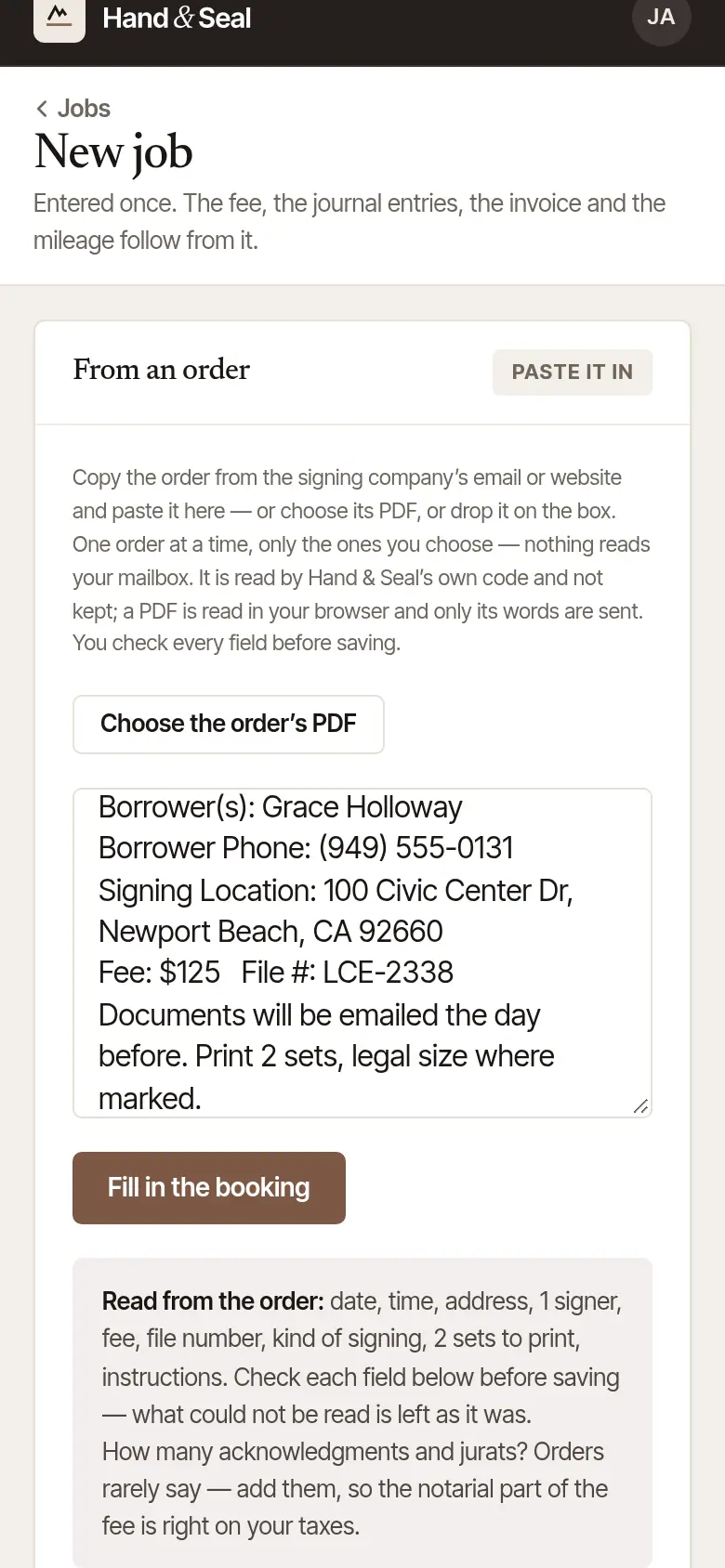
Check every field, then choose Add to schedule. Pick the client if they're already yours (or say it's a new one), and add the notarial acts: orders rarely say how many acknowledgments or jurats there are, and the note reminds you. Then save it as any booking.
Tap +, then From an order. The card at the top of New job says Paste, or a screenshot.
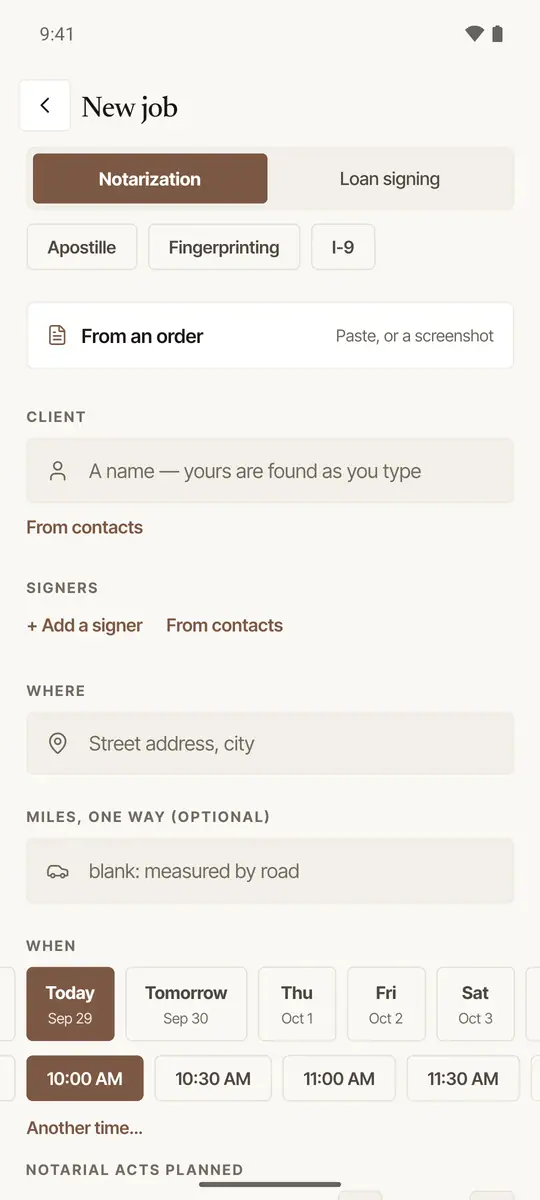
Give it the order. Paste the order's words into the box — or tap Choose a screenshot to pick a screenshot or a PDF of it. A screenshot or PDF is read on your phone, and never leaves it: its words appear in the box, to check. Take out anything that isn't the order.
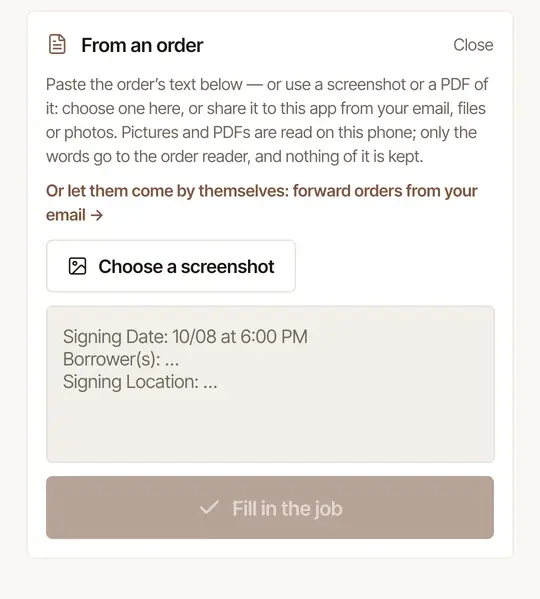
Tap Fill in the job. The note says what it read (Read from the order: …), with the signers, and the job below is filled in — the kind of loan, the pages and sets, the witnesses and who to call about the file included.
Check every field, then tap Add to schedule. Add the notarial acts, pick the client if they're already yours, and check the day, the time and the fee.
From your email or photos. In your mail app, your files or your photos, use Share on the order (its PDF or a screenshot) and choose Hand & Seal: New job opens with the order already being read.
Good to know
- One order at a time, only the ones you choose: nothing reads your mailbox. The order's words are read by Hand & Seal's own code and not kept.
- The web reads PDFs only. For a screenshot of an order, use the phone app, which reads pictures.
- Orders that reach you by email all the time can come in by themselves: forward them to your own orders address (Settings → Integrations, then Forward them automatically). Each one waits in Orders by email as a booking to check — Today tells you when one comes in.
- A company that has your order link sends its orders straight to you, already filled in — there's nothing to paste.
Was this helpful?
Still stuck? Contact support — a person reads every message and answers by email.