Guide
Change, move or cancel a signing
Change anything about a booked signing, move it to a new day and time in one step, or cancel it — and who is told each time.
Plans change. Until a signing happens, anything about it can be changed; a new day and time has a quicker way of its own; and a signing that isn't going ahead is cancelled, with a word about why.
On the web
Open the job. On Jobs, choose the signing. At the top are Change time, Edit and Cancel job.

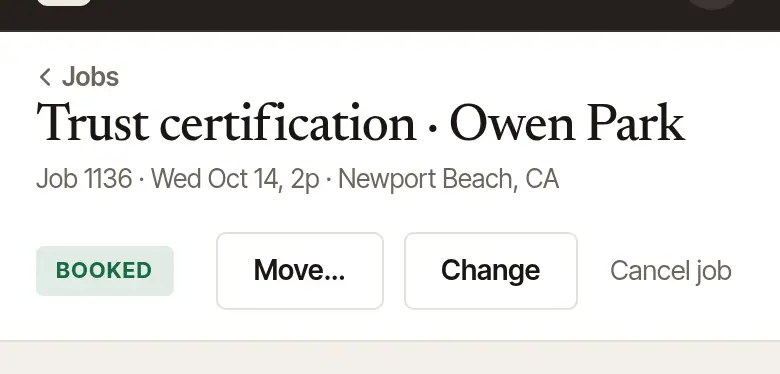
To move it, choose Change time. Choose the New day and New time, and say Why if you like — it goes on the job's timeline. Before you save, it tells you what the fee will be (it stays as booked unless the new time brings an evening or weekend fee, or other fees in force that day) and whether you can get there from the signing before — for someone else's signing in your business, whether they can, in their day. Then choose Change time — or Keep it as it is. A new time that has already passed is said before it's saved: nobody is emailed a time gone by, and a booked job then goes to Close out. If the signing has happened, choose Change it to the past time; if you meant a later time, put the time right. When you move it on from a time that had passed, the client is told the time it was as they last heard it.
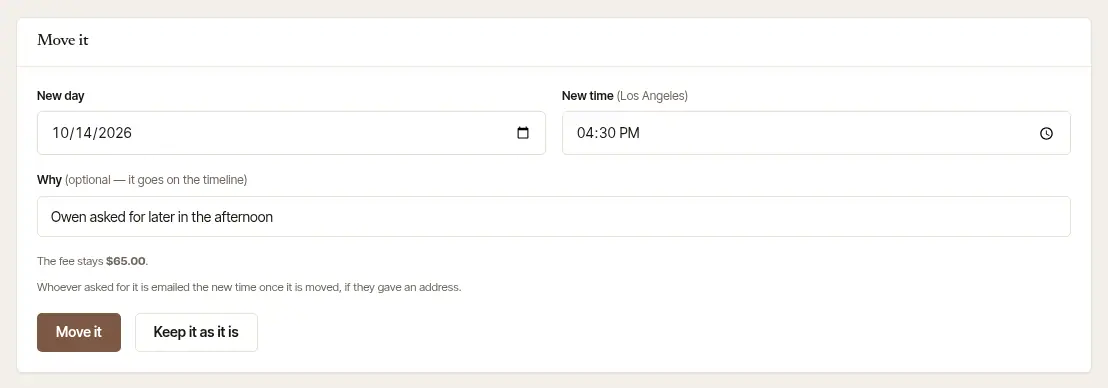
When someone else in your business moves or changes one of your signings and that leaves you short of time, you're told: see Plan your day on Today.
To change anything else, choose Edit. It's the booking form again, filled in: the client, the address, the acts, the signers, the fee. A signing you booked yourself whose client has a page keeps that client: the page is theirs. To correct their name, change it under Clients; to book it for someone else, cancel it and book it again. A new address is measured again by road, and the travel fee follows it. Saving works the fee out again under the fees and rules in force on the signing's day, so check the Fee card before you choose Save changes. A new time that has already passed is asked about here too, under Time: choose Save changes again to go on, or put the time right.
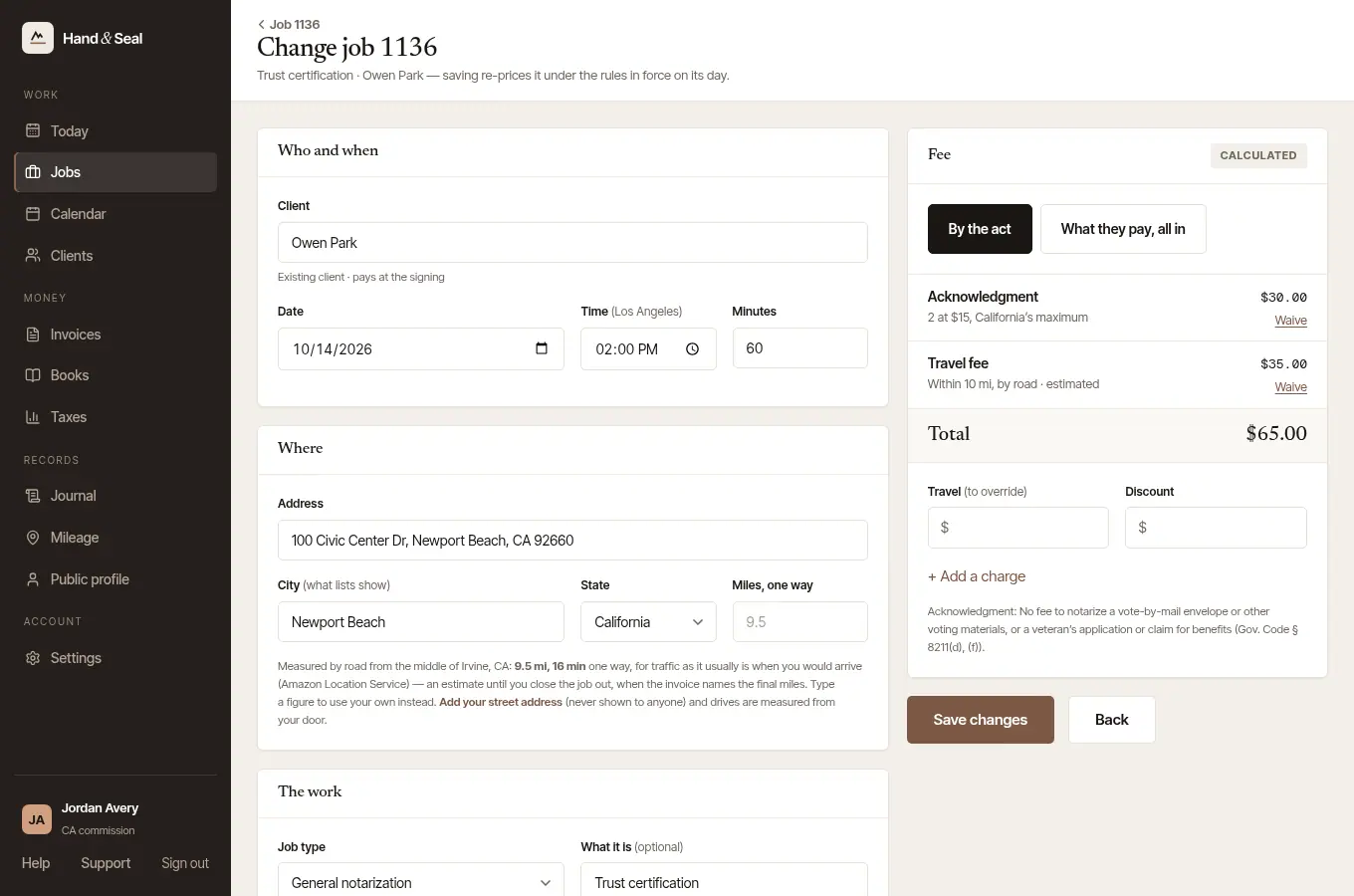
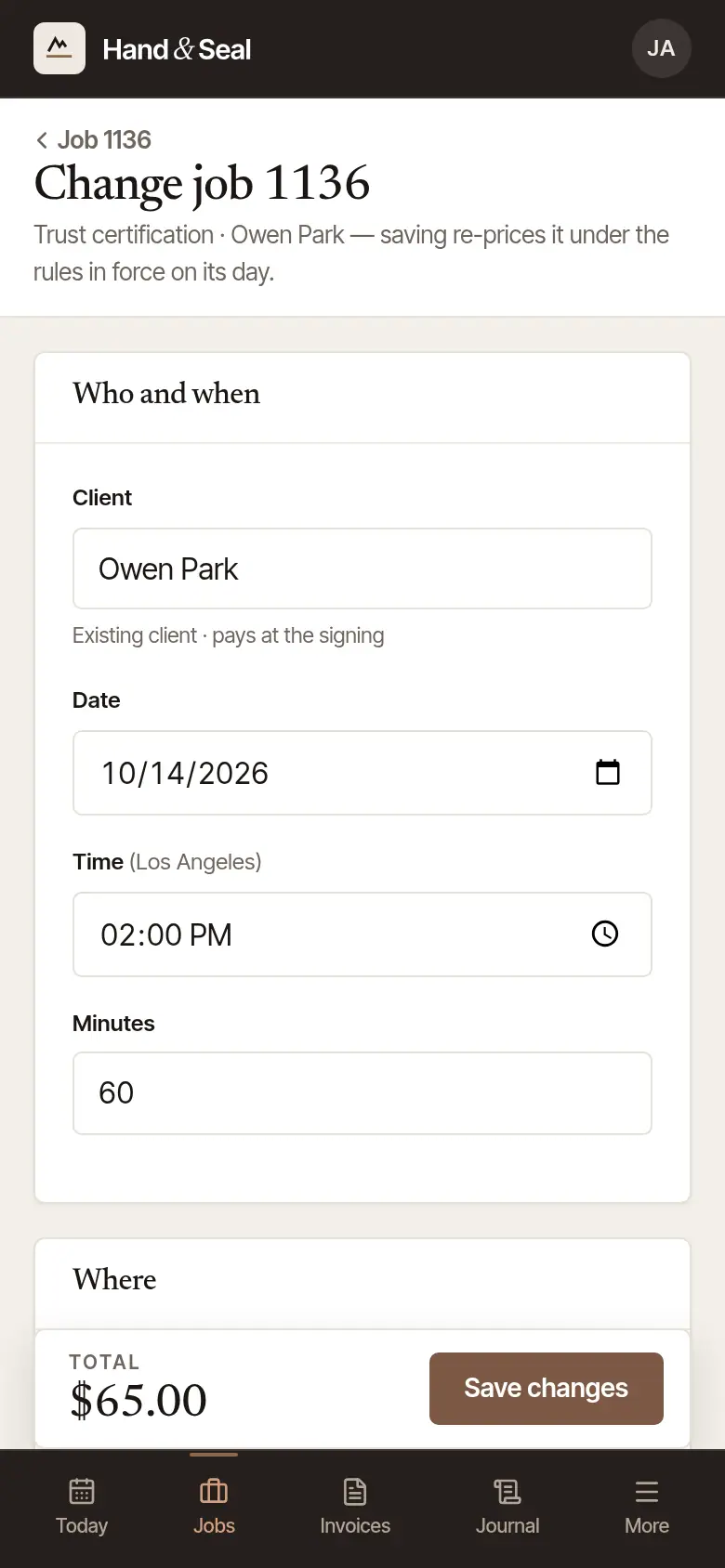
Changed somewhere else while the form was open — on your phone, or by someone in your business? The form says so. If you changed something too, saving shows you what changed there first. Save mine then saves what you changed and keeps their changes to the rest; Start again opens the job as it is now. Only Prep & access to change — the gate, the unit, where to meet? Choose Edit beside it on the job's page instead (Add when there's none yet) and Save. Only the note is saved: the fee and the drive stay as they are. If the note changed while you were writing, it shows what it says now and keeps yours in the box: Save again to put yours in its place, or Cancel to keep it as it is.
To cancel it, choose Cancel job. Above the box it says who is told: the person who asked through your page (or through another notary’s page in your business: it names whose), the company that sent the order, or nobody — then tell your client yourself (where your client follows the signing on their own page, it says that page shows it's cancelled). On a request whose sender said they didn't send it, it says nobody is emailed, as there may be no client to tell. Say What happened? If they paid a deposit through your page, the step says what becomes of it — there's nothing for you to choose. If it has a deposit you took, choose Refund the deposit? — Refund it or Keep it. Then Cancel the job, or Keep it if you changed your mind. Nothing is sent until you choose Cancel the job.

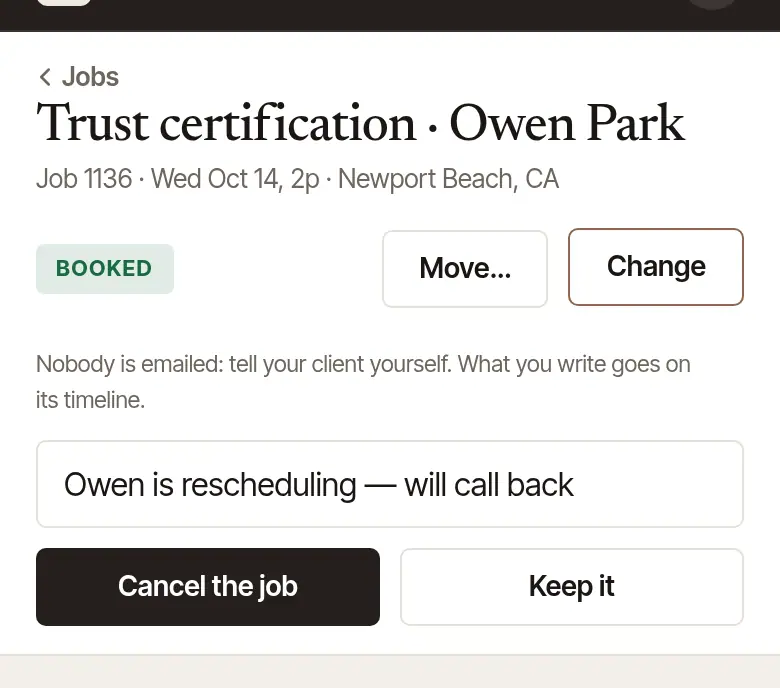
The job moves to Jobs → Cancelled, comes off your calendar, and its time is free again. Called off inside your late-cancellation window (Settings → Fees & rates, When a signing falls through)? Tick Charge your late-cancellation fee above the button — it's never ticked for you, since you may be the one cancelling. The fee goes on an invoice of its own, due on the client's terms: open it from the job and send it like any other.
On the phone
Open the job from Today or Jobs.
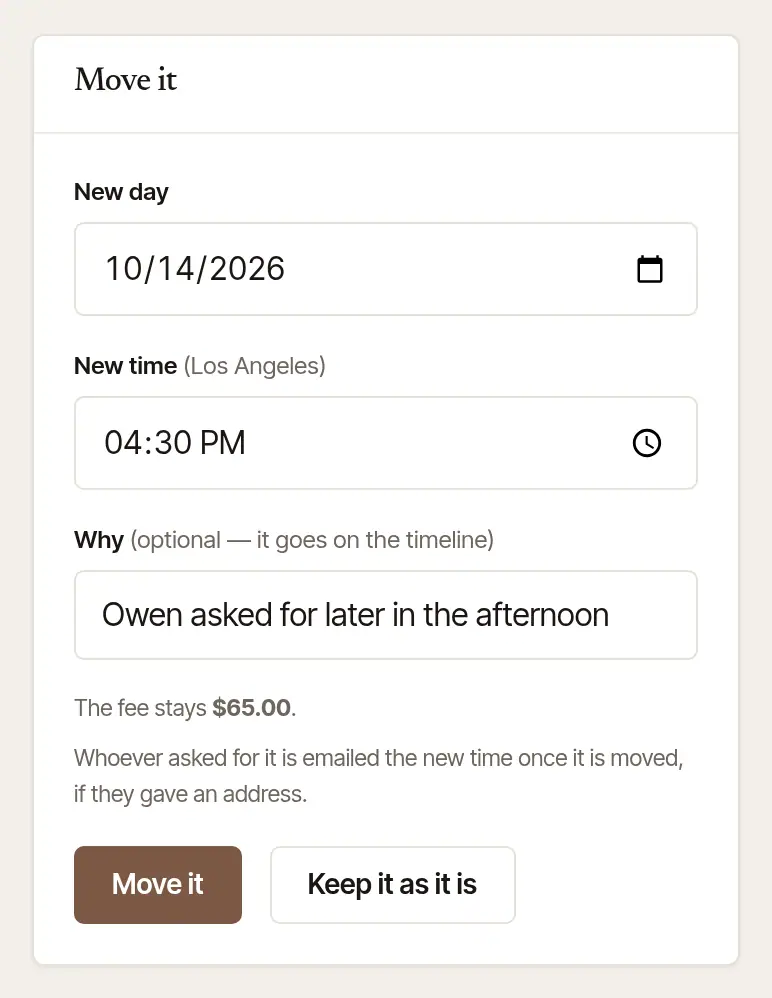
To move it, tap Move… under the job's day and time — or hold the job down in Jobs and tap Move…. Choose the New day and New time. Before you save, it tells you what the fee will be (it stays as booked unless the new time brings an evening or weekend fee, or other fees in force that day) and whether you can get there from the signing before — with a time that works, when there is one. Tap Move it (or Keep it).
Then, Tell them? The phone says who Hand & Seal has already told — for example “Rosa's page shows the new time, and a letter telling them went to rosa@…”, or “Nobody has been told yet”. Tap Text Owen (the signer) or Text Rosa (your client, when they're a person with a number) to open your messaging app with the new time written for you; you send it from your own phone. Tap Done when you're finished. On a request whose sender said they didn't send it, it isn't asked unless a signer you typed yourself can be told.
To change anything else, tap Edit at the top. It's the form the job was booked with, filled in (Edit job …). Change what's different and tap Save changes. A new day or time asks Why it moved — if you like, and it goes on the job's timeline, as on the web — and the job then asks Tell them? too. If the signing overlaps another or you can't get there in time, the job says so near the top, with Change the time. Prep & access on the job itself saves as you leave the box, on any job — one that's over too.

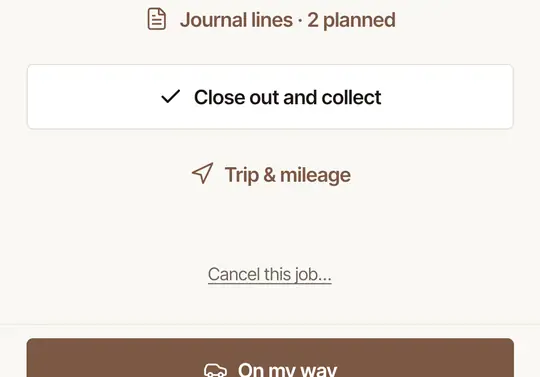
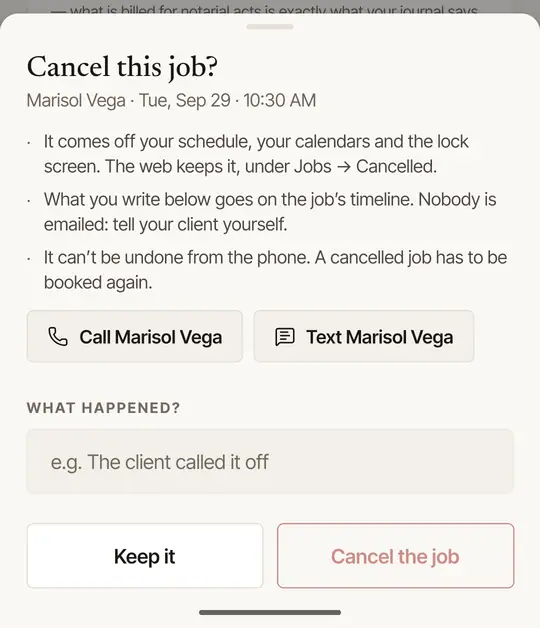
To cancel it, tap Cancel this job… at the foot of the job. The sheet says who is told — the person who asked through your page, the company that sent the order, or nobody (a client who follows the signing on their own page sees it's cancelled there). Write What happened? — and if it has a deposit you took, say whether to refund it or keep it — then tap Cancel the job (or Keep it). Call or text the signer from the same sheet. A cancelled job can't be brought back from the phone: book it again instead. Called off late? Inside your late-cancellation window, the sheet offers Charge your late-cancellation fee · $…, unticked — tick it when they called it off. A deposit you keep counts toward it: only the rest is billed, and when the deposit covers it, nothing more is. The button then says what it will do, and an invoice made opens next, to send.
Measure the drive again
A drive measured by road can be measured again — after the client gives a new address, or roads change. On the web it's Measure the drive again under What it actually pays on the job; on the phone, under Miles. Until the job is closed out its distance is an estimate, so the travel fee follows it, priced again from your travel zones — unless you typed a travel fee of your own, which stays. A job billed in advance keeps its invoice as it is: to bill the new figure, void the invoice and make a new one.
Who is told
- Someone who asked through your page is emailed when you move the signing to a time ahead (the new time and the old) and when you cancel it, with what you wrote — if they gave an email address. If they ticked the box for texts, a cancel is texted to them too — one made between 9 p.m. and 8 a.m. in your business's time zone goes at 8 a.m., if the signing hasn't started by then. Hand & Seal texts nothing about a signing more than a day after its time on the job. What becomes of a deposit they paid ahead is said on Cancel before you press it.
- A company's order, sent from its desk or through your order link: the company is emailed when you move it to a time ahead and when you cancel it, with what you wrote, and sees it on its desk.
- A signing you booked yourself for a person you sent the details to (Send … the details when you booked it): they're emailed the new time when you move it to a time ahead. A cancel emails nobody — their page shows it's cancelled, but call or text your client or the signer. What you write goes on the job's timeline.
- With your late-cancellation fee charged, whoever is emailed about the cancel reads that it's cancelled and that your late-cancellation fee applies, with its invoice's link — or, where the request was filed under a client you already had and its sender hasn't pressed Yes, this is my request on the page the email saying their request arrived opens, that you send the invoice — never “Nothing is owed”. Where nobody is emailed, send the invoice yourself.
- Any other signing you booked yourself tells nobody: call or text your client or the signer.
- The signer is never written to by Hand & Seal — after a move, the phone's Tell them? opens a text to them for you to send.
- A deposit you took in hand is yours to call: refunded — a card's back to their card, anything else marked given back — or kept, on an invoice of its own. More about deposits.
- Your calendars follow: Hand & Seal's calendar, your Google Calendar if it's connected, and the phone's lock screen.
Good to know
- A signing you're holding for someone is let go, not cancelled: Let it go on the job.
- A request you haven't accepted yet isn't cancelled — it's declined: open it and choose Decline… (on the phone, Decline).
- When a company asks you for a new time, the job says “… asks for …”, with a way to move it or say no.
- When a client or a company cancels, Today tells you under Needs you.
Was this helpful?
Still stuck? Contact support — a person reads every message and answers by email.