Guide
Open and print a signing's documents
The print queue shows which signings need paper, and how much. Documents a company sealed for you open only on your own phone or computer, and are gone 72 hours after the signing.
A loan signing usually means a package to print the night before: often two sets, some pages on legal paper. Hand & Seal keeps track of what each signing needs, and of whether it's printed. When a company sends the documents through Hand & Seal, they come sealed so that only your own devices can open them.
See what needs printing
Look at Today. For signings in the next day and a half, once a signing's documents are in — Documents received is marked on the job, or a company's sealed documents have arrived for your devices — Needs you shows “Print for” the client and the signing's time, with the pages and sets. Choose Print to go to the job.
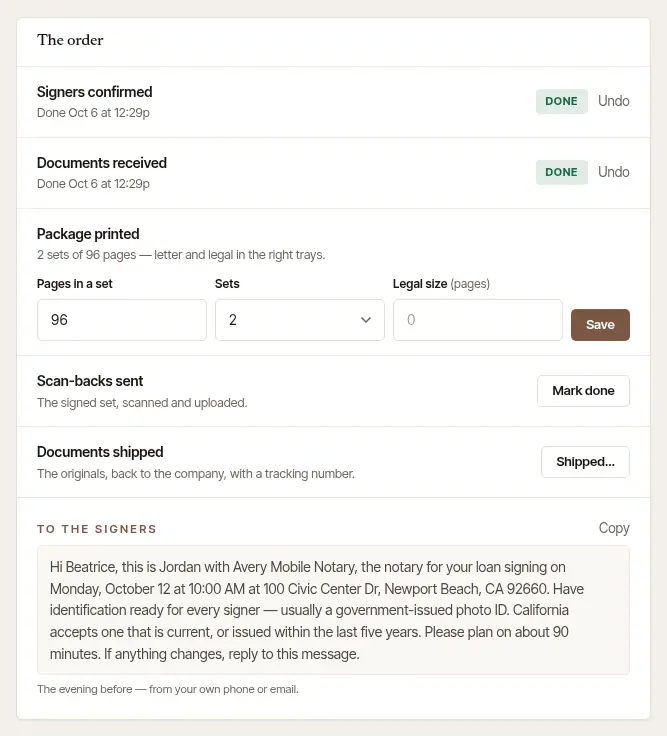
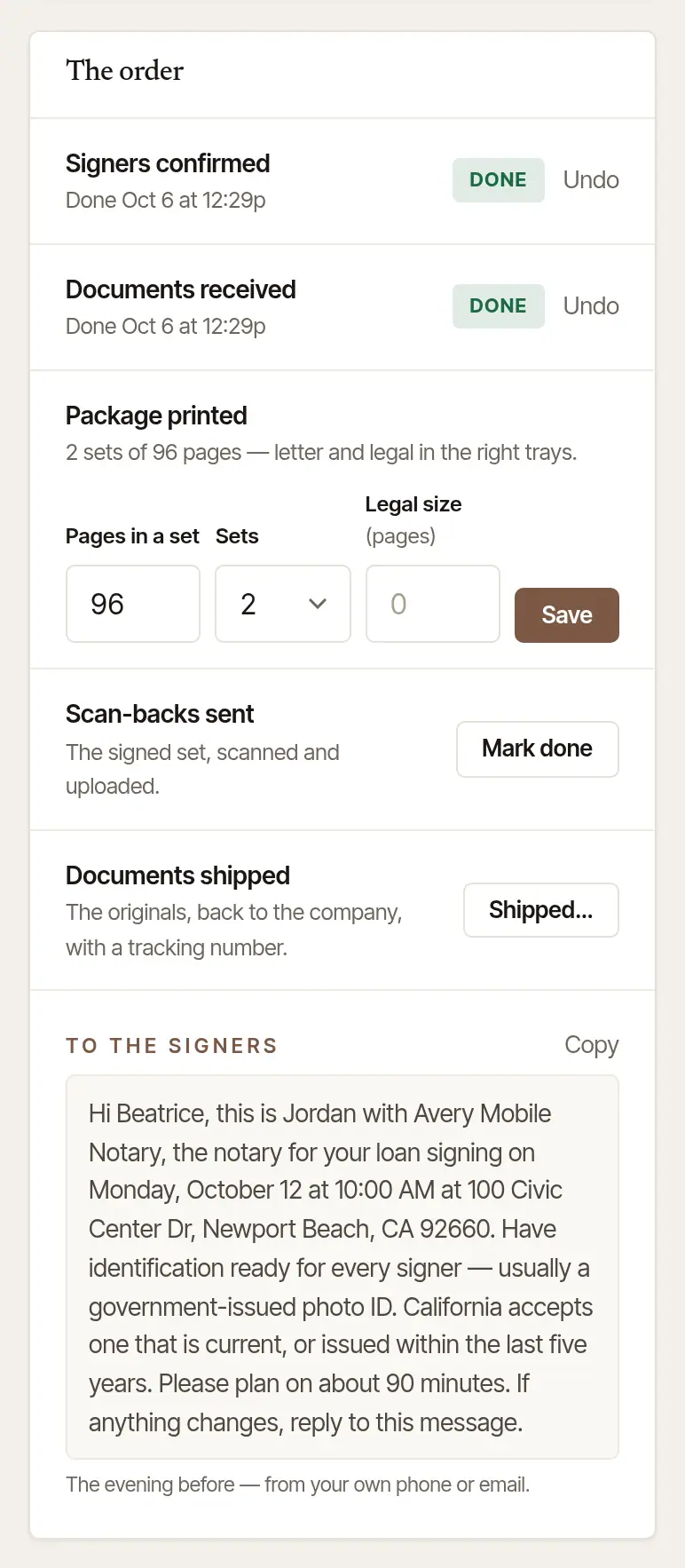
On the job, mark it printed. Under The order, Package printed says what the package is: the sets, the pages in a set, and how many are legal size. Once it's printed, choose Printed…, check Pages in a set, Sets and Legal size (pages), and choose Save.
Open the print queue. Tap More, then Print queue (under Records). Today also shows a card when packages are due, such as “2 packages to print · 480 pages”.
Read each signing's needs. Each shows the client, the signing and its time, then the pages, the sets, how many are legal size, and what the paper and toner cost you. Not printed, No documents yet or Printed sits beside it.
Documents arrived by email? Tap They came on its card.
Print from the phone. Tap Print the package… and choose the PDF. The phone counts the pages and which are legal size, and says how to print them: Sets to print, and which pages go on legal paper if your printer doesn't switch trays by itself. Tap Print. Back from the print dialog, it asks Did it print?: tap Yes, mark it printed.
Printed another way, from a computer or a print shop? Tap Printed another way, then Mark printed.
Shared a PDF to Hand & Seal from your email? The app asks whether it's an order to fill in a new job from, or Documents to print; choose that, then It is for this signing on the right card.
Good to know
- A loan signing prints two sets unless you change it: one signed and sent back, one for the borrowers.
- Add What a printed page costs you in Settings → Fees & rates to see the cost of each package, and to have it counted in what a job actually pays.
Set up your devices for sealed documents
A company can seal a package so only the devices you've set up can open it: not Hand & Seal, and not anyone who gets hold of an email. Set up each computer and phone you print from, once.
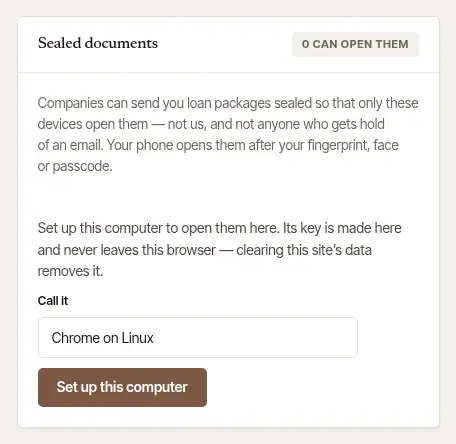
Open Settings, then Account. Scroll to Sealed documents.
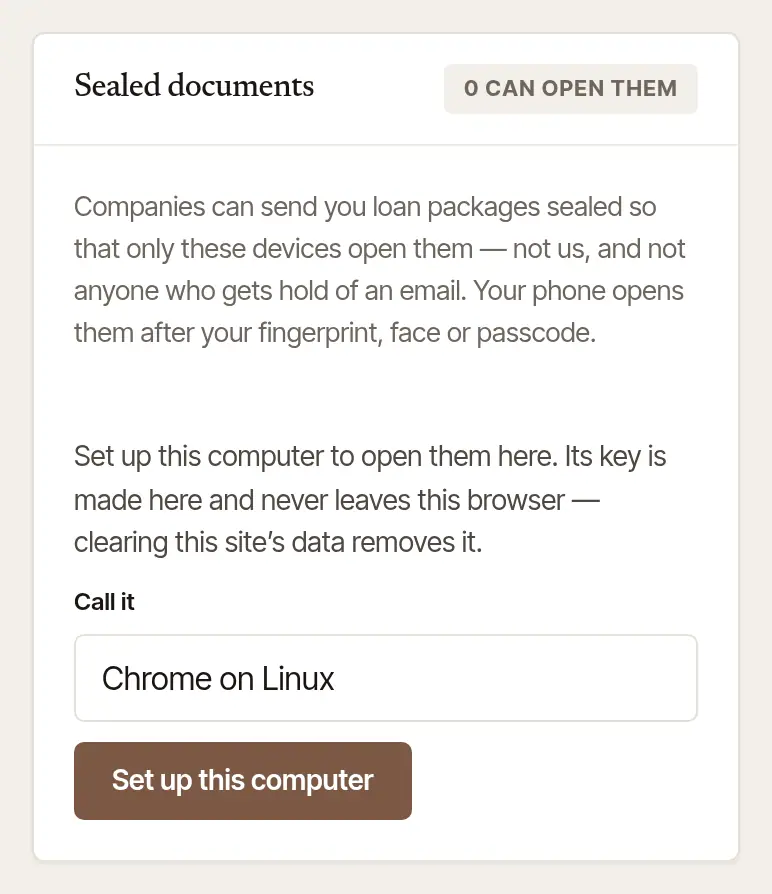
Name this computer in Call it (it suggests one), and choose Set up this computer.
Prove it's you.
- On your first device, we email you a six-digit code. Type it in Code and choose Confirm. It works for 15 minutes; Send another code sends a new one.
- Once you have a device set up, a new one is approved from it instead. The new one shows six digits. On the device you already have, open Sealed documents, choose Approve… beside the new one, check that the digits match, and choose Approve. Not yours? Not mine — refuse it.
The key is made in this browser and never leaves it. Clearing this site's data in the browser removes it, and you'd set the computer up again.
Tap More, then Sealed documents (under Records).
Tap Set up this phone. Your phone needs a screen lock: the documents open only after your fingerprint, face or passcode. Without one, it offers Open lock settings.
Prove it's you, with the code we email you (Confirm), or by approving it from a computer you've set up, which shows the same six digits.
The same screen lists your devices. Approve… approves a new one; Turn off stops one opening documents.
Open and print the documents
Open the job. Documents from the company shows how many files there are, and their size. Until you accept the order, it says they open once you do.
Choose Open the documents. They open in this browser tab, with this computer's own key.
Choose Print beside a file to print it, or View to read it. When you close the tab, they're gone from the computer.
The card lists when the company sent them, and when they were opened and printed, on which device.
Open the job, and tap Open and print under Documents from the company.
Tap Open the documents, then confirm with your fingerprint, face or passcode.
Tap Print beside a file.
Good to know
- Documents are deleted 72 hours after the signing is done. Print them before then.
- Sealed before this device was set up? Open them on a device that was set up then, or ask the company to send them again: they'll be sealed for this one too.
- Nothing readable is kept by Hand & Seal, or saved on your computer's disk.
Was this helpful?
Still stuck? Contact support — a person reads every message and answers by email.