Guide
Add a partner, an employee or an assistant
Bring people into your notary business from Settings → Team — a partner who runs it with you, an employee who takes signings, or an assistant who books and invoices.
An owner brings people into the business from Settings → Team. Each person is invited at their own email address, signs in as themselves, and sees what you add them as — no more.
Partner, employee or assistant
| Add them as | What they see and do | On the bill |
|---|---|---|
| A partner | An owner of the business, equal to you: they see and manage everything in it — its clients, signings, invoices and books, its prices, its team and its billing. | A notary |
| An employee | A notary on your team: they see the signings handed to them and those signings' clients — never the books, and never another notary's signings. | A notary |
| An assistant | Books signings and handles invoices: they see the signings, the clients and the invoices — never the books, and never a notary's journal. They're not there as a notary. | Free |
What stays theirs
A notary's journal, mileage log and commission are always their own — wherever they work, and after they leave. Only that notary can read their journal and their mileage log: nobody else in the business can — not you — and our support tools do not show them. As an owner, you can read the commission, bond and E&O insurance of each notary in the business, while they work in it.
Add someone
Open Settings → Team. People lists everyone in the business and what each one is. Only an owner — you, or any partner — can add people.
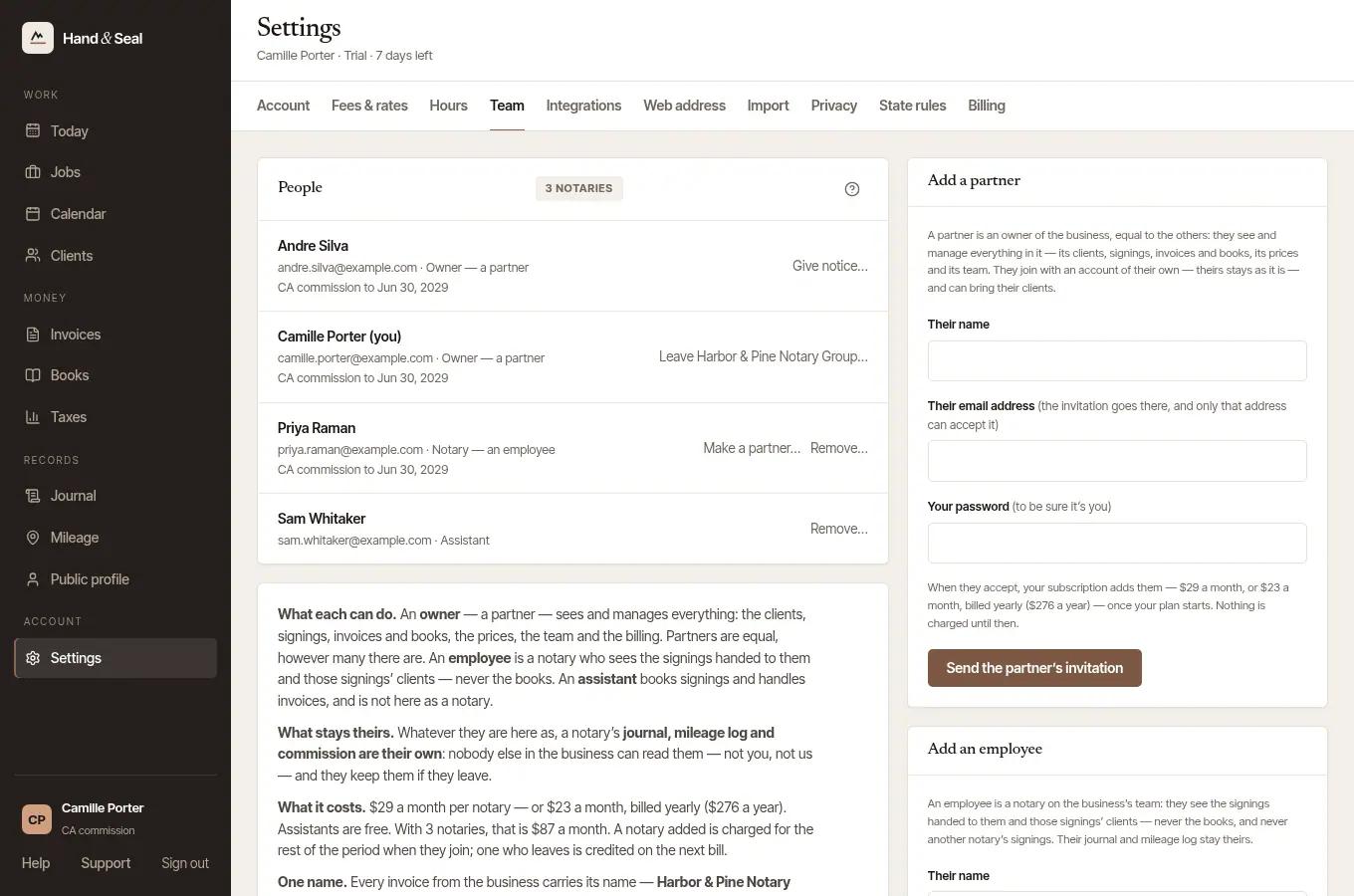
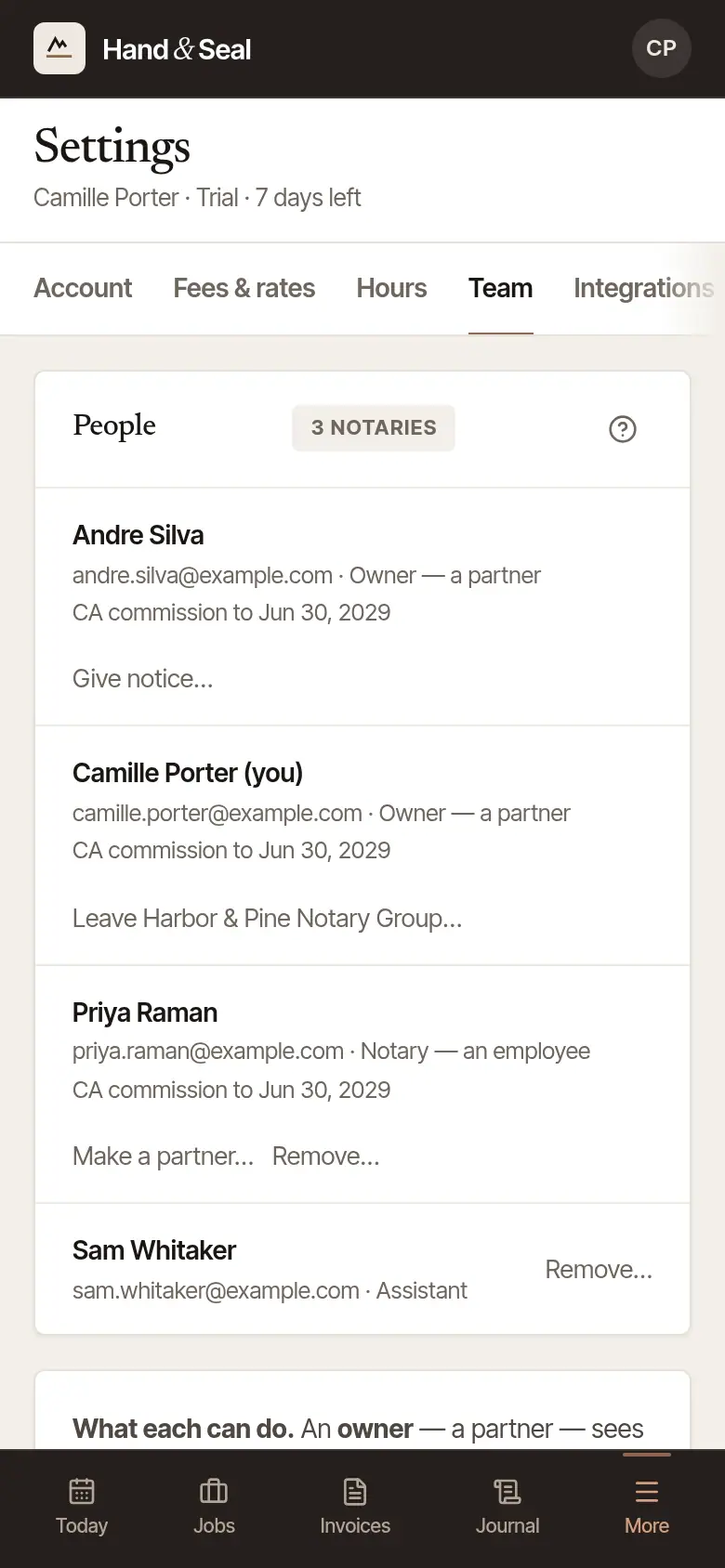
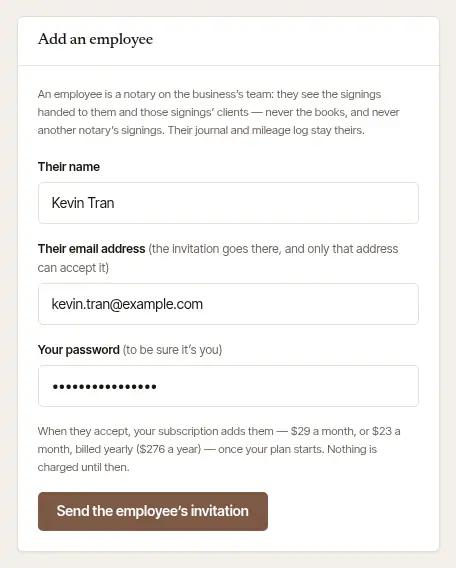
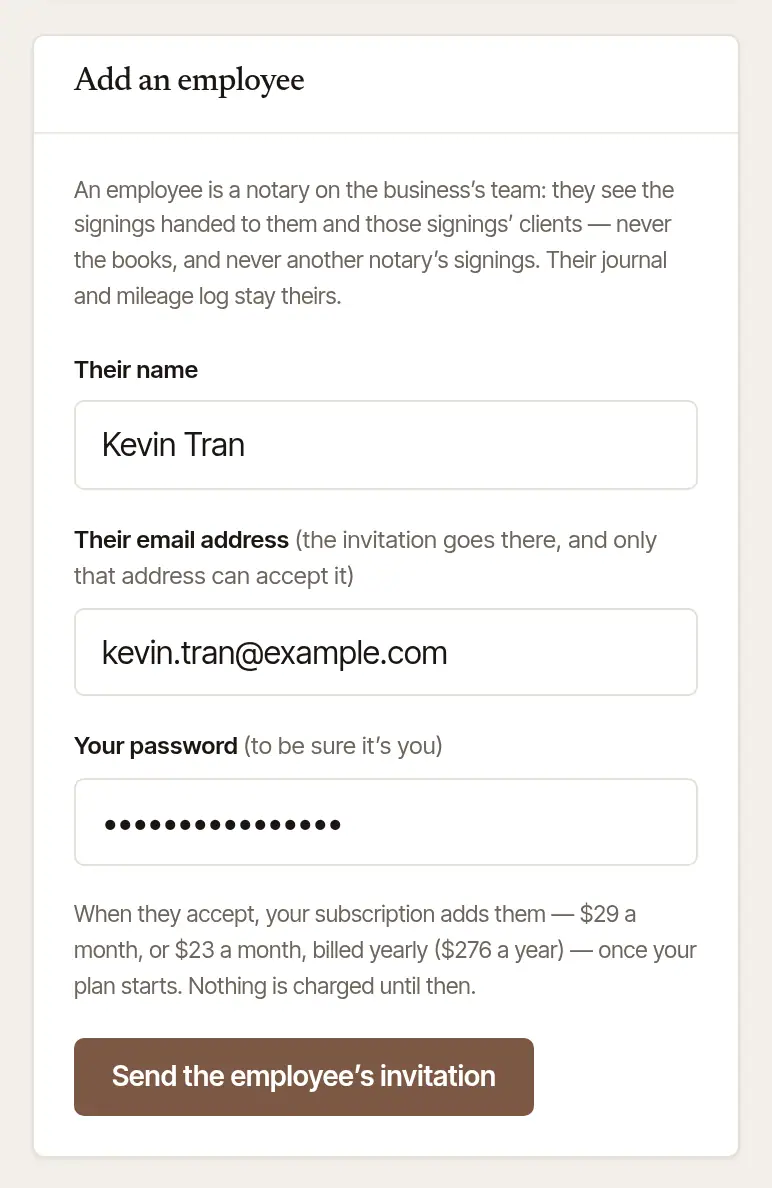
Choose the form for what they'll be. Add a partner, Add an employee or Add an assistant. Fill in Their name and Their email address — the invitation goes there, and only that address can accept it.
For a partner or an employee, confirm it's you. Type Your password. With two-step sign-in on, it asks for the Code from your authenticator app instead; if you sign in with Google or Apple, it may ask you to Continue with Google (or Sign in with Apple) again first. An assistant's invitation doesn't ask.
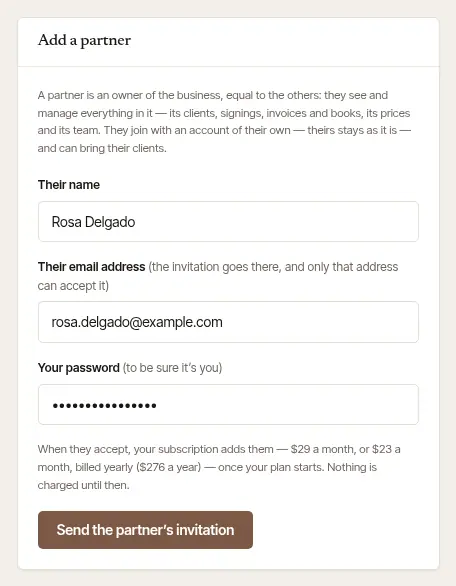
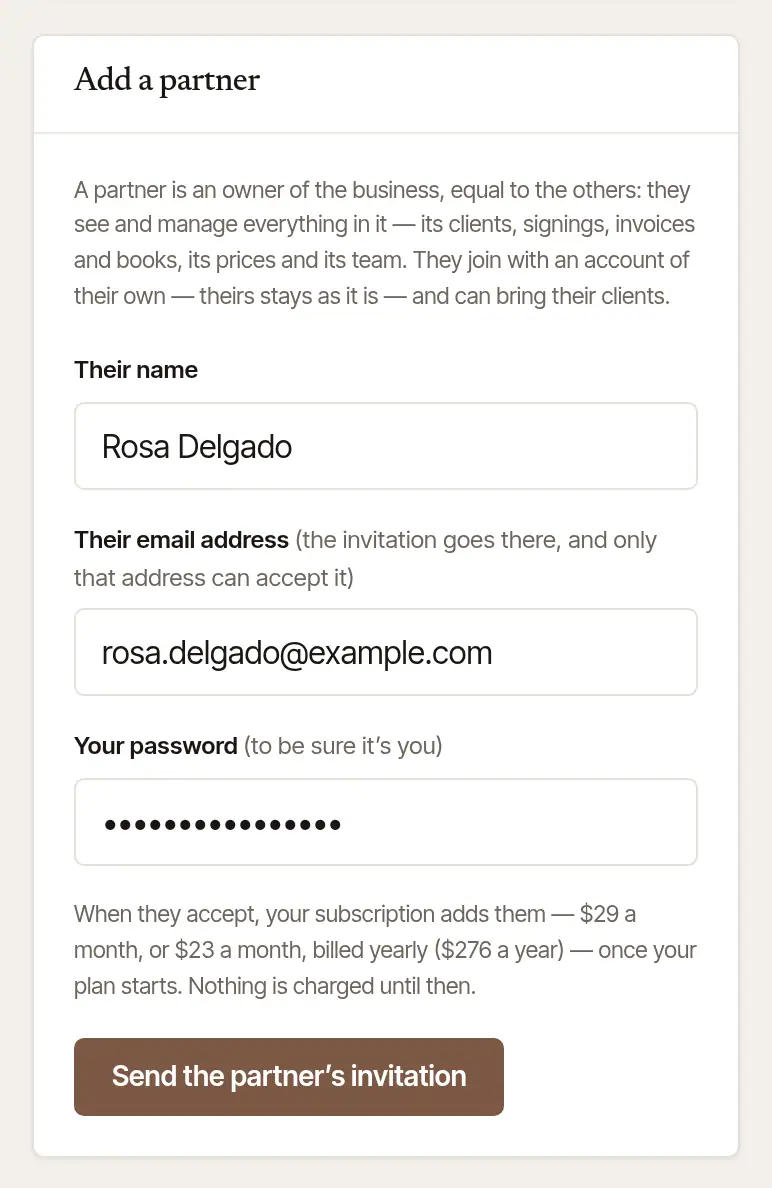
Send it. Choose Send the partner's invitation, Send the employee's invitation or Send the assistant's invitation. The form says Sent to their address: the invitation works for two weeks, and only for that address.
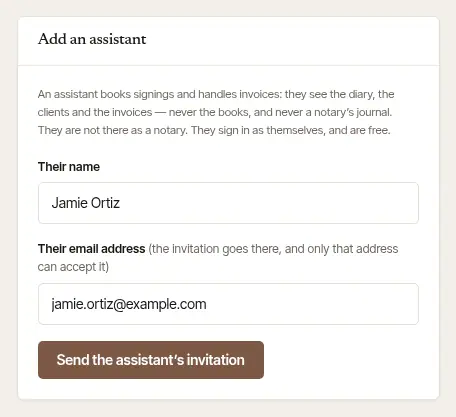
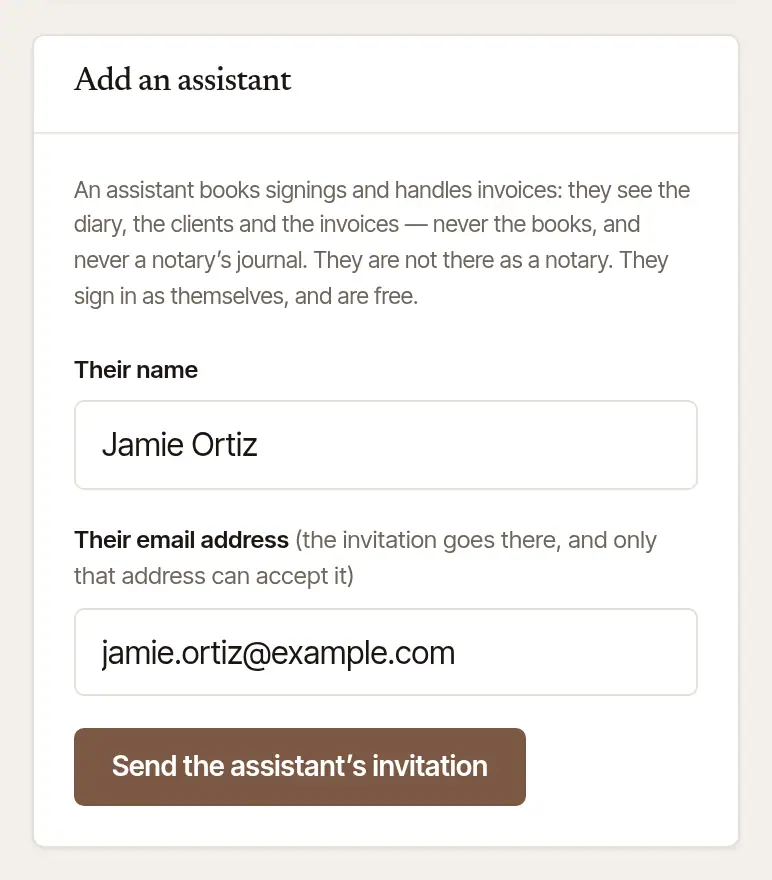
In the Hand & Seal app, open More, then Business settings, and choose Team. It's the web's page, inside the app: People, the invitations waiting, and Add an assistant — the same form, and the same steps.
A partner or an employee is added on the web, not in the app. Adding a notary changes what the business pays, and the app never shows a price — so in place of those two forms it says Adding a notary changes what the business pays. Do it on the web, at handandseal.app. Open handandseal.app in a browser, sign in, and follow the Web steps.
The invitation is emailed in your business's name, and a reply to it comes to you — unless you signed up with Apple's Hide My Email and haven't yet given an address people can write to: then the invitation says that answers to it aren't read. Your own email address needs to be confirmed before you can send one — the banner at the top of the app sends the link again.
While it's waiting
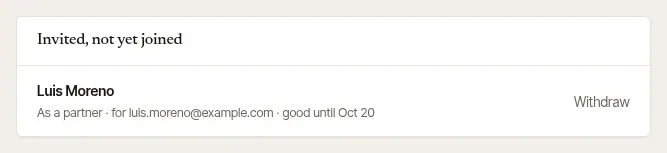
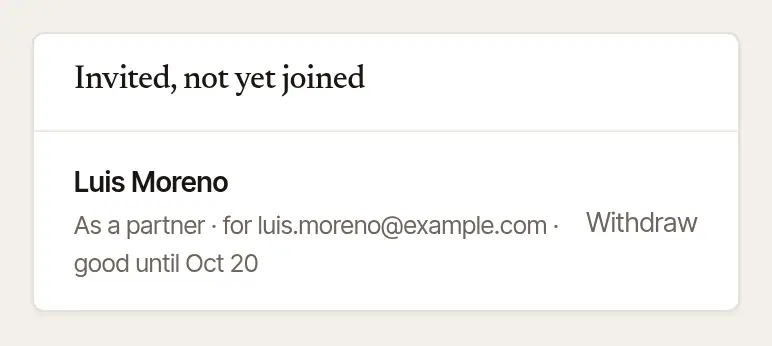
Invited, not yet joined, on the same page, lists each invitation until it's accepted: who it's for, as what, and until when it's good. Withdraw takes one back, and its link stops working. To send someone a new one, withdraw the one waiting for them first.
Good to know
Someone added as an employee can be made a partner later, with Make a partner… beside their name. Remove… takes an employee or an assistant off at once; a partner is given 14 days' notice, with Give notice….
What the person you invite sees
They open the invitation from their email. The page says Join and your business's name — as a partner, as an assistant, or your business's team for an employee — with what that means for them.
They sign in with the address it was sent to. Signed out, they choose Sign in to join — or Create an account with that address if they don't have one yet. Someone signed in with a different address is told the invitation isn't theirs.


An account made from an invitation is for their work in your business: no practice of their own is set up (they can start one later, from More). They confirm their email address first — the letter's link brings them back to the invitation.
They join. A partner chooses Join as a partner, an employee Join as an employee, and an assistant the button with their own name. A partner or an employee then chooses Go to your business; an assistant goes straight in.
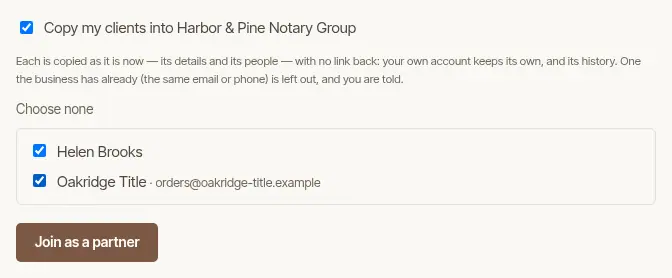
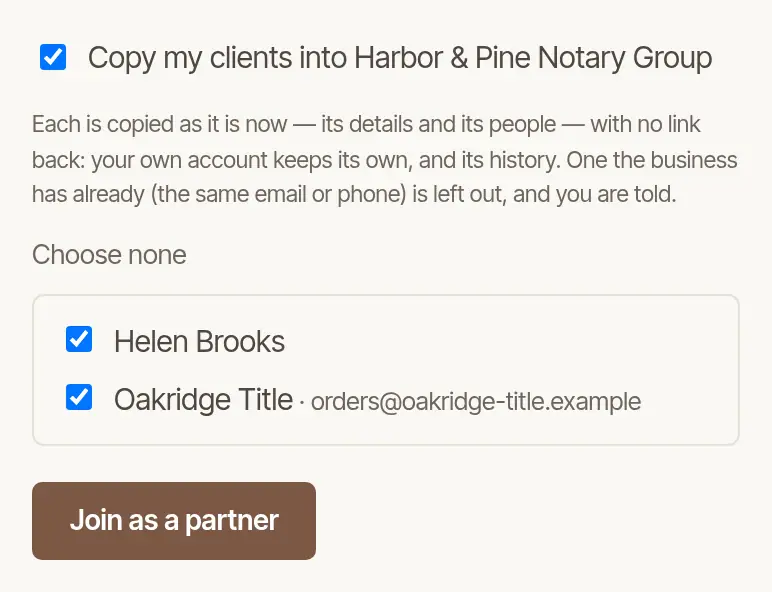
A partner or an employee who already has a Hand & Seal account keeps it, as it is, with its own history — nothing is merged. A partner can tick Copy my clients into your business and choose which clients to bring: each is copied as it is now, and one the business has already (the same email or phone) is left out, and they're told. Someone who works in more than one place — a practice of their own and your business — moves between them with Switch, under More (on a wide screen, also at the foot of the menu).
Billing
The business's plan is billed for each notary in it — you, and every partner and employee. Assistants are free. Sending an invitation costs nothing: a notary is added to the bill only when they accept, and is charged for the rest of the billing period then — during your trial, nothing is charged until your plan starts. The invitation form says so before you send it, and every owner is emailed what the subscription comes to when someone joins. One who leaves is credited on the next bill. An owner sees the plan and what it costs in Settings → Billing on the web.
Good to know
Their own account, if they keep it open, is billed on its own. To stop paying for it, they cancel its subscription in its own Settings → Billing: it becomes read-only, and everything in it stays readable and exportable.
Was this helpful?
Still stuck? Contact support — a person reads every message and answers by email.