Guide
Share your page with a QR card
Your page as a QR code — to show across the table from the phone, or to print on your business cards, your car or your signing bag. Scanned, it opens your page, where a client picks a time.
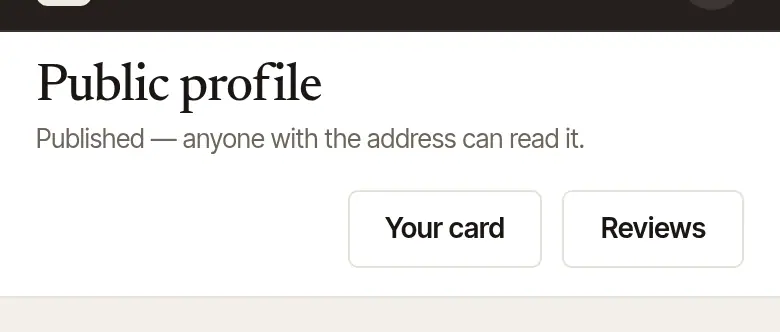
Your card is your page's address as a QR code. Scanned with any phone's camera, it opens your page — your fees, your free times, Ask for a time. It never changes: a new photo, new fees or a new web address, and the same code still works. Publish your page first: the code needs a page to open.
Open Public profile and choose Your card at the top. (It's there once your page is published.)

Download the code for print. You get
my-page-qr-code.svg: the code drawn, not photographed, so it prints sharp at any size. Give it to your printer or designer, and keep it at least ¾ inch (2 cm) across.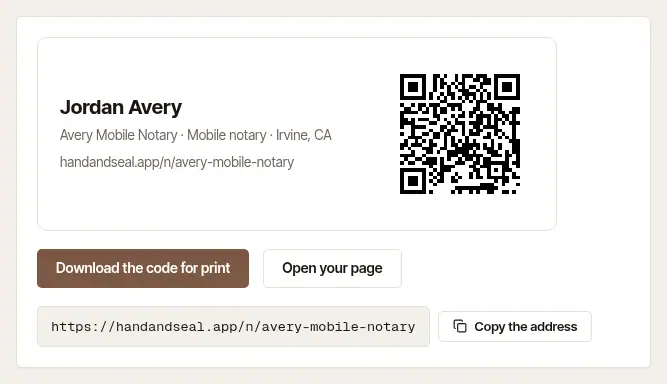
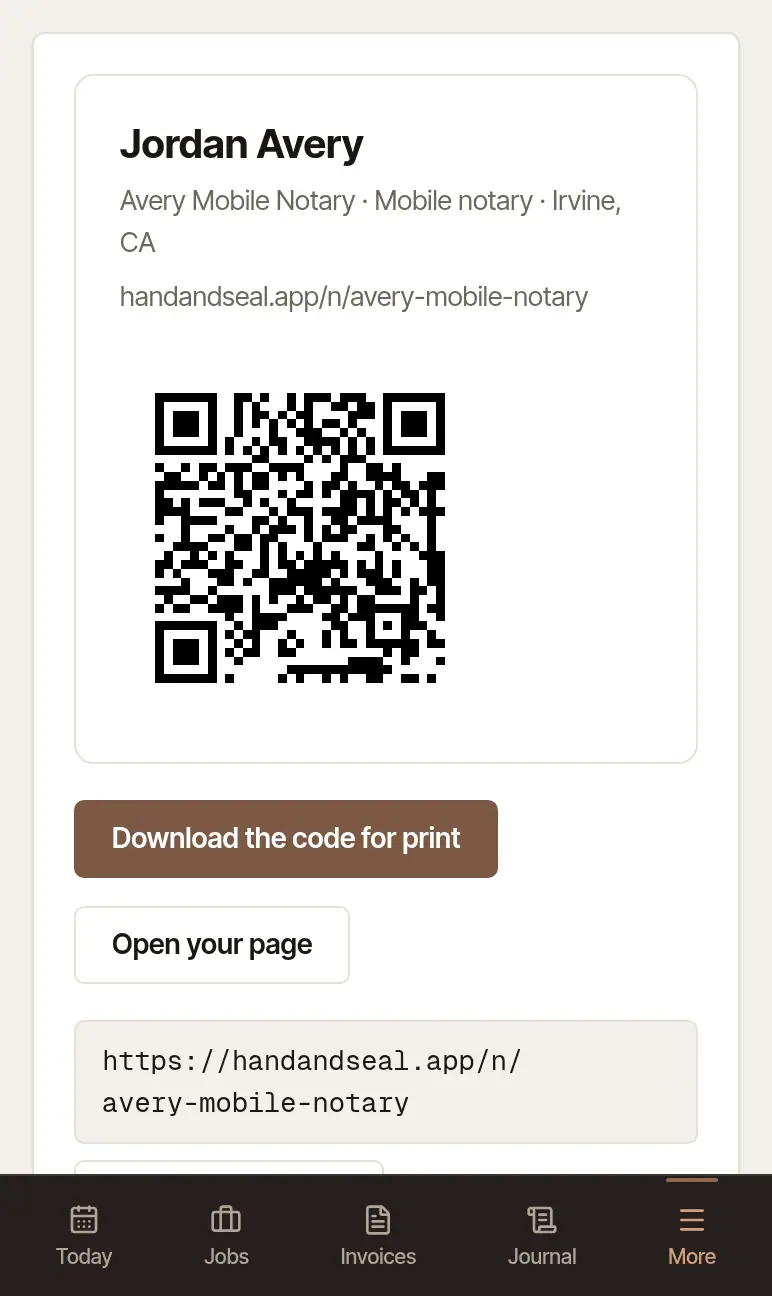
Or share the address itself. Copy the address copies your page's link, to paste in an email signature or a message; Open your page shows it as a client sees it.
Tap More, then Your page. The code fills the screen, with your name and “Scan to see my fees and pick a time” — hold it up across the table for the signer, a relative or the escrow officer to scan before you leave.
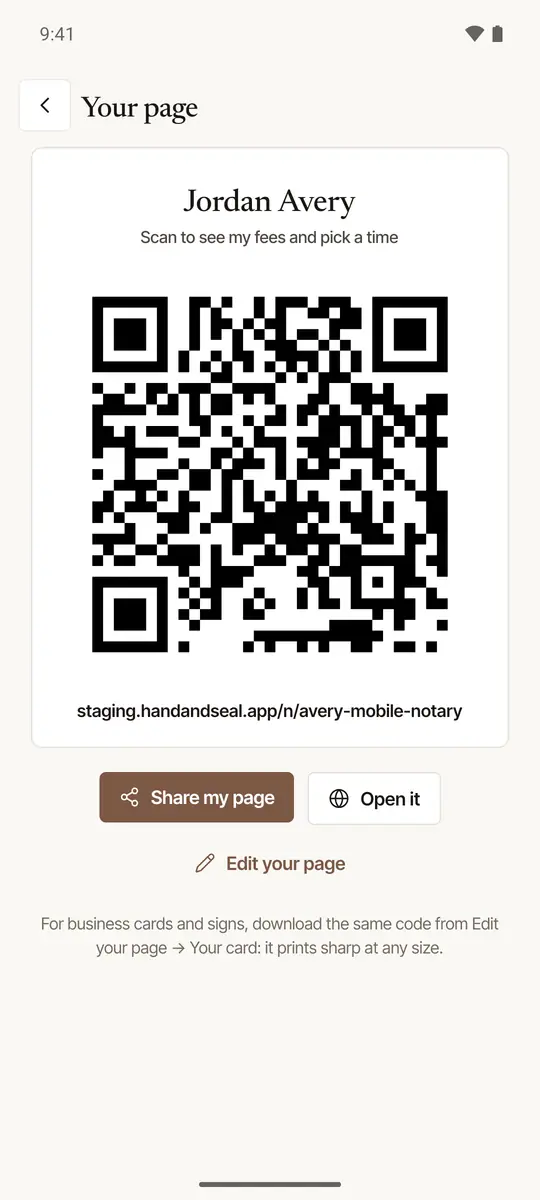
Tap Share my page to send the link in a message or an email, or Open it to see your page as a client does.
Edit your page opens Public profile inside the app — and Your card there has the code to download for print.
Not published yet? The screen says Publish your page first, with Write and publish it.
Good to know
- Where it earns its keep: on your business card, at the table, and on your car or signing bag.
- If your plan lapses, your page goes offline, and the code with it: the code stays the same, and opens your page again the day you subscribe.
Was this helpful?
Still stuck? Contact support — a person reads every message and answers by email.