Guide
Get reviews, and reply to them
Clients who booked through your page are asked for a review; add your Google review link and they're asked there too. Answer each once, in public — and report one that shouldn't be there.
Reviews on your page come only from clients whose signing was done through Hand & Seal — which is why they mean something. You can't write one or remove one; you can answer each, once, in public. And with your Google review link saved, the same clients are asked to review you on Google too.
How clients are asked
When someone asks for a signing through your page, the signing is done and you've closed it out, we write to them — once — to ask how it went. Everyone who asks for a signing through your page and leaves an email address is asked, whatever they thought of it — unless they've told us not to ask them for reviews. They can also leave a review from their request's own page. A review can be left once per signing, within 90 days of your closing it out. It shows on your page and under Reviews, and the phone app tells you when one arrives.
Reviews are your clients'. A signing asked for from inside your own business — with your own email address or phone number, or an assistant's — isn't asked about, and can't be reviewed.
Ask on Google too
Your Google Business Profile is where most people look for a notary. With your Google review link saved, everyone who asks for a signing through your page is asked on Google too, on their own page once they've reviewed you here. For someone you booked yourself, the receipt you email them and the thank-you text from the phone carry your link.
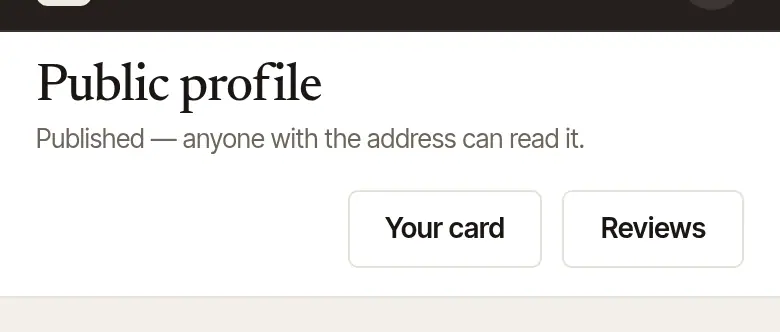
Open Reviews. On Public profile, choose Reviews at the top.

Get your link from Google. Under Reviews on Google too, the three steps say how: open your Google Business Profile (Open Google Business Profile), choose Ask for reviews (on a phone: Read reviews, then Get more reviews), and copy the link it shows — it starts with
https://g.page/r/.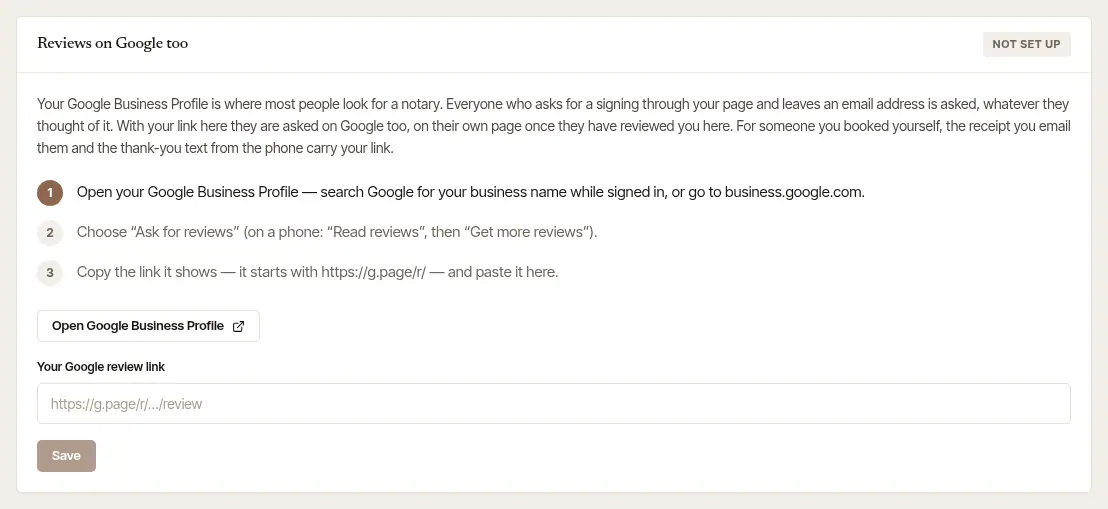
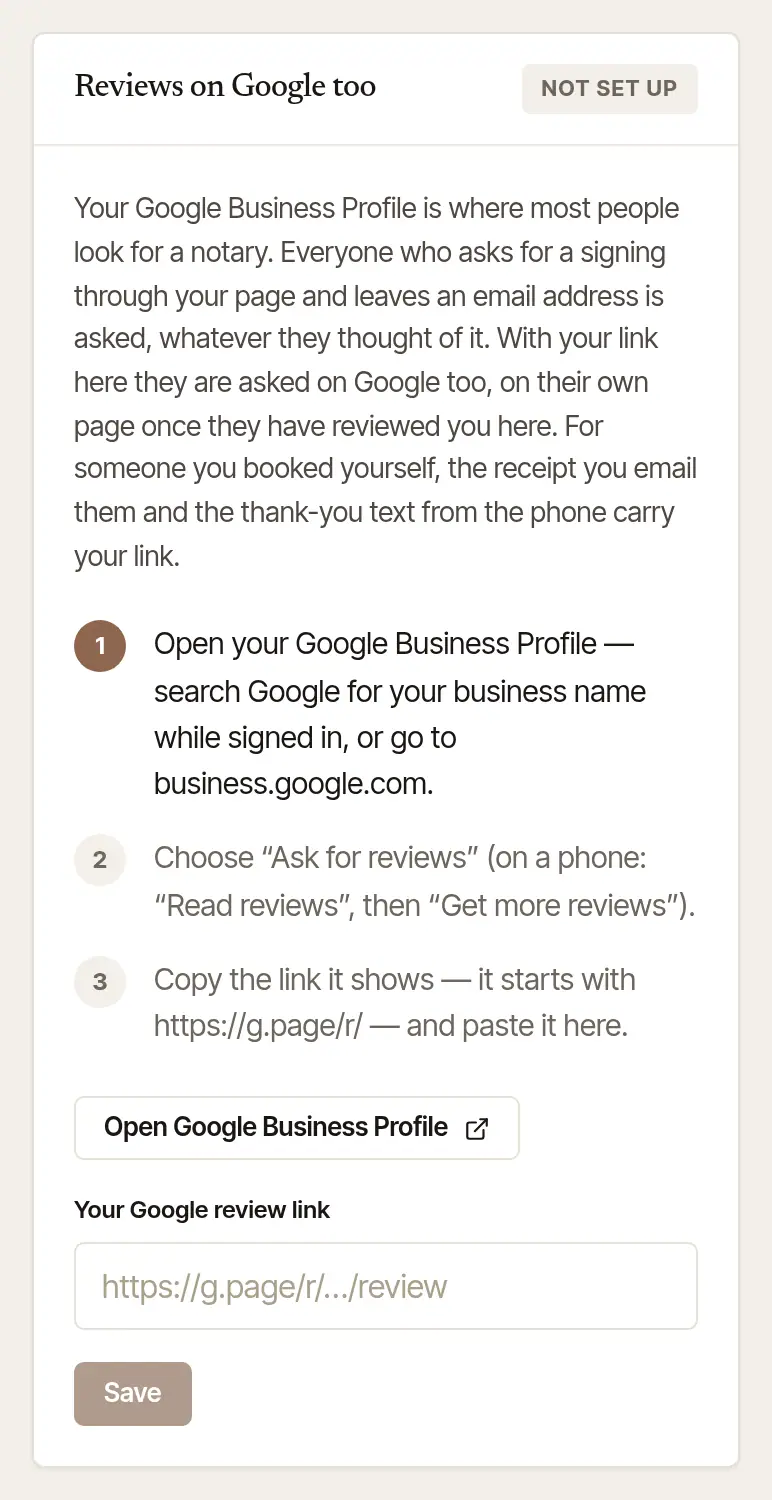
Paste it into Your Google review link, and choose Save. It says Saved — clients are offered the link after a signing. Then open your link to check it: Google's review box for your business should appear.
Changed your Google profile? Paste the new link and Save the new link. Stop asking on Google stops sending clients there.
Open More → Settings, and find Reviews.
Open your Google Business Profile from the link there, choose Ask for reviews (on a phone: Read reviews, then Get more reviews), and copy the link.
Paste it into Google review link, and tap Save. Check it opens the link; Stop asking stops sending clients to Google.
It's the same link as on the web — saved once, it's used everywhere.
Send a thank-you from the phone
With your Google review link saved, the last screen of a close-out on the phone offers Text … a thank-you with your review link — to the signer, or a client who is a person. It opens a text from your own phone, with your link in it, to send or change as you like. It shows after a card payment at the table, too.
Reply to a review
Open Reviews (Public profile → Reviews; on the phone, More → Your page → Edit your page, then Reviews).
Choose Reply publicly under the review.
Write your reply in Your reply — up to 600 characters, no links. It shows under the review on your page, as yours.
Choose Reply publicly again to post it. It says Saved — it is on your page.
Later, Change it lets you edit what you said, and Take it down removes your reply — the review stays as it was left.
A reply is on your page, under your name, so it's held to what the rest of your page is: it can't say “notario”, or call you an immigration consultant.
Report a review
A review that isn't from a client of yours, is abusive, or gives away someone's personal information can be reported.
Open Reviews, and choose Report this review under the review.
Say what is wrong with it in What is wrong with this review?, and choose Send the report. It goes to Hand & Seal support as a case in your name, with the review attached.
Reviews says Reported, with the case's number. We answer by email, usually within one business day.
The review stays on your page while we look at it. A review comes off only when it's not from a client of yours, holds abusive or unlawful words or someone's personal information, its writer asks, or the law requires it — never because it's unfavourable. If one comes off, Reviews says why.
Good to know
- A review is the client's: you can't change it, hide it or remove it. Taking its writer out of your records (Settings → Privacy) takes only their name and town off it. One that breaks the rules can be removed by the platform, and Reviews says why. Something wrong with one? Report this review, under it.
- Only people who asked for their signing through your page are asked for a review here — not a company that sent an order, or someone whose signing you booked yourself. For a person you booked yourself, once your Google link is saved, the receipt you email them asks for a Google review, and so does the thank-you text.
Was this helpful?
Still stuck? Contact support — a person reads every message and answers by email.