Guide
Bring colleagues onto your desk
Invite the people you work with by email or with a link, let colleagues at your company's own web domain ask to join — or join without asking — and bring a colleague's own desk across.
A company works from one desk. Everyone on it sees every order the company has sent — to any notary, by anyone — and sends their own, each with their own login. The person who made the desk is its owner; everyone they bring in joins as staff.
Invite colleagues by email
Open Company. On a phone, tap Company at the bottom. Your team lists everyone on the desk.
Paste their addresses. In Invite by email, one address a line, or with commas between — a column from a spreadsheet works.
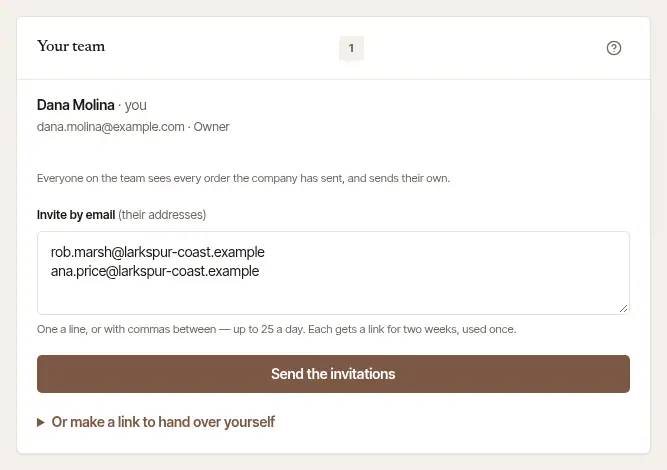
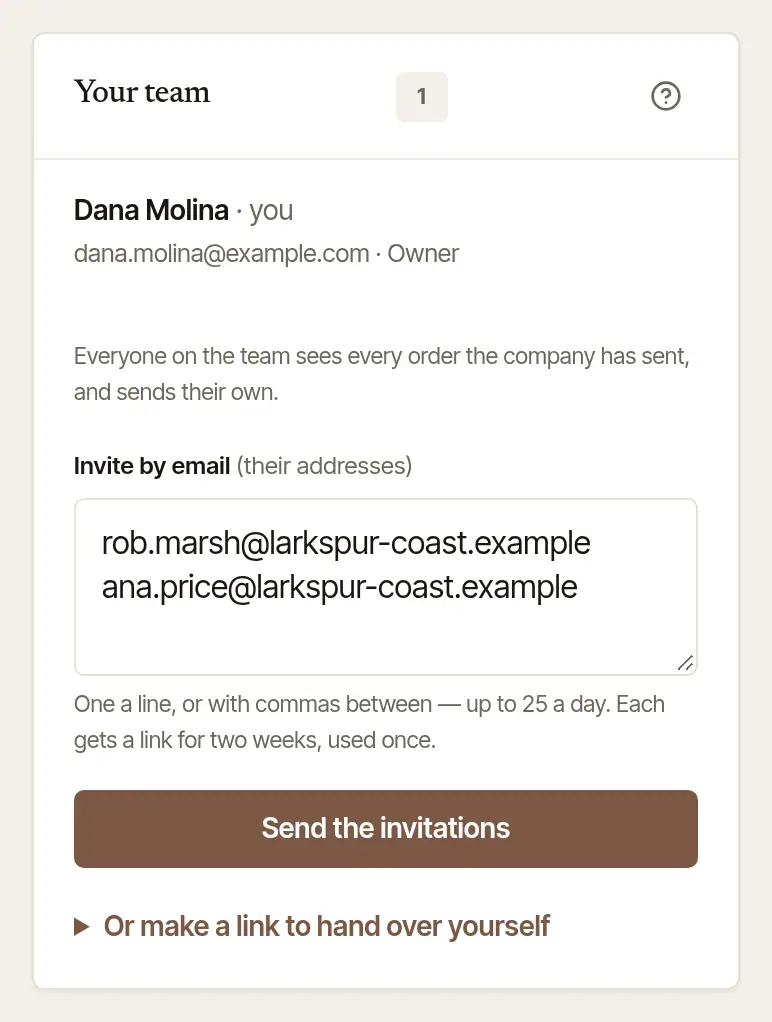
Choose Send the invitations. Each person gets a letter of their own, in your company's name, with a link that works once and for two weeks — and only for someone signed in with the address it was sent to, so a forwarded letter lets nobody else in. The form says who was invited, and why anyone was left out — already on your team, invited already, or an address that has asked not to be invited by email (hand that person a link yourself, below).
Only the owner invites, and not until their own email address is confirmed: the invitations go out in the company's name. A desk can send a set number of invitations a day, shared with its invitations to notaries; the form says when they're used up. And a new desk's invitations are emailed to five new people in any 24 hours, shared with its invitations to notaries, until a notary we know to be real has said yes to one of your orders herself, or done its signing — for as long as that order stands and you and she each keep the other on your lists — or we lift the limit when you ask on Contact support. Past those five each invitation is still made, and isn't emailed: the form says so, with each one's link for you to hand over yourself, and Waiting to be used says it wasn't emailed. Each link works only for the address it was made for: a colleague makes their login with that address, or signs in with it, as with a link you make to hand over yourself. While our team has paused your desk's invitations, none is made — nor a link to hand over.
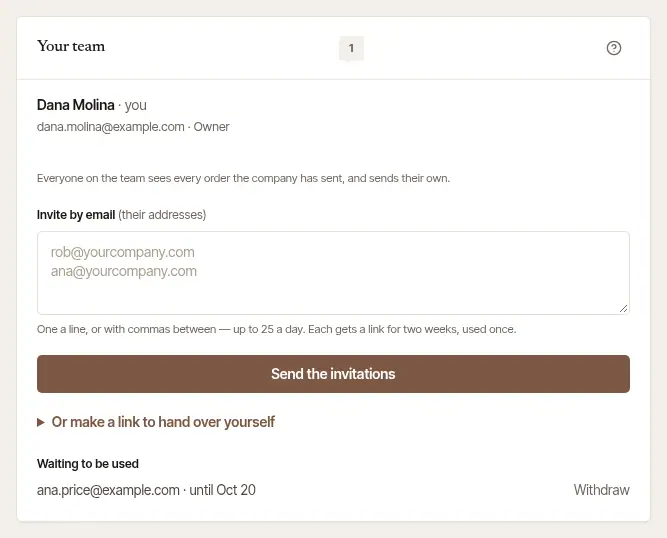
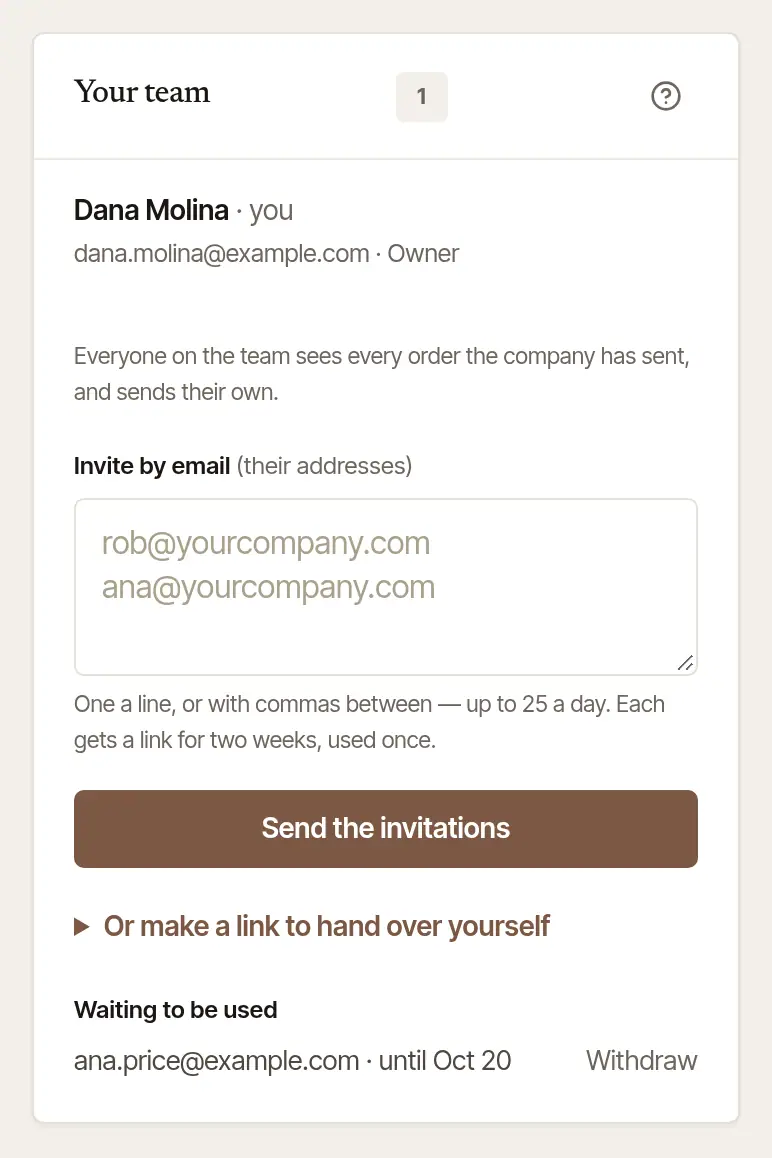
Waiting to be used, under the form, lists each invitation until it's accepted — the address it's for, and until when it's good. Withdraw takes one back, and its link stops working.
Or hand over a link yourself
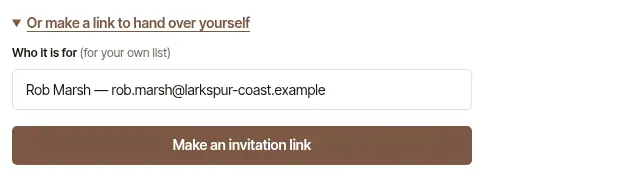
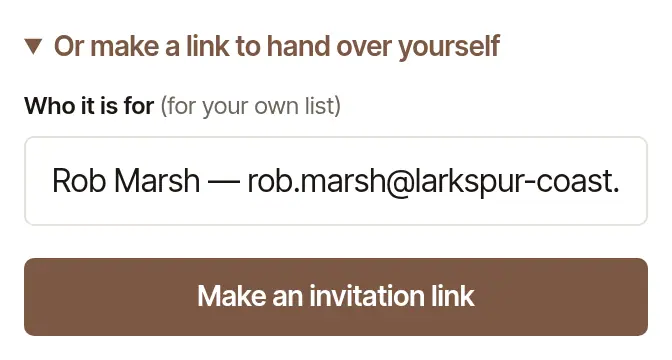
Rather send it in your own words? Open Or make a link to hand over yourself, say Who it is for (for your own list), type Their email address, and choose Make an invitation link. The link is shown once, works only for someone signed in with that address, and is good for two weeks — copy it then. However it reaches them, nobody else can use it. Each link you make counts toward your desk's invitations for the day, as one sent by email does.
What your colleague sees
They open the link. The page says Join and your company's desk, who invited them, and the address the invitation was sent to — its first letter and where it's at, enough to know it by.
They make their login, or sign in — with that address. I'm new here: their name, their Work email and a password. I have an account: their email and password. Then Join the desk.
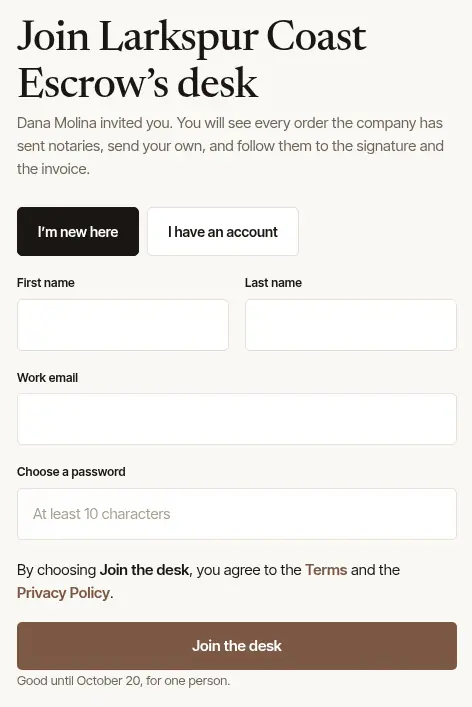
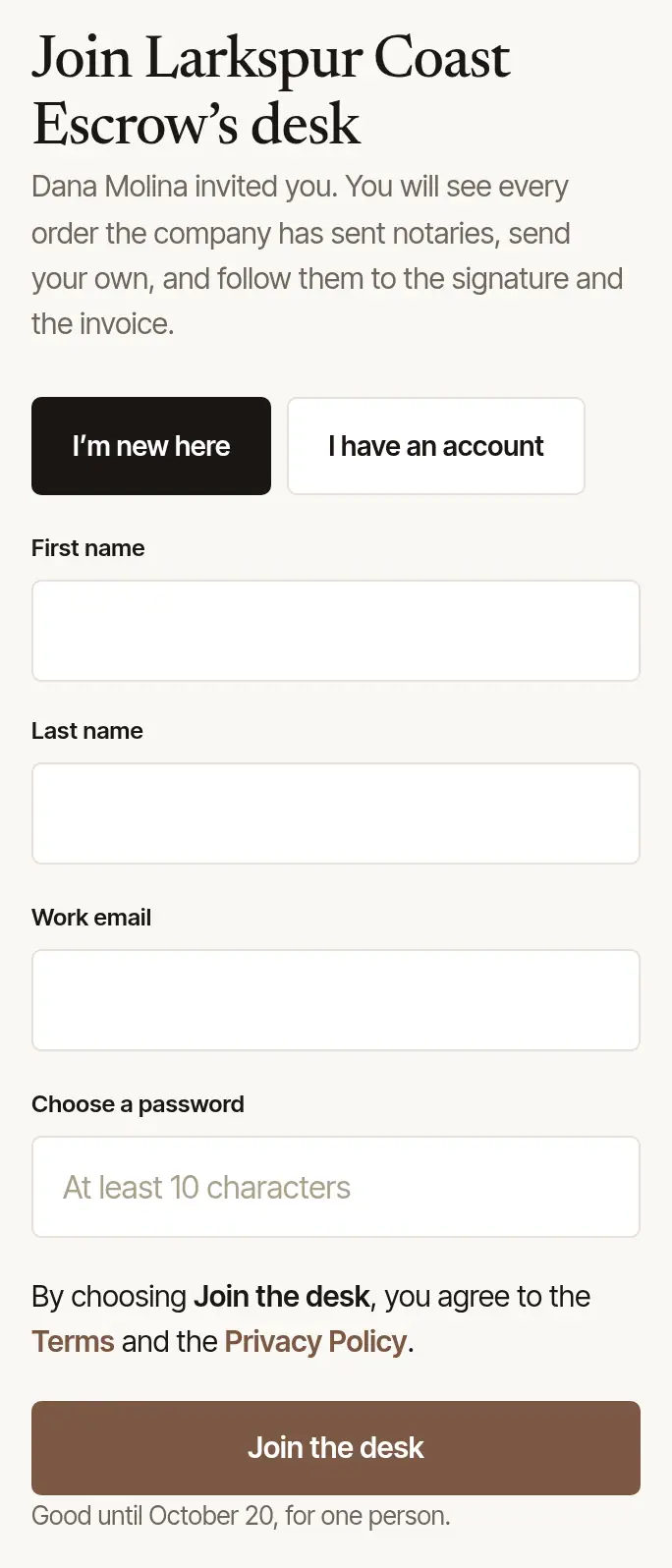
A new login confirms its address. We email a link to it; the link brings them back to the invitation, and Join the desk puts them on your team. Someone who signs in with an address that's already confirmed skips this step.
They're on your team, with every order the company has sent, and their own to send.
An invitation is for the address it names, and nobody else. Someone who types another address, or is signed in with one, is told the invitation was sent to another address, and nothing is accepted. If a colleague uses a different address from the one you typed, invite that one — and Withdraw the first.
A link that has been used, withdrawn, or is more than two weeks old says This invitation cannot be used — send a new one. One made before invitations named an address says This invitation is too old to use; Waiting to be used marks it too, so you can withdraw it and send a new one.
Colleagues who find the desk themselves
Someone at your company may start with a login of their own. Once their email address is confirmed, and it's at your company's own web domain — the same as someone on your desk, and never a free mail service anyone can have — their desk tells them … is already on Hand & Seal. Nobody can search for which companies are here: a colleague is simply shown their own.
Who can join, on Company, says how they come in:
- By asking (the start). They choose Ask to join, and you decide. Asking to join appears at the top of Company — and a note on Orders — with Approve or Decline for each. Approve, and they join as staff; either way they're told by email. Someone declined isn't offered your desk again for a month; someone who said Not now isn't asked again for three.
- Without asking. Choose Let them join without asking, and anyone with a confirmed address at your company's domain joins at once. You're emailed when someone does, and can take them off your team. Turn off — they ask again puts it back.
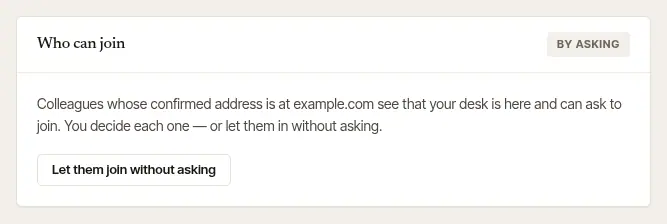
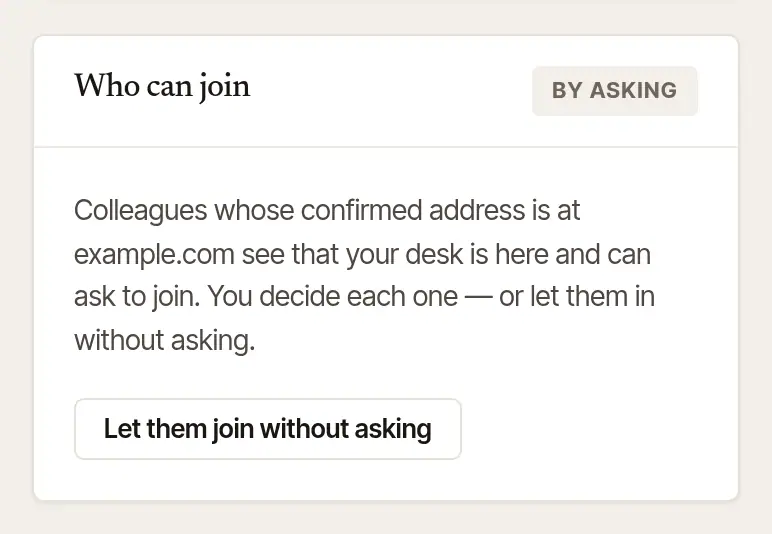
Only the owner decides, and only for their own confirmed company address's domain. An owner who signs in with a free mail address (Gmail and the like) can't open the desk to “anyone at” it — colleagues ask, and the owner decides.
A colleague who had a desk of their own
A colleague who sent orders from their own desk before joining yours is asked what to do with it:
- Bring my orders and notaries — then Yes — bring them, and close my own desk. Their orders, the notaries on their list and their backups come onto the company's desk, where everyone can follow them, and their own desk, now empty, is closed. Each notary keeps exactly what they agreed to, and is told where the orders are now. Their own desk's settings stay behind: the company's are used. This can't be undone.
- Keep mine separate — their own desk stays theirs, as it was. The offer waits, folded, on Company, in case they change their mind.
They move between the two desks with Switch, under Settings.
Take someone off your team
On Company, under Your team, the owner chooses Remove beside a colleague. They no longer see the desk; the orders they sent stay on it, and the emails about those orders — a notary's answer, fee or message, a new time, documents or scan-backs running late, an order nobody has answered or could take — come to you from then on. An answer about a new time goes to whoever on the team asked for it. A notary's invoices — and anything else they send from their own record of your company, such as a price — go to the address that notary bills your company at; if that's the address your colleague signs in with, or sent their orders from, they come to your Where invoices go address instead, unless that's theirs too; failing that, to whoever sent that order if they're still on your desk, else to you — see Where invoices go in Set your company's details. If your Where invoices go address is the one they sign in with, it's cleared as you remove them, and you're told.
Leave a desk yourself
Anyone on a desk who isn't its owner can leave without asking anybody.
Open Settings and choose Leave … — the card carries your company's name.
Read What leaving does, and confirm it's you: your password, or a code from your authenticator app.
Tick “I understand I will no longer see anything of …” and choose Leave ….
You stop seeing the desk's orders at once, and its owner is told. The orders you sent stay the company's: the rest of the team still sees them, and the notaries who have them still have them. The emails about them — a notary's answer, fee or message, a new time, documents or scan-backs running late, an order nobody has answered or could take — no longer come to you. A notary's invoices — and anything else they send from their own record of your company, such as a price — go to the address that notary bills your company at; if that's the address you sign in with, or sent your orders from, they go to your company's Where invoices go address instead, unless that's yours too; failing that, to whoever sent that order if they're still on the desk, else to its owner — see Where invoices go in Set your company's details. If your company's Where invoices go address is the one you sign in with, it's cleared as you leave, and its owner is told. Once you've left, you can close your own account whenever you like.
The owner doesn't leave a desk — it's theirs to close, with Close my account… under Settings. If the account can't be closed yet, the page says why, with a link to the place that mends it — Company → Team to take people off the desk, or Settings → Leave … for someone on its staff. It also names any invoice from your notaries that's still unpaid — closing neither pays nor cancels one — and, beside Download my data, offers Export the orders (CSV): every order your desk has sent, as a spreadsheet.
Good to know
- The owner changes the company's details and answers who may join; anyone on the team can send orders, add notaries and change the usual settings every order starts from.
- A notary who also runs an office can open a desk on the login they already have — see I'm a notary, and I also run a title or escrow office.
Was this helpful?
Still stuck? Contact support — a person reads every message and answers by email.