Guide
Record your odometer readings
Note your car's odometer on the first of the year and again at its end. Two readings give the total miles driven between them — which your tax return asks for beside your business miles.
The phone records your work drives, not every mile the car goes — so it never knows how far the car went in all. Your tax return asks for that total beside your business miles, and only the dashboard can give it. Note the odometer on the first of the year and again at its end; the app works out the miles between.
Open Mileage. The Odometer card is beside the month's drives.
Type the reading under Odometer, and the day under Read on (today, to start). Driving more than one car? Name it under Vehicle.
Choose Add reading.
With a second reading on a later day, the card shows the First reading, the Latest reading and Driven between them — and how many of those miles are business in your log.
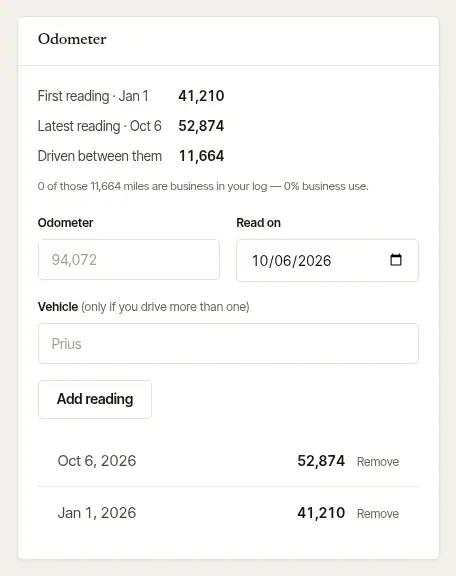
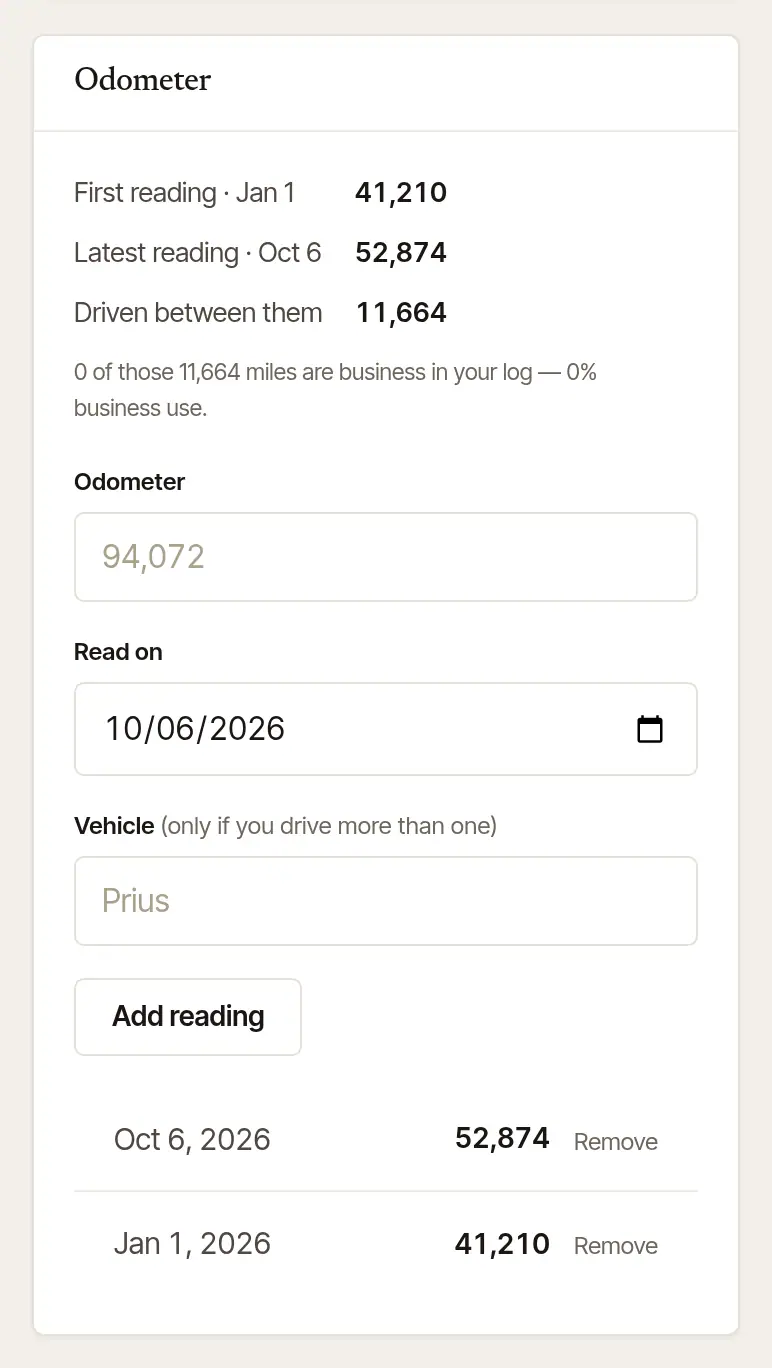
A reading typed wrong? Remove beside it, and add it again.
Open More → Odometer (or Books → Odometer readings).
Type the reading under Odometer (mi), check the Date, and add a Note if you like — “start of year”, say.
Tap Save reading.
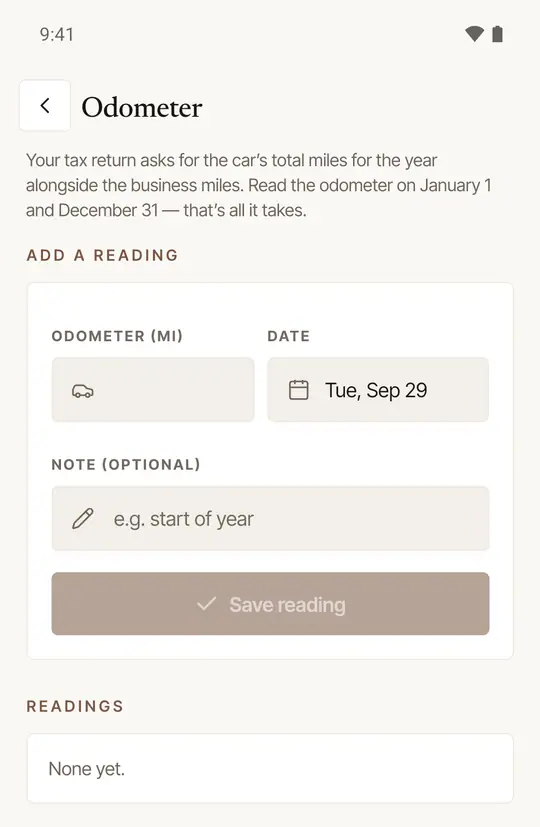
Your readings are listed under Readings; Delete beside one takes out a typo. They're the same readings as on the web.
Tax information, not tax advice
The total miles for the year, and the business share of them, go on your tax return (on Schedule C, Part IV, for most sole proprietors). Ask your tax preparer what applies to you.
Was this helpful?
Still stuck? Contact support — a person reads every message and answers by email.