Guide
See a drive on a map, and fix it
Open any drive to see its route, where and when it started and ended, how it was measured and what it was filed as — then change what it was for, move it to another job, or remove it.
Every drive in your log has a page of its own. It's where you check what was recorded, and put right a drive filed to the wrong job, or one that should never have been logged.
Open More → Mileage, and tap a drive — under To file, or any drive under All drives.
Check it. The page shows the route on a map, the miles and what they're worth if they're business, where it started and ended with the times, and what it's filed as — Not filed yet, or its job or errand (AUTOMATIC when the phone filed it itself).
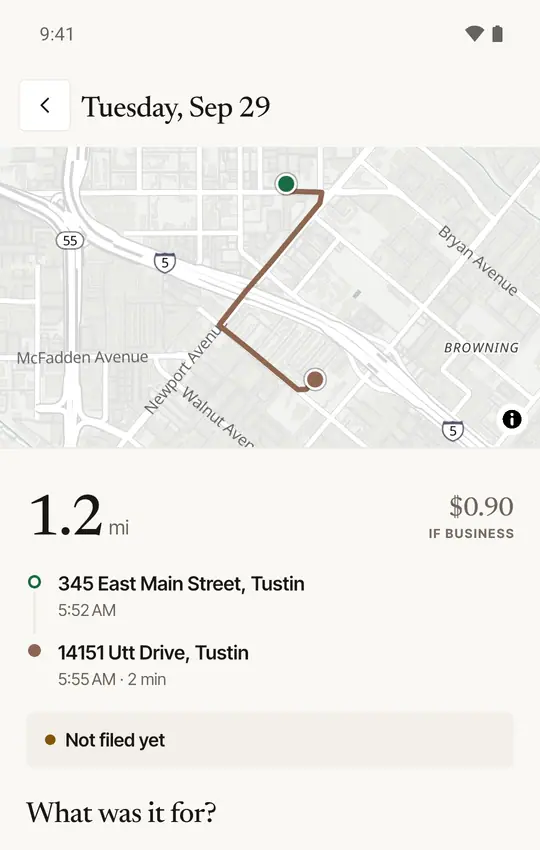
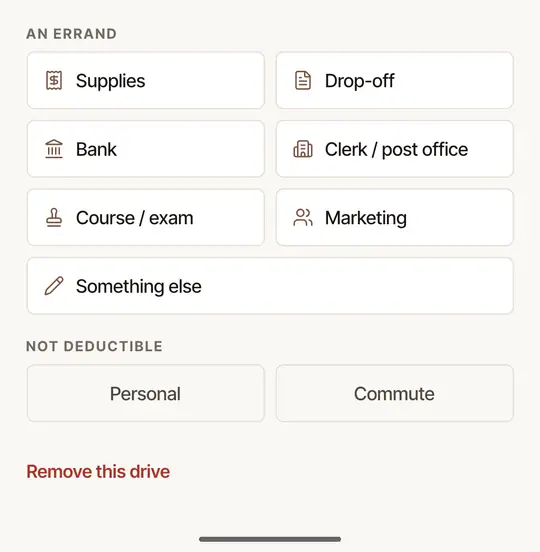
Change what it was for. Under What was it for? (or Change what it was for, once filed), choose a job, an errand, or — under Not deductible — Personal or Commute. Choosing another job moves the drive to it.
Remove it, if it shouldn't be there. At the foot, Remove this drive — for a GPS glitch or a drive logged twice. It asks first: Remove this drive? It's hidden from your log, never erased.
Open Mileage, then the drive: choose its date in the month's list (or File… for one waiting). A job's page links to its drive too, under Produced by this job.
Check it. The map shows the route as recorded (an open circle where it started, a filled one where it ended), with the Distance, Duration, Rate that day, Deduction, and Start and end. What the record shows lists when it set off and arrived, how it was measured — Recorded by the phone, Filled in from the route or Entered by hand — and when it was written and last changed. A drive you added by hand shows its day and no time of day, and one brought over with no end time shows no length. A drive you added by hand, and one the phone recorded that day — one drive, or two there and back — that isn't filed to a job, as personal or as a commute, and is about as long, each say they may be the same trip: May be the same trip as the other, or, on each of two, May be one way of the trip you added by hand. Remove one from the log if it was one trip, or choose These were two drives — on your drive beside two, These were different trips.
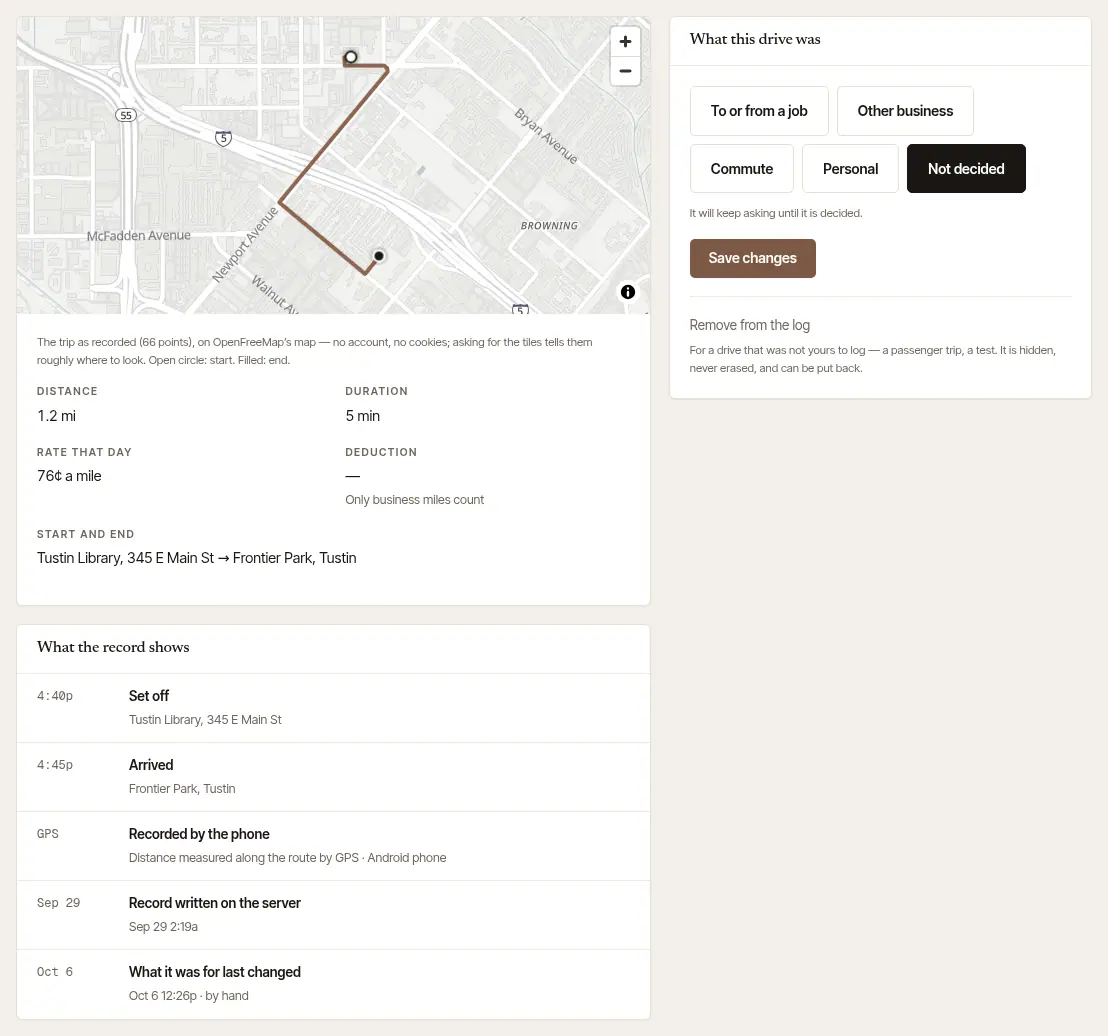
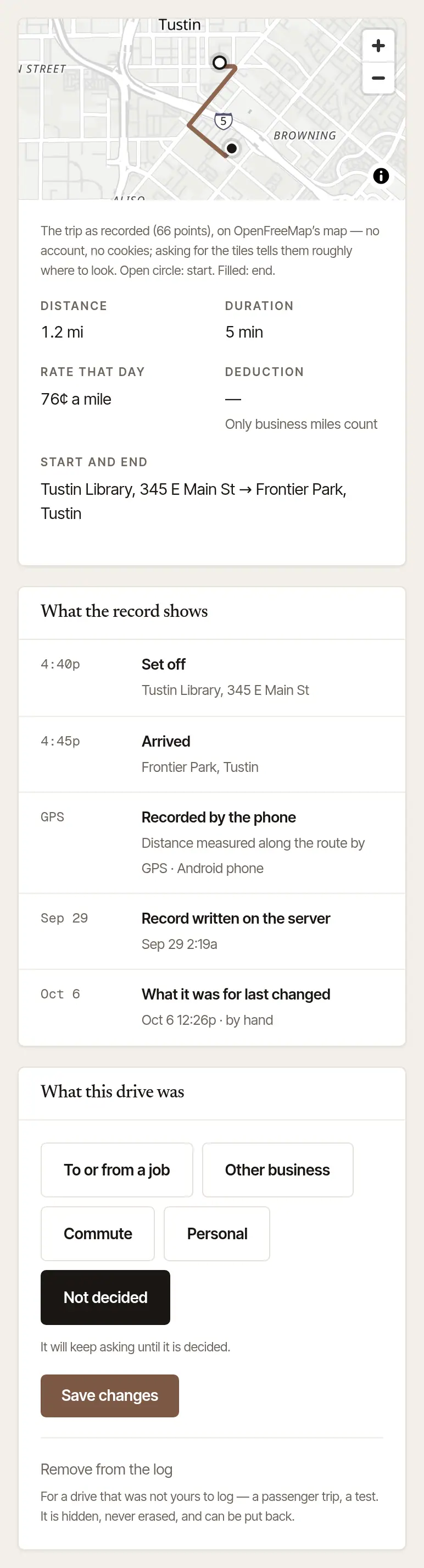
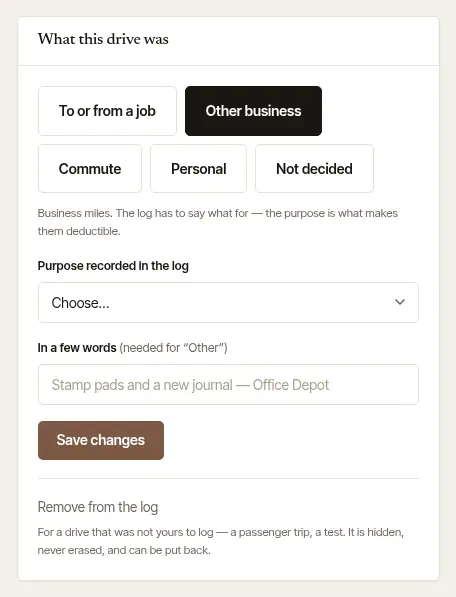
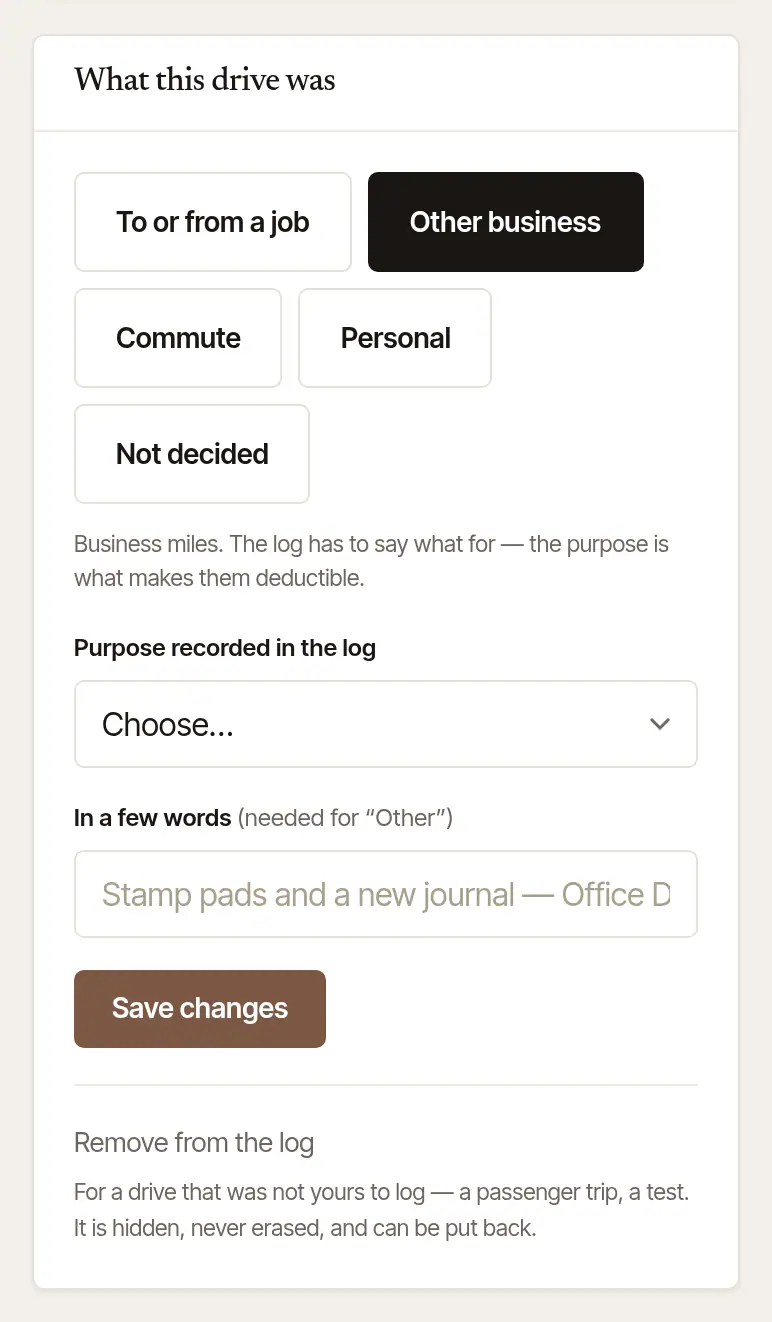
Change what it was for. Under What this drive was, choose To or from a job and the job under Which job — this is how a drive moves to another job — or Other business with its purpose, Commute or Personal. Choose Save changes. Your phone picks the change up next time it syncs.
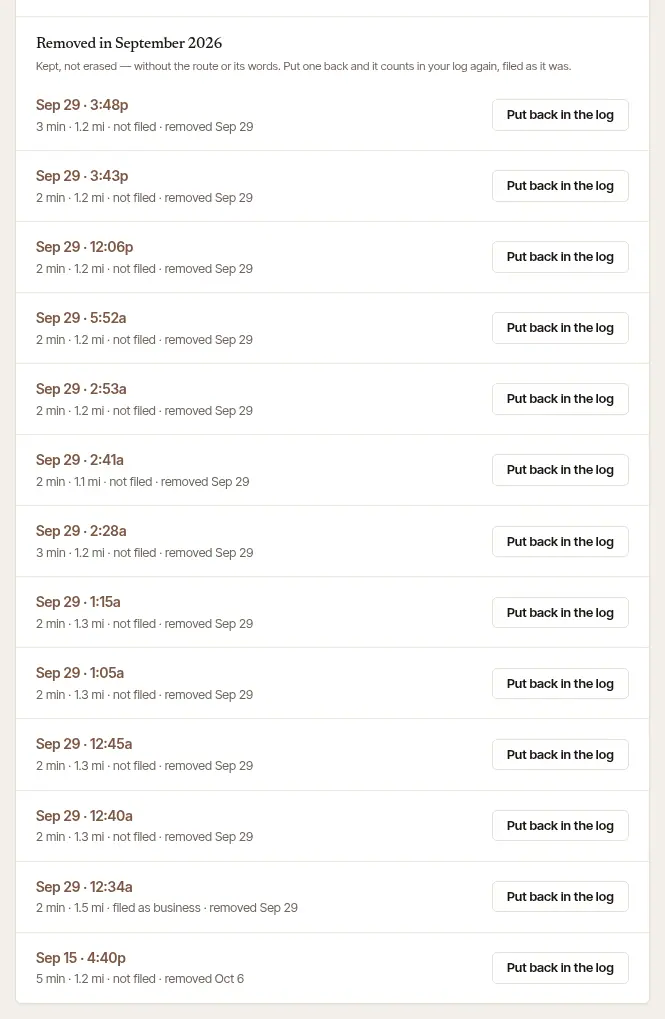
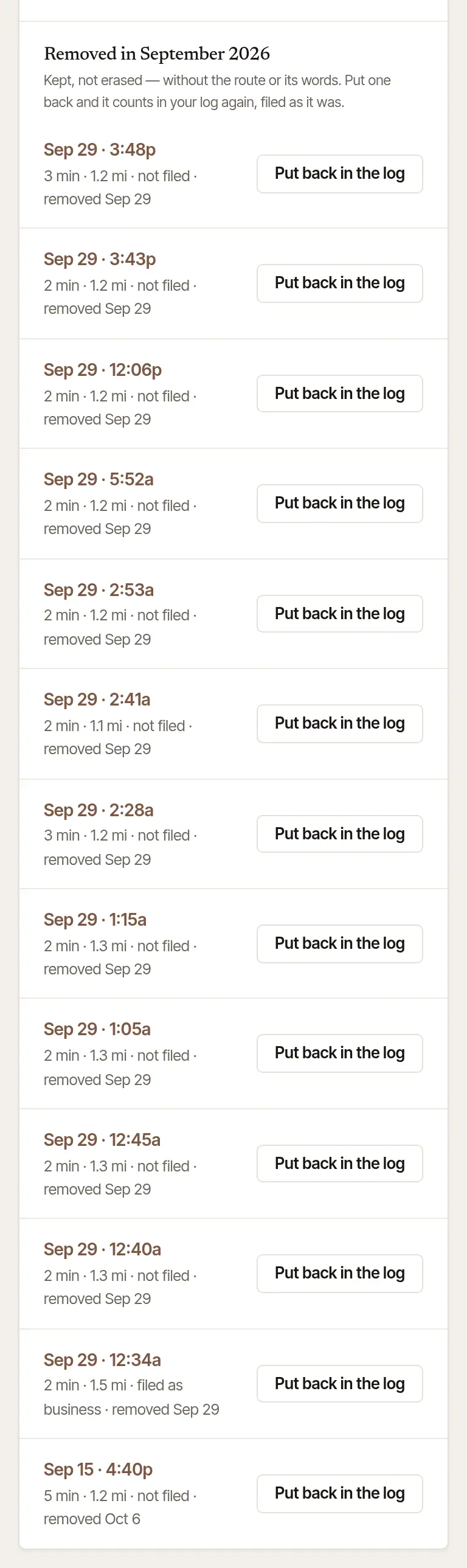
Remove it, if it shouldn't be there. Remove from the log is for a drive that wasn't yours to log — a passenger trip, a test. Removed by mistake? The same page then offers Put this drive back in the log — and later, on Mileage, … removed — see them under that month's drives lists the month's removed drives, each with Put back in the log.
Good to know
- What a removed drive keeps, and what it loses, is in What happens when I remove a drive?
- A drive marked Recorded on two devices is the second recording of a trip your phone and your tablet (or two phones) both recorded. The trip is counted once, and there is nothing to remove: its page offers Count this one instead and These were two drives in place of what it was for. See Two of my devices recorded the same drive.
- The miles of a drive recorded by the phone can't be edited: they were measured. For a signing, Edit miles on the job adds to them — see Add a drive the phone didn't record.
Was this helpful?
Still stuck? Contact support — a person reads every message and answers by email.