Guide
Snap a receipt and file it later
Photograph a receipt with the phone the moment you're handed it — the parking garage, the shipping counter — and file it as an expense later, from the receipt inbox.
A receipt is easiest to keep the moment it's handed to you. Snap it with the phone app and it waits in your receipt inbox; file it as an expense when you sit down with your books — on the phone or on the web.
Snap it on the phone
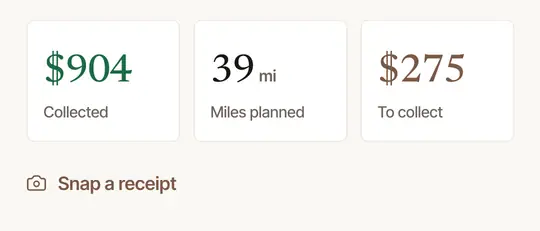
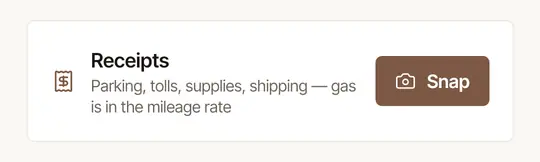
Tap Snap a receipt. It's on Today, under the day's figures — and on Books, the Receipts card has Snap. It works even while Books or the whole app is locked: a receipt shows nothing private.
Take the photo. Choose Take a photo, or Choose from library for a receipt you already have as a picture (an emailed receipt's screenshot, say).
See where it went. The button says In your receipt inbox for a moment. With no signal it says Kept — it sends once you have signal with Hand & Seal open: the photo goes by itself when the signal comes back while the app is open, or the next time you open it.
On Books, the Receipts card says how many are waiting: “2 to file”, and any still “waiting to send”.
Tax information, not tax advice
If you use the standard mileage rate — as Hand & Seal's mileage log does — gas is already in the rate. Hand & Seal does not ask for gas receipts; if you deduct actual car expenses instead, keep them and tell your preparer. Parking, tolls, supplies and shipping are the ones to snap.
File it
Open Books. While a receipt waits, the Receipt inbox is at the top on the right, with “1 to file” beside it. Choose the photo to see it full size.
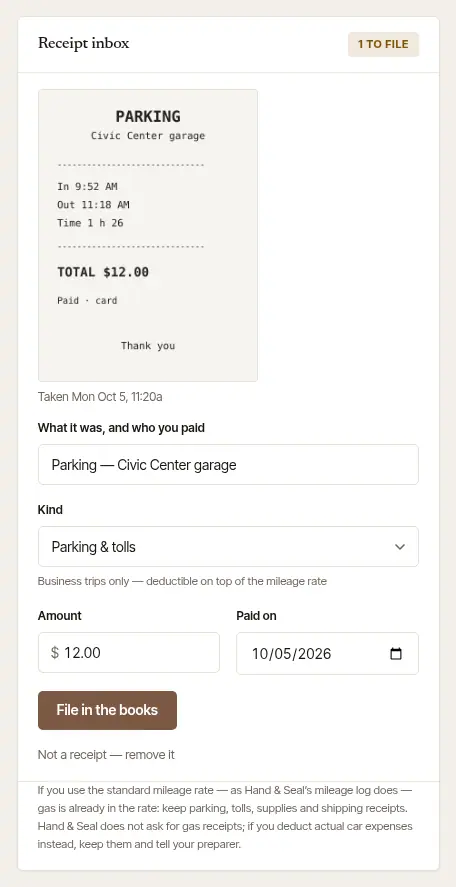
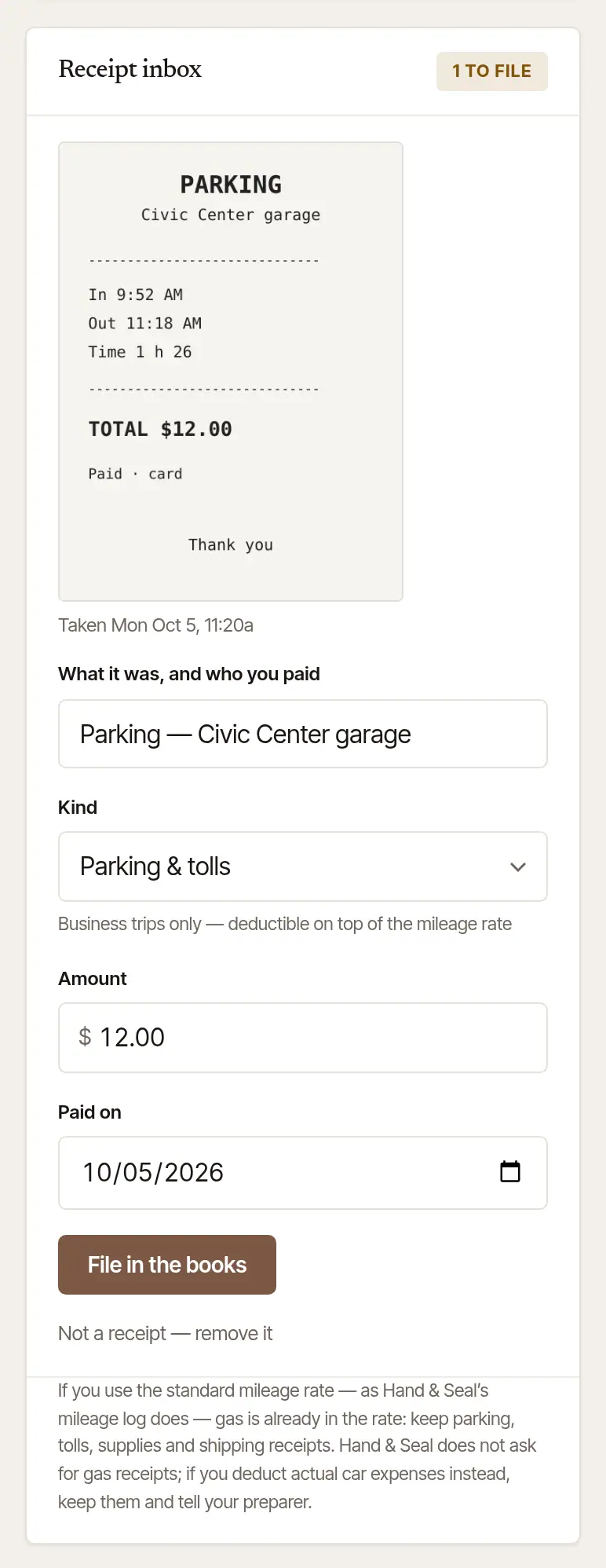
Fill in the line. What it was, and who you paid, its Kind, the Amount, and Paid on — already set to the day the photo was taken.
Choose File in the books. The receipt becomes an expense line, with the photo kept beside it: its Receipt link opens it again from the books.
A photo that isn't a receipt? Not a receipt — remove it deletes it.
Tap File it (or File all …) on the Receipts card on Books. It opens the same Books page as the web, inside the app: scroll down past the year's lines to the Receipt inbox.
Fill in the line and choose File in the books — as on the web: what it was, its kind, the amount and the day paid.
Have the receipt in your hand while you type the expense? In Expenses, Add its receipt files the photo with the line straight away — nothing waits in the inbox. See Add an expense.
Good to know
Removing an expense line you typed puts its receipt back in the inbox, to be filed again or removed.
Was this helpful?
Still stuck? Contact support — a person reads every message and answers by email.