Guide
How your journal works in Hand & Seal
An index of your journal — a line for each act, written when you close out, each pointing at where the act is in your journal. What's kept, how to find a line, and how to keep a copy.
General information, not legal advice
This page explains how Hand & Seal works. Your state’s law, and your commissioning authority, decide what you must do — when in doubt, ask them or a lawyer.
Your journal is the record. Hand & Seal keeps an index of it: one line for each notarial act, written when you close out a signing, each pointing at where you recorded the act — the book, the page and the line, where you keep your journal on paper. Settings → State rules says whether your state has you keep one, and whether it must be a bound paper book. Any act can then be found again in seconds — by signer, by document, or from its job.
What a line holds, and what it never does
Each line has a number of its own (Entry № 13), in one sequence for all your work, and holds:
- the act, and the day and time it was performed;
- the signer, and the document;
- how the signer was identified — the kind of ID, the last four characters of its number and when it expires, or the names of the credible witnesses;
- the fee charged for the act;
- where it is in your journal — the book, the page and the line, where you keep it on paper — and whether a thumbprint was taken in it;
- the state's rules it was written under.
A line never holds a picture of an ID, a full ID number, a signature or a thumbprint. Where a state doesn't allow any part of an ID number to be kept, none is.
Only you can read your journal — not a client, and not the owner of a business you take signings for. If you work for a business as well as on your own, it is still one journal: a line written for the business says so, and stays yours to read and to correct.
How lines are written
Lines are written when you close out a signing: one for each act, filled in from your journal (see Fill in a journal line). On the phone you can write them at the table; they wait on the phone until you close out. Closing out locks them. After that a line is never rewritten or deleted — as in a paper journal, it can be voided or corrected with an amendment beside it (see Void a journal line, correct it, or add an act you left off).
Find a line
Open Journal. It's on the left, under Records; at phone width, on the bar at the bottom. The newest lines come first, each with its act, signer, document, how the signer was identified, the thumbprint, the book, page and line, and the fee.
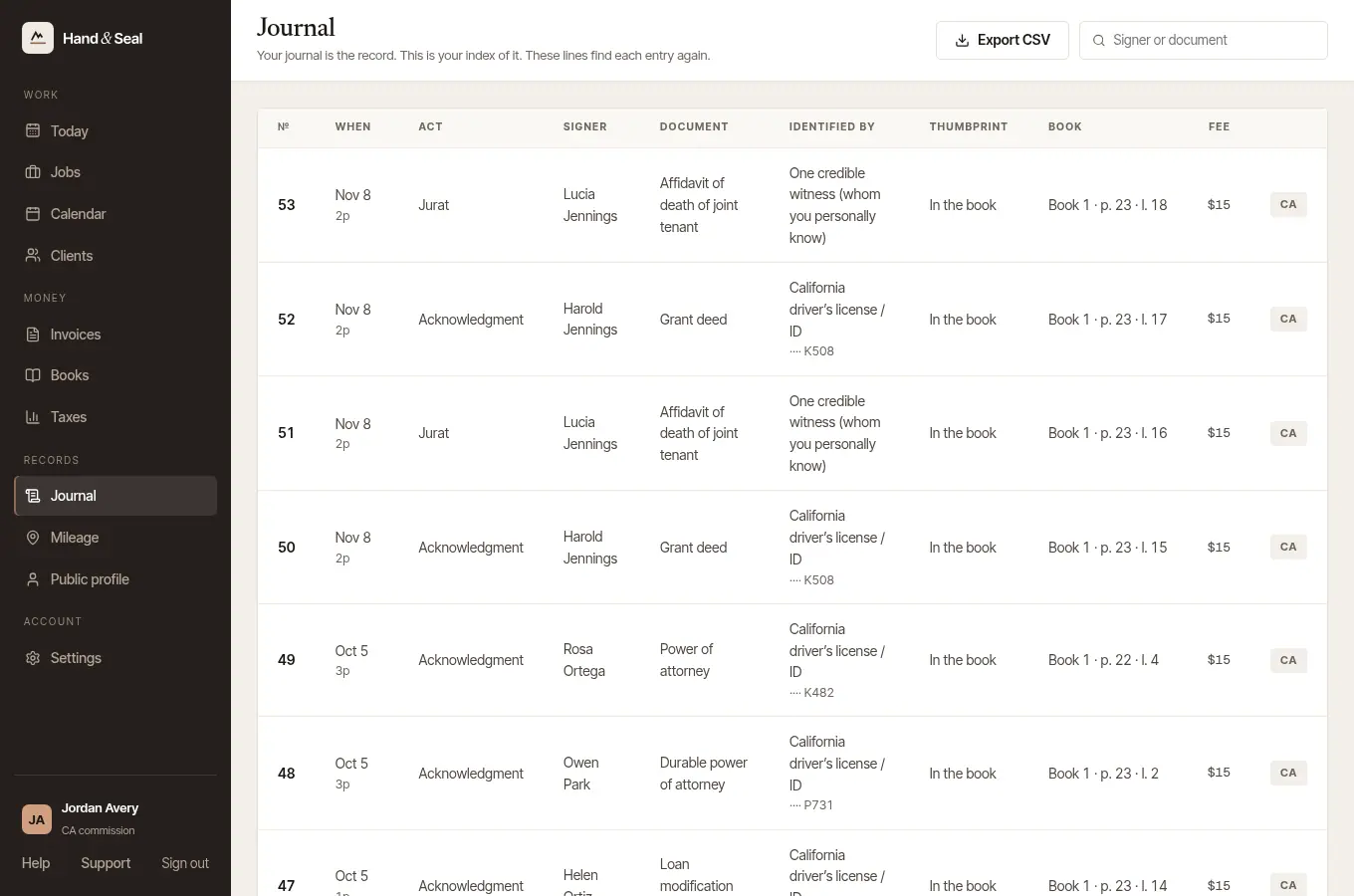
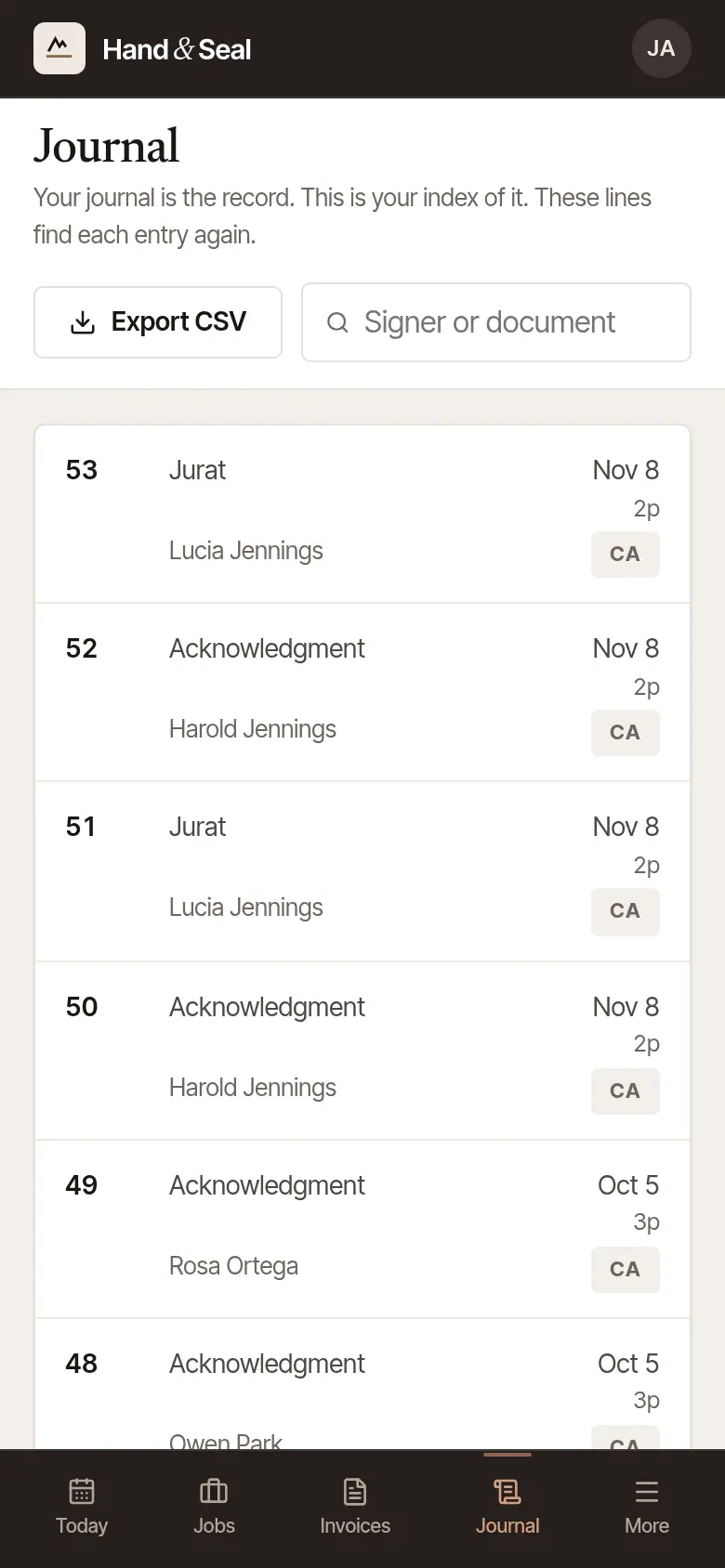
Search, if it isn't in view. Type a signer's name or a document into Search by signer or document. The page lists the newest lines a page at a time, with Older for the ones before; search finds older ones too.
Open a line. Choose its number. The line's page shows everything it holds, where it is in your journal, and Locked once its job is closed out. Open the job takes you to the signing it came from.
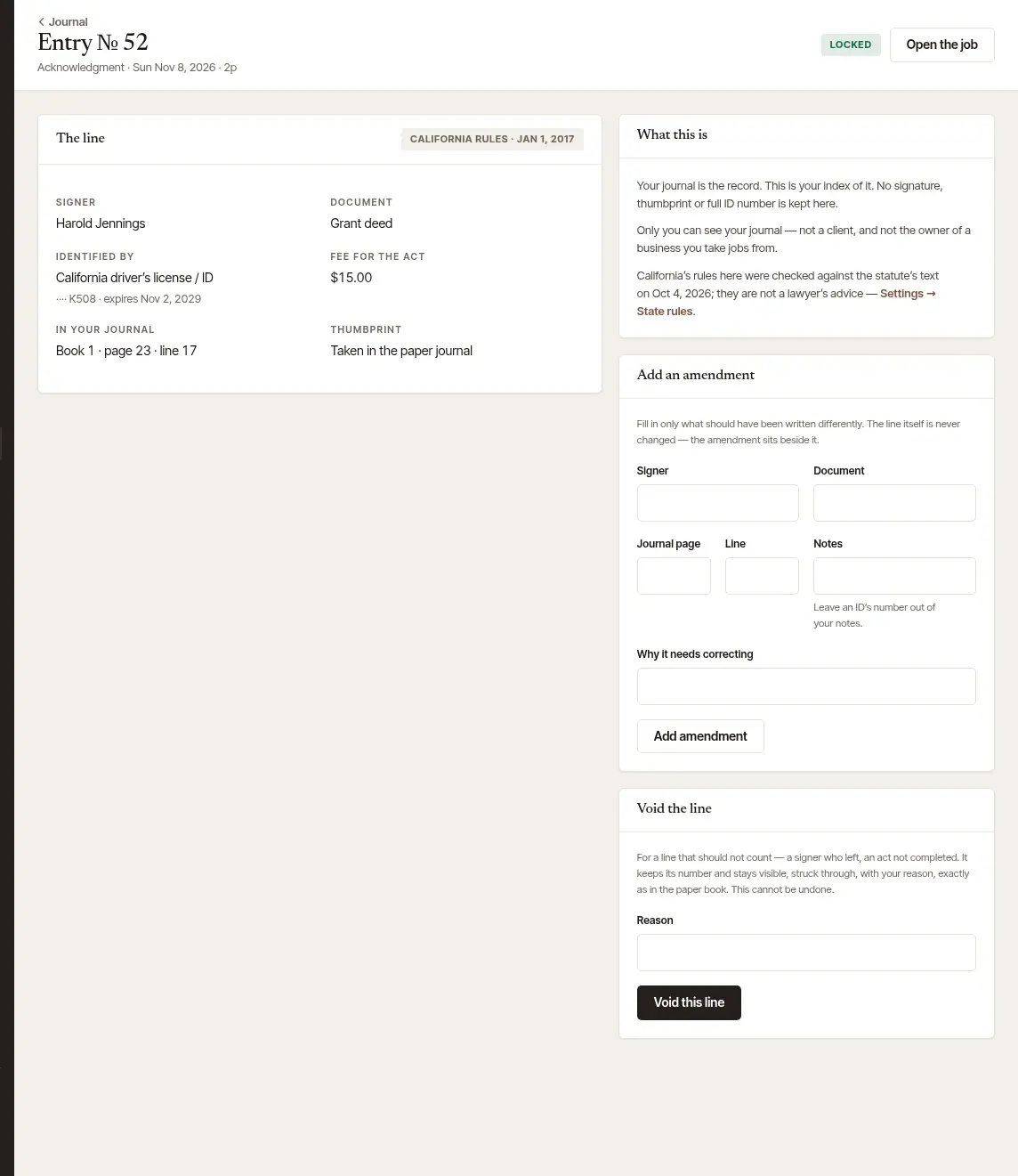

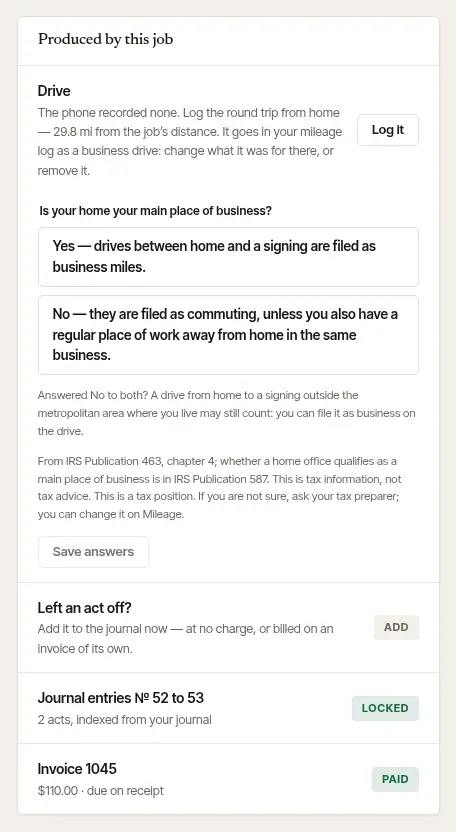
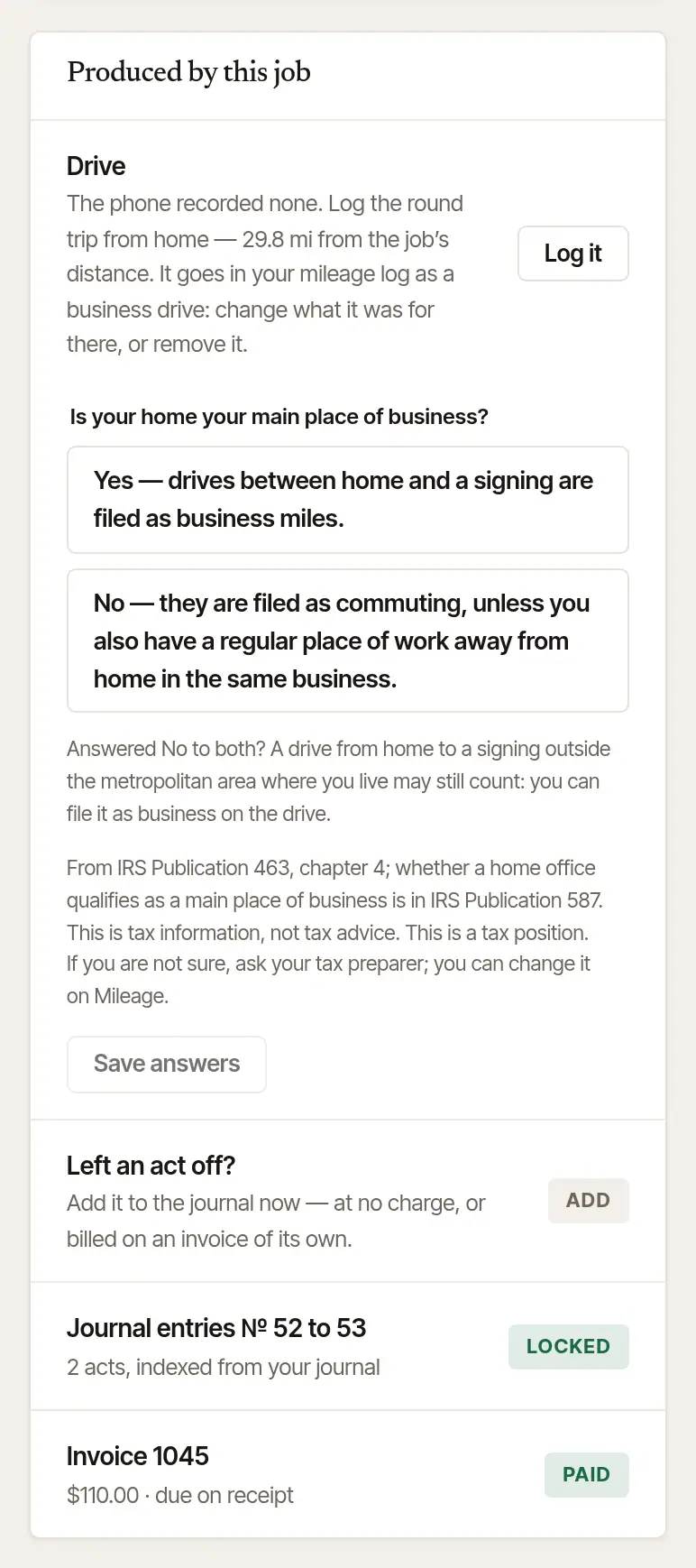
Or start from the job. On a closed-out job, Produced by this job lists Journal entries and their numbers: choose it to see just that job's lines.
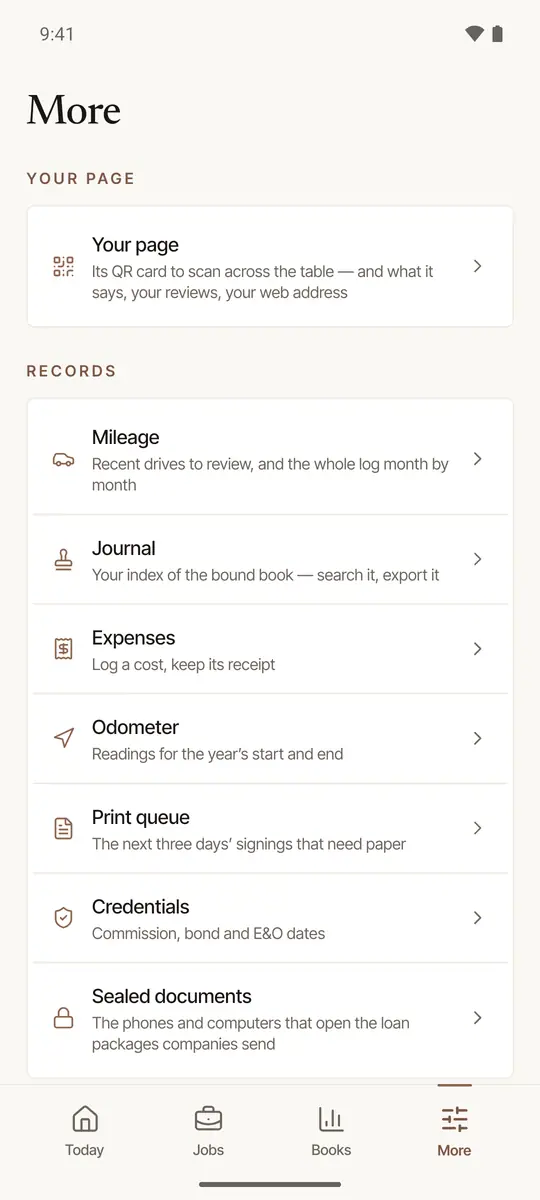
Open More → Journal. It's under Records. The newest lines come first, each with its number, act, time, document, signer, the ID's kind and last four, and the book, page and line.
Search. Type a signer, a document, an act or a page number into Search signer, document, act, page….
Tap a line to open its job.
The journal holds signers' details, so the app keeps it out of sight. Android won't take a screenshot of it, or show it in the app switcher. An iPhone covers it in the app switcher, and while its screen is being recorded or shared; a screenshot can still be taken there, and the app then reminds you: This screen holds signers' details — keep that screenshot private.
Keep a copy
- Journal → Export CSV downloads every line of your journal — not only the ones on the screen — as a spreadsheet.
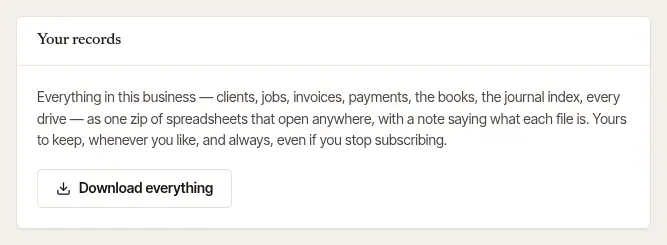
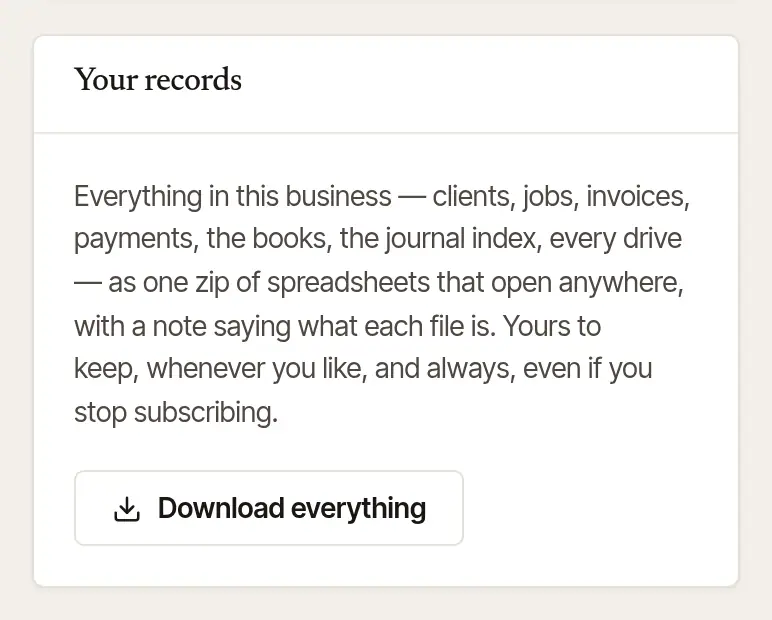
- Settings → Your data → Your records → Download everything downloads everything in your account — clients, jobs, invoices, the books, every drive and the journal index — as one zip of spreadsheets, whether or not you still subscribe.
More → Journal → Export the whole journal (CSV) makes the same file as the web and hands it to your phone's share sheet — to email it to yourself, or save it to your files. It's made on our server, so it needs a connection.
General information, not legal advice
Whether you must keep a journal, what goes in it, how long you keep it and what happens to it when your commission ends are set by your state — Settings → State rules summarizes them. This is general information, not legal advice: your state's notary handbook, its commissioning office or a lawyer has the last word. Your journal remains the record — a bound paper book where your state's rules name one; this index doesn't take its place.
Was this helpful?
Still stuck? Contact support — a person reads every message and answers by email.