Guide
Set up card payments with Stripe
Take cards at the table and from an invoice's link, paid into a Stripe account that is yours — your own login, your own payouts. Set it up once, on the web.
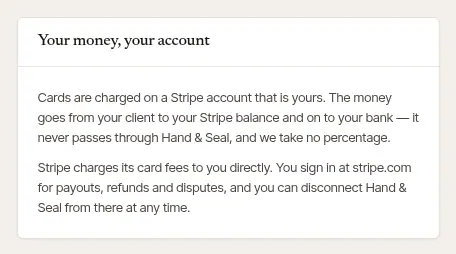
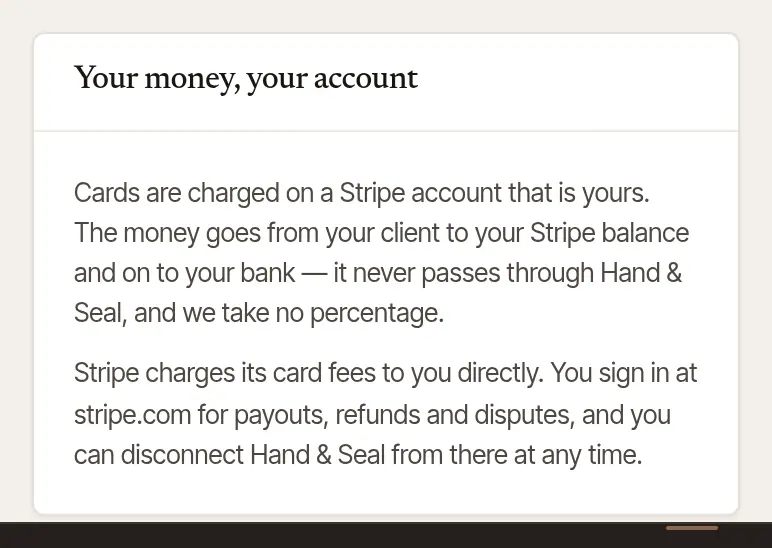
With card payments set up, you can take a card at the signing (on your phone, or a card reader) and your clients can pay an invoice by card from its link. The money goes into a Stripe account that is yours: you sign in at stripe.com for payouts, refunds and disputes. Setting it up takes a few minutes, on the web.
Who sets it up
Card payments are set up by the business's owner — in a business with partners, any partner. Once they're ready, everyone in the business takes cards the same way.
Set it up
Open Settings → Integrations. On the Stripe card, choose Set up card payments. (During set-up, Step 3 has the same button: Set up.)
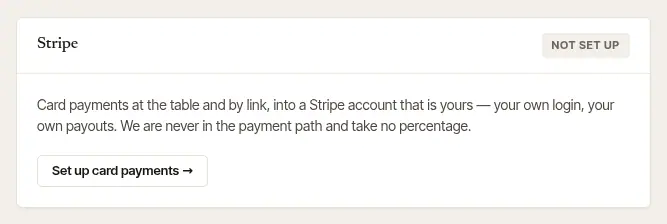
Choose Set up card payments. Stripe's own form opens inside the page. At the start, Stripe opens a small window of its own, to sign in to Stripe or make a login — that's Stripe's, and the account is yours.
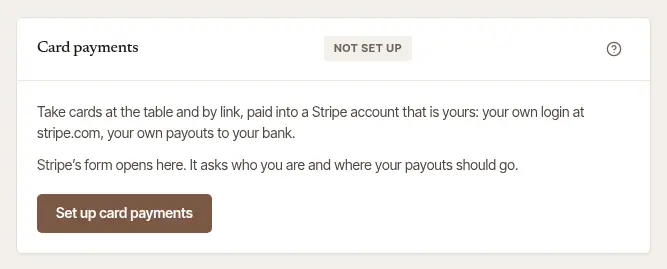
Answer what Stripe asks. Who you are — your legal name, date of birth, address and Social Security number — and the bank account your payouts go to. Stripe keeps them; they never reach Hand & Seal. Already have a Stripe account? Sign in with it on Stripe's form, and it can reuse your details. Stripe asks for everything it will ever need now, so your payouts aren't paused later for a missing detail.
Check where it stands. When you close Stripe's form, the page asks Stripe and shows it:
- Not finished — you started; Continue with Stripe picks up where you left off. Stripe kept what you entered.
- Stripe is checking — you're done, and Stripe is checking your details. Check now asks again; usually it takes a day or so.
- Stripe needs more — Give Stripe what it needs. The page says what Stripe asks for, and by when; if cards already work, they keep working until then.
- Ready — cards can be taken. Payouts go to your bank on Stripe's schedule once Stripe has checked it. Open your Stripe Dashboard takes you to stripe.com.
- Declined by Stripe — Stripe won't take card payments for this account. Your Stripe Dashboard says why, and Stripe's support team can review the decision.
Open More → Settings → Card payments. The Stripe account row says where it stands: Not set up, Not finished, Needs more, Checking, Ready or Declined.
Tap Stripe account. Stripe's form is on the web, so the row opens the web's card payments page in your browser, already signed in. Finish there, then come back to the app.
Once you've set it up, Card reader appears in the same place: pair a Bluetooth reader, or on an Android phone get it ready for Tap to Pay, before your next signing (an iPhone takes cards on a reader). Cards are taken once Stripe says Ready.
Good to know
- A tablet running the app opens Stripe's form in your browser too — Stripe's form is made for a browser.
- Once card payments are ready, companies that pay by bank transfer can pay that way too: see Let clients and companies pay online.
- Without card payments, everything else works: invoices, and cash, checks, Zelle and the rest recorded as you receive them.
Was this helpful?
Still stuck? Contact support — a person reads every message and answers by email.