Question
I can't sign in
A forgotten password, an account made with Google or Apple, a passkey that didn't answer, a two-step code you can't get to, or too many tries — what each message means and how to get back in.
Find the message you see, or the way you usually sign in, below. The web's page is called Sign in; the phone's buttons say Sign in — they're the same account.
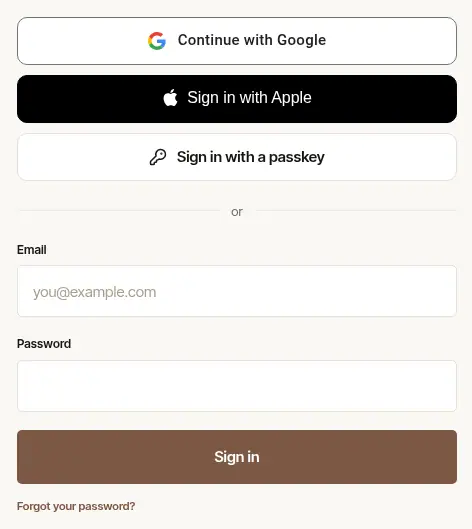
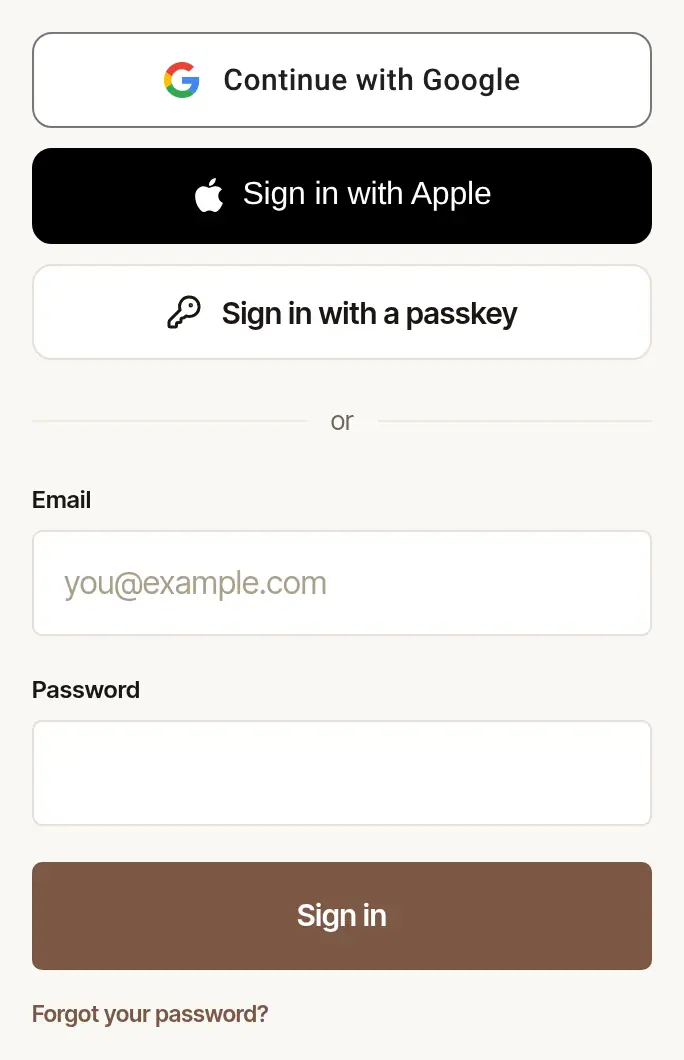
“That email and password don't match”
This comes only from Hand & Seal itself, when it has checked the email and password you sent. The message is the same whether the address has no account or the password is wrong, so check both:
- A password your phone filled in. If your phone (or your password manager) filled the password in for you, it may be one saved for another account, or an old one. On the phone the message says so: clear the password box and type yours.
- The address. Is it the one you signed up with? Try any other address you use.
- An account made with Google or Apple has no password. If you signed up with Continue with Google or Sign in with Apple, use that button — on the web, the page reminds you of it under the message.
- The password. Choose Forgot your password? and set a new one (below).
Forgot your password
Choose Forgot your password? It's under the Sign in button on the web. On the phone, it's under Sign in, and opens the same page in your browser.
Type your email and choose Email me a link.
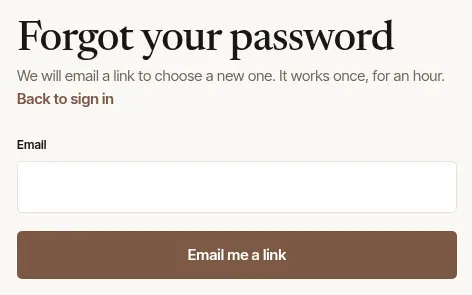
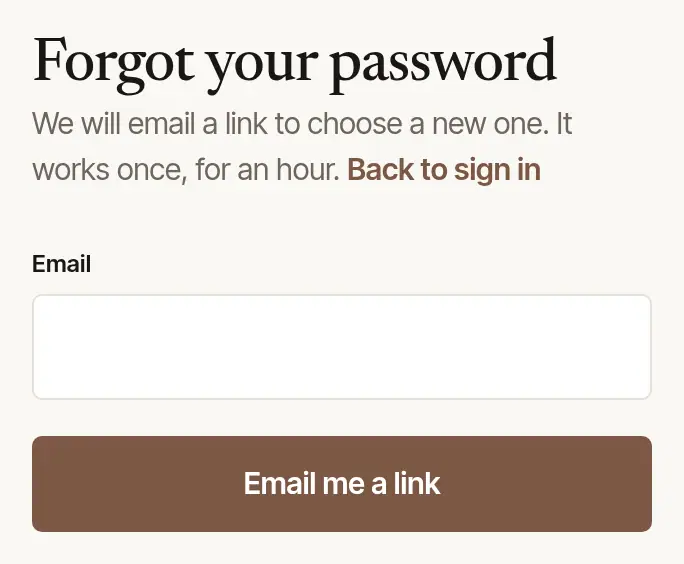
Open the email and choose Choose a new password. The link works once, for an hour. Nothing in a few minutes? Look in your spam or promotions folder — the page never says whether an address has an account, so check you typed the right one.
Type the new password — at least ten characters — and choose Set the new password. The page says whose password it is. Every device signed in to your account is signed out, the phone app included, and you're taken to Sign in: sign in there with the new password, and again on each device. A new password doesn't change what else signs in to your account — Google, Apple, a passkey, your authenticator app — so if there is any, the Sign in page lists it there: take off any that isn't yours, in Settings → Sign-in & security.
“That link has expired” means it's more than an hour old, or was used already: choose Ask for a new one.
Signed up with Google or Apple, and want a password too?
Forgot your password? works for a Google or Apple account as well: it sets your first password. Your devices stay signed in, and Continue with Google or Sign in with Apple keeps working beside it. Signed up with Apple's Hide My Email? Type the address that ends in privaterelay.appleid.com — it's in Settings → Sign-in & security — and Apple forwards the letter to you.
Continue with Google didn't sign you in
- “The account with this email signs in with a different Google account” — choose the Google account you first joined with, or use your password.
- “Google has not verified the email address on that Google account yet” — verify it with Google first, or use your email and password.
- “That took a little too long” — choose Continue with Google again.
- “Signing in with Google did not work just now” — try again in a moment, or use your email and password.
Sign in with Apple didn't sign you in
- “The account with this email signs in with a different Apple ID” — use the Apple ID you first joined with, or your password.
- “There is already a Hand & Seal account for …” with a password box — the account with that address isn't sure Apple speaks for it (Apple vouches only for iCloud addresses). Enter its password once, and from then on Sign in with Apple signs you in.
- “No account for this Apple ID yet” on the phone — make one in your browser with Sign up with Apple, then sign in with Apple in the app. Already have an account? Sign in to it another way and connect Apple under Settings → Sign-in & security on the web instead.
- “Apple did not share an email address” — sign in another way, then connect Apple under Settings → Sign-in & security.
- “That took a little too long” — choose Sign in with Apple again.
- “Signing in with Apple did not work just now” — try again in a moment, or use your email and password.
A passkey didn't answer
“No passkey answered — the prompt was closed or timed out” means the fingerprint, face or screen-lock question was closed, or waited too long: choose Sign in with a passkey (Sign in with a passkey on the phone) and try again.
- “That passkey is no longer on your account” — it was removed. Use your password, then add a new passkey in Settings.
- On the phone, “No passkey for Hand & Seal on this phone yet” — a passkey belongs to the phone or password manager it was made on. Sign in another way, then add one in Settings → Passkeys.
Two-step sign-in: the code
With two-step sign-in on, a right password (or Google, or Apple) is followed by Two-step sign-in.
- Type the six digits your authenticator app shows for Hand & Seal in Code from your authenticator app, and choose Sign in. If you have a passkey on this computer, Use your passkey answers this step instead.
- Lost your phone? Choose Lost your phone? Use a recovery code and type one of the ten codes you saved when you set it up. Each works once.
- “That sign-in timed out” — the second step waits five minutes. Choose Sign in again.
- Type the six digits your authenticator app shows for Hand & Seal in Code. It signs you in as soon as the sixth is typed.
- No authenticator to hand? Tap Use a recovery code and type one of the ten codes you saved. Each works once.
- Start again goes back to your email and password — after five minutes, or five wrong codes, you're sent back there anyway.
“Too many wrong codes were tried on your account today, so codes are turned off until you reset your password, and every device was signed out” means someone — perhaps you — entered twenty wrong codes in one day. When it happens, every phone, tablet and browser signed in to your account is signed out — yours too — and we email you. Reset your password (Forgot your password?, above) and codes work again; then sign in on each device. A passkey still signs you in meanwhile.
Lost your phone and your recovery codes? Write to us from the address your account signs in with. We check that it's you before we turn two-step sign-in off; your passkeys are removed too, and every device is signed out.
“Too many attempts”
After many wrong passwords or codes, sign-in waits: “Too many attempts. Wait fifteen minutes and try again.” Wait, then use Forgot your password? if you're not sure of it. Asking for reset emails has its own limit: “Too many attempts from this connection. Try again in an hour.”
The wrong passwords weren't yours? Wrong passwords typed for your address by someone else hold up your sign-in too — that wait is what stops a guesser. Until you choose a new password, a device that's signed in already stays signed in, and a passkey, Google or Apple still sign you in. Once your email address is confirmed, we email you the first time in a day this happens to your account.
On the web you don't have to wait it out. Choose Forgot your password?, set a new password from the link we email you, and sign in with it in that same browser, within fifteen minutes: there, your sign-in isn't held up by anyone else's wrong passwords. Know what it costs first: a new password signs every device out — the phone app included — and the phone app's own password sign-in can still be held up while the wrong passwords go on. If your phone is signed in and working, you may want to leave it so. A passkey is never held up this way, on the web or in the app: add one in Settings.
The phone couldn't sign you in
These say something went wrong on the way — never that your password is wrong. Your email and password stay in their boxes: tap Sign in again.
- “Couldn't reach Hand & Seal — check your connection and try again” — the phone had no connection to us. Try again on Wi-Fi or with a better signal.
- “Hand & Seal took too long to answer — the signal may be weak. Try again.” — no answer came in 30 seconds.
- “Hand & Seal had a problem signing you in — try again in a moment.” — the trouble was ours. If it keeps happening, write to us.
- “The sign-in didn't go through — try again in a moment.” — something between your phone and us answered instead of Hand & Seal (a public Wi-Fi's sign-in page, say). Try again, or switch to mobile data.
Still stuck?
Still signed in on another device? You can keep working there meanwhile. Otherwise, write to us and say which address you sign in with and what the page says.
Was this helpful?
Still stuck? Contact support — a person reads every message and answers by email.